
• Skip to primary navigation
  • Skip to main content
  • Skip to primary sidebar
TrainTraq Help
Logo, Texas A&M University System, Office of Information Technology
  • Home
  • Employees
  • Managers
  • Processors
  • Registrars
  • Administrators
  • FAQs
  • News
  • Office of Information Technology
    • Services
    • Contact the Office of Information Technology
    • Search OIT
Home / Workstation & Departmental Processor Role Topics / Viewing, Editing, and Removing Employee Groups

Viewing, Editing, and Removing Employee Groups

The Employee Groups page allows you to view, edit, and remove employee groups.

Viewing an Employee Group

You can view the details of an employee group at any time by locating the group in the employee group list and clicking the Details button. This displays the Group Details page, which allows you to see the group’s name, workstation and ADLOC affiliation, description, and all of the employees within the group.

You can download an Excel spreadsheet containing the list of employees in an employee group by clicking the Excel icon to the right of the Group Details page.
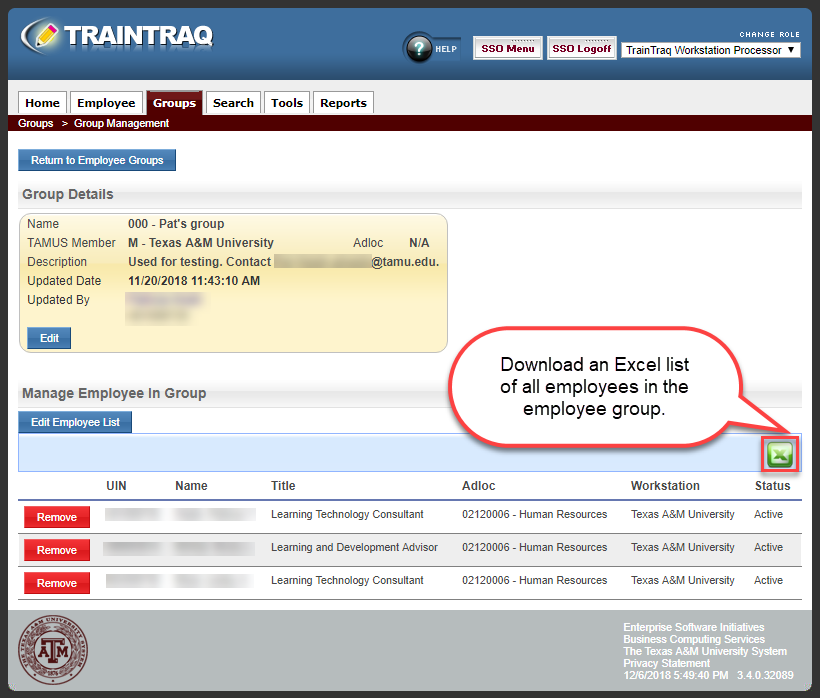
Click the Excel icon to the right of the Group Details page to download a list of employee in the selected group.

Editing an Employee Group

Once a group has been created, you must keep the group up-to-date by making necessary changes to the group name and description, as well as adding/removing employees.

To edit an employee group:

  1. Click the Groups tab.
  2. Click Employee Groups. The Employee Groups page displays.
  3. Locate the desired employee group by either scrolling/paging through the group listing or by entering information into the search section and clicking the Search button.
  4. Click the Details button to the left of the group name. The Group Details page displays.
  5. To edit the Group Name and Description fields in the Group Details section, click the Edit button. This opens the section for editing. Make the necessary updates and then click the Save button located just below the Description field.
  6. To update the employees in the group, click the Edit Employee List button and then use the Employee List pop-up window to add and/or remove employees.NOTE: You may also remove employees from the group by clicking the Remove button to the left of their name in the Manage Employees in Group section of the Group Details page.
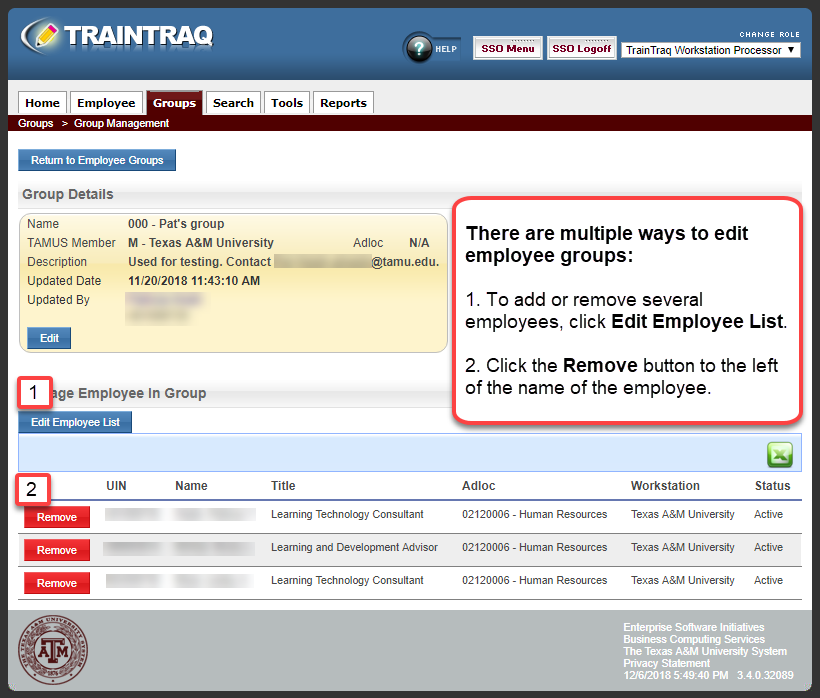
Click Edit Employee List to edit several employees at a time, or click the Remove button next to an employees name to remove them from the list.

Removing an Employee Group

If a previously created group becomes unnecessary, you can remove the group from the list by navigating to the Employee Groups page, locating the group, and then clicking the Remove button to the left of the group name. A verification pop-up window displays to verify your request to remove the group. Click the OK button to permanently remove the group from the list of employee groups.

NOTE: Before removing an employee group, you should always make sure that no assignment rules are associated with the group. If there is an active assignment rule associated with the group, contact TrainTraqHelp@tamus.edu.

Primary Sidebar

Quick Links

  • Contact Us
  • Logon to TrainTraq
  • Required Training for System Employees

More Information

Related Topics

  • The Home Tab
  • The Reports Page (for processors)
  • The Workstation/Adloc Reports Page (for processors)
  • How to Use Employee Search
  • The Waitlist Management Page
  • Managing Employee Groups (for Workstation Processors)
  • Viewing Course Assignment, Withdrawal, and Completion Reports (for a single course)
  • The External User Transcripts Page
  • The Employee PIN Info Page
  • The System Log Page
  • Running Affiliate Course Completions and Affiliates for TrainTraq Reports
  • The Difference between Standard and Excel Layouts
  • The Employee Dashboard (processor view)
  • The Employee Group Memberships Page
  • The Employee Assignments Page
  • The Employee Groups Page
  • Creating a New Employee Group
  • The Employee Group Assignments Page
  • Assigning Courses, Programs, and Tasks to an Employee Group
  • The Courses Page (for processors)
  • Performing a Course Search
  • Course Types
  • The Programs Page (for processors)
  • Performing a Program Search
  • The Tools Page
  • The Batch Completions Page
  • Uploading a Batch Completion File
  • Running Course Assignments, Completions, and Withdrawals Reports
  • Running Task Assignments, Completions, and Withdrawal Reports
  • The Employee Assignments Page (for processors)
  • Creating, Editing, and Removing Course Assignments
  • Creating, Editing, and Removing Task Assignments
  • Creating and Removing Program Assignments
  • The Employee Transcript Page (for processors)
  • Adding and Withdrawing Course Completions
  • Adding and Withdrawing Task Completions
  • Adding and Withdrawing Program Completions
  • Editing Course Tags
  • Editing and Deleting Programs
  • The Default Notifications Page
  • The Assignment Rules Page

Copyright © 2026 Texas A&M University System All rights reserved.

301 Tarrow Street, College Station, TX 77840 | MAP | Phone: (979) 458-7700 | email: support@tamus.edu
State of Texas | Texas Homeland Security | Texas Veterans Portal | Statewide Search | Risk, Fraud & Misconduct Hotline | Privacy | Web Accessibility | State Link Policy | Campus Carry

Texas A&M University System