
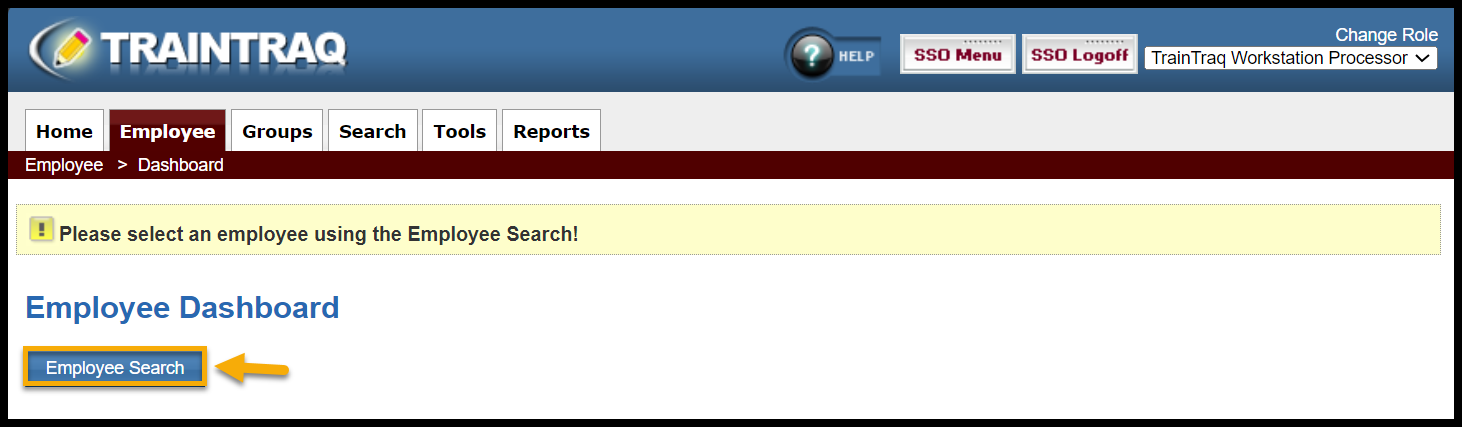
The Employee Search feature is located in the Employee Tab. It appears whenever you click on Dashboard, Assignments, Waitlist, Transcripts, or Groups from the Employee tab’s drop-down menu.
To select an employee:
- Click the Employee Search button to open the Employee Search menu.
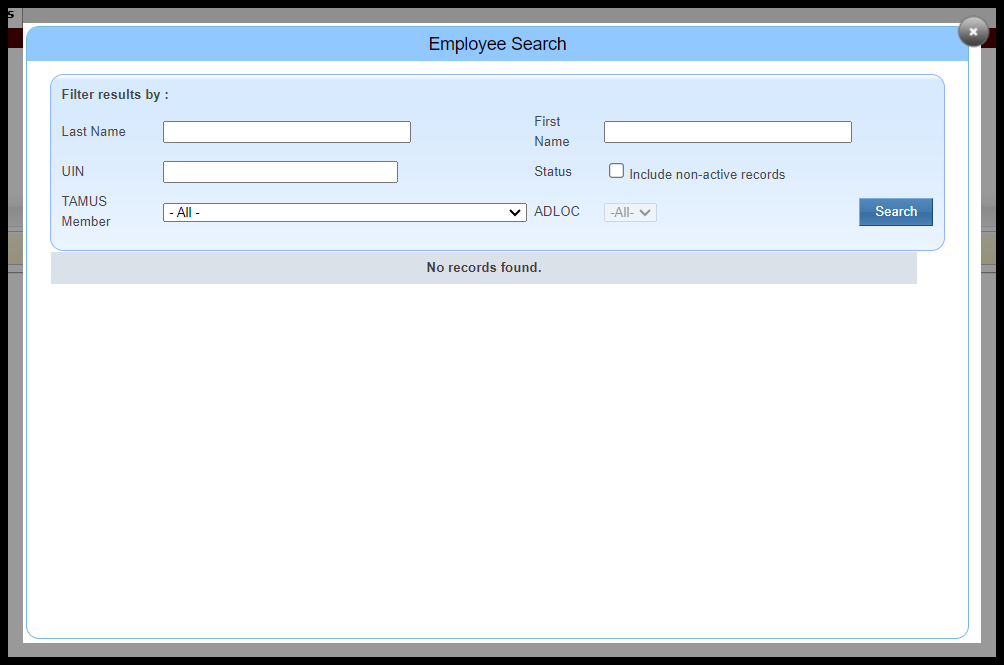
- Narrow your search by using the filters provided. You can filter by Last Name, First Name, UIN, Status, TAMUS Member, and/or ADLOC. Press Enter or select Search to display the results.
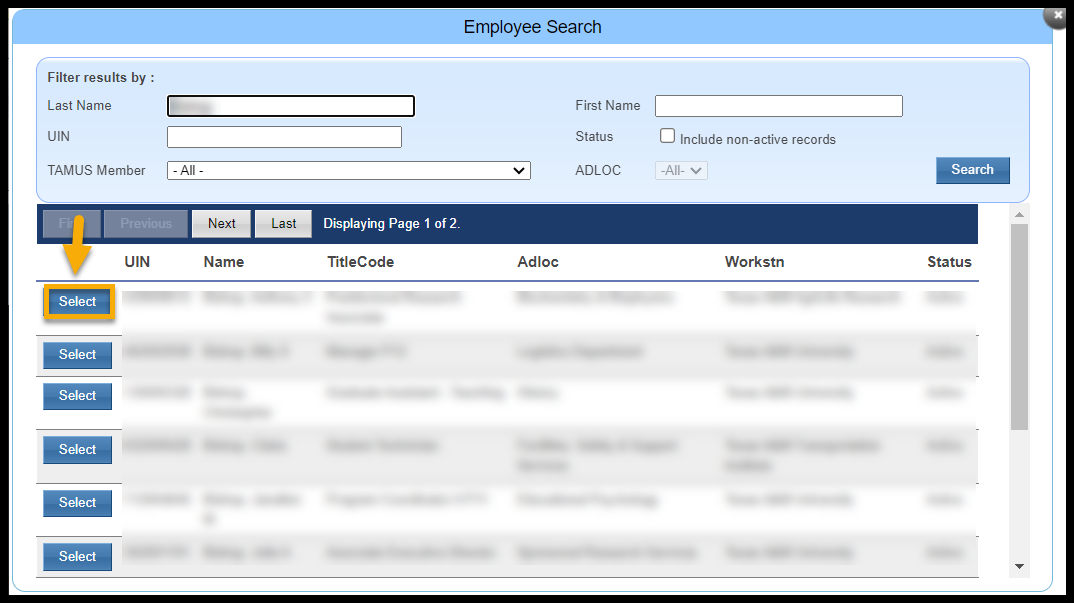
- Click Select next to the employee’s UIN.
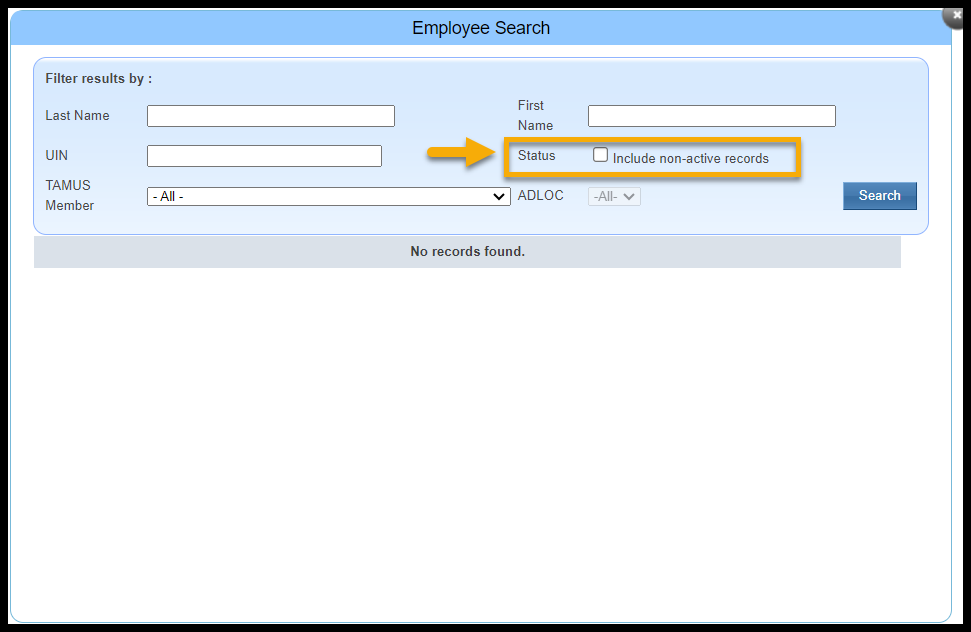
If you are not able to find someone via the Employee Search, some possible reasons include:
- The employee is no longer active. Check the “Include non-active records” checkbox to include non-active employee records in your search.
- The person is not in the employee database. For example, students who have never worked for the A&M System cannot be found via the Employee Search.
- Your TrainTraq role does not include access to the employee’s System Member Workstation.