
Running Affiliate Course Completions and Affiliates for TrainTraq Reports
The Workstation/Adloc Reports page allows you to run various affiliate reports, including:
- Affiliate Course Completions
- Affiliate Course Completions – Excel Layout
- Affiliates for TrainTraq
NOTE: Some of the reports are available in two formats: a standard version and an Excel layout. The standard version is designed for easy printing and review, while the Excel version organizes data into columns, allowing for sorting and filtering. To learn more about the differences between Standard and Excel report layouts, refer to The Difference Between Standard and Excel Layouts page.
This page covers:
- How to run and export an affiliate course completions report
- How to run and export an affiliates for TrainTraq report
NOTE: These reports only show current Affiliates.
Running an Affiliate Course Completions Report
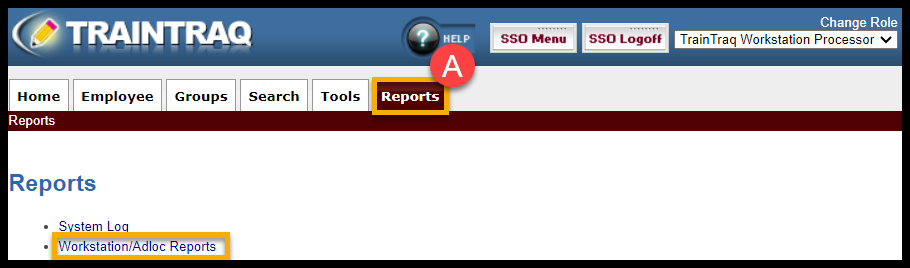
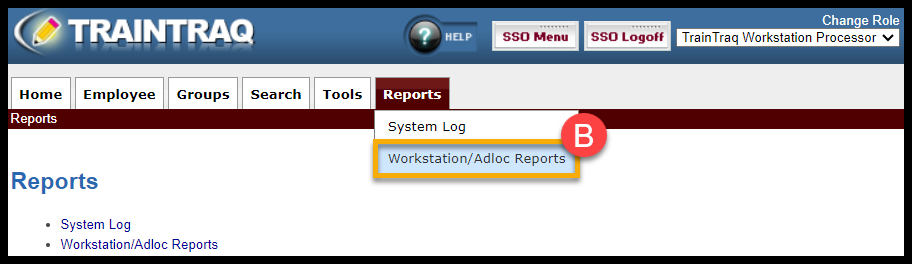
- You can either A) click on the Reports tab then select Workstation/Adloc Reports or B) hover over the Reports tab and click on Workstation/Adloc Reports.
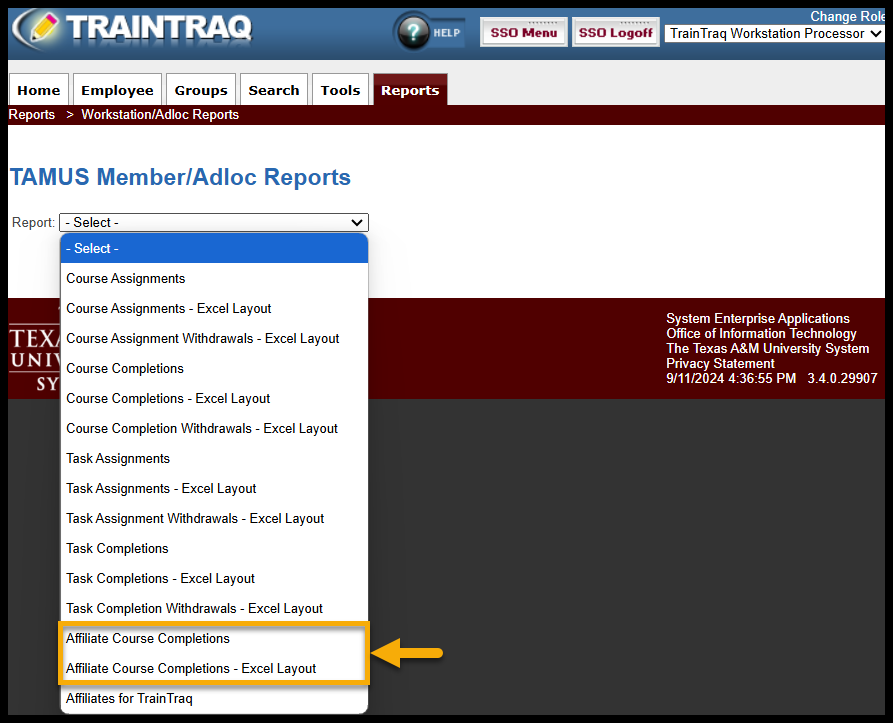
- The TAMUS Member/Adloc Reports page displays. Select the Affiliate Course Completions —OR— Affiliate Course Completions – Excel Layout option in the Report field drop-down menu.
- Select or enter the desired values in the Report Parameters section. You can filter by:
- System Code
- Completion Range Start Date
- Completion Range End Date
- System Requirement Type (You can filter by “Required of All Employees”, “Required by Job Duty”, and “Not Required.” The default sets to “All”.)
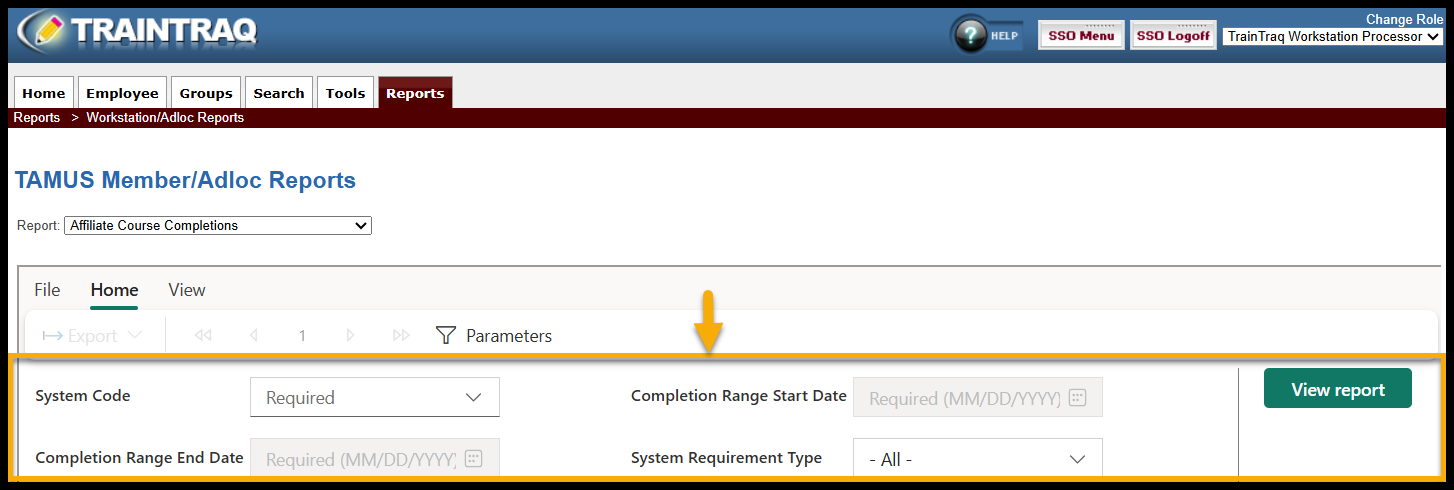
- Once all selections have been made, click the View Report button on the right side of the report parameters section. TrainTraq assembles the report based on the chosen parameters and displays the results at the bottom of the page.
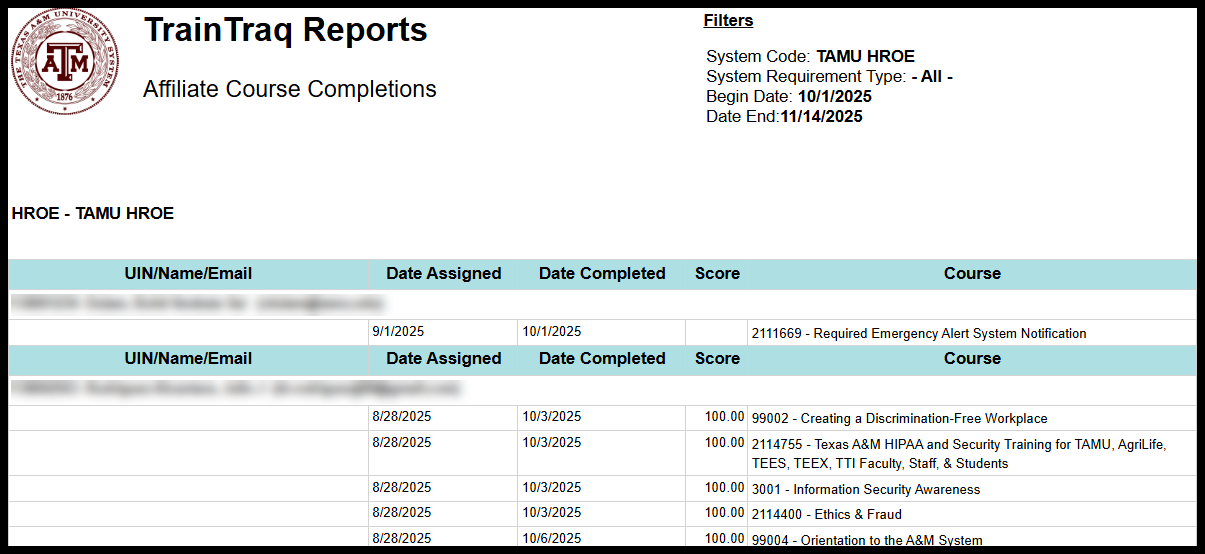
NOTE: Depending on your computer’s screen resolution, the main TrainTraq window and the Workstation/Adloc Reports page results section may have vertical and horizontal scroll bars present. To ensure you do not miss any information in the report, scroll all the way to the right and to the bottom of each report page if you are only viewing the report on-screen.
- Click the Export button for report export options. A drop-down menu will appear with various export formats including:
- Microsoft Excel (.xlsx)
- PDF (.pdf)
- Accessible PDF (.pdf)
- Comma Separated Values (.csv)
- Microsoft PowerPoint (.pptx)
- Microsoft Word (.docx)
- Web Archive (.mhtml)
- XML (.xml)

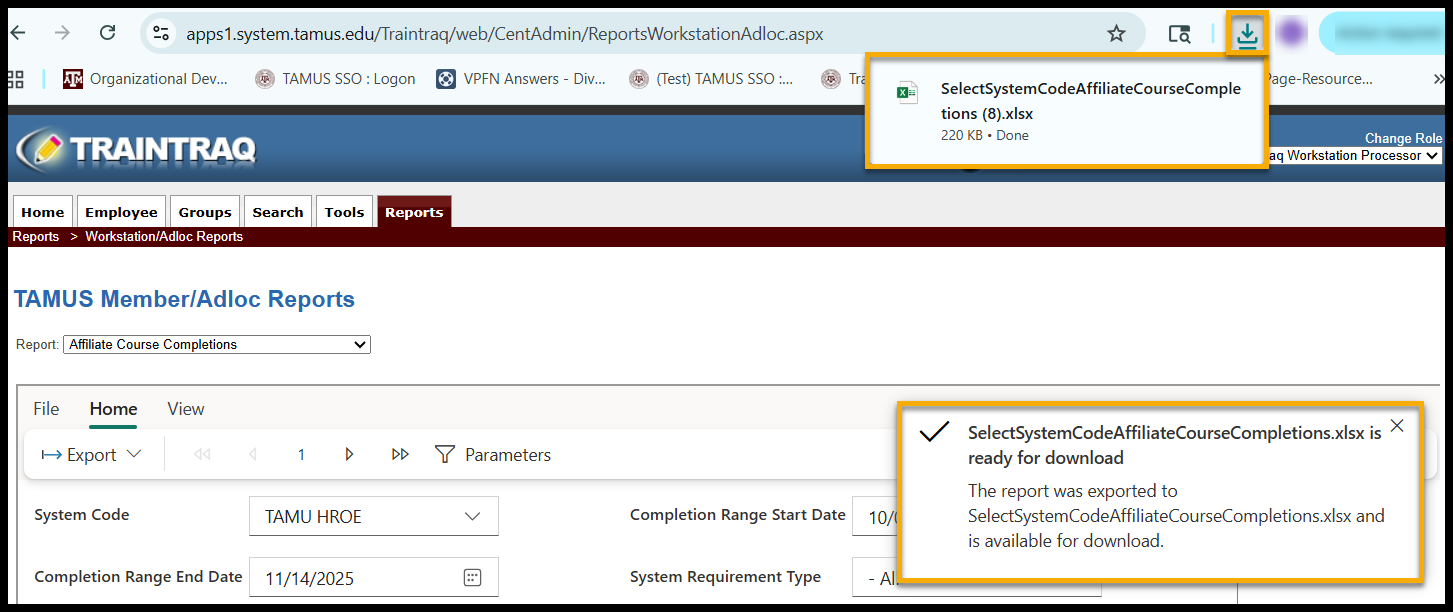
- Click on the desired export format. It will save to your Downloads folder.
- A notification will appear from the download icon in the upper right-hand corner of the page and to the right of the Adloc parameter field. Click on the notification to open the report.
Running an Affiliates for TrainTraq Report
- You can either A) click on the Reports tab then select Workstation/Adloc Reports or B) hover over the Reports tab and click on Workstation/Adloc Reports.
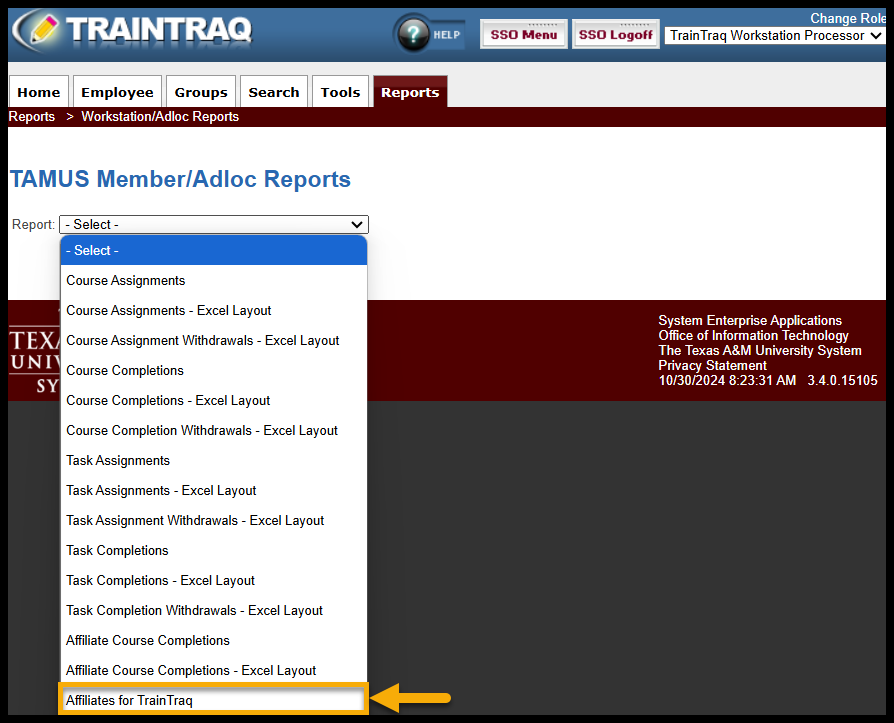
- The TAMUS Member/Adloc Reports page displays. Select the Affiliates for TrainTraq option in the Report field drop-down menu.
- Select the desired value from the System Code field in the Report Parameters section.

- Click the View Report button on the right side of the report parameters section. TrainTraq assembles the report based on the chosen parameters and displays the results at the bottom of the page.
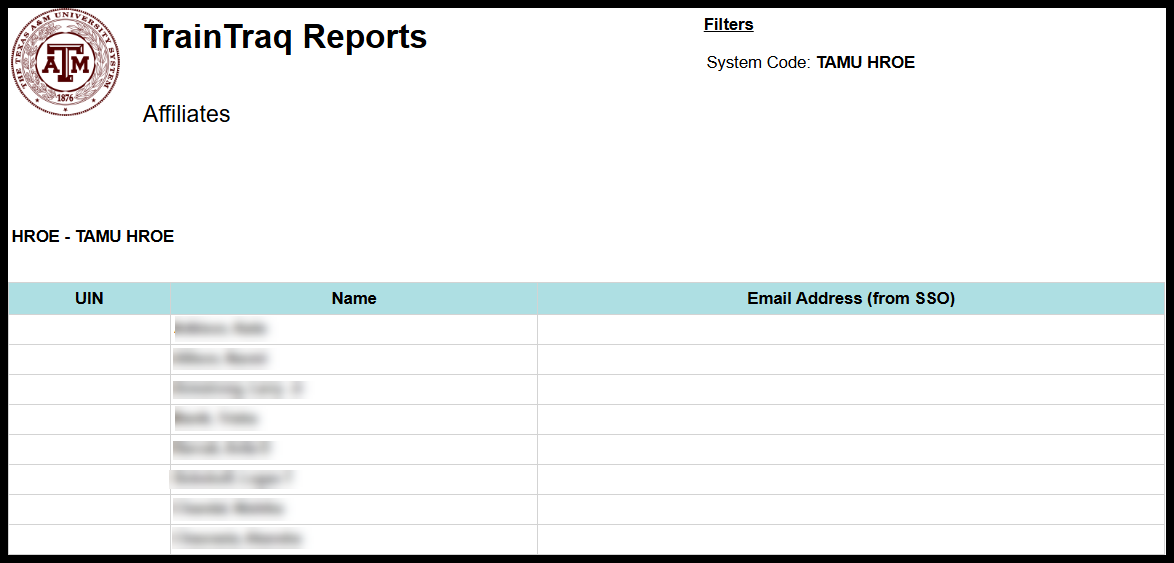
NOTE: Depending on your computer’s screen resolution, the main TrainTraq window and the Workstation/Adloc Reports page results section may have vertical and horizontal scroll bars present. To ensure you do not miss any information in the report, scroll all the way to the right and to the bottom of each report page if you are only viewing the report on-screen.
- Click the Export button for report export options. A drop-down menu will appear with various export formats including:
- Microsoft Excel (.xlsx)
- PDF (.pdf)
- Accessible PDF (.pdf)
- Comma Separated Values (.csv)
- Microsoft PowerPoint (.pptx)
- Microsoft Word (.docx)
- Web Archive (.mhtml)
- XML (.xml)

- Click on the desired export format. It will save to your Downloads folder.
- A notification will appear from the download icon in the upper right-hand corner of the page and to the right of the Adloc parameter field. Click on the notification to open the report.
