• Skip to primary navigation
  • Skip to main content
  • Skip to primary sidebar
TrainTraq Help
Logo, Texas A&M University System, Office of Information Technology
  • Home
  • Employees
  • Managers
  • Processors
  • Registrars
  • Administrators
  • FAQs
  • News
  • Office of Information Technology
    • Services
    • Contact the Office of Information Technology
    • Search OIT
Home / Employee Topics / Joining a Section Waitlist

Joining a Section Waitlist

If a section roster is full, you can add yourself to the section waitlist.

To join the waitlist for a section:

  1. Click the Find Classroom Training tab.       Find Classroom Training is the third tab at the top of the screen.

  2. Search for the section you’d like to join the waitlist for. Use the Course filters to narrow down your search.
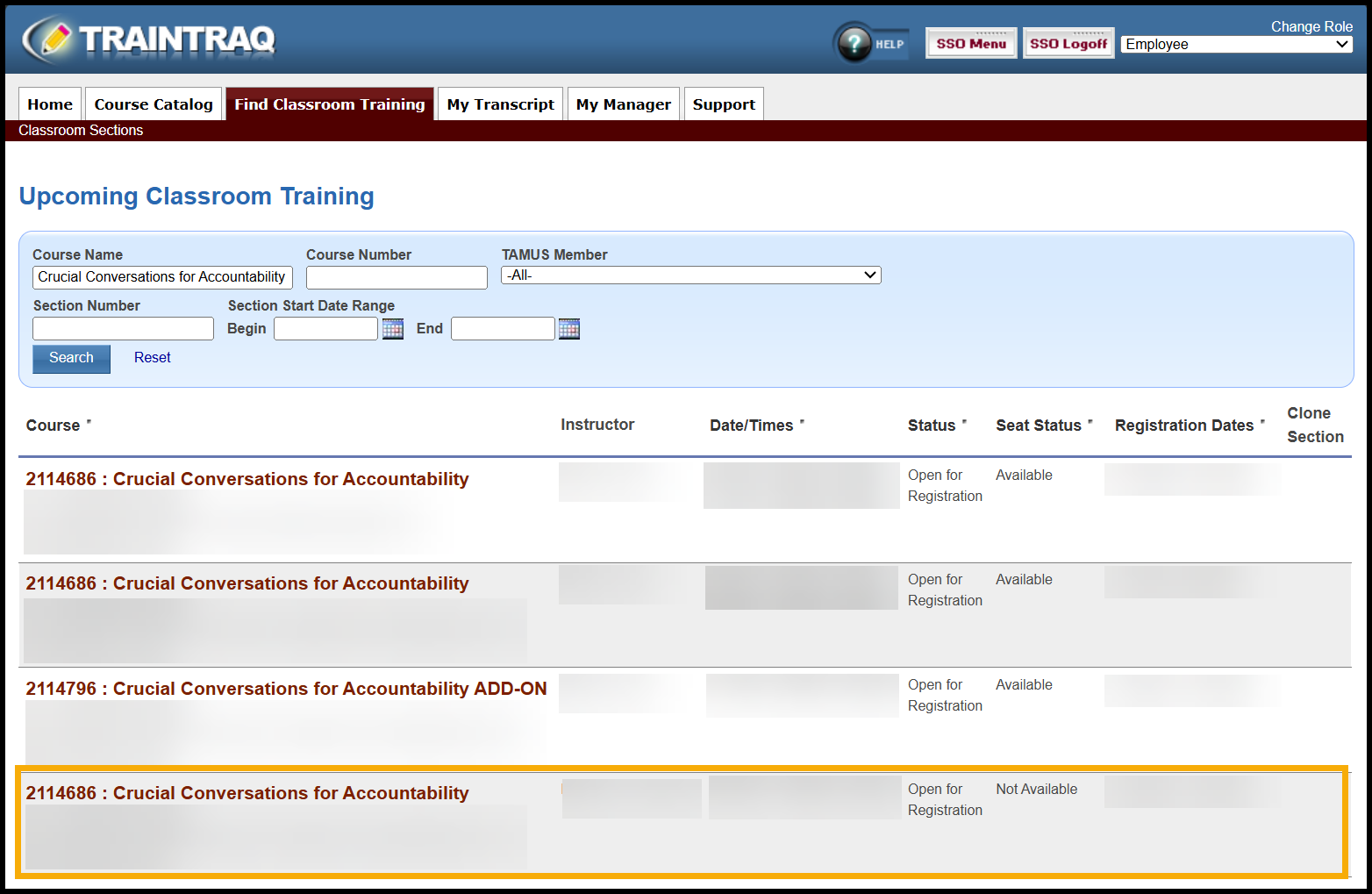
  3. Find the desired training from the course listing. Select the course name. Seat Status is labeled Not Available when there is a waitlist.
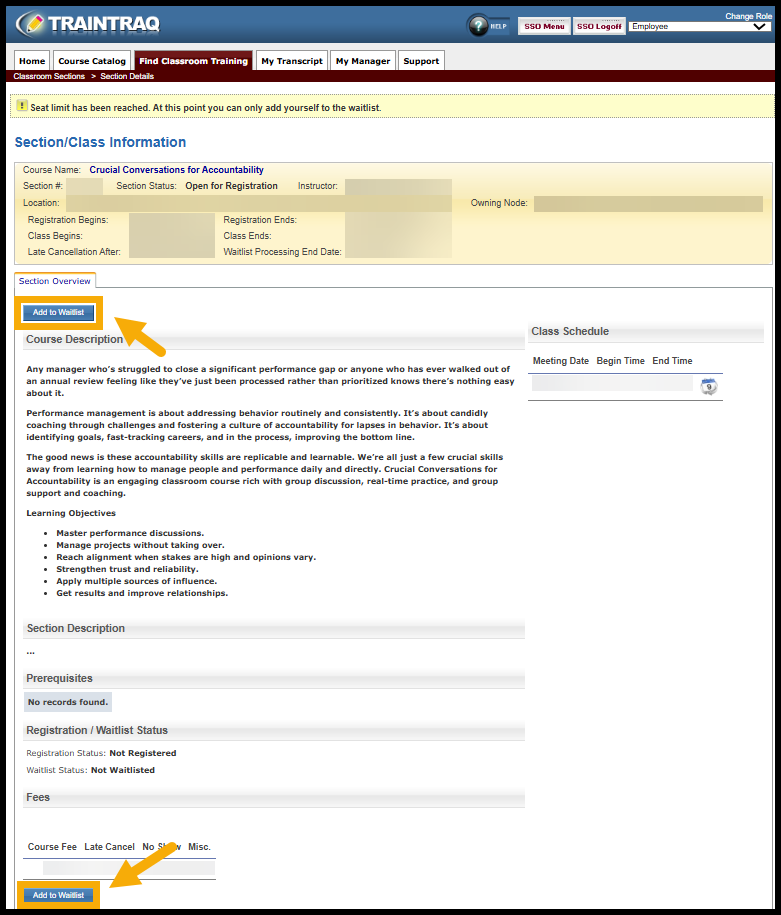
  4. Click on the Add to Waitlist button. Add to Waitlist button is found at the top and bottom of the page
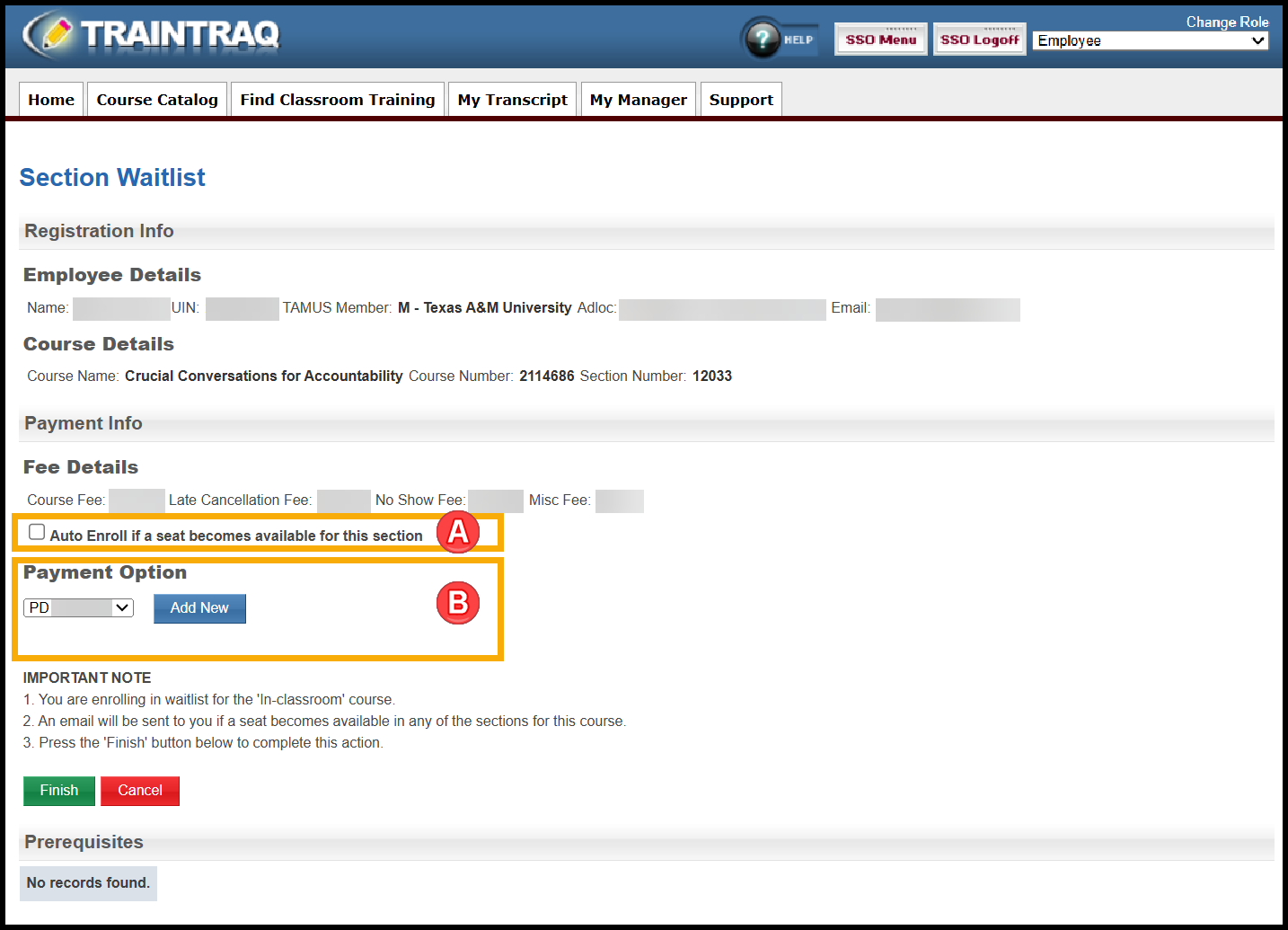
  5. The Section Waitlist page appears.
    1. If auto enroll has been enabled for this section, you can choose to be auto enrolled by checking the box. The Auto Enroll feature will automatically enroll the first person on the waitlist who has enabled Auto Enrolled and then registered for the Section. If you become registered for a section via Auto Enroll, you will receive an email with the information telling you that you’re enrolled. If you choose to not use Auto Enroll, you will receive an email when a seat becomes available in the section, but the seat may be taken by the time you go to register.
    2. If the section has fees associated with it, you will need to enter an account number or choose one you have used before. For more information, review Adding and Removing Payment Information. highlights Auto enrolled checkbox and Payment Option on the Section Waitlist page
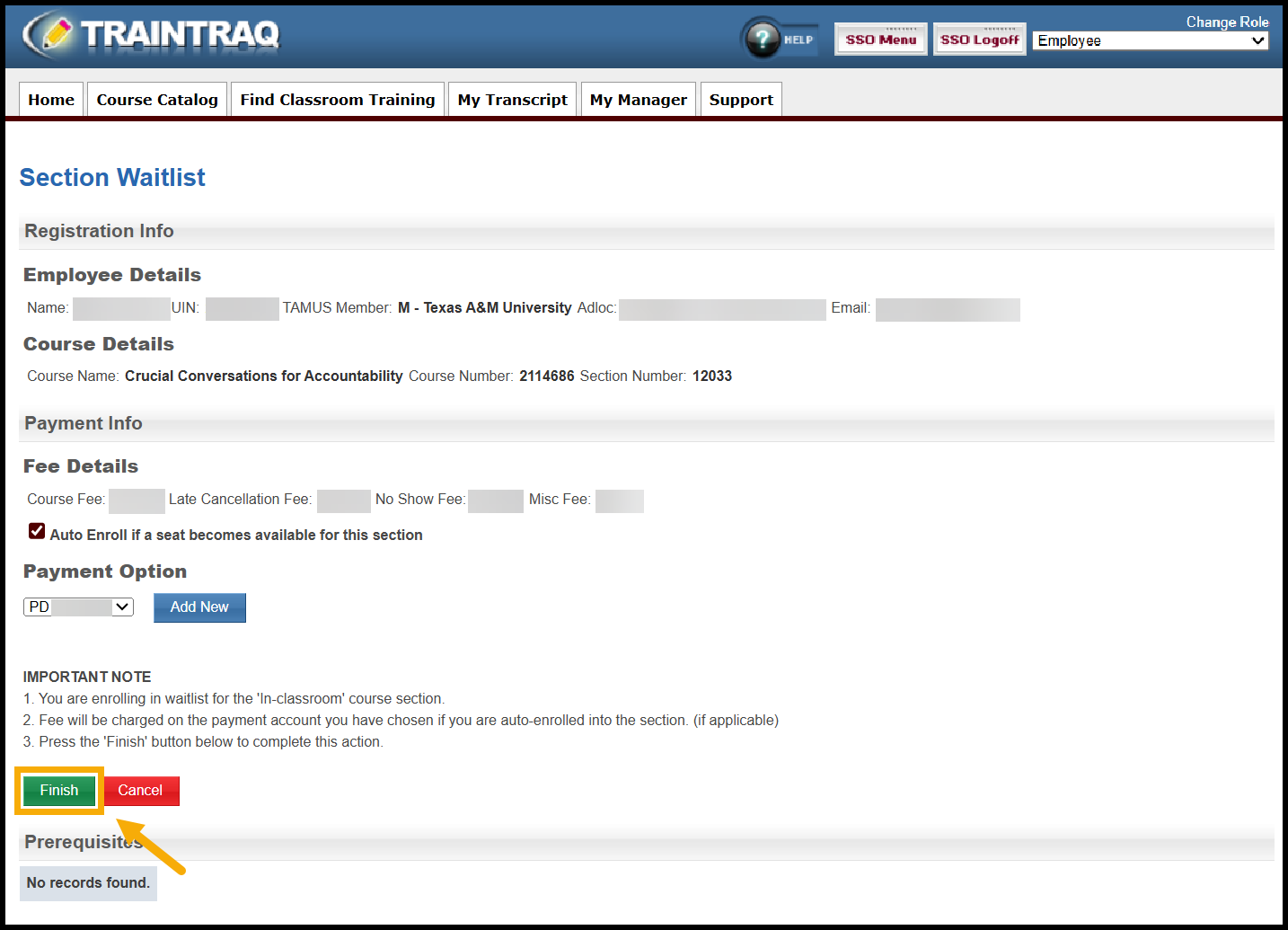
  6. When you are finished filling out the information, select the green Finish button to be added to the Section Waitlist. Finish button is found at the bottom of the page
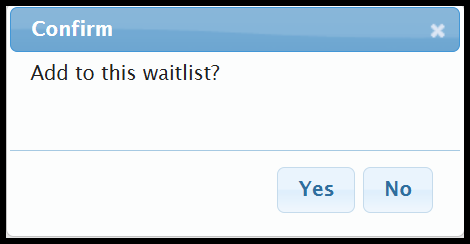
  7. Confirm that you would like to be added to the section waitlist by selecting Yes. Waitlist confirmation dialog box
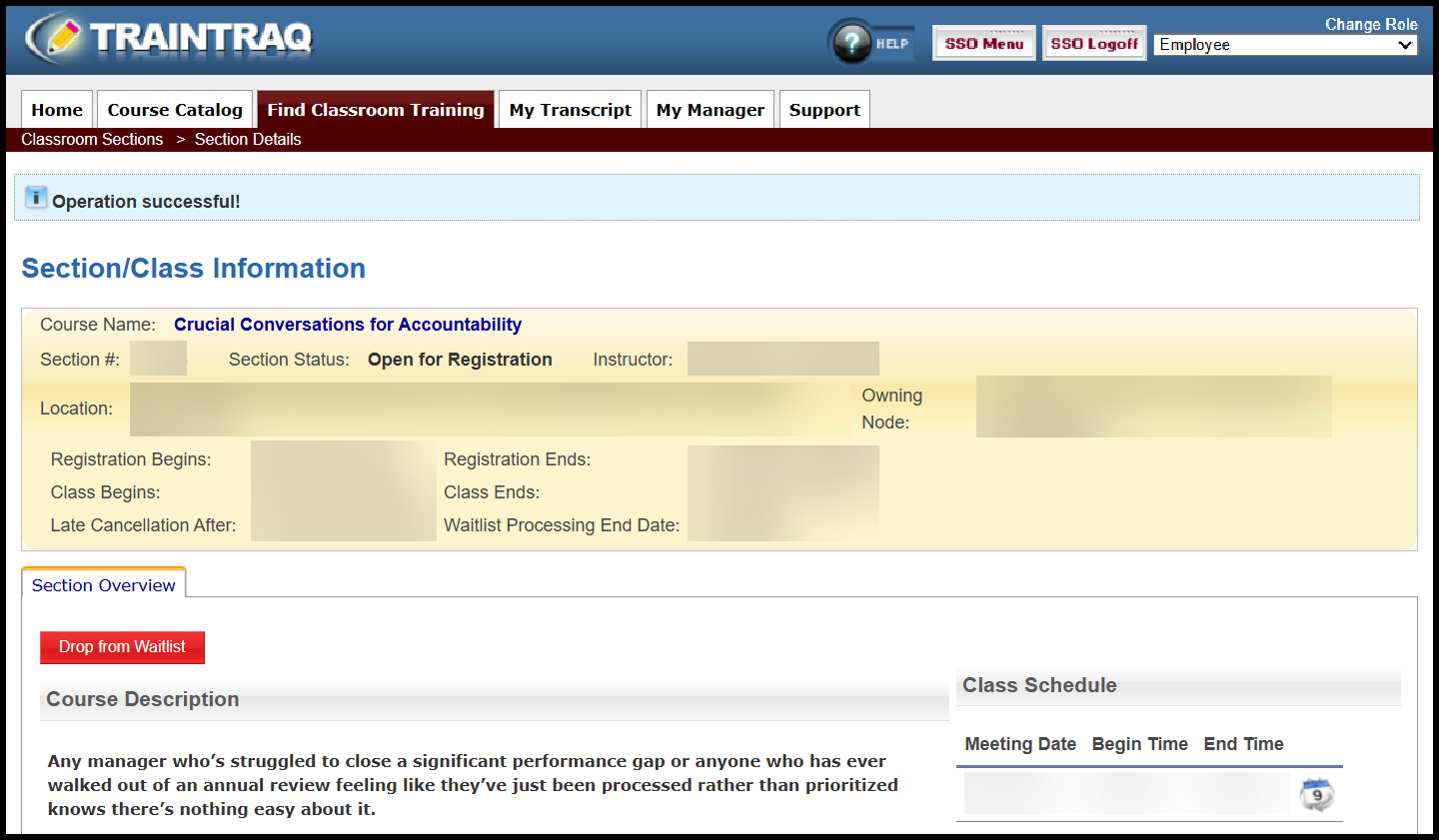
  8. A message displays at the top of the page to confirm that you were added to the section waitlist. Operation successful message appears at the top of the page.
 

Primary Sidebar

Quick Links

  • Contact Us
  • Logon to TrainTraq
  • Required Training for System Employees

Related Topics

  • The Home Page (for employees)
  • My Manager Page
  • Drop Registration for an In Classroom Training
  • Remove Yourself from the Section Waitlist
  • Joining a Course Waitlist
  • Remove Yourself from the Course Waitlist
  • Adding and Removing Payment Information
  • Searching For and Selecting a Course (for employees)
  • The Course Details Page
  • Finding and Registering for In Classroom Training
  • Accessing and Reading Your Transcript
  • Adding Task Completions
  • Getting Support (for Employees)
  • Frequently Asked Questions—Employees

Copyright © 2026 Texas A&M University System All rights reserved.

301 Tarrow Street, College Station, TX 77840 | MAP | Phone: (979) 458-7700 | email: support@tamus.edu
State of Texas | Texas Homeland Security | Texas Veterans Portal | Statewide Search | Risk, Fraud & Misconduct Hotline | Privacy | Web Accessibility | State Link Policy | Campus Carry

Texas A&M University System