
Notification rules are used to determine the text in the emails that your employees are sent when they are assigned a course. You have the option to define notification rules for every course available to your employees in TrainTraq, if desired.
Workstation notification rules define the “default” notification text that is used if notification text has NOT been defined for a particular course. The Workstation tab on the Default Notification Rules page allows you to view and edit these rules.
Understanding the Workstation Notification Rules
Training Administrators may override the global notification rules established for TrainTraq by defining workstation-level notification rules. A workstation may have one set of notification
Each workstation can define the text for the initial/reminder email notification of an assignment, as well as the email notification text for overdue assignments. Additionally, each workstation can identify:
- The main workstation contact email listed
- The frequency that email reminders are sent
- Whether or not to CC supervisors on assignment/reminder notifications and overdue notifications
To review the current notification rules established for your workstation, click the Notification Rules option in the Tools tab menu. The Workstation tab automatically displays and includes all of the rule details, email notification text, and email notification text on overdue assignments.
Editing the Workstation Notification Rules
After reviewing the current workstation notification rules, you may need to edit one or more sections. To begin editing, scroll to the bottom of the Workstation tab and click the Edit button located just below the Email Notification Text on Overdue section. This opens all three sections of the tab for editing.
To edit the workstation notification rules:
- If you have access to more than one workstation, make sure that the Workstation drop-down menu at the top of the tab displays the workstation whose notification rules you want to edit.
- Enter the appropriate contact email address into the Contact Email field.
- Select the desired frequency in the Frequency drop-down menu. Selecting Monthly will generate monthly email reminders for new/open assignments, while selecting Weekly will generate a new email each week.
- Select or deselect the CC Supervisor and CC Supervisor On Overdue checkboxes. Selecting only the CC Supervisor checkbox will copy an employee’s supervisor on all email notifications. Selecting only CC Supervisor on Overdue will copy an employee’s supervisor only on overdue email notifications. NOTE: While you do not have to select either of these checkboxes, it is recommended to select the CC Supervisor On Overdue checkbox to assist you with managing training compliance.
- Update the text displayed in the Email Notification Text section, as appropriate, using the text editor (see legend below for a description of the editing tools available). The email text will be generated in the format you specify. NOTE: It is good practice to make clear paragraph breaks in your email text, since formatting may be stripped away when delivered to employees whose email is converted to plain text.
- Update the text displayed in the Email Notification Text on Overdue section, as appropriate, using the text editor (see legend below for a description of the editing tools available). The email text will be generated in the format you specify.
- Once all changes are complete, click the Save button located at the bottom of the page. This refreshes the main Workstation tab to include the changes made.
Text Editor Options
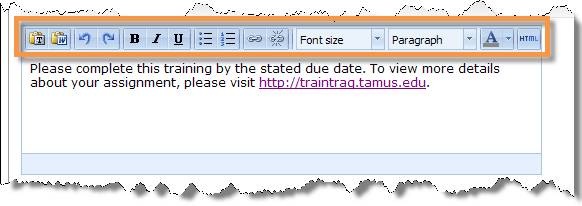
There are many formatting options available within the email notification text editor sections of the Workstation tab. The table below describes each of these options in greater detail.
 |
The Paste as Plain Text icon allows you to paste copied text from an outside source into the email text editor without keeping any of the formatting from the original source. |
 |
The Paste from Word icon allows you to paste text copied from a Microsoft® Word® document. This paste method will preserve the original formatting. |
 |
The Undo and Redo icons allow you to undo or redo previous actions that you made. |
 |
The Bold, Italic, and Underline icons allow you to apply formatting to your text. These work in the same manner as other word processing programs. |
 |
The Unordered List and Ordered List icons allow you to format list text with either bullets or numbers. |
 |
The Insert/Edit Link icon allows you to add a hyperlink to selected text or edit a previously established hyperlink. To enable this icon, you must first highlight the targeted text. When the icon is clicked, the Insert/edit link pop-up window displays. This window allows you to identify the Link URL, Target, and Title. |
 |
The Unlink icon allows you to remove a previously established hyperlink. To enable this icon, you must first highlight the text whose link you wish to remove and then click the Unlink icon. |
 |
The Font size drop-down menu allows you to specify the size of the font displayed in your notification emails. |
 |
The Format drop-down menu allows you to specify the style of different portions of your email notification text by selecting from a set of predetermined text styles. |
 |
The Select Text Color icon allows you to specify the font color for selected text. |
 |
The Edit HTML Source icon allows you to directly edit the HTML code of the email notification text. To ensure the email notification text displays as intended, do not use this tool unless you have the necessary knowledge to appropriately edit the HTML source code. |