
This job aid outlines the activities for an Employee to manage bank accounts and their payment elections, or how they receive their paycheck outside of Workday
Managing Your Bank Accounts and Payment Elections
Last updated on September 20, 2025
Page Loading...Checking SSO..

Prerequisites
You must have already completed onboarding. If you are trying to add a bank account or make payment elections during the onboarding process use the Onboarding job aid.
Important Information
- Payment Elections is the term used by Workday to refer to your preferences for receiving earnings (Payroll) and reimbursement (Expense).
- Bank accounts you would like to have available as options for direct deposit must first be added in the Accounts section of your payment elections in Workday.
- You can distribute funds across multiple bank accounts (up to five). You may add up to five accounts for the Payroll type, but only one account for Expenses.
Getting Started
Navigate to Payment Elections
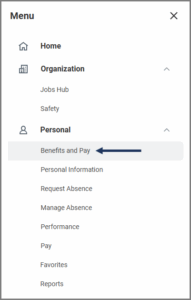
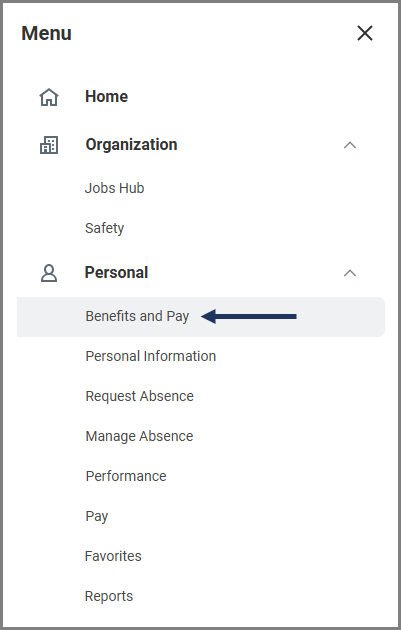
- From the Workday Home Page, select Menu > Benefits and Pay.
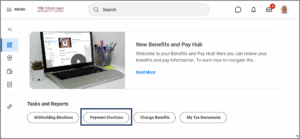
- Select Payment Elections.

Manage Bank Accounts
Follow the appropriate section to add or edit a bank account. If you need to use multiple bank accounts, be sure all accounts are listed in the Accounts section of the page.
Add a Bank Account
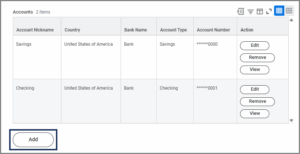
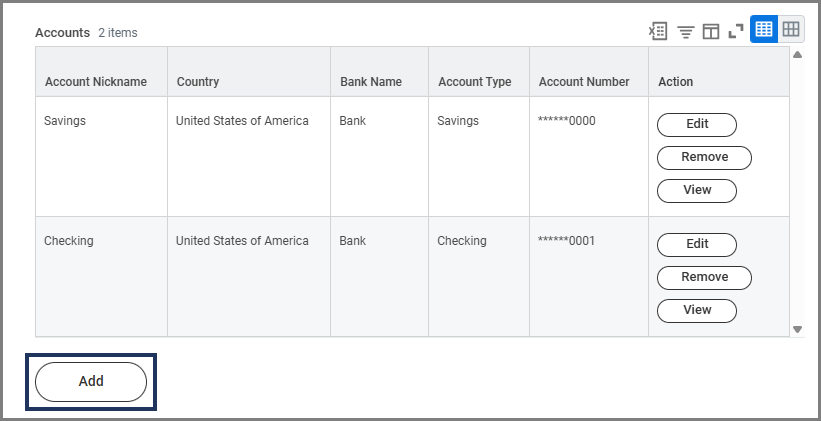
- Under Accounts, select Add.
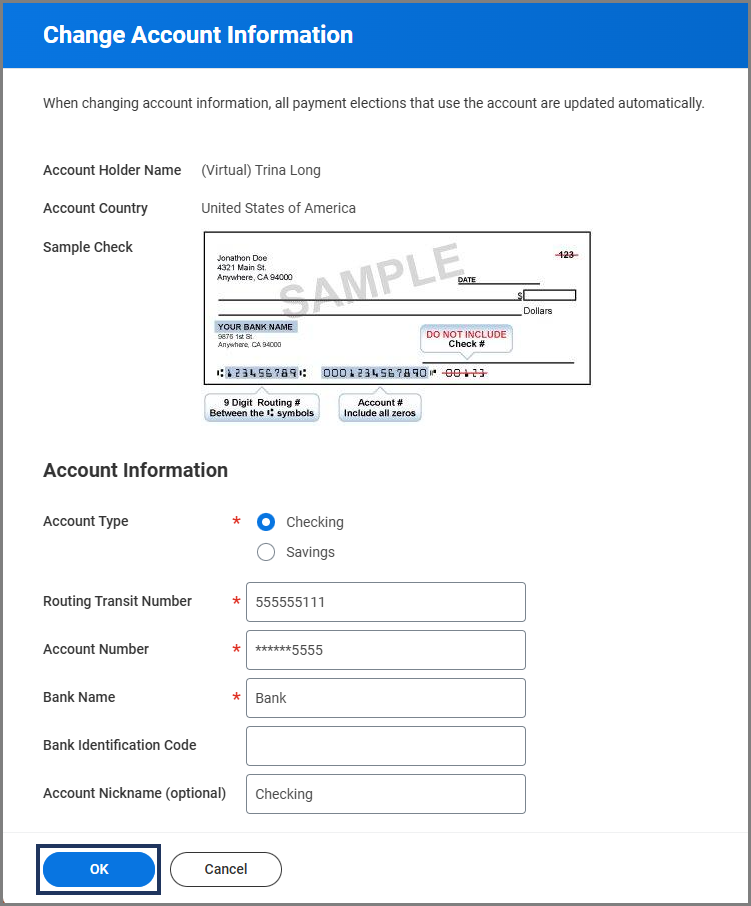
- In the Account Information section, enter the following information:
- Account Type. Select Checking or Savings.
- Routing Transit Number. This is a nine digit number found on a check, deposit slip, or in your online banking information.
- Account Number. This is located on a check, deposit slip, or in your online banking information.
- Bank Name. This is the name of your bank (e.g., Bank of America).
- Account Nickname. Workday Services recommends you use this to distinguish between accounts.
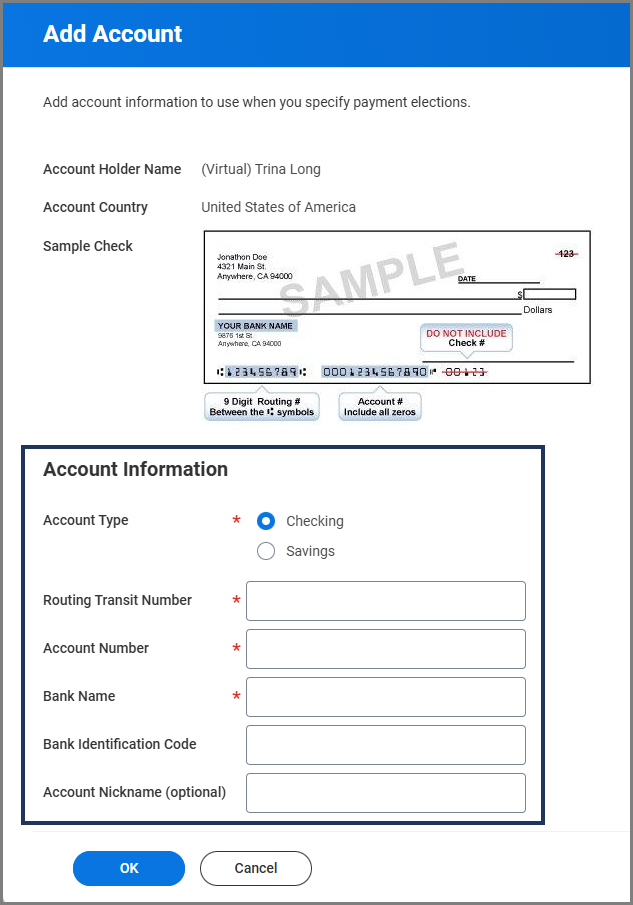
Note: The Bank Identification Code field will not be used at this time.
- Select OK. The new bank account now appears in the Accounts section.
Edit Existing Accounts
- Under Accounts, select the Edit button for the account you want to edit.
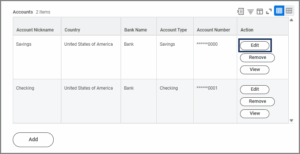

Note: You can also select Remove to delete an account.
- For security purposes, the full account number must be entered before editing the account.Important: There are five attempts allowed. If all attempts are used, contact your Payroll Office for assistance.
- Make changes to the Account information, as needed refer to the Add a Bank Account section for more detail on each field.
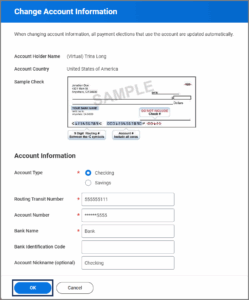
- Select OK.
Manage Payment Elections
You may add up to five accounts for the Payroll type, but only one account for Expenses.
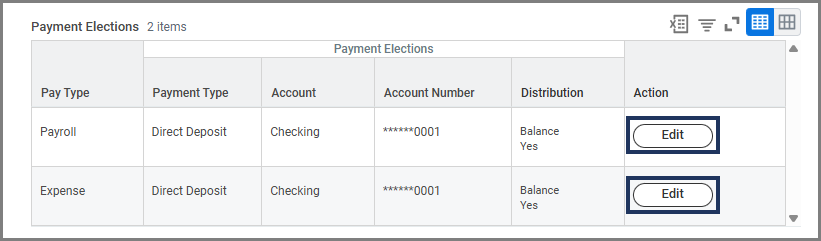
- In the Payment Elections section, select Edit for either Payroll or Expense.
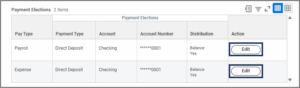
- For security purposes, the full account number used for the payment election must be entered before editing the election.Important: There are five attempts allowed. If all attempts are used, contact your Payroll Office for assistance.
- On the next screen, edit the current Payment Election or add an additional election by selecting the Plus Sign (+) icon. Fill out the following fields as needed:
- Country. This will auto-populator to United States of America.
- Currency. This will auto-populate to USD.
- Payment Type. Select Direct Deposit or Check.
- Account. Select an account.
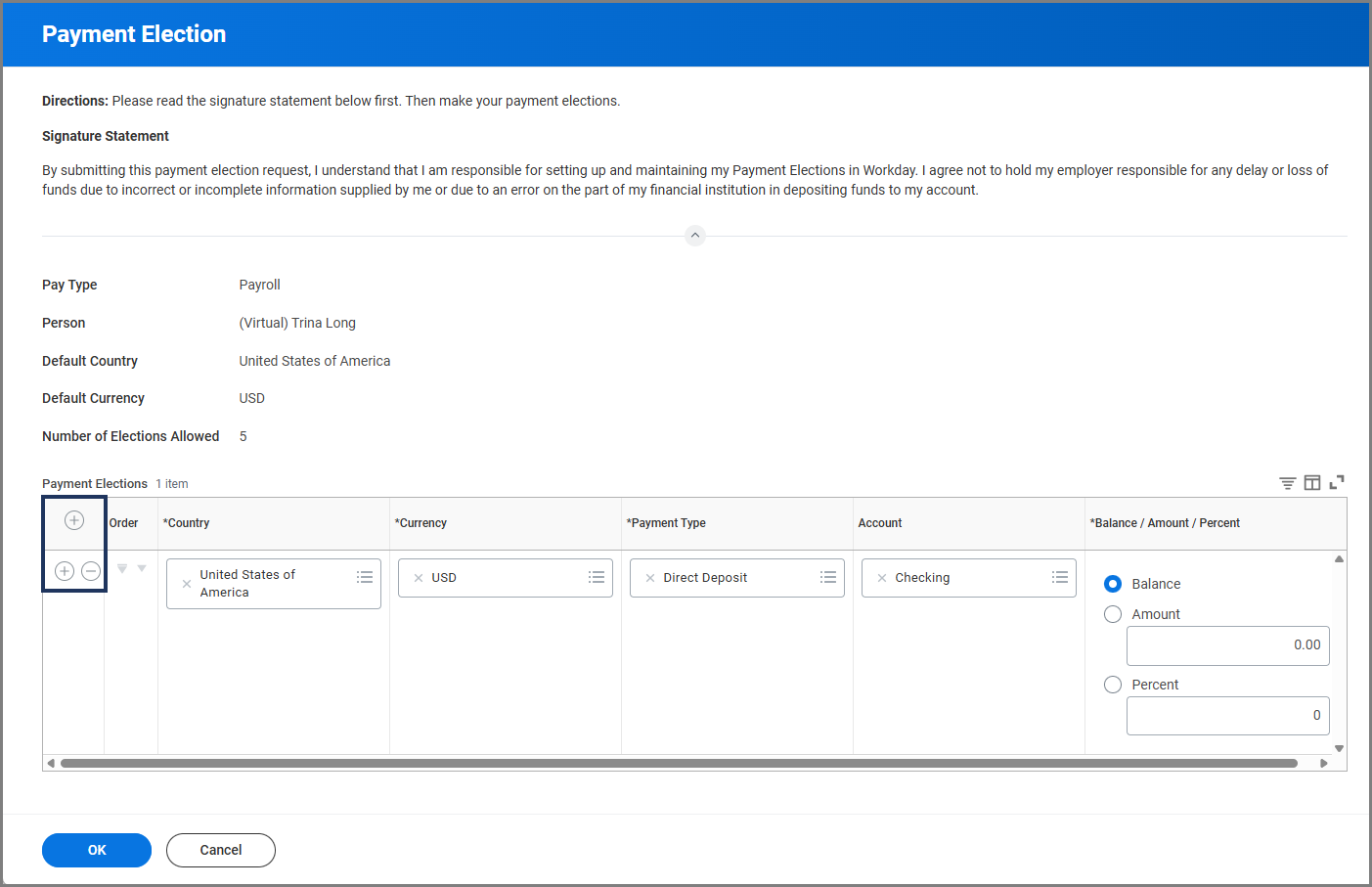
Note: You can select Minus Sign (−) icon to remove a payment election.
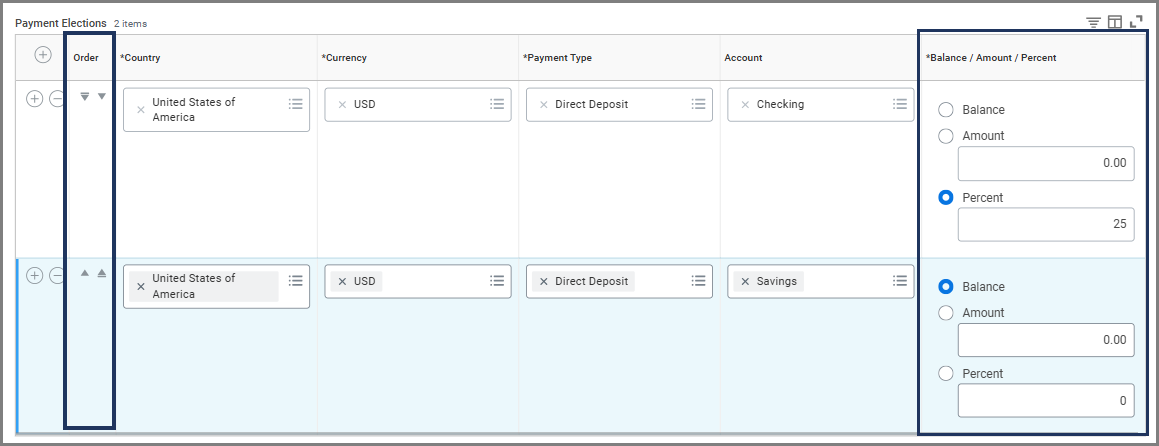
- In the Balance / Amount / Percent section, select one of the following options.
- Balance. Only one account can have a Balance distribution. Whatever amount or percent of funds not already assigned to another account will be deposited into this account.
- Amount. You can select an exact amount to be deposited into an account (e.g., $2,000).
- Percent. You can select a percentage of your payment to be deposited into an account (e.g., 25%).Important: If Balance is selected, it must be placed last on the list. When using multiple accounts use the arrows in the Order column to arrange them. Example: 25% may be deposited into the first account, and the remaining balance deposited into the second account.
- Select OK.
This completes the overview of Managing Your Bank Accounts and Payment Elections.