
This job aid outlines the activities for an HR Partner, HR Contact, or a Manager to move a current Employee who is pending termination into a temporary position created solely for the purpose of training their replacement.
Job Overlap Period
Last updated on September 21, 2026
Page Loading...
Checking SSO...
Prerequisites
The terminating Employee must submit their resignation early enough to train their replacement. The hiring department should have approval in advance for the terminating Employee and a replacement Employee to perform the same job duties during the Job Overlap period.
Important Information
- This process can only be used for Faculty or Staff positions.
- The temporary position created must be identical to the permanent existing position and within the same Supervisory Organization.
- The replacement Employee must begin work prior to the terminating Employee’s last day. The Job Overlap period should last from two to twelve weeks.
Getting Started
This process involves a series of business processes. The first step is creating the position that will be during the job overlap period.
Create Position
You will create a new temporary position that is identical to the position of the terminating Employee now. You will need to gather all of the relevant details from the Position Restrictions of the Worker who will terminate.
You will then initiate the Create Position business process and enter the details.
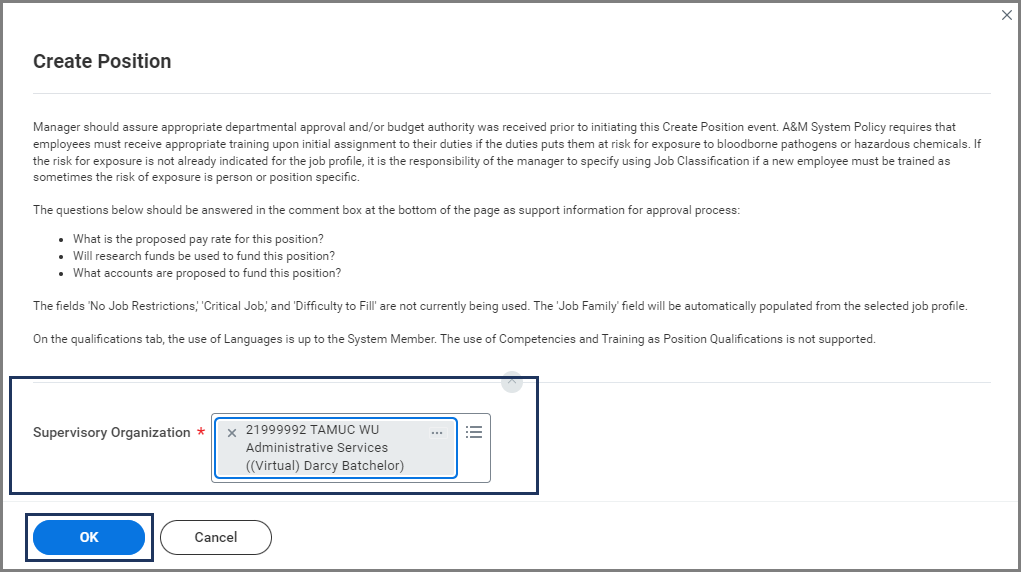
- Enter the same Supervisory Organization within which the terminating Employee’s position currently sits.
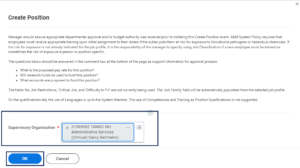
- Select OK.
- For Position Request Reason, select Create Position > Create Position > Job Overlap Period.
- Enter the Hiring Restrictions (including the Job Profile) that match what exists for the current position.
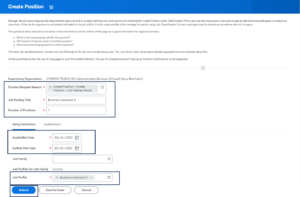
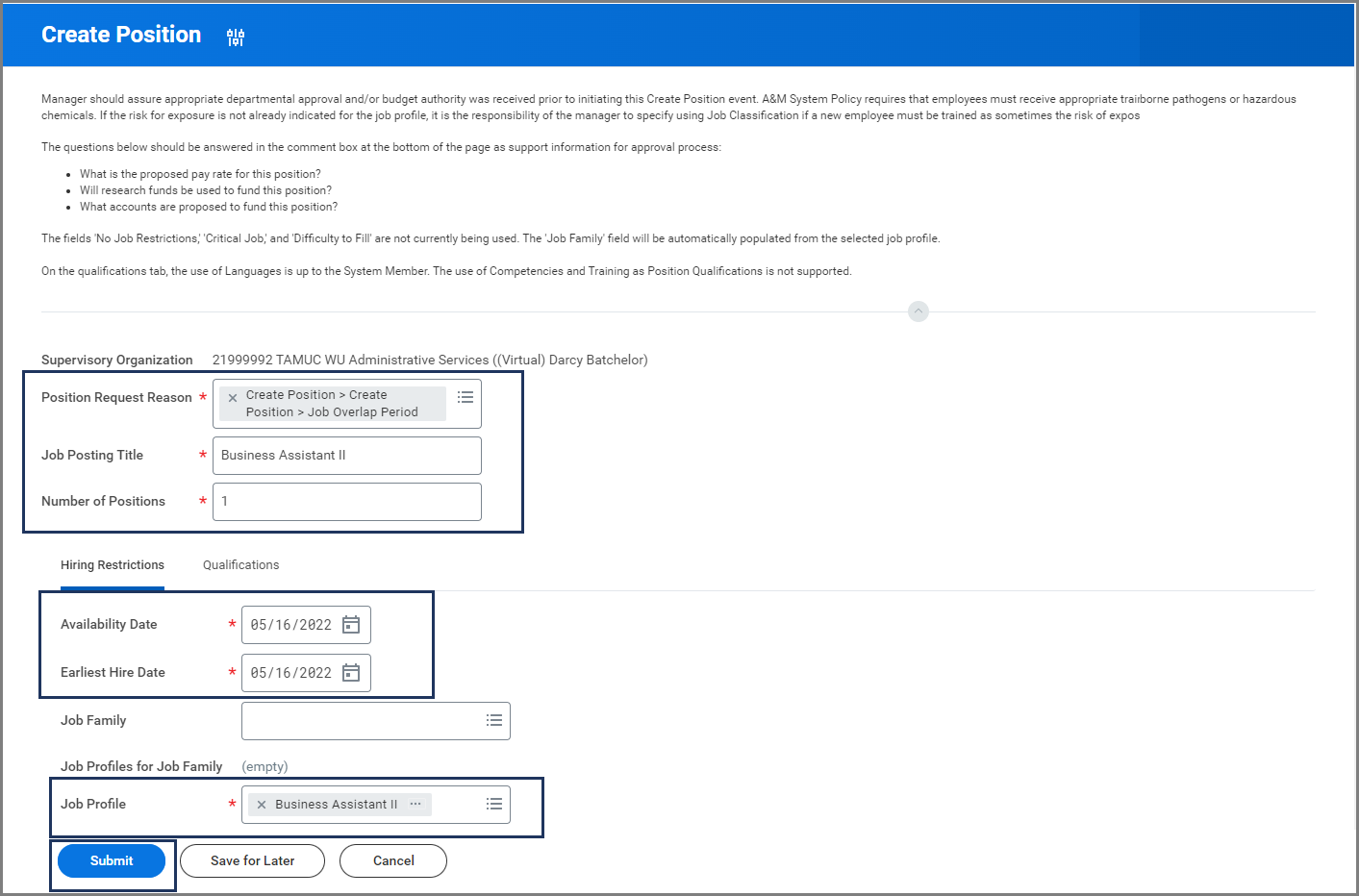
Note: Workday Services recommends that the Availability Date entered be today’s date. It is also recommended that the date entered for Earliest Hire Date match the Availability Date.
- Likewise, enter the Qualifications for the position that match the current position for the terminating Employee.
- Select Submit.
Navigate to the Up Next tab for the next steps in the process.
Up Next
Request Default Compensation for Position Event
The initiator will receive a task to Request Default Compensation for Position Event.
- Select the Make Changes button.
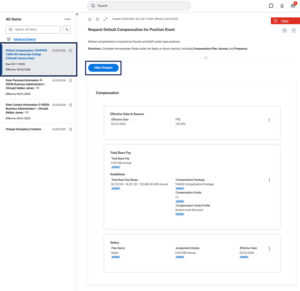 Note: You will receive an error message because there is no salary amount entered. You can ignore the error and move to the following steps.
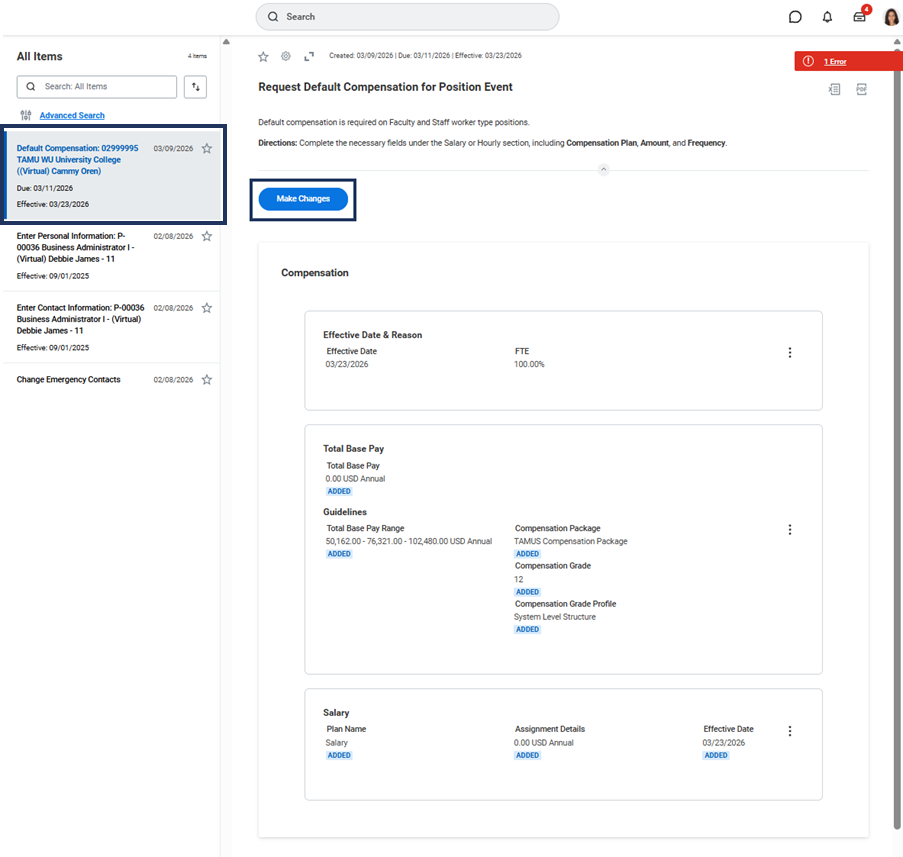
- The Effective Date & Reason section is not editable.
- The Guidelines section will auto-populate. No changes should be made.
- To make changes to the Salary or Hourly section, select the Related Actions icon and then Edit.
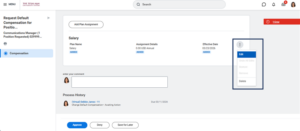
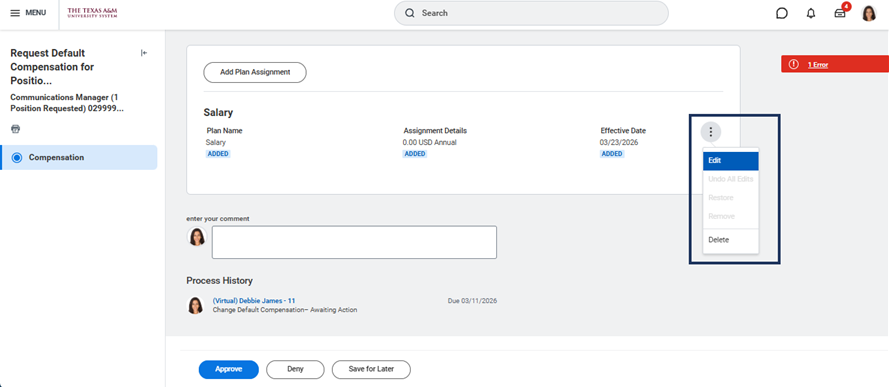
- Complete the following:
- Amount. Enter the monthly salary or hourly pay rate
- Frequency.
- Salary positions – must change Frequency to Monthly,
- Hourly positions – will auto-populate with Hourly
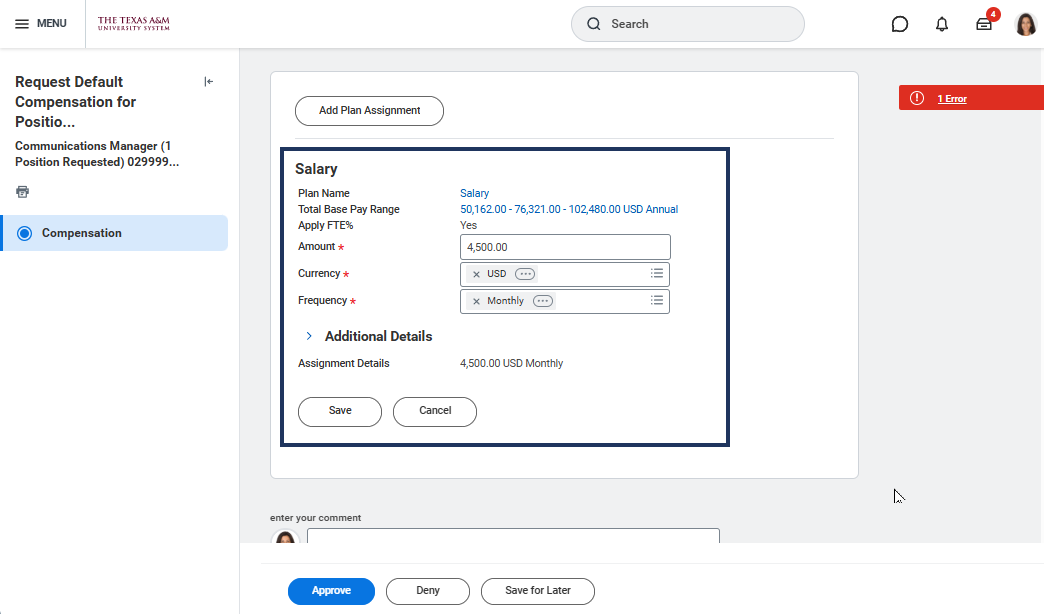
- Select Save.
- Ensure the Total Base Pay section near the top of the page is correct.
- Select Approve.
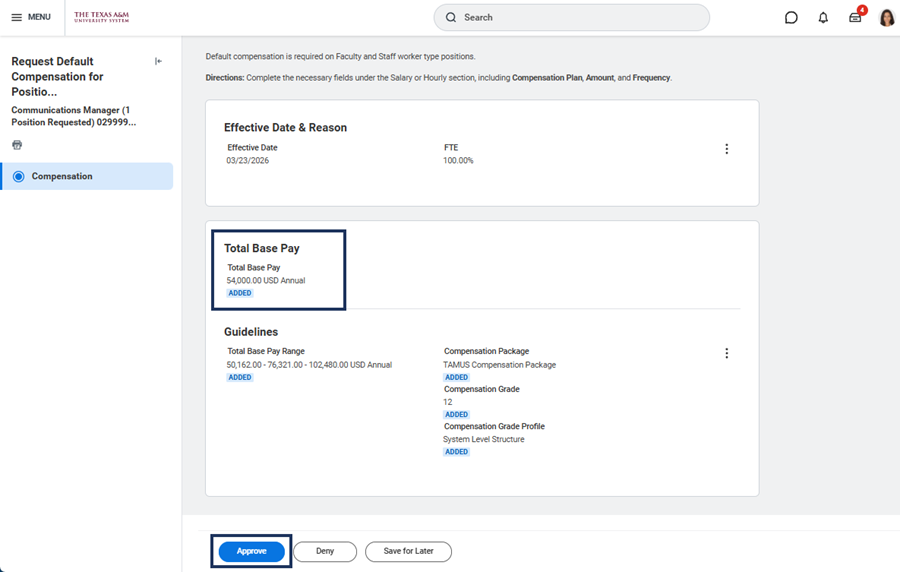
Once approved, the Request Default Compensation for Position Event inbox item will be archived.
Up Next
- The initiator will need to submit the Change Organizations sub step. No changes should be needed.
- The HR Partner will review and approve the temporary position.
Note: Assign Costing Allocations is not a sub step of this modified process for creating this position. Costing allocations will be entered when you transfer the terminating Employee.
Start Job Change for Terminating Employee
You will now initiate the Start Job Change business process for the terminating Employee to move them into the temporary position you created for the Job Overlap period.
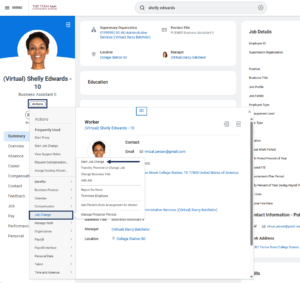
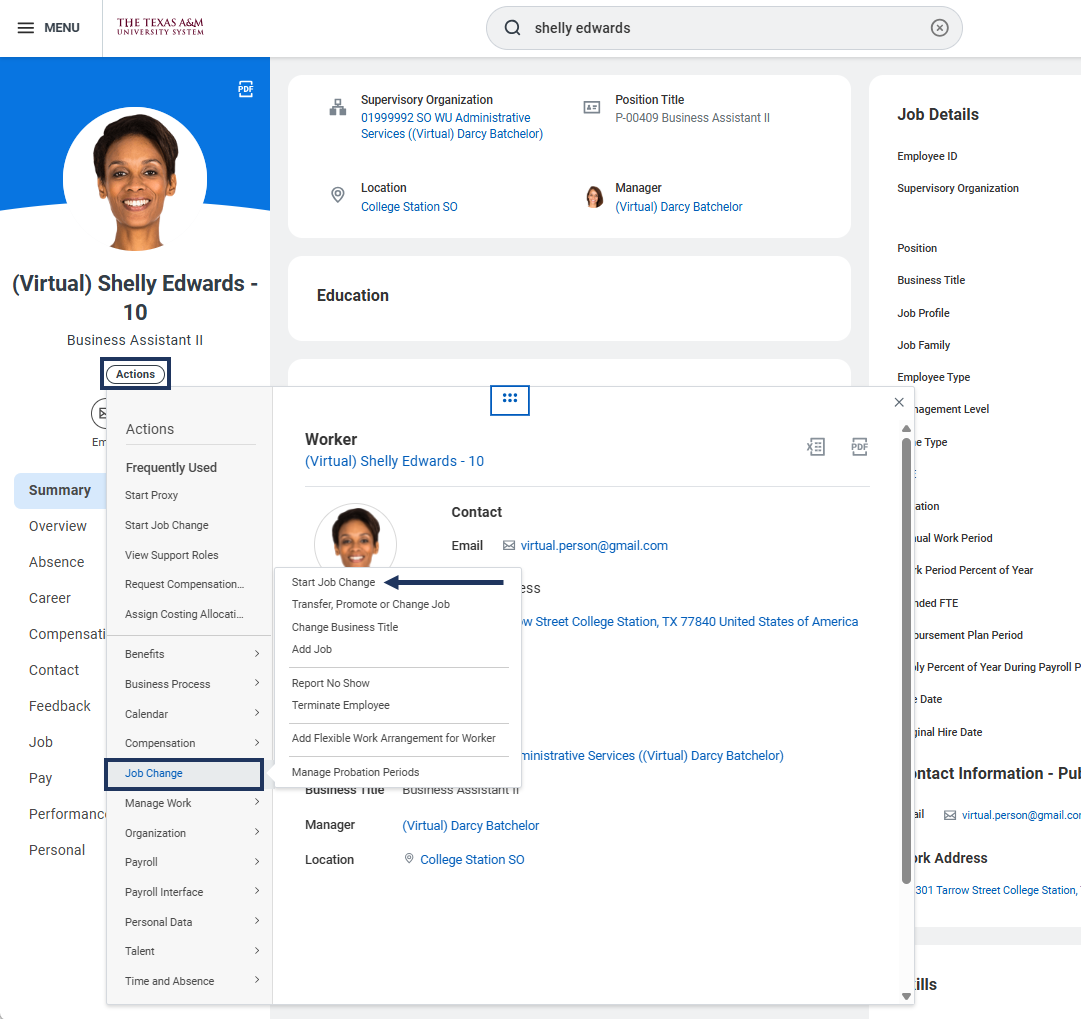
- Navigate to the terminating Employee’s Worker Profile.
- Select Actions > Job Change > Start Job Change.
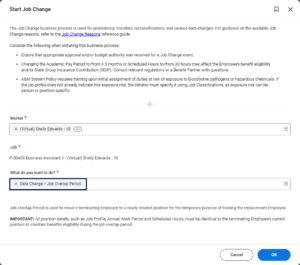
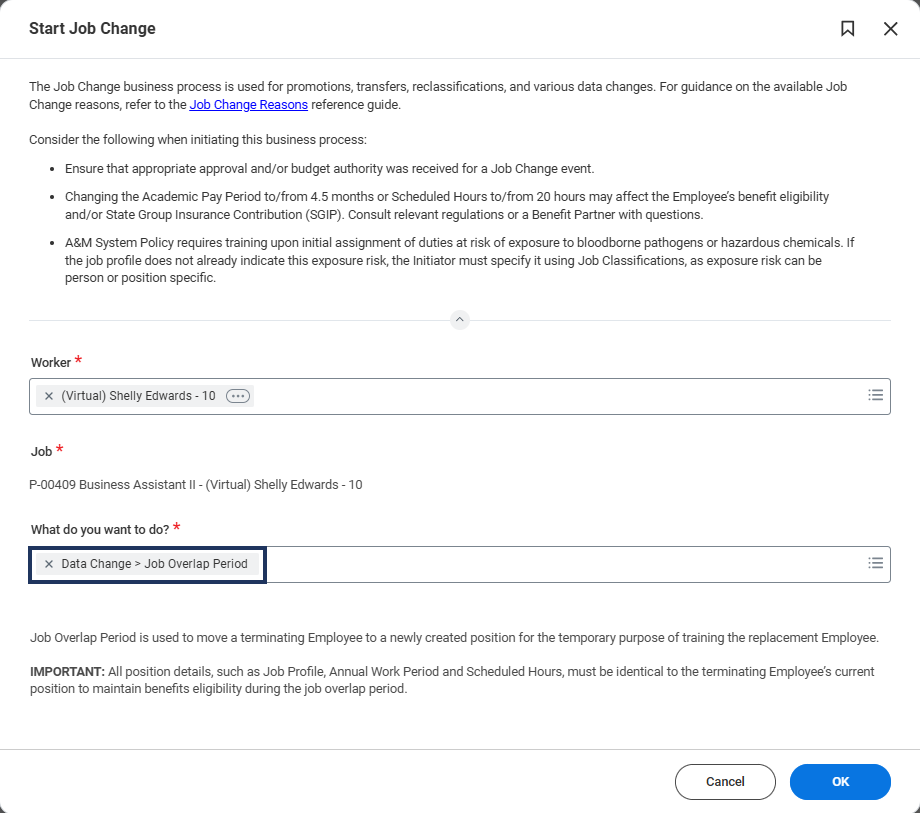
- In the What do you want to do? field, select Data Change > Job Overlap Period and select OK.
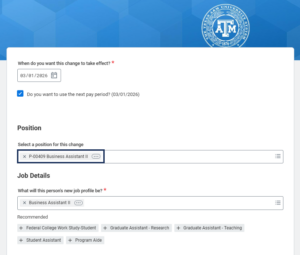
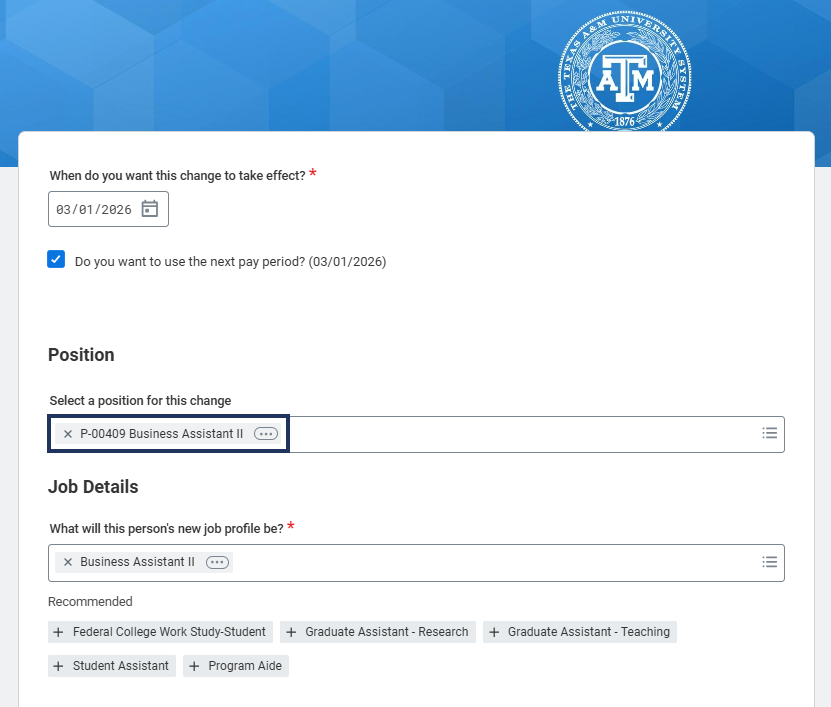
- In the Select a position for this change field, select the position you created for the temporary move.
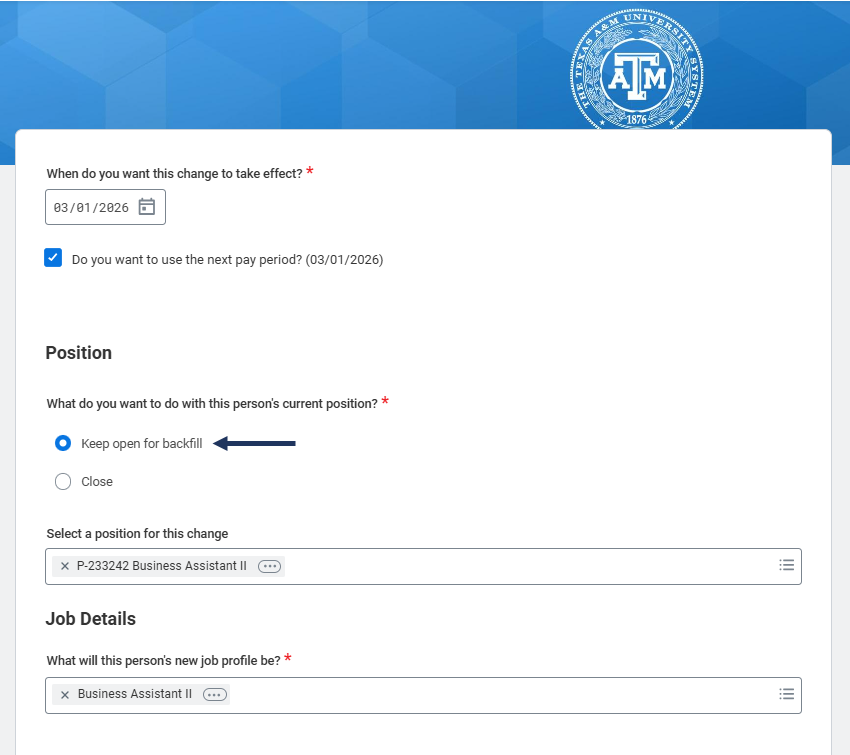
- After selecting a the new position, the question What do you want to do with this person’s current position? Select Keep open for backfill.
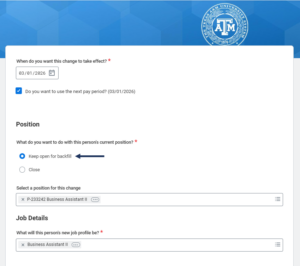 IMPORTANT: Do not close the current position. You will recruit to fill the current position. You should not need to make any other changes on this page because you created an identical position.
 - Select Next.
- You will see a pop-up stating We need more information to complete this change. You will also see alerts about when to use Job Overlap and, if applicable, a reminder not to remove any assigned Merit Plan.
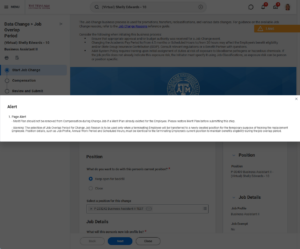
- Select Next to proceed to the Compensation page.
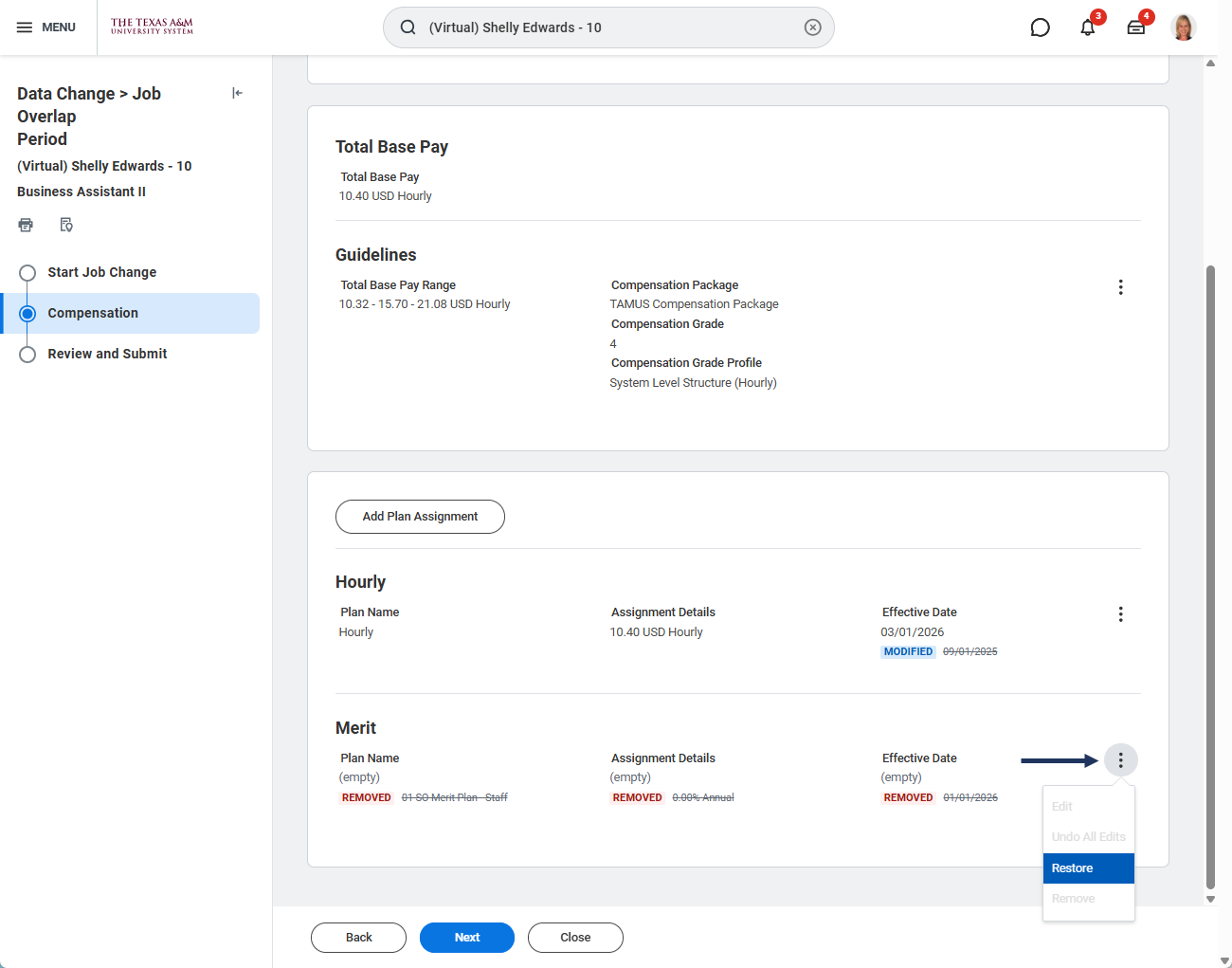
- If the Employee has a Merit plan that was removed, select the Related Actions menu and select Restore to restore the Merit Plan.
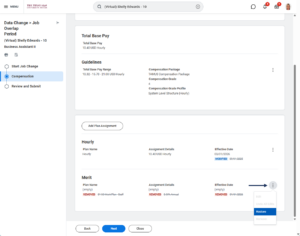
- Select Next.
- On the Review and Submit page, review your changes and select Submit.

Note: If you have any doubt regarding the selection of Job Overlap, visit with your central HR office at your member before you submit.
Potential Additional Routing
- The receiving Manager receives an approval step.
- The initiator of the Start Job Change business process receives the Assign Costing Allocations sub step to add costing allocations to the new temporary position. Remember, no costing allocations were added during the Create Position business process.
- The applicable Cost Center Approver will need to approve the costing allocations for the temporary position.
- The initiator will receive the To Do Update Position Restriction Costing Allocation to update the vacated position’s costing allocations, if needed.
- The initiator will receive the To Do Update Position Restriction Default Compensation to update the vacated position’s default compensation, if needed.
Next Steps in the Job Overlap Process
Now that you have created the temporary position and completed the Start Job Change business process for the terminating Employee, you are ready to recruit or promote to fill the now vacated position.
Terminating the Employee
When initiating the Termination business process, be sure to follow the typical processes you would normally follow.
IMPORTANT: The Termination event reason and details are unrelated to Job Overlap.
To guide you through the process, you can refer to the job aids Termination (Voluntary) and Add Retiree Status, as applicable.
This completes the Job Overlap Period process.