• Skip to primary navigation
  • Skip to main content
Workday Services
Logo, Texas A&M University System, Office of Information Technology
  • Home
  • About
    • Workday
    • Governance
    • Key Performance Indicators
  • News and Updates
    • Alerts
    • Release Notes
    • Schedules
    • Upcoming Training Events
    • Monthly User Meetings
    • Biannual Workday Releases
  • Reporting
  • Training
    • Job Aids
    • Reference Guides
    • Video Help
    • Workday Curriculum
    • About Security Roles
    • Online Courses
    • Webinars
    • Learning Hubs
    • Glossary
  • Support
    • Frequently Asked Questions
    • Common Tasks
    • Request Forms
    • Get Help
  • Office of Information Technology
    • Services
    • Contact the Office of Information Technology
    • Search OIT
Home / Job Aids / Viewing and Updating Enrollment Event Remarks In Workday

Viewing and Updating Enrollment Event Remarks In Workday

Print

This job aid outlines the process for Benefit Partners and System Benefits Support to add and review Enrollment Event Remarks to help track changes to Benefit events.

Page Loading...Checking SSO..
Login with SSO to see this content.

Important Information

  • Enrollment Event Remarks are only viewable by the Benefit Partner, System Benefits Support staff and Benefits View Only roles.
  • Enrollment Event Remarks can be added to an event that is in any status (in Progress, Complete, Cancelled or Rescinded).

Getting Started

View Enrollment Event Remarks

  1. Navigate to the Employee’s Worker Profile.
  2. Select Related Actions > Worker History> View Worker History.
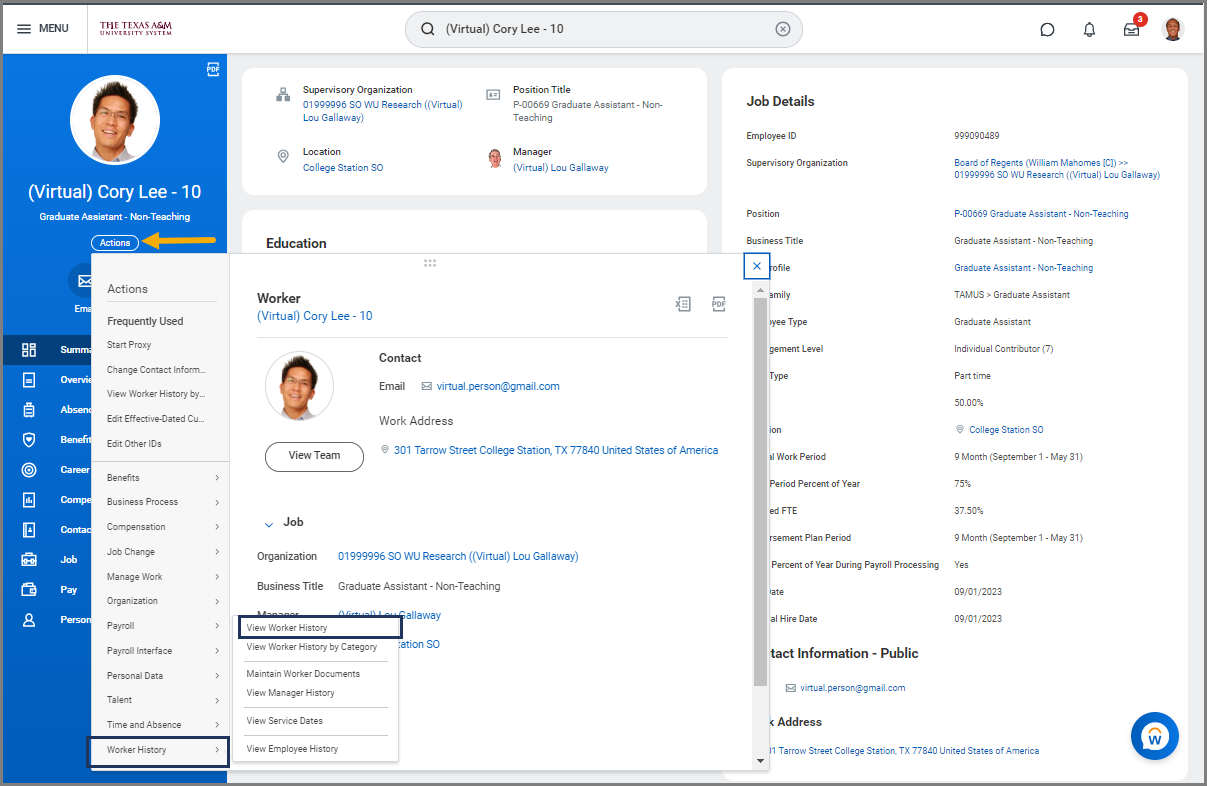
Worker Profile to Worker History

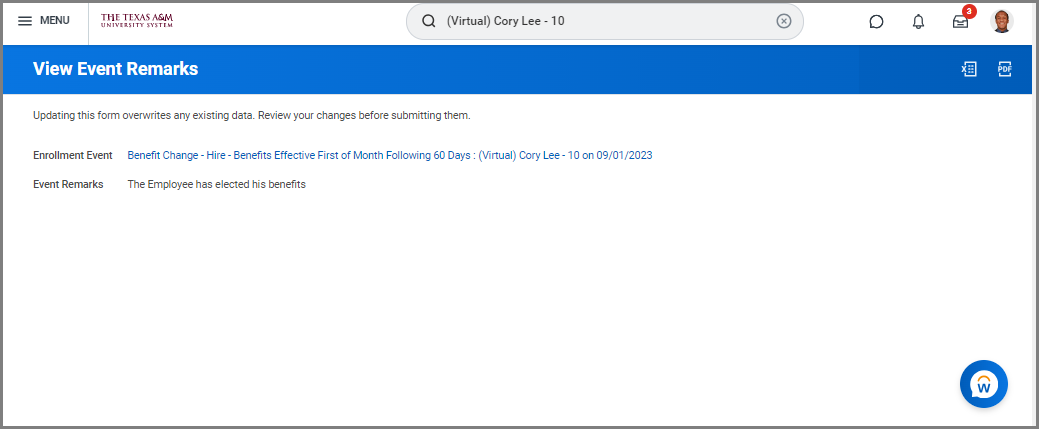
  1. Navigate to the Benefit Event for the Employee for whom you would like to view an enrollment remark.
  2. Select Related Actions > Benefits > View Event Remarks.
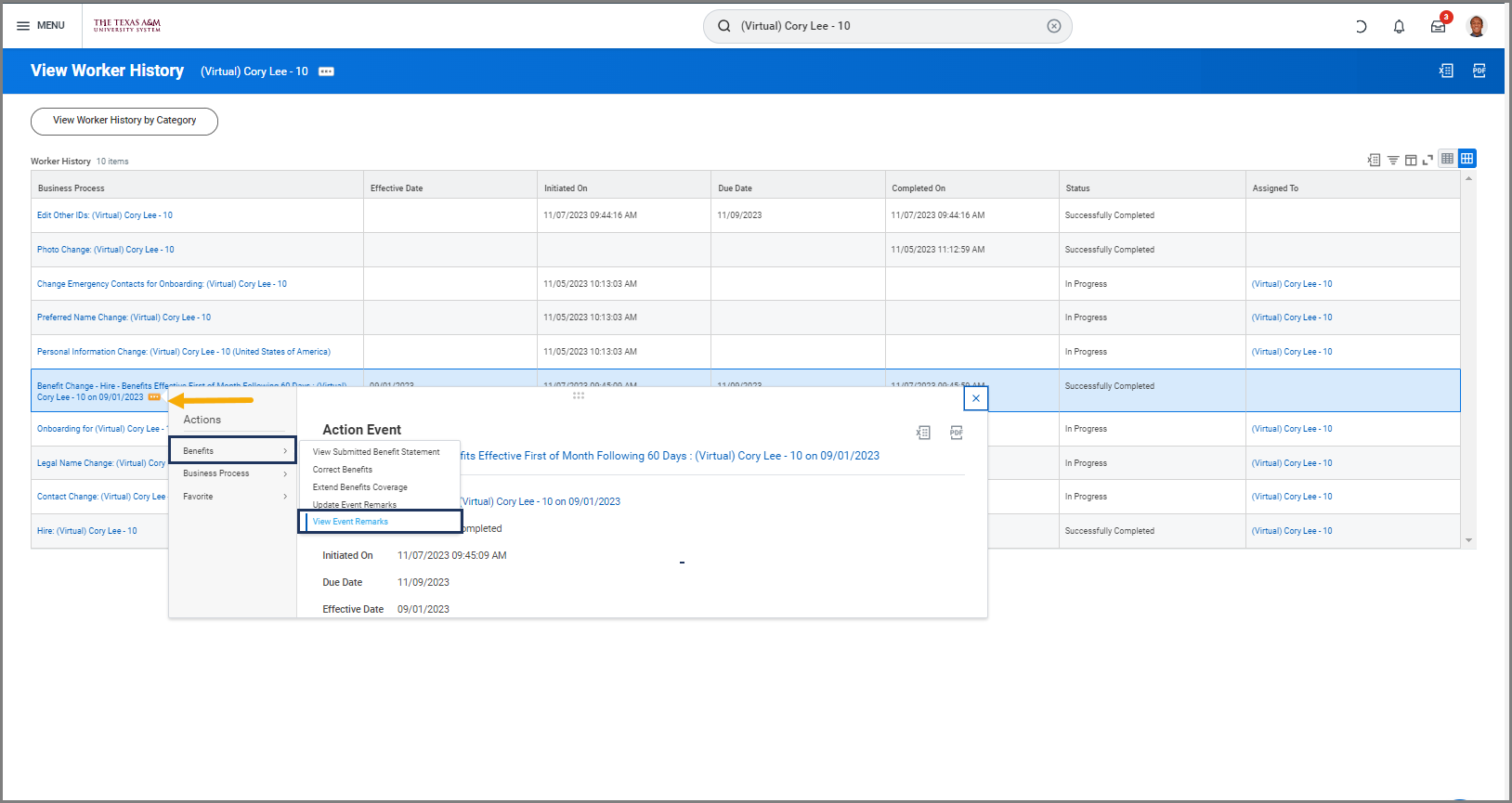
View Event Remarks Event Remarks

Update Enrollment Event Remarks

  1. Navigate to the Employee’s Worker Profile.
  2. Select Related Actions > Worker History> View Worker History.

Worker Profile to Worker History

  1. Navigate to the Benefit Event for the Employee for whom you would like to view an enrollment remark.
  2. Select Related Actions > Benefits > Update Event Remarks.
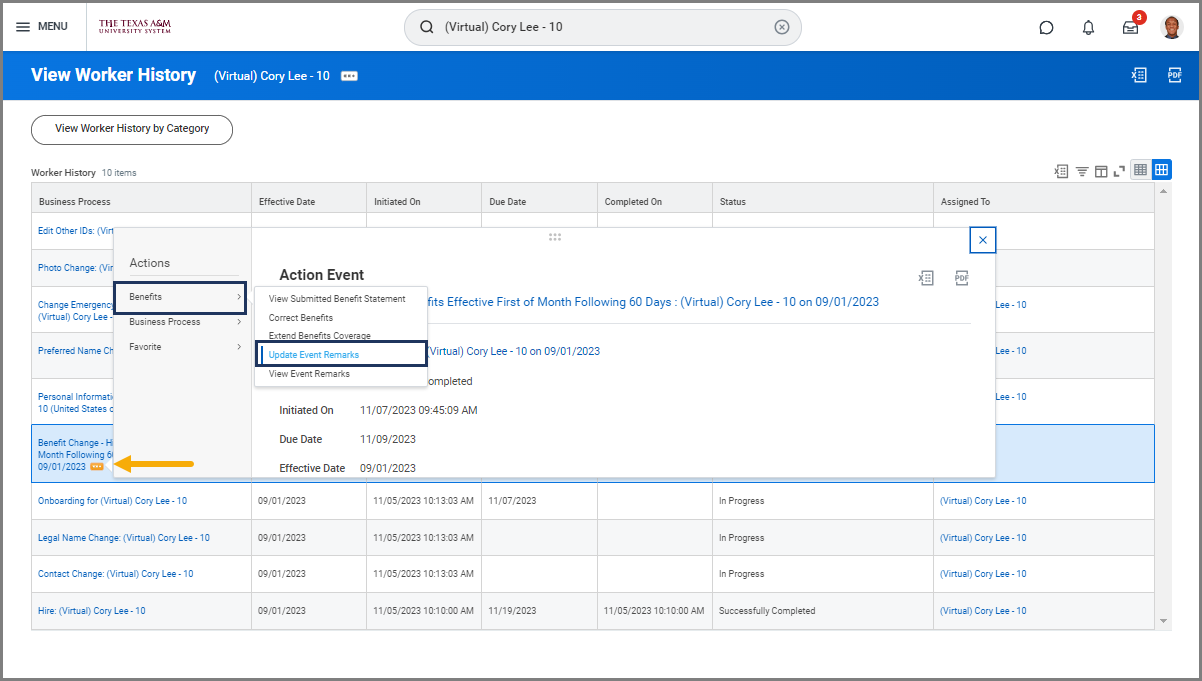
  1. Add to the existing comments by starting a new line. Do not overwrite the existing comments.
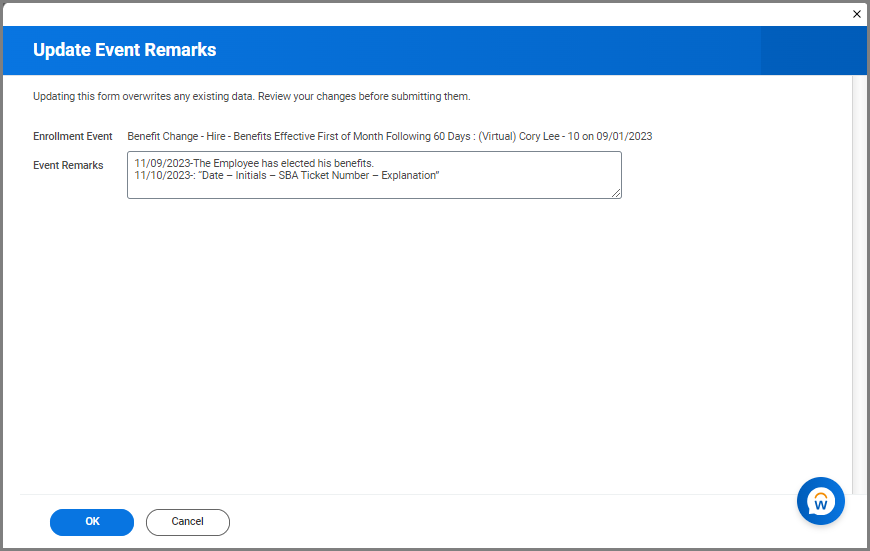
Updating Enrollment Remarks

  1. Select OK and Done. 

Important: Do not overwrite the existing comments. Use the following template when adding remarks: Date – Initials – SBA Ticket Number – Explanation .

Quicklinks

  • View Enrollment Event Remarks
  • Update Enrollment Event Remarks

  • ^ Top Of Page

    Copyright © 2025 Texas A&M University System All rights reserved.

    301 Tarrow Street, College Station, TX 77840 | MAP | Phone: (979) 458-7700 | email: support@tamus.edu
    State of Texas | Texas Homeland Security | Texas Veterans Portal | Statewide Search | Risk, Fraud & Misconduct Hotline | Privacy | Web Accessibility | State Link Policy | Campus Carry

    Texas A&M University System