
This job aid describes the process for HR Contacts or HR Partners to end employment of an Employee’s Primary Job when the termination is involuntary. Additional information is included for when the primary reason for termination is death.
Termination (Involuntary) (TAMU)
Last updated on May 11, 2026
Page Loading...
Checking SSO...
Prerequisites
- Employee Relations must review involuntary termination requests for all Staff, Faculty, and student workers prior to the dismissal of the employee. All involuntary terminations must be routed via a memorandum to Employee Relations from the manager to the manager’s manager explaining the situation and requesting the termination action, as well as a draft notice of the termination. Contact your Employee Relations representative to obtain the appropriate memorandum template. These requests are then sent to The Texas A&M System Office of General Counsel (OGC) for review and approval.
- Review Discipline and Dismissal Procedures for Nonfaculty Employees or Reduction in Force (RIF) and contact Employee Relations for assistance prior to submitting an involuntary termination.
- Identify whether the position should be closed and collect all termination details for the Employee including the reason for termination, eligibility for rehire, termination dates (e.g., effective date of termination, last payment date, etc.), and any costing allocation changes to the position restrictions. For more information on termination codes and scenarios, refer to Employee Separations (Terminations) – Voluntary vs. Involuntary.
- If the Primary Reason is Death, notify benefits@tamu.edu before submitting the termination. Wait until Benefit Services gives the approval before processing the involuntary termination in Workday.
Important Information
- If security roles were assigned to the position, they will be removed to ensure that new employees acknowledge the responsibilities associated with the roles. To obtain a security role, the new Employee should visit the Access Request service page in the HROE Service Portal to location the appropriate Statement of Responsibility form. The completed form must then be submitted to hrnetwork@tamu.edu to request access.
- You cannot terminate an Employee with an Additional Job. You must first end the Additional Job and then you can initiate the Termination.
- The Termination Date and the Pay Through Date must match. The Termination Date is used by Payroll to determine the Employee’s last day of pay.
- The Termination business process is also used when an Employee passes away. The Primary Reason Involuntary > Death should be selected. The position can remain open to refill at a later date.
WARNING: If an Employee is on leave of absence, you should complete the Return Worker from Leave process before Termination process is initiated to avoid downstream corrections that require administrative support and additional work.
Getting Started
- Navigate to the Employee’s worker profile.
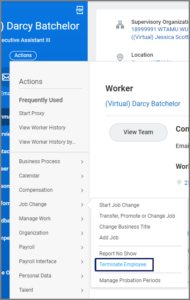
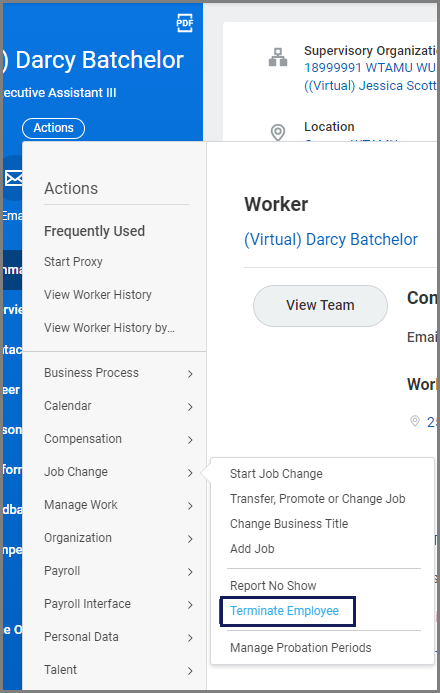
- Select Actions > Job Change > Terminate Employee.
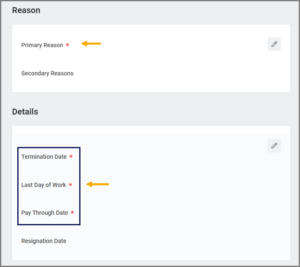
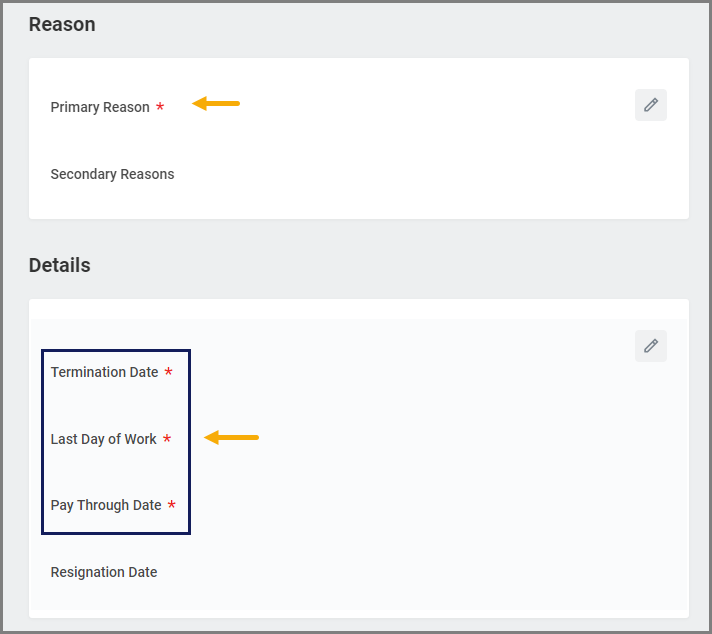
- On the Terminate Employee page enter the following information:
- Primary Reason. Choose one of the reasons provided under Involuntary. For more information on when to use each reason, refer to Table 1 in the Employee Separations (Terminations) – Voluntary vs. Involuntary resource.Note: If the Primary Reason for termination is “Death”, notify benefits@tamu.edu prior to submitting the termination. Wait for confirmation from the Benefits team before proceeding. Please refer to the If Primary Reason is Death section for other important details.
- Termination Date. This is the date that the individual will no longer be an Employee. Select the date through which the Employee should be paid.
- Last Day of Work. Select the final day that the Employee will be at work.
- Pay Through Date. Must Match Termination Date
-
- Eligibility. Select Yes if the Employee would be considered eligible for rehire. Otherwise, select No. If you select No, the business process will then route to the HR Partner (Employee Relations) for review.
- Eligibility. Select Yes if the Employee would be considered eligible for rehire. Otherwise, select No. If you select No, the business process will then route to the HR Partner (Employee Relations) for review.
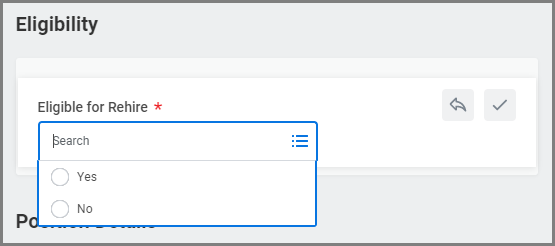
Note: Selecting no will result in a label on the terminated Employee’s pre-hire record indicating the Employee is not eligible for rehire (NEFR) and cannot be selected in a subsequent hire process. This label will display on the Candidate Grid when the individual applies for positions linked to job requisitions in the future. The (NEFR) designation is typically handled separately from the termination process and requires its own review and approval. The designation must be reviewed and approved by the System Office of General Counsel (OGC) prior to being assigned in Workday. Unless explicitly directed by Employee Relations, the Eligible for Rehire option should be set to Yes. Contact employee-relations@tamu.edu for any questions.
-
- Position Details. If the position should be closed, select the Close Position checkbox to close the position from the current Supervisory Organization. HR Generalists are asked to close (eliminate) faculty, student worker, graduate assistant and temporary/casual positions during the Termination business process. Please note that a position that is closed cannot be reactivated or reused.
- Position Details. If the position should be closed, select the Close Position checkbox to close the position from the current Supervisory Organization. HR Generalists are asked to close (eliminate) faculty, student worker, graduate assistant and temporary/casual positions during the Termination business process. Please note that a position that is closed cannot be reactivated or reused.
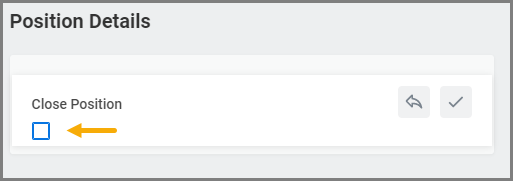
Important: The position cannot be reopened after it has been closed.
- Enter in the comments section who reviewed the involuntary termination from Employee Relations and the date it was reviewed on. If the reason for involuntary termination is due to death, enter this and the date of death into the comments.
- Select Submit.
Navigate to the Up Next tab for the next steps in the process.
Up Next
Review Termination (HR Partner)
If the HR Contact initiates the business process, the HR Partner (Employee Relations)receives the Inbox Action: Review Employee Termination.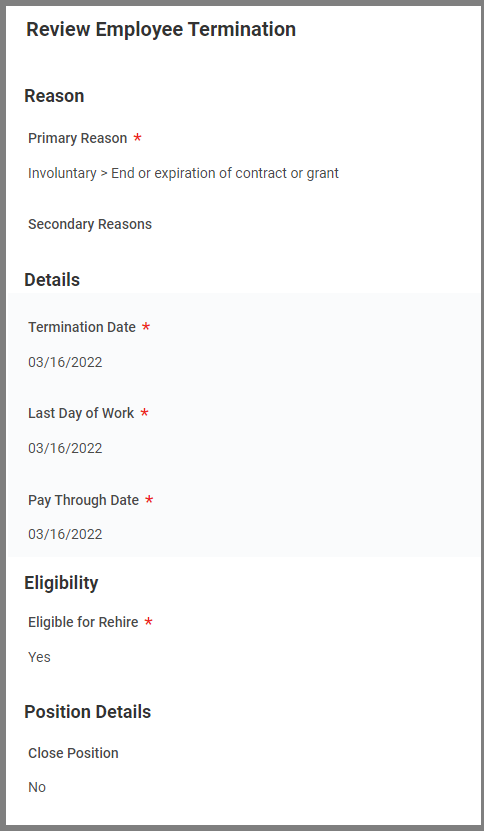
The HR Partner needs to Approve or Send Back for edits. If Send Back is selected, the HR Partner should provide instructions within the comments section of the task.
The business process will route to the department head for approval when the Employee Type is Staff, Faculty, or Graduate Assistant.
- The HR Partner (CISQ) will receive a To Do step to consider if the security roles assigned to the Employee position should remain as is, be reassigned to another filled position or removed from the position.
- Absence Partner receives a To Do to verify the time off or leave records are entered in either Workday or Kronos and determine any sick pool donation.
- The Timekeeper receives a To Do to delete time entries beyond the termination date for hourly workers.
- The Faculty Partner will receive a To Do to edit Faculty Tenure Status (if applicable).
- The Business Process Administrator will receive a To Do to manage business processes in process for the worker (if applicable).
- The Security Administrator receives a To Do to remove any user-based security group assignments.
- The Absence Partner receives a To Do to Determine Time Off Payout to evaluate the potential payout for any Time Off balance.
- The HR Contact receives a To Do to Enter Date of Death for the termination reason of death.
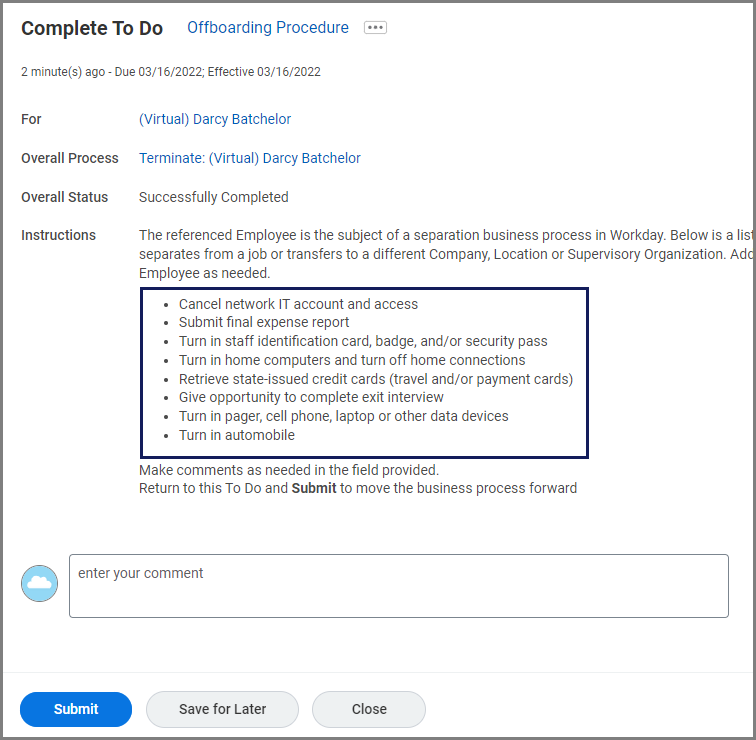
- The HR Contact receives the To Do: Offboarding Procedure.
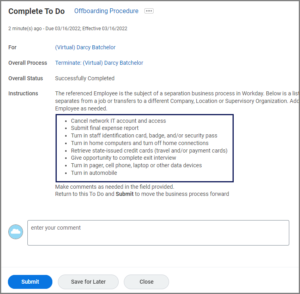 Note: Follow the Human Resources Exit Checklist and then select Submit.
 - The Benefit Partner may receive an Inbox Action to Change Benefits Election if there is an effect on employee benefits.
- Payroll Partner may receive the To Do: Inactivate Withholding Order to inactivate the withholding order.
- The Payroll Partner may receive the To Do: Tax Treaty to end the tax treaty
- The Payroll Partner may receive an inbox step End Ongoing Payroll Inputs to confirm or edit the end date of any ongoing payroll inputs.
- The Employee will receive two Workday notifications: one to acknowledge the return of A&M System data, and another to update their contact information on or before their last day of employment. If applicable, the Employee will receive a separate notification regarding the loss of life insurance eligibility (Benefit Change).
Vacated Position Left Open
If the vacated position is left open (Faculty, Staff or Graduate Assistant Worker types):
- The To Do Update Position Restrictions Costing Allocation will route to the Budget Contact.
- The To Do Update Position Restriction Default Compensation will route to the HR Contact.
Important: Vacated positions will encumber using default compensation and costing allocations on the Position Restrictions, not the compensation and costing allocations assigned to the Employee who filled the position.
RECOMMENDATION: Workday Services recommends keeping the default compensation and costing allocations assigned to the Position Restrictions aligned with the compensation and costing allocations assigned to the Worker Position for budgeting. For more in depth information on Assign Costing Allocation, see the Assign Costing Allocation job aid or the Costing Allocation quick reference guide on Workday Help.
Contact your Budget office for specifics about budgeting and encumbrance settings in FAMIS.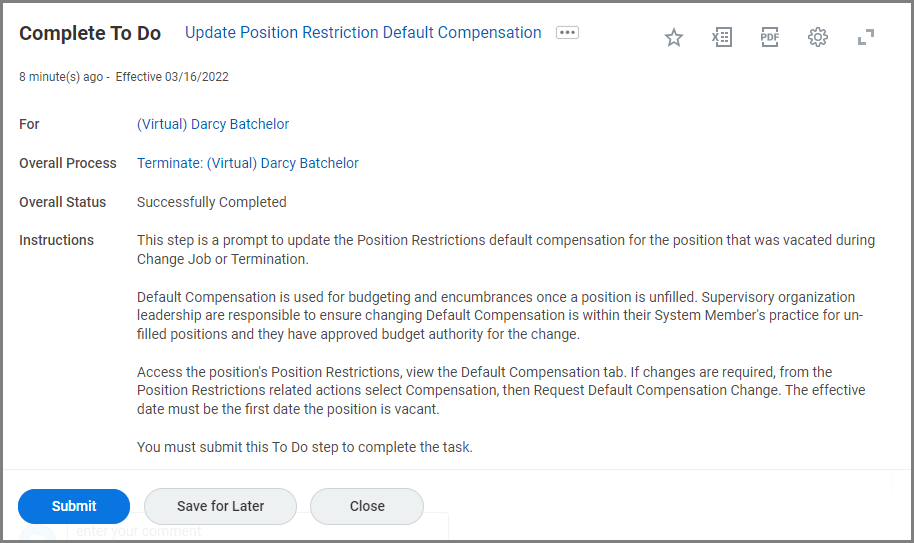
Read the To Do and determine if you need to make any changes. If so, go to the Default Compensation section of the Position Restrictions on the vacated position and make those necessary changes. Return to your inbox to Submit the To Do.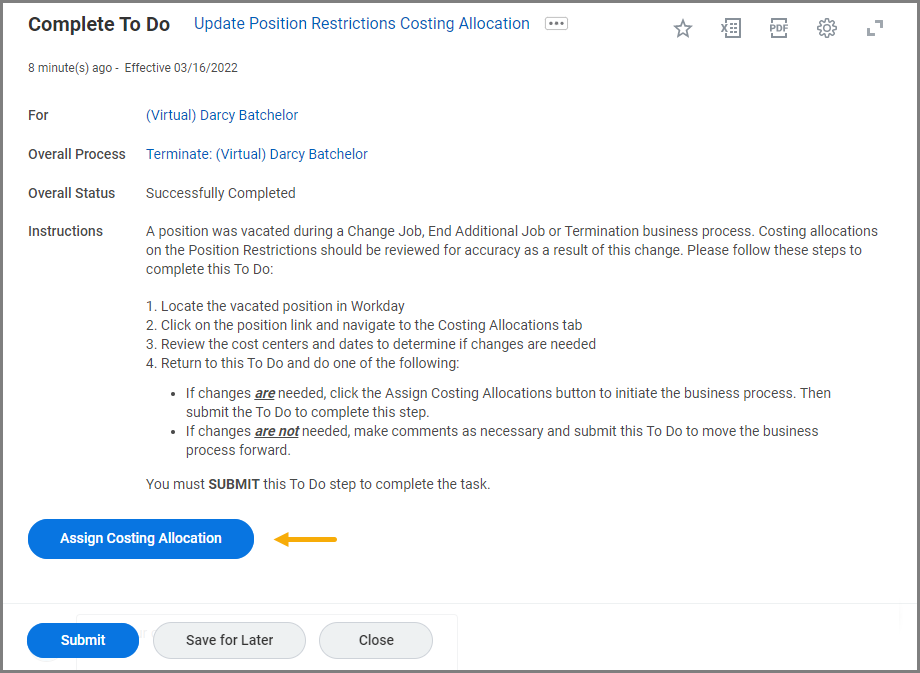
Important: When you select the Assign Costing Allocation button, you are initiating the Assign Costing Allocation business process. You then need to complete the business process to avoid empty costing allocations on the position restrictions.
You will either select this button to easily navigate to the costing allocations for the position restrictions or you will determine no changes are necessary. Return back to your inbox and then Submit this To Do.
If Primary Reason is Death
To ensure timely handling of life insurance claims and removal from insurance coverage due to death, notify benefits@tamu.edu or submit a service request prior to submitting the termination in Workday. Wait for confirmation from the Benefits team before proceeding.
The Benefit Partner will receive a Review step if they are not the Initiator. Notifying Benefit Services beforehand will ensure a claim is processed timely.
If an Employee passes away and did not physically work during the current month, their leave accruals for that month should be removed. The Employee will not receive a sick leave donation form, but their estate may be eligible for a lump sum payout of the following:
- ½ of the employee’s accumulated sick leave (up to 336 hours)
- All accrued vacation hours
- Holiday hours (calculated using a different method—please contact your Payroll Administrator for help with this.)
Important: Death payouts are not processed through the “Request One-Time Payment” business process in Workday. These payouts may include: Final salary or wages, longevity pay, allowances, benefit premiums, etc.
If a lump sum payout is needed:
- Consult with your Payroll Administrator before starting any forms.
- After discussion, you’ll be asked to complete one of the following forms:
- Payouts will be processed on the next biweekly payroll after the form is received, reviewed and amounts confirmed.
- Payroll will work directly with Benefits on:
- Updating the employee’s name in Workday to include “The Estate of”
- Coordinating with the estate/beneficiaries to collect required legal documents before releasing payment.
The HR Contact will receive a To Do: Enter Date of Death.
This completes the Termination (Involuntary) business process.