
This job aid outlines the activities for an HR Contact, HR Partner, and Manager to initiate and complete the Start Change Job business process when only the Additional Job Classification is changing for the Worker Position.
Start Job Change
Page Loading...Checking SSO..

Prerequisites
Discuss the change with your department leadership and budget office prior to initiating. Consult any relevant regulations prior to making the change.
Important Information
- Use Start Job Change when changing ONLY the Additional Job Classifications for the Worker Position.
- MSO Code overrides at the position level are not permitted for Student Worker and Graduate Assistant job profiles (job family, worker type).
- Job changes made using Start Job Change are reported as Change Job events.
Getting Started
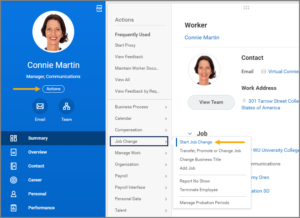
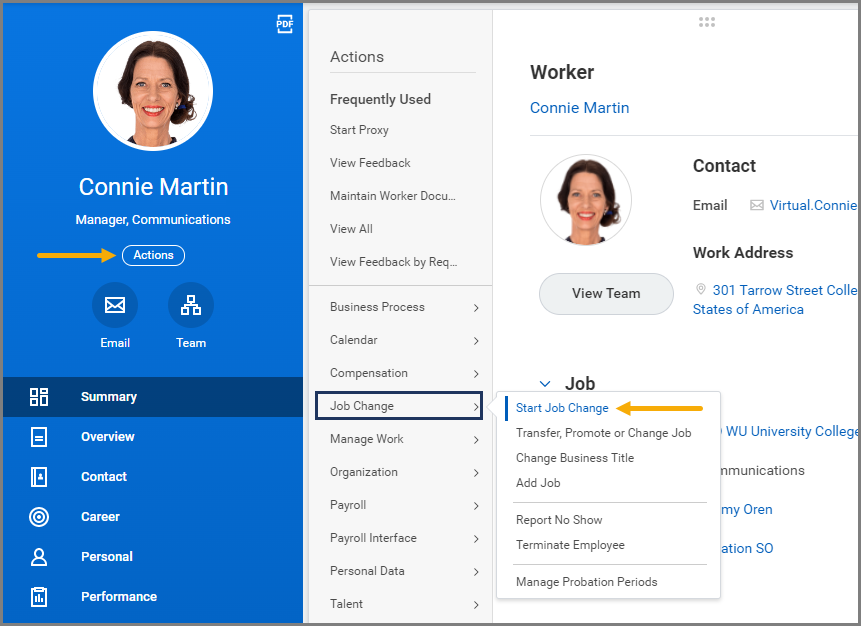
- Navigate to the Employee’s Worker Profile.
- Select Actions > Job Change > Start Job Change.
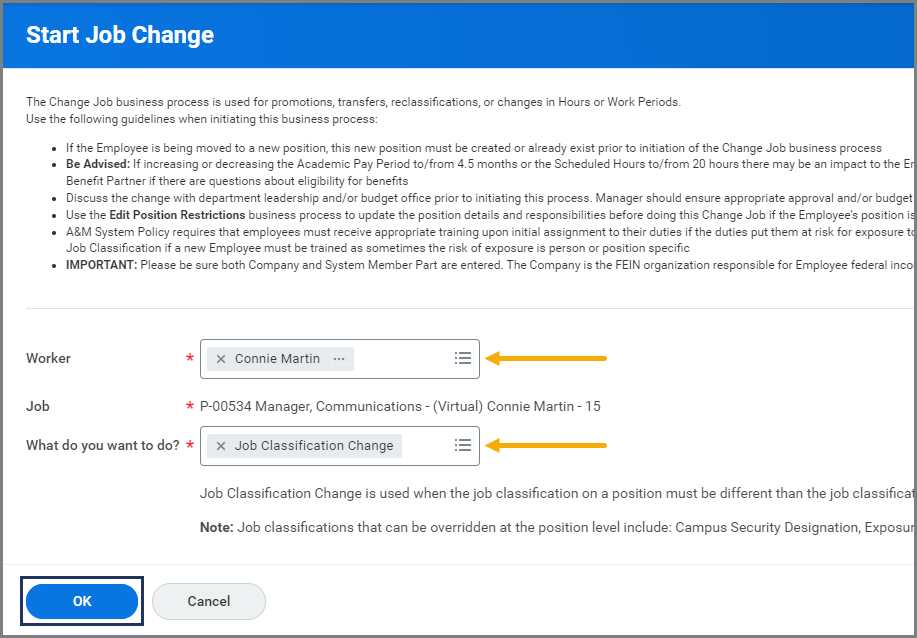
- In the What do you want to do? field, select Job Classification Change. The Worker and Job fields will be pre-populated.
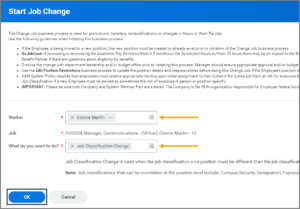
- Select OK.
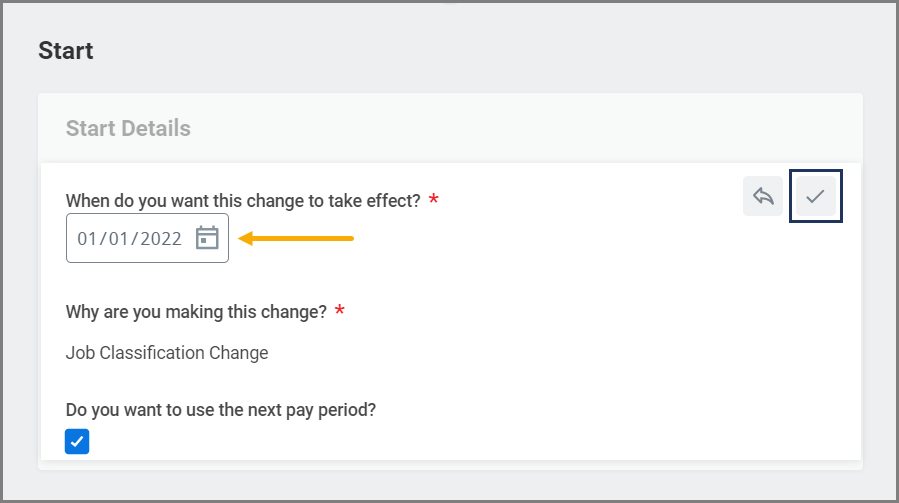
- Under Start Details, enter the date for when you would like the change to take effect. The other fields will be auto-populated.
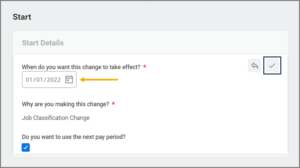
- Select Start.
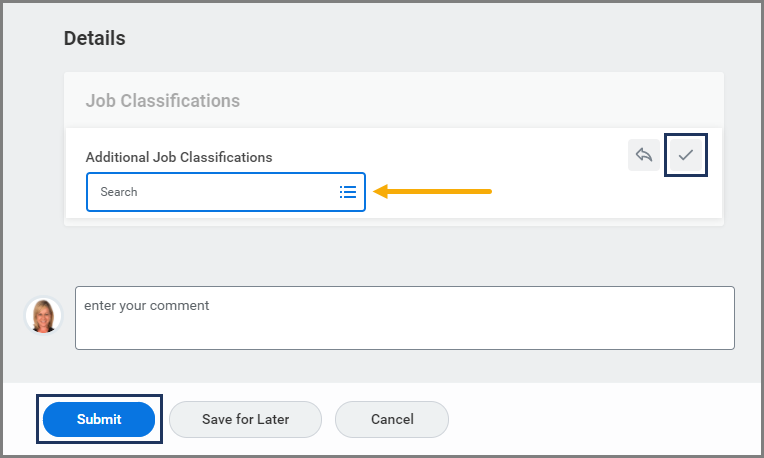
- Under Job Classifications, select the Additional Job Classification(s).
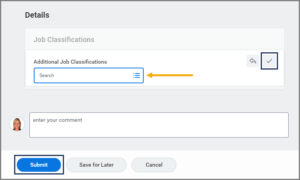
- Enter any necessary comments (e.g., MSO Code Job Classification override ONLY).
- Select Submit.
Note: No other sub-process will trigger after reviews and approvals when Start Job Change is used.
Reviews and Approvals
The business process will route to the HR Partner for approval if not initiated by the HR Partner. If Send Back to the Initiator is selected, the initiator will only see the simplified template.
This completes the Start Job Change business process.