
This job aid describes the steps for a Compensation Partner, HR Partner, or HR Contact to request a compensation change for an Employee that is not tied to a reclassification and/or promotion.
Request Compensation Change (TAMU)
Last updated on March 14, 2026
This custom job aid is intended for TAMU, TAMUG, and TAMHSC.
Page Loading...
Checking SSO...
Prerequisites
All compensation changes must be approved in writing by the appropriate administrative parties prior to the request being entered into Workday. Approval documentation must be attached to the Request Compensation Change business process.
Important Information
- If the Employee’s job is changing along with a compensation change, use the Change Job business process instead.
- A compensation change can only be processed for employees within the supervisory organizations that the HR Contact supports.
- Retroactive pay increases are not allowed per Article III, Section 53 of the Texas Constitution. Compensation changes will be effective in the pay period (or after) when the appropriate administrative approvals were obtained outside the Workday business process. The approval documentation must be attached to the Request Compensation Change.
- If the approval document has multiple employees listed, the HR Contact must redact any information related to another Employee before submission.
Getting Started
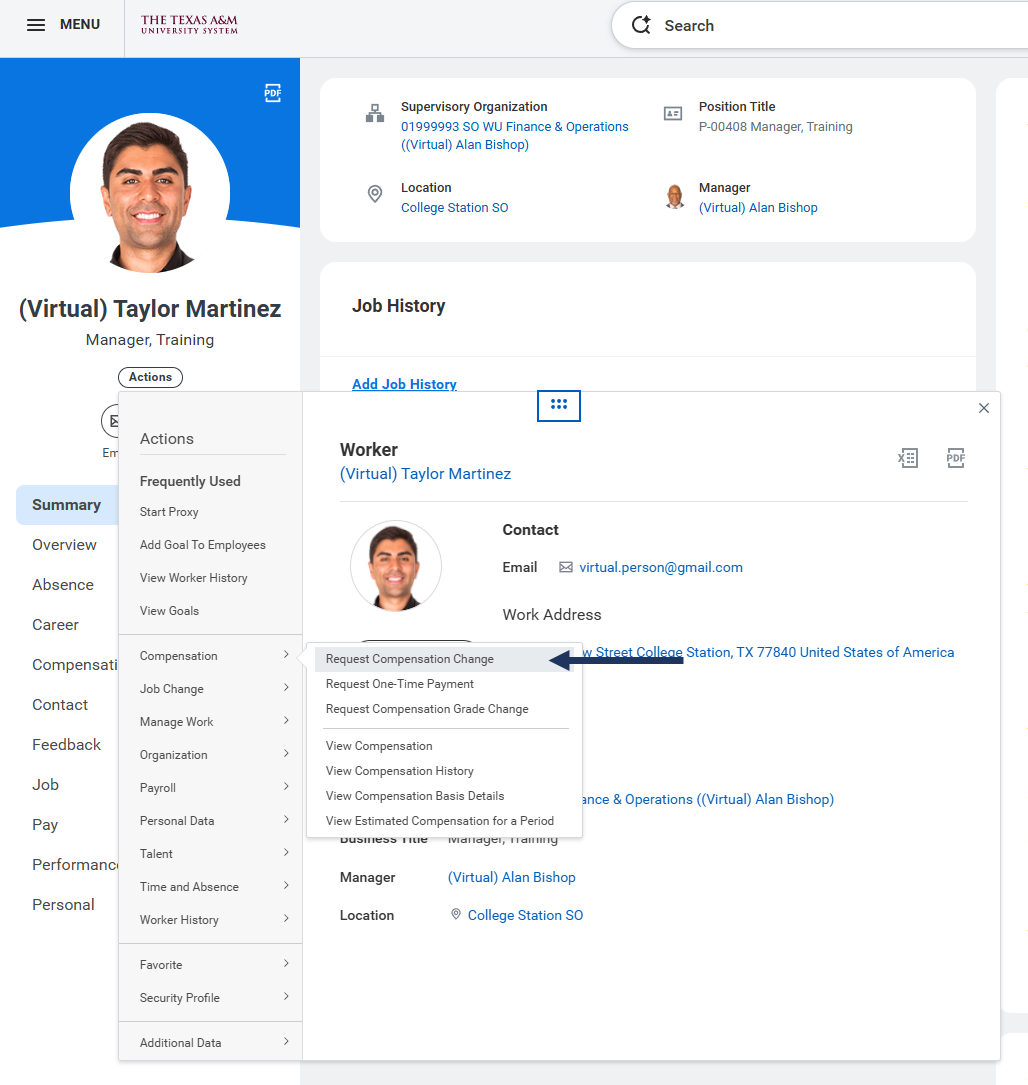
- Navigate to the Employee’s Worker Profile and select Actions > Compensation > Request Compensation Change.

- On the Compensation page, complete the following fields:
- Effective Date. This is the date of the change to the Employee’s compensation, not the date they will see the change on their paycheck. Update the effective date to reflect the start of the current pay period in which all approvals were obtained.
- Employee Name. This will automatically populate.
- Reason. Select the appropriate reason for the compensation change.
- Across the Board. Used if TAMU decides to increase the minimum salary for everyone in a specific category.
- Allowance Adjustment. Used if the only thing being added/changed is an allowance the Employee receives. (e.g., Administrative/Department Head/Distinguished Chair Stipends, Car/Uniform Allowances, Faculty/Staff Teaching in Excess of 100% etc.).
- Counter Offer. Used in situations when an approved counter offer has been granted to an Employee.
- Decrease. A generic decrease in salary. Most often used when ending a temporary salary increase that was not processed as an allowance.
- Equity Adjustment: Used when requesting an equity review; will require attaching the appropriate documentation.
- Hiring Salary Adjustment. Used when requesting a hiring salary adjustment for an Employee.
- Increase. A generic increase in salary; this reason is seldom approved. Please contact Classification and Compensation ([email protected]). Increases in salary must coincide with System Regulations and University Standard Administrative Procedures or HR Guidance Documents.
- Market Adjustment. A salary increase granted to establish equity/competitiveness with salaries paid in the relevant labor market, as documented by approved survey data.
- Merit Increase, Outside Budget Cycle. Used when requesting a merit raise outside of the regular cycle.
- Merit Increase, Regular Budget Cycle. Only used in situations when an Employee is incorrectly missed during the budget and merit cycle.
- Merit Plan Assignment/Removal. Only to be used by Workday Services.
- Other Salary Action. Please contact Classification and Compensation ([email protected]) before using this to see if the salary change qualifies.
- Pay Plan Adjustment. Used whenever there is an increase in minimums within the System-wide Pay Plan.
- Skill Enhancement Increase. Used to grant a job-related skill Enhancement Pay increase.
- Temporary Salary Increase. Used to grant a temporary salary increase. May last up to one year.
- Position. If an Employee holds multiple positions, the Position field will appear. Select the Position related to the compensation change.
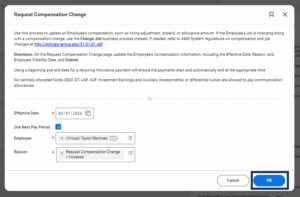
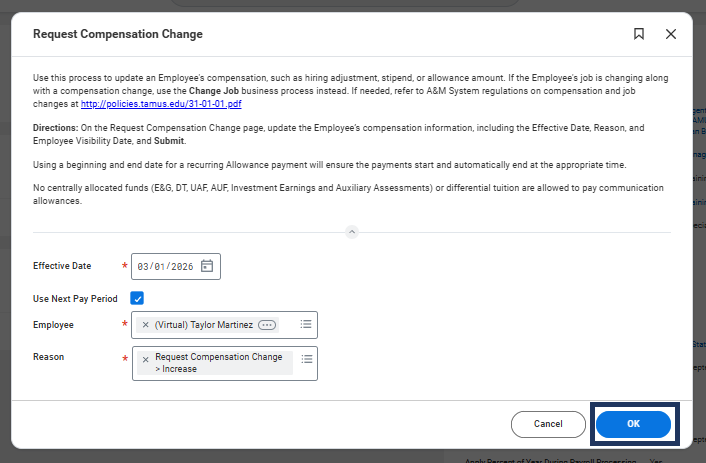
- Select OK.
Note: If you need to change the Reason you can do so by selecting Effective Date & Reason from the left-side navigation panel.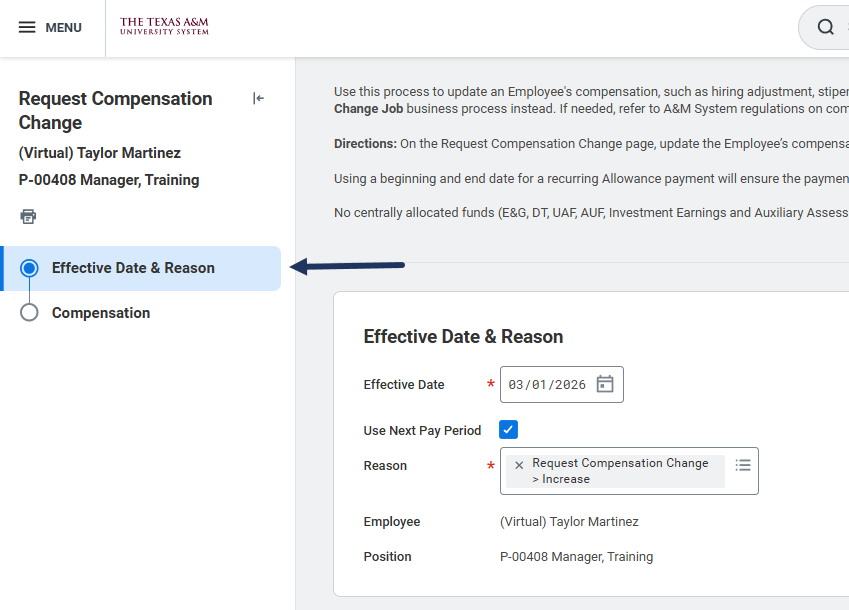
Note: The temporary increase may be set up as a monthly allowance for monthly paid positions. To set up a monthly allowance, go to the Allowance section and select Temporary/Interim Increase for the Compensation Plan and enter the monthly increase in the Amount field. Do not use allowance to set up a temporary increase for hourly paid positions. The temporary increase needs to be applied to the current hourly rate for hourly paid positions.
- Enter the Employee Visibility Date. This must be on or after the Effective Date. If left blank, this date will default to the Effective Date. (This is the date the Employee can see this compensation change in Workday; ensure the date that is entered allows enough time for the Manager’s discussions to take place with the Employee.)

- Total Base Pay. This will update automatically when salary or hourly data is entered below. This field cannot be edited.
- Guidelines. This information does not need to be updated, this will be determined by the job title and the System-wide Pay Plan.
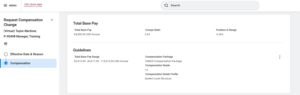
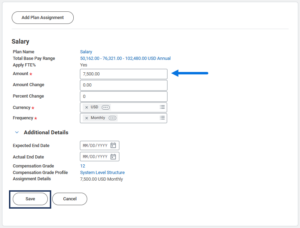
- Salary. This section will be updated for compensation changes to the salary of monthly paid employees. The salary can be changed by updating the Amount, Amount Change, or Percent Change fields.
- Amount. This is where the monthly amount can be entered in. The Amount Change and Percent Change fields will automatically calculate appropriately.
- Amount Change. This is where a flat amount to either increase or decrease the existing salary can be entered in. The Amount and Amount Change fields will automatically calculate appropriately.
- Percent Change. This is where a percentage increase or decrease to the salary can be entered in. The Amount and Amount Change fields will automatically calculate appropriately.
- Additional Details. Selecting this will reveal optional fields.
- Expected End Date. This field will not terminate payment; it is only entered to indicate when you expect the payment will need to end.
- Actual End Date. Actual End Date is not allowed for Salary plans.
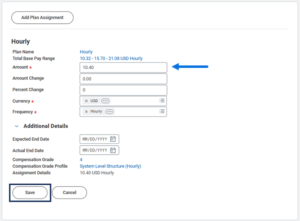
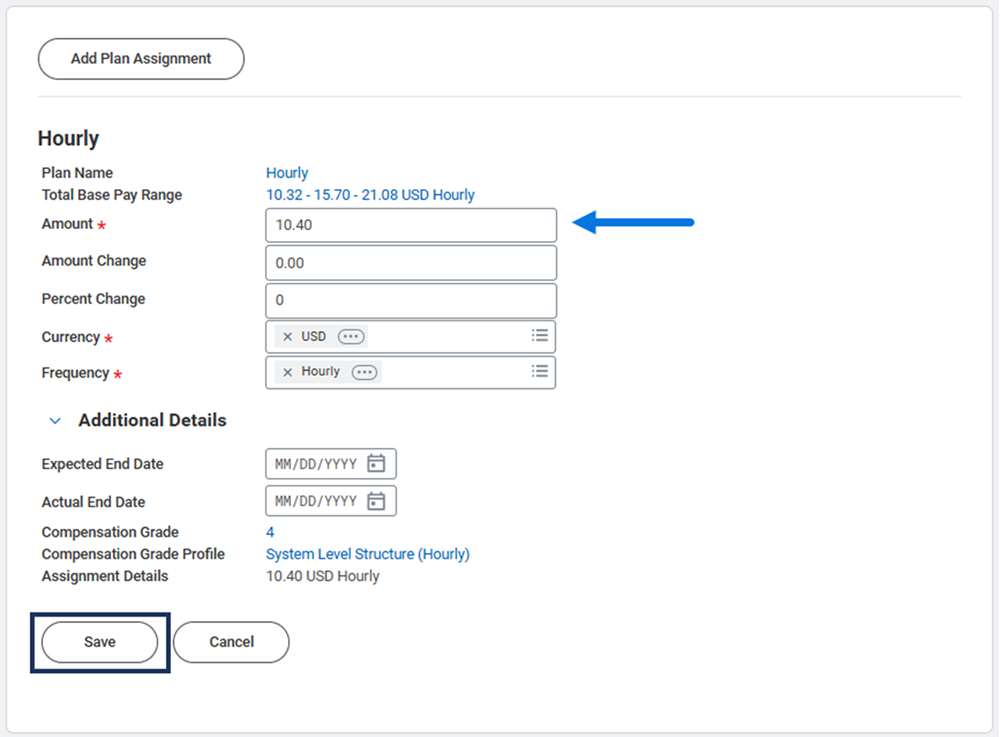
- Hourly. This section will be updated for compensation changes for hourly paid employees. The hourly rate of pay can be changed by updating the Amount, Amount Change, or Percent Change fields.
- Amount. This is where the hourly amount can be entered in. The Amount Change and Percent Change fields will automatically calculate appropriately.
- Amount Change. This is where a flat amount to either increase or decrease the existing hourly rate can be entered in. The Amount and Amount Change fields will automatically calculate appropriately.
- Percent Change. This is where a percentage increase or decrease to the hourly rate can be entered in. The Amount and Amount Change fields will automatically calculate appropriately.
- Additional Details. Selecting this will reveal optional fields.
- Expected End Date. This field will not terminate payment, it is only entered in to document when you expect payment will need to end.
- Actual End Date. Actual End Date is not allowed for Hourly plans.

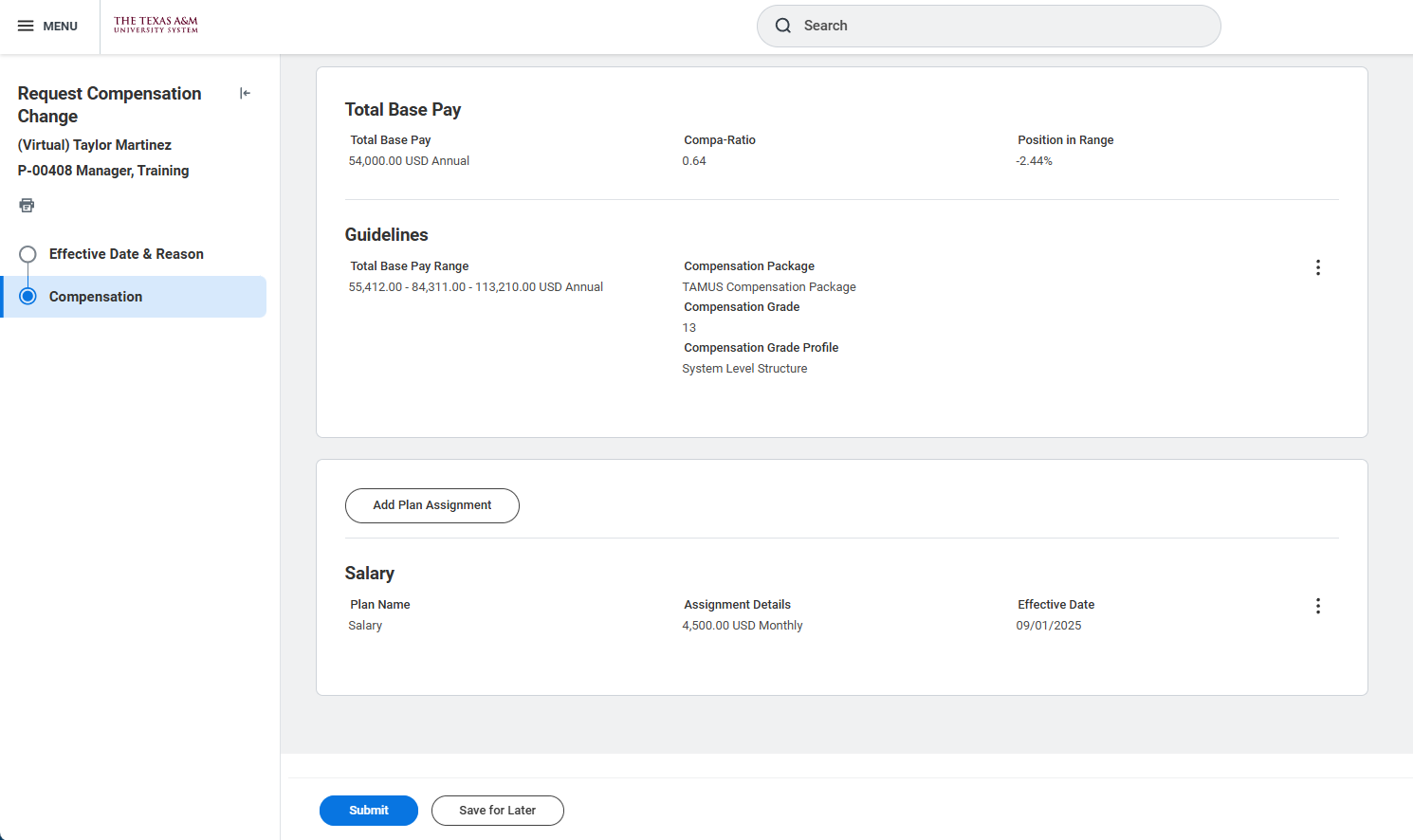

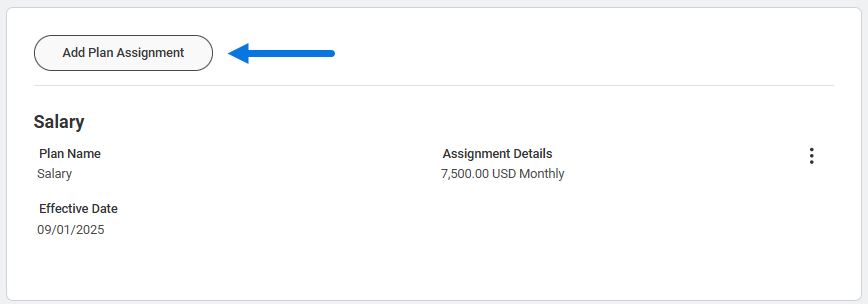
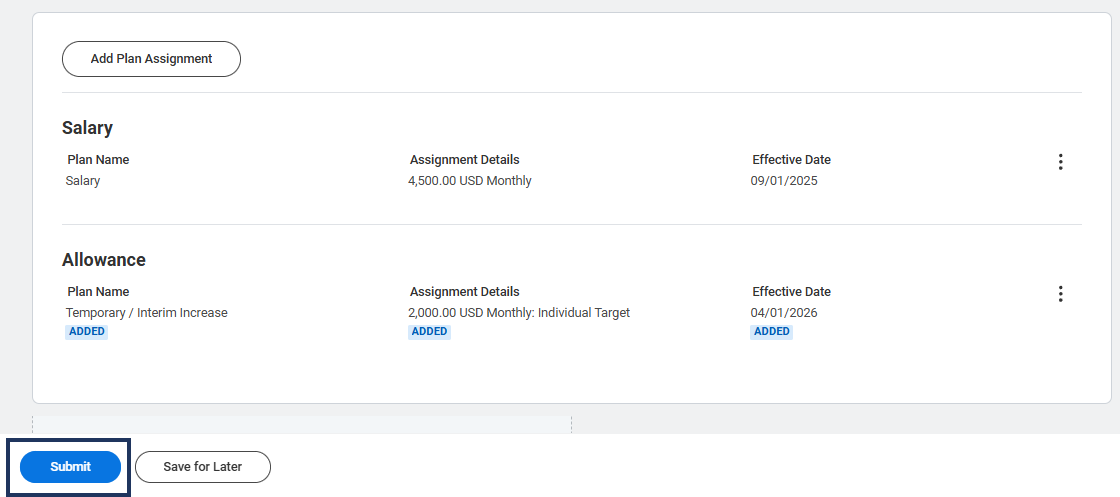
- To add a Plan Assignment, such as an Allowance, select the Add Plan Assignment button.
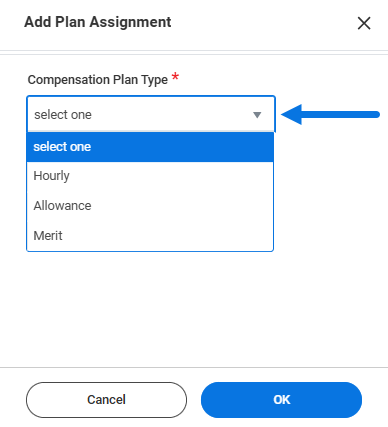
- The Add Plan Assignment slide-out will appear on the right.
- Compensation Plan Type. Select Hourly, Allowance or Merit.
IMPORTANT: Merit should not be added during the Request Compensation Change business process unless coordinated with the designated Merit Partner during the annual merit process.
- Compensation Plan. Select the type of allowance (e.g., Communication Allowance, Department Head Stipend, Temporary/Interim Increase, etc.).

- Select OK.
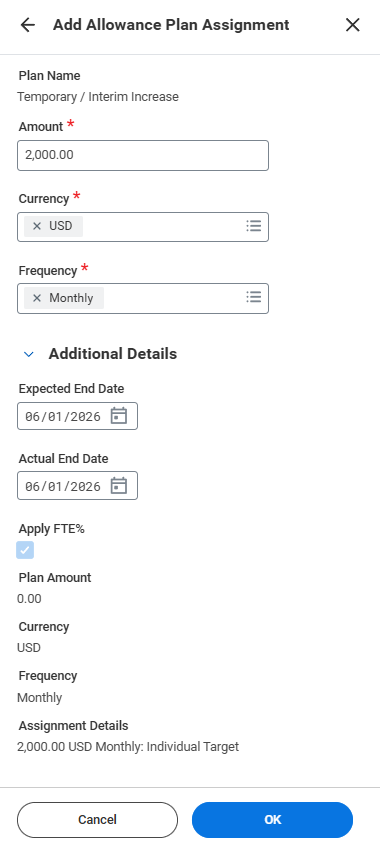
- On the next screen add the plan details:
- Amount. This is where you enter the monthly amount of the allowance being offered.
- Currency. This will always be set to USD.
- Frequency. This will always be set to Monthly.
- Additional Details. Selecting this will reveal optional fields.
- Expected End Date. This field will not terminate payment, it is only entered to indicate when you expect the payment will need to end.
- Actual End Date. Any date entered here will automatically terminate all payment on that date. It will remove the entire compensation plan for the Employee.
- Select OK.
- Select Submit.
- Enter any comments as needed. The Comments box is where the HR Contact will add HR Specific details which may entail a comment template.
- Attach the approval document.
Important: If the approval document has multiple employees listed, the HR Contact must redact any information related to another Employee before submission.
- Select Submit
Navigate to the Up Next tab for the next steps in the process.
Up Next
The business process will route for approval (through the Sponsored Research Partner, Compensation Partner, Manager, Department Head, Executive Approver, and Budget Contact), depending on the compensation added and the position type.
Navigate to the Up Next tab for the next steps in the process.
Up Next
No Changes to Costing Allocations Needed (Budget Contact)
The Budget Contact will receive a To Do to Assign Costing Allocation. However, Assign Costing Allocation is an optional step in this business process. For more in depth information on assigning costing allocations, see the Assign Costing Allocation job aid or the Costing Allocation reference guide on Workday Help.
If no changes are needed to costing allocations:
- Navigate to your Inbox and select the To Do Assign Costing Allocation: Compensation Change.
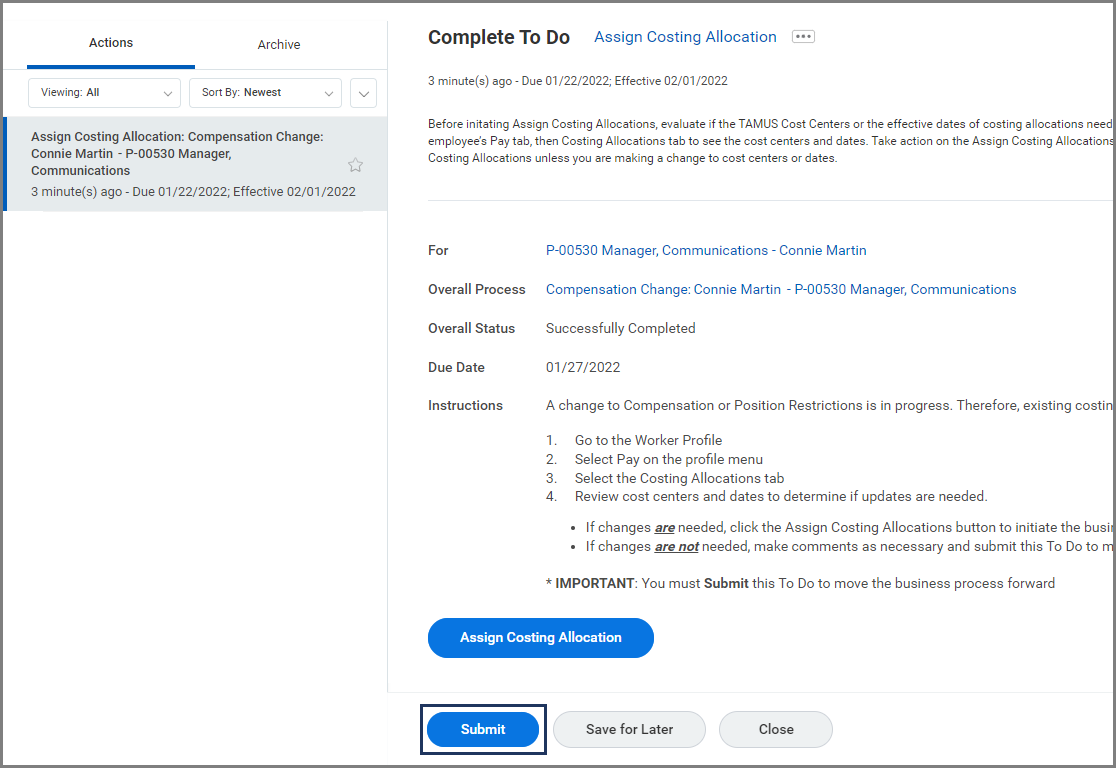
Important: Do NOT select the blue Assign Costing Allocations button as this will initiate the Assign Costing Allocation business process.
- Select Submit.
Updating Costing Allocations (Budget Contact)
As outlined above, the Budget Contact will receive a To Do to Assign Costing Allocation. If changes are needed to costing allocations:
- Navigate to your Inbox and select the To Do Assign Costing Allocation: Compensation Change.
- From the Inbox task, select Assign Costing Allocation only if changes need to be made.
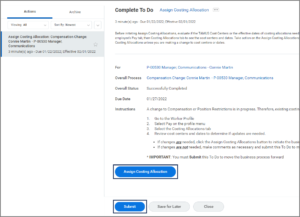
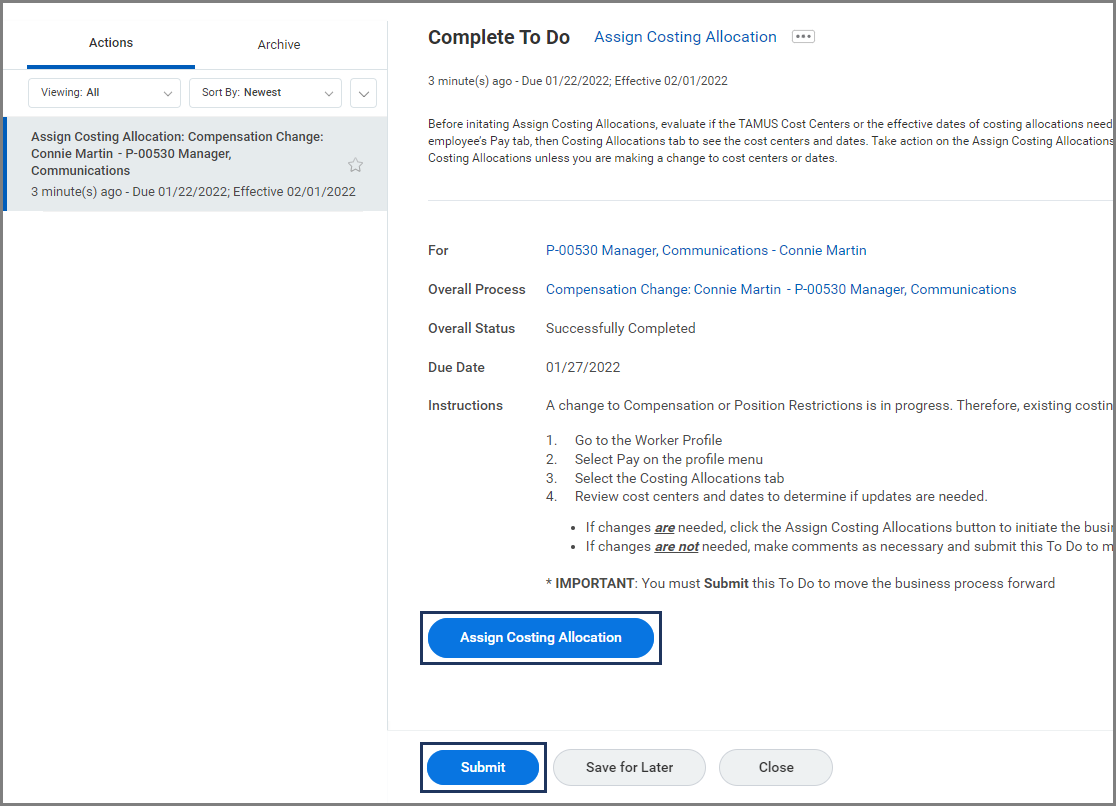
Important: If you know that no changes are needed to accounts, dates or percentages, you should Submit the To Do without taking further action as explained above. Do not select the blue Assign Costing Allocations button to review accounts. To review accounts, navigate to the Employee’s Worker Profile, select Pay, and then Costing Allocations.
- From the Assign Costing Allocation page, select the correct Worker and confirm the correct Position is selected. Enter an Earning if you are only changing the costing allocations for an allowance.
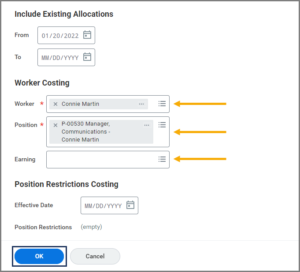

Important: The Position Restrictions Costing section should not be modified when making changes to an Employee.
- Select OK.
Note: You should never delete your previous cost set. Instead, you should always set an end date to the previous cost set that is the day before your new cost set will start.
- Set an End Date to the previous costing allocation.
- Select Add.
- Complete the following fields:
- Start Date: This indicates the first date that the salary/wages will be charged to the designated account. This should be the day after you have set the previous costing allocation to end.
- End Date (Optional): This indicates the last date that the salary/wages will be charged to the designated account. It is recommended that the last costing allocation does not have an end date entered in.
- Worktags. Update the account number (e.g., Business Computing Services) as needed. Projects are searchable from this field, but should not be selected.
- Distribution Percentage. Update as needed. To distribute percentages across multiple cost centers, select the Plus Sign (+) icon which will create a new row. The percentages from all cost centers must add up to 100%.


Note: A change to either the Effective Date, Percentage or TAMUS Cost Center must be made in order for the business process to route.
- Select Submit.
This completes the Request Compensation Change process.