
This job aid outlines the activities for a Benefits Partner to cancel or rescind, and relaunch the Open Enrollment event for the reasons of updating an Employee’s Additional Data questions, a change in benefit group, or a job change with a change in status for the Employee.
Relaunching Open Enrollment
Last updated on May 19, 2025
Page Loading...
Checking SSO...
Prerequisites
- Open Enrollment has been launched for the Texas A&M University System.
- Cancel and Relaunch: Open Enrollment Period must be open, July 10 to July 31, and the Open Enrollment Event is not finalized (Not Started, In Progress, Submitted)
- Rescind and Relaunch: Open Enrollment Period must be closed, after July 31, and the Open Enrollment Event finalized.
Important Information
- The use of the term Employee can be interchanged with the term Retiree for this job aid.
- Updates to Additional Data Questions must be completed before relaunching the Open Enrollment Event. Edit Worker Additional Data can be used to allow the Employee to update their information.
Getting Started
Cancel Open Enrollment Change Task
IMPORTANT: If it is after July 31 and Open Enrollment has been finalized, you cannot cancel Open Enrollment. Move to the Rescind Open Enrollment Change Task section.
Prior to relaunching Open Enrollment for the Employee, you will need to cancel their Open Enrollment event.
- Navigate to the Employee’s Worker Profile.
- Select Benefits and select the Benefit Election History tab.

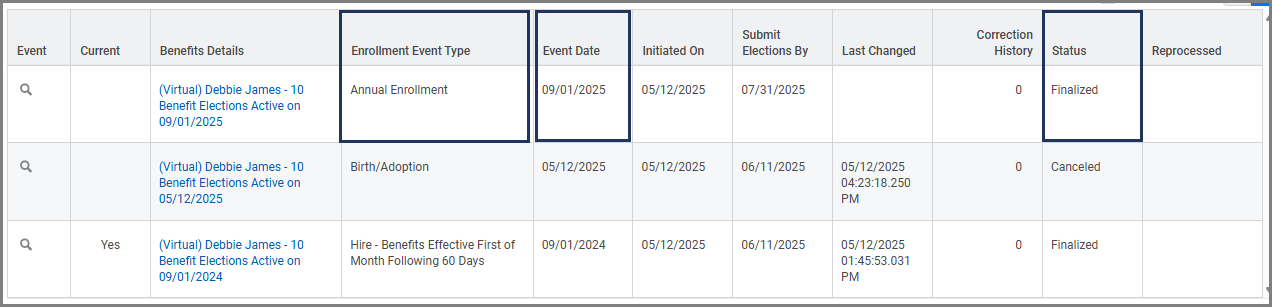
- Find the correct Open Enrollment Change task by using the columns Enrollment Event Type, Event Date, and Status.
- Select the Related Actions button next to the Magnifying Glass icon in the Event column and select Benefits > Cancel Enrollment.

- Select OK and Done.
- Continue to the Relaunch Open Enrollment Change Task section.


Rescind Open Enrollment Change Task
IMPORTANT: If it is between July 10 and July 31 and Open Enrollment has not been finalized, the Open Enrollment event cannot be rescinded. Move to the Cancel Open Enrollment Change Task section.
Prior to relaunching Open Enrollment for the Employee, you will need to rescind their Open Enrollment event. This section will guide you through those steps.
- Navigate to the Employee’s Worker profile.
- Select Benefits and select the Benefit Election History tab.
- Find the correct Open Enrollment Change task by using the columns Enrollment Event Type, Event Date, and Status.

- Select the Related Actions button next to the Magnifying Glass icon in the Event column and select Business Process > Rescind.


IMPORTANT: A comment is required when rescinding the event.
- Select Submit and Done.
Relaunch Open Enrollment Change Task
Now that the Open Enrollment event has been cancelled or rescinded, you can now relaunch Open Enrollment.
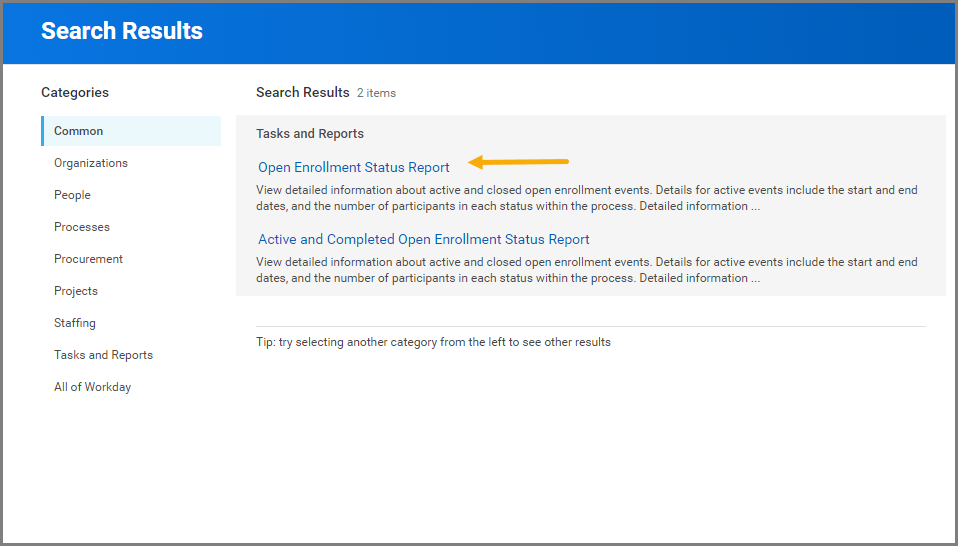
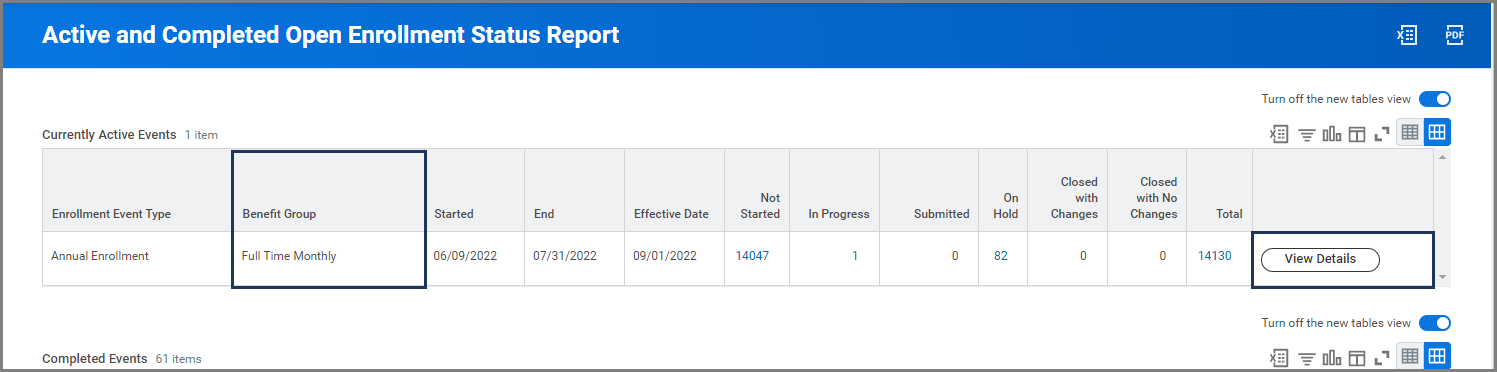
- Search for Open Enrollment Status Report in the Search Bar.
- Select the report from the search results.
Note: Wait until the report has loaded instead of exiting while loading. The report takes some time to generate.
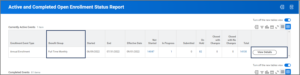
- Find the correct Benefit Group and select View Details.
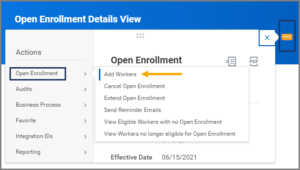
- Select the Related Actions button at the top of the screen and select Open Enrollment > Add Workers.
- In the Eligible Workers field, enter the UIN to select the Employee.
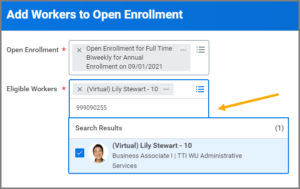
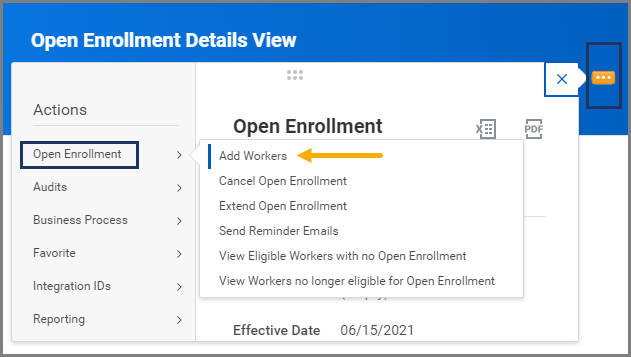

Note: You may enter multiple UINs to add employees in the same benefit group
- Select OK and Done.
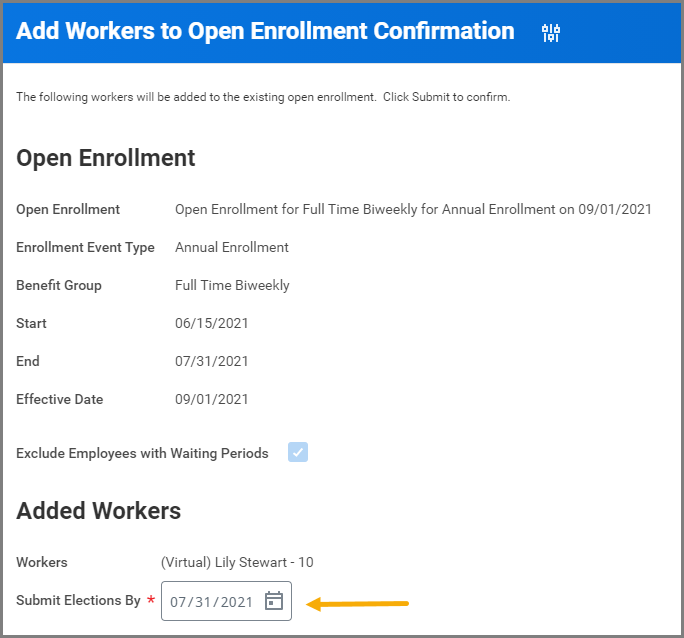
- The Submit Elections By date will default to July 31. If that date has passed, enter a new date eight calendar days from today’s date.
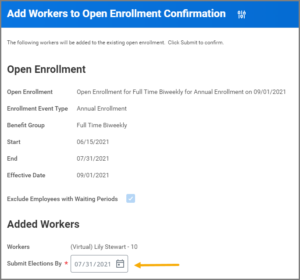
- Enter comments if needed and select Submit.
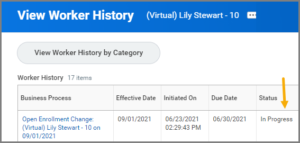
- Navigate to the Employee’s Worker History and verify that the new Open Enrollment Change task is in progress.

This completes the Relaunching Open Enrollment process.