
This job aid outlines the activities for an Employee or Retiree to add or change Medicare information for self or a Dependent in Workday.
Managing Your Medicare Information
Last updated on March 7, 2024
Page Loading...
Checking SSO...
Prerequisites
To update your status in Workday, you will need your Medicare card or the Medicare card(s) of any Dependent(s) with coverage under your benefits package in Workday
Important Information
- Your Medicare Number, also known as an MBI (Medicare Beneficiary Identifier), is an eleven digit number that has been assigned to you by Medicare. It does not contain your Social Security Number. Each dependent will have a unique MBI number. If you or your Dependent(s) have not received an MBI, contact 1‑800‑MEDICARE (1-800-633-4227) before updating Workday
- Do not update Medicare information for your Dependents unless they qualify for Medicare
- If you are entering Medicare data for an event that occurred more than 90 days ago, contact your Human Resources Office before updating Workday
Getting Started
Navigate to the Medicare Information Page
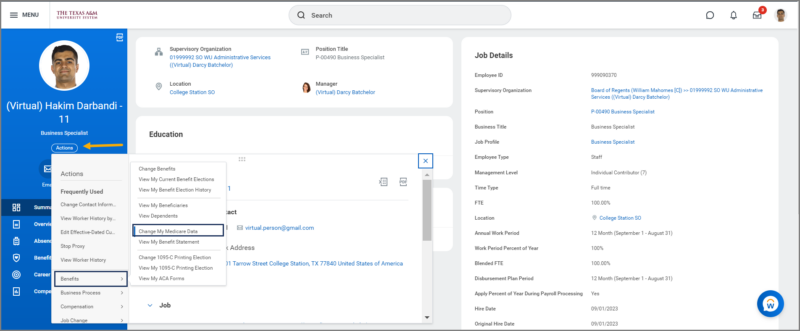
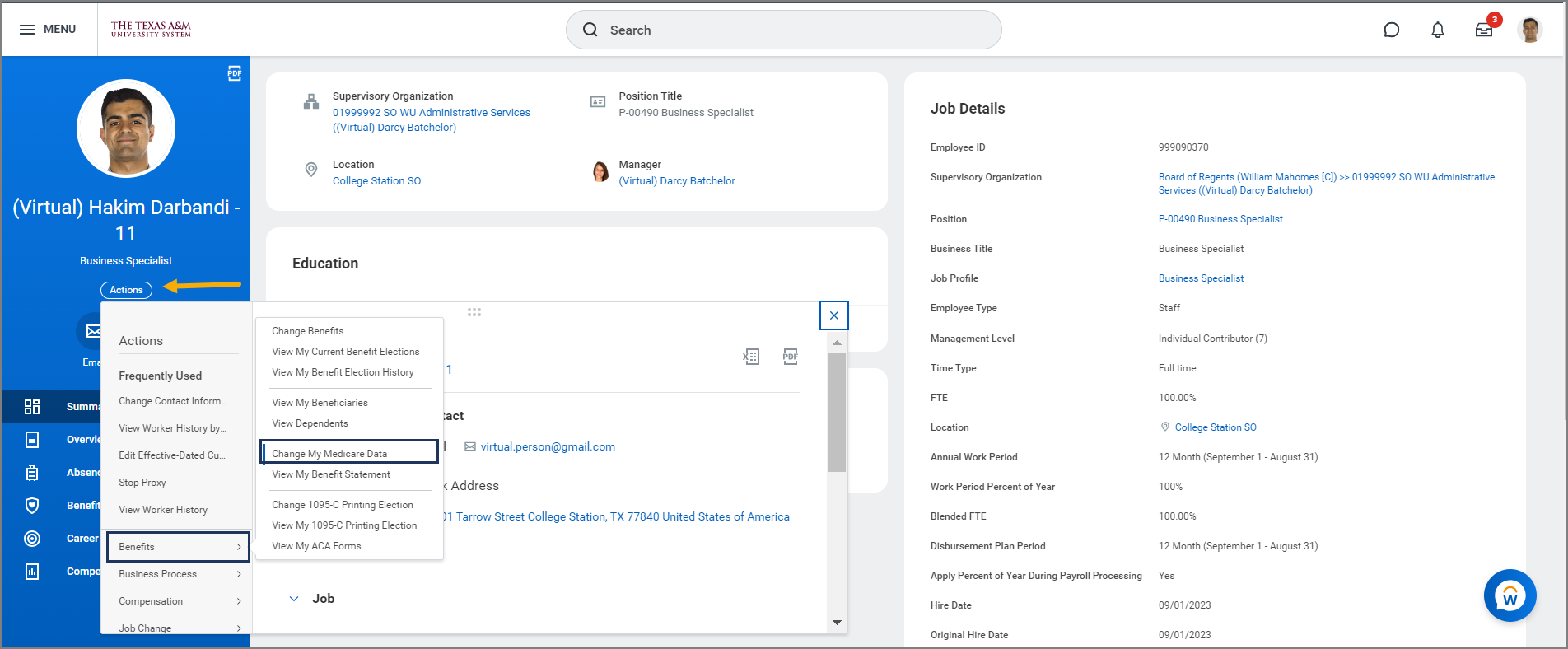
- From your Worker Profile, select Actions > Benefits >Change My Medicare Data.
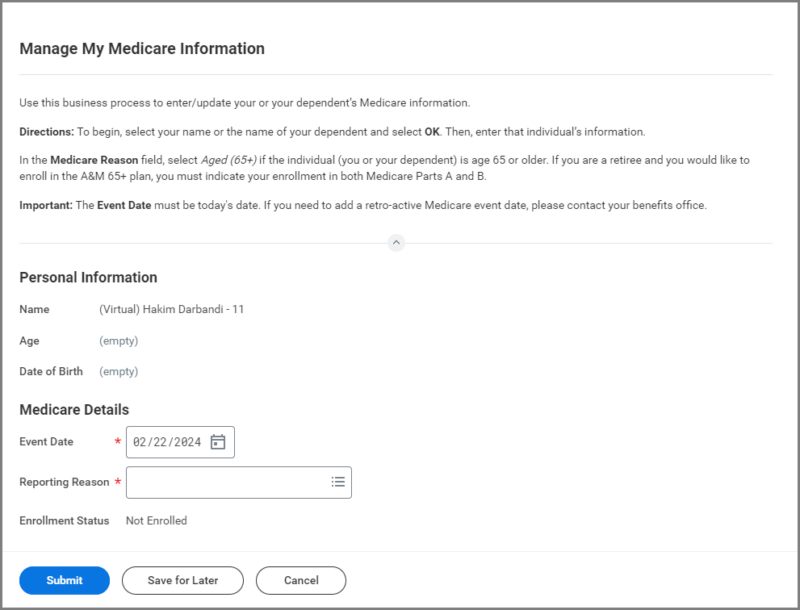
- On the Manage My Medicare Information window, read all of the instructions.
Manage Medicare Information
- Under the Medicare Details section, enter the Event Date and Reporting Reason
-
- Event Date. Enter today’s date. If you need to enter a Medicare event date that is in the past, contact your Human Resources Office.
- Reporting Reason. Select Add if you recently became eligible or Update to change existing information.
- Select the Medicare Number (MBI) button and enter the number on the Medicare card.
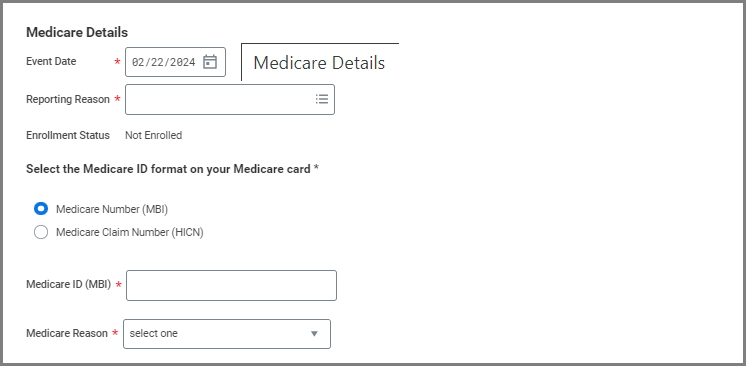
IMPORTANT: Do not select the Medicare Claim Number (HICN) button. HICNs are no longer used by the Federal Government.
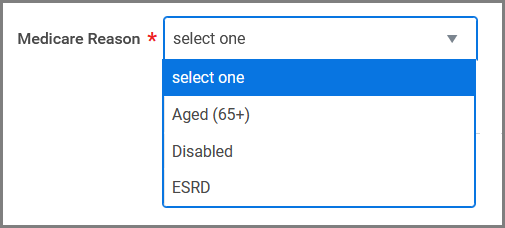
- For the Medicare Reason, select one:
-
- Aged (65+). Individual has reached the age of 65 or older
- Disabled. Individual has been identified by the SSA as disabled
- ESRD. Individual has End Stage Renal Disease
- Complete Parts A & B (and ESRD, if needed). In most cases the effective date is the first day of your birthday month or the date shown on the Medicare card.
-
- Part A – Hospital. Coverage for hospitalization at no additional premium cost
- Part B – Medical. Coverage for physician and outpatient
- End Stage Renal Disease. Coverage for dialysis and kidney transplant services
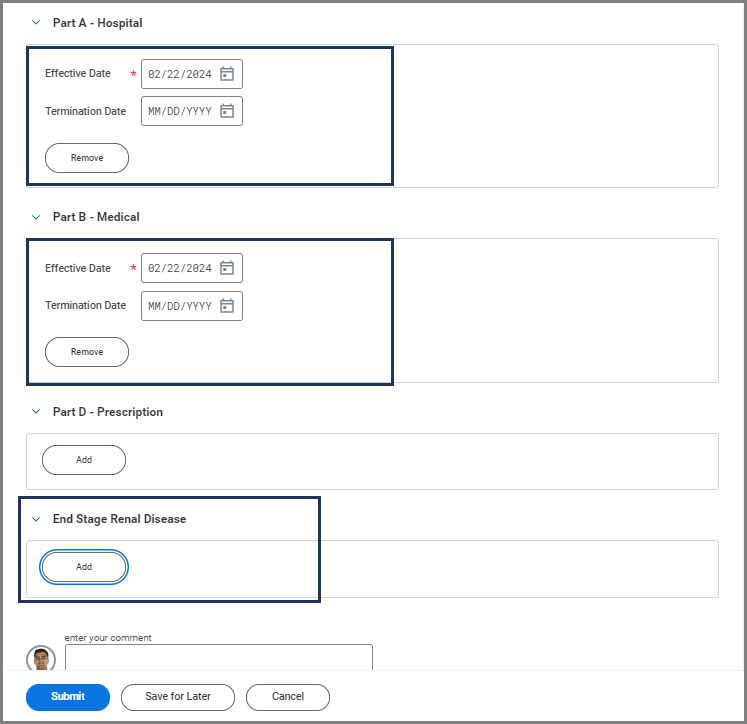
IMPORTANT: Leave Part D blank as Medicare prescription enrollment is handled separately by your HR office.
IMPORTANT: Do not attach or upload files on this screen. Medical documentation and other sensitive information are kept separate from your Workday profile.
- Enter Comments, as needed.
- Select Submit.
- Select X to close the Manage My Medicare Information pop-up window.

Up Next
Your Human Resources Office may contact you to provide proof of your Medicare change or assist you with a change to your benefits if needed.
This completes the Managing Your Medicare Information process.