
This job aid outlines the process for an Employee to manage their Employee Compliance Disclosures outside of the annual compliance disclosure process.
Managing Your Employee Compliance Disclosures
Last updated on October 6, 2026
Page Loading...
Checking SSO...
Important Information
- Not all A&M System members participate in the Employee Compliance Disclosures and those that do may not participate in collecting all three disclosures.
- All employees will review their employee compliance disclosures annually and update as needed throughout the year.
Getting Started
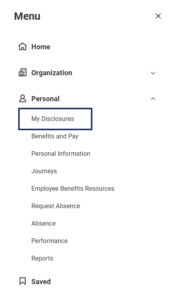
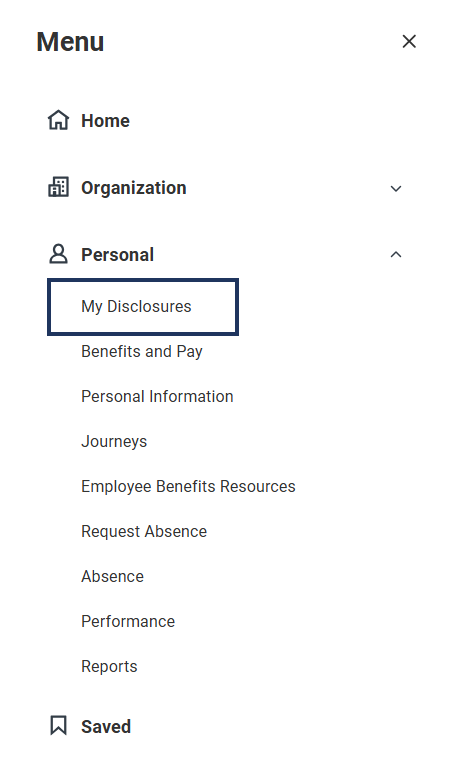
- On the Workday homepage, select Menu then My Disclosures.
Add a Nepotism Disclosure
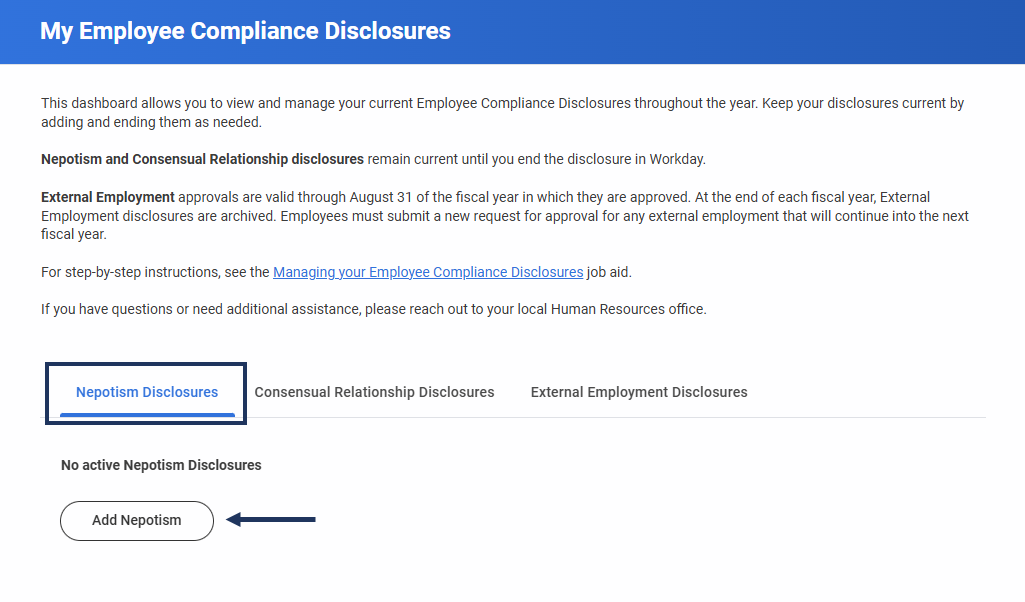
- Select the Nepotism Disclosure tab then Add Nepotism.

- Fill in the following information about the relative:
- Full Name. Required.
- Relative Type. Required. How you are related to the person. Adopted children count the same as biological children
- Email. Required. Use their System affiliated email, if possible.
- Company. Required.
- Department. Required.
- Employee Comments. Optional. Use to enter the relative type if Other was selected for relation. Include any other helpful information that can assist your HR Partner in their review.
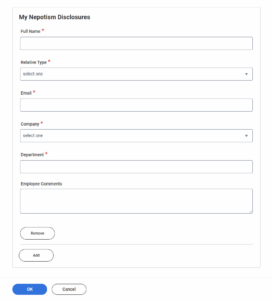
- To add more than one Nepotism Disclosure, select Add as needed and fill in the information.
- Select OK to submit.

Add a Consensual Relationship Disclosure
- Select the Consensual Relationships Disclosures tab then Add Consensual Relationship.

- Fill in the following information about the person you are in a consensual relationship with:
- Person’s Full Name. Required.
- Affiliation. Required. How they are affiliated with the A&M System.
- Email. Required. Use their System affiliated email, if possible.
- Department. Required.
- Employee Comments. Optional. Include any other helpful information that can assist your HR Partner in their review.

- To add more than one Consensual Relationship Disclosure, select Add as needed and fill in the information.
- Select OK to submit.


Request Approval for External Employment
- Select the External Employment Disclosures tab then Add External Employment.

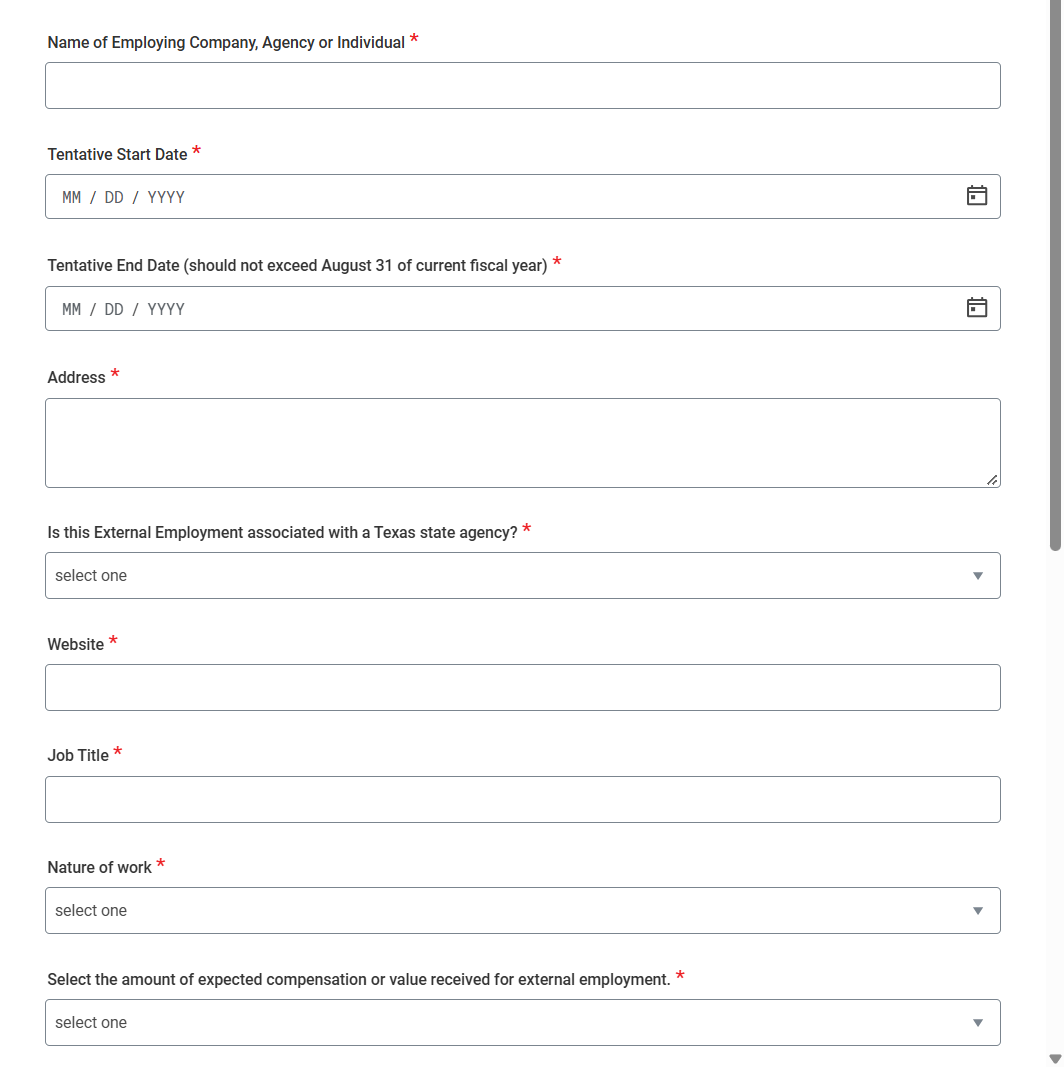
- Fill in the following information:
- Name of Employing Company, Agency or Individual. Required.
- Tentative Start Date. Required. For a new position, enter your anticipated start date. If you are renewing approval for a position you already hold, enter the date you originally started, even if it is in the past.
- Tentative End Date (should not exceed August 31 of current fiscal year). Required. Enter the date you expect your employment to end. If you are unsure of your end date or have no planned end date, enter August 31 of the current fiscal year.
- Address. Required. The main address of the additional company, agency or individual you are working for.
- Is this External Employment Associated with a Texas state agency? Required.
- Website. Required.
- Job Title. Required.
- Nature of Work. Required.
- Select the amount of expected compensation or value received for external employment. Required.

- Equity ownership involved? Required. Do you hold a financial stake, shares, or a direct percentage of ownership of this firm where you are externally employed? If you answer Yes, provide the Amount and type of equity interest owned.
- Release Time Requested? Required. Requesting paid time away from normal duties, approved case by case, to do external work without using vacation time off. If you answer Yes, fill out the following information:
- Basis for Requesting Release Time.
- Start Date for period.
- End Date for period.
- Total release time for period.
- Total release time (including previous approvals)

- Check the I Agree checkbox and select Submit.
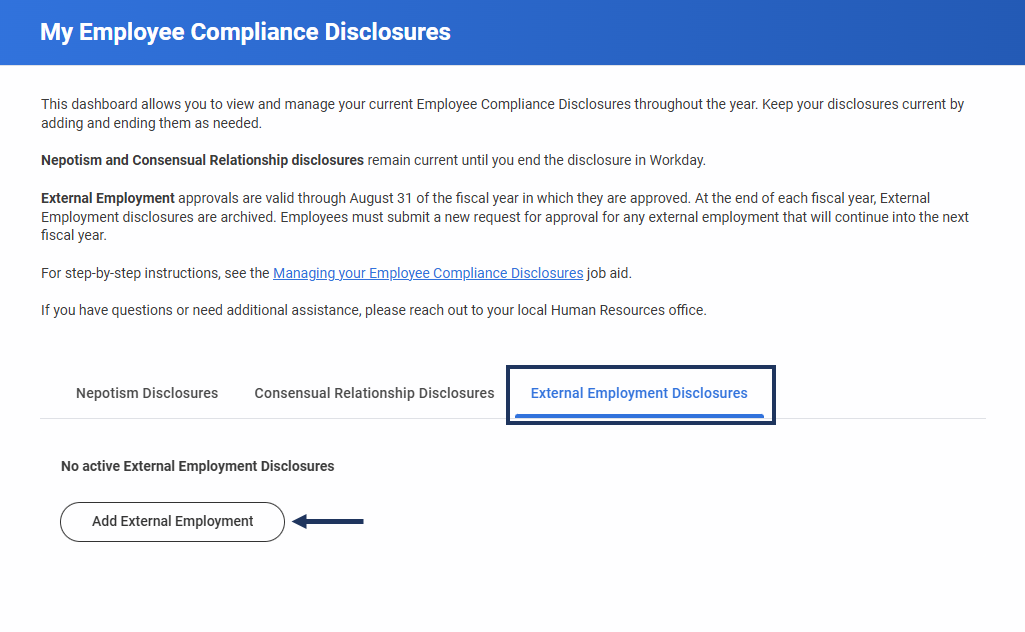

Note: If you need to add more than one external employment, after submitting your first external employment, return to the External Employment Disclosures tab and begin the process again.
End Disclosures
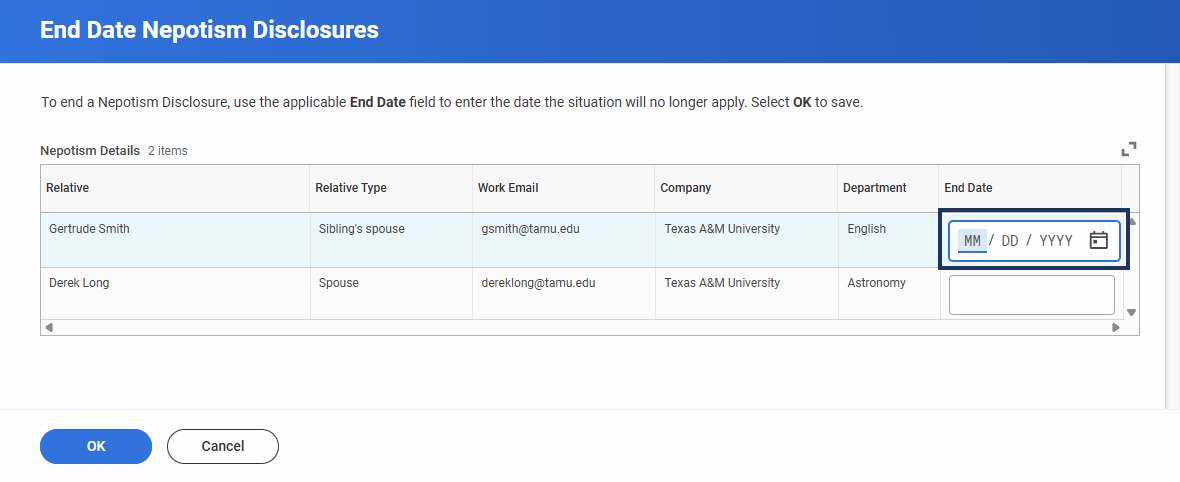
- Navigate to the tab containing the disclosure you want to end and select the End Date.


Note: External Employment requests cannot be end-dated. All external employment requests will be archived at the end of each fiscal year, August 31.
- In the End Date column, enter the date the situation will no longer apply. For example, if the person you disclosed has left their position, enter the date of their last day of employment. If you have more than one disclosure, make sure you are entering the date in the correct row.

- Select OK. This will remove the disclosure from your current Compliance Disclosures.
Up Next
Your HR Partner will receive a review task to review your added disclosures and determine if further action is required.
This completes the Managing Your Employee Compliance Disclosures business process.