This job aid outlines the activities for a Benefits Partner to initiate when an Employee loses eligibility for the Optional Retirement Program (ORP).
Losing ORP Eligibility
Last updated on June 5, 2023
Page Loading...
Checking SSO...
Prerequisites
- Run report Losing ORP Eligibility.
- Visit the Texas Higher Education website and view the ORP Eligibility Chart to determine whether the employee will be able to enroll in ORP in the future.
Important Information
- Appearing on the Losing ORP Eligibility report does not guarantee that a worker should be dropped from ORP.
- Research to confirm and reach out to System Benefits Administration.
- If in doubt, the Losing Eligibility for ORP Reference Guide can help, as well as the ORP Eligibility Chart.
- The Losing ORP Eligibility report derives from the data entered by the Benefit Partners.
- It is important that Benefit Partners maintain the ORP Vesting data in Workday, so that the report returns accurate information.
Getting Started
Turning Off ORP
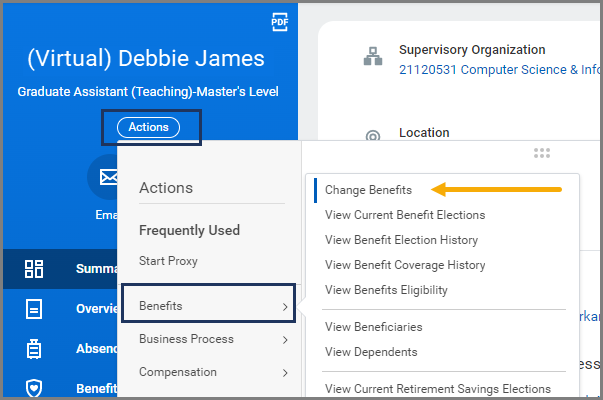
- Navigate to the Employee’s Worker Profile.
- Select Actions > Benefits > Change Benefits
- Enter the following information.
- Change Reason. Select End TRS/ORP
- Benefit Event Date. Enter the date ORP should end.
- Submit Elections By. This will automatically populate with a date.
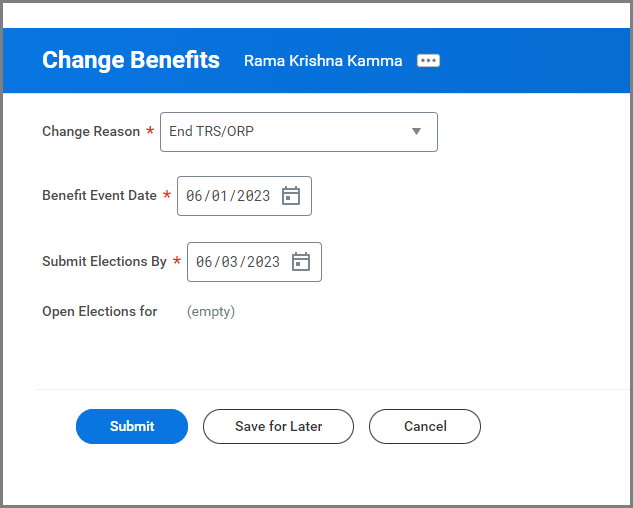
- Select Submit.
Note: If the employee is no longer eligible for TRS or ORP at all, the event will auto-complete and you are done. Otherwise, you may need to click through the enrollment screen to enroll them in TRS (if applicable).
Up Next
Adding Custom IDs
There are several custom IDs that may need to be added, depending on the scenario.
- Navigate to the Employee’s Worker Profile.
- Select Actions > Benefits > Edit Other IDs
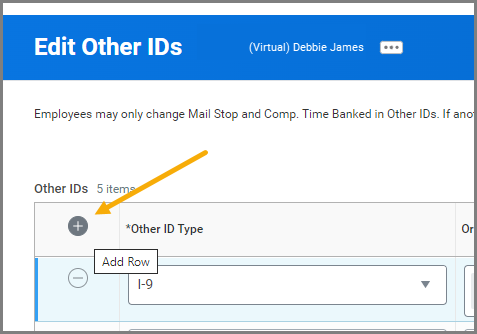
- In Edit Other IDs, select the Plus icon to add a row.
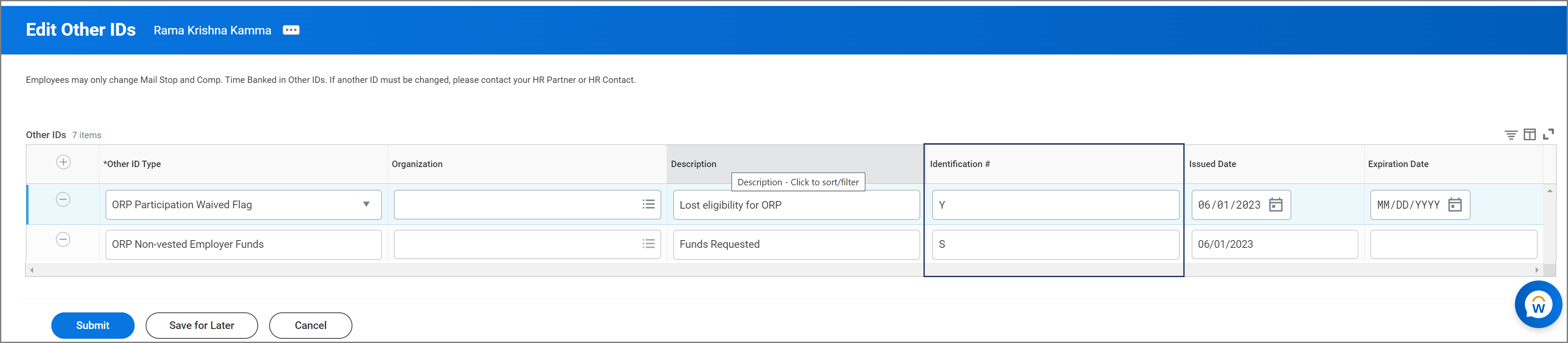
- In the Other ID Type column add both:
- ORP Non-Vested Employer Funds.
- ORP Participation Waived Flag. Only if you have confirmed that the employee will not be eligible to enroll in ORP at any point in the future.
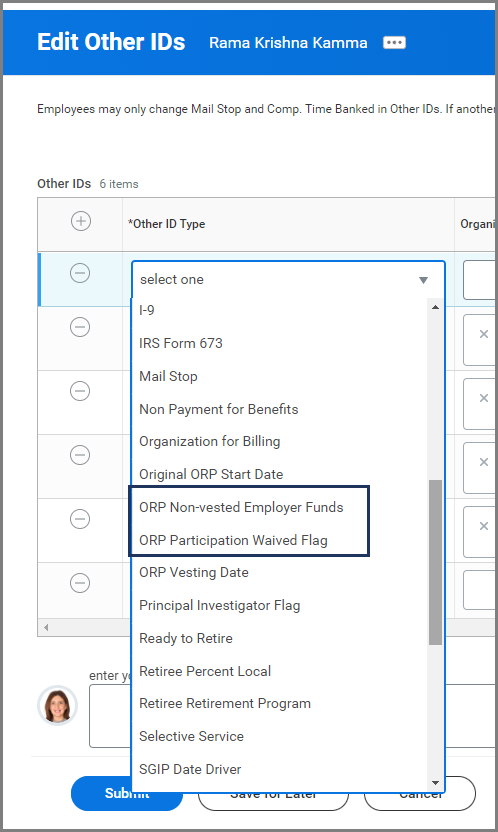
- Add the following to the Identification # column for ORP Non-vested Employer Funds.
- The Identification # should be S when you solicit the funds from the vendor with an issue date of the date this was done.
- Add the following to the Identification # column for ORP Participation Waived Flag.
- If you have confirmed that the employee will not be eligible to enroll in ORP at any point in the future, add this ID with an Identification # of Y and an issue date of the date they lost ORP eligibility.
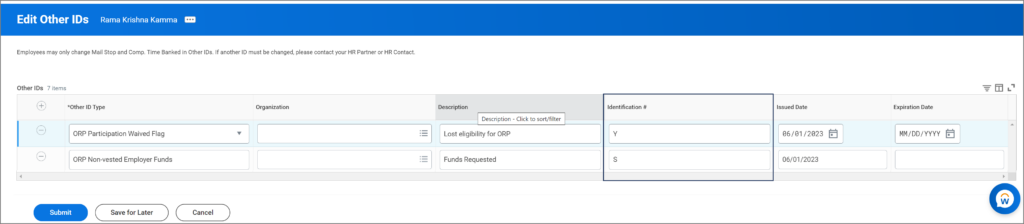
- If you have confirmed that the employee will not be eligible to enroll in ORP at any point in the future, add this ID with an Identification # of Y and an issue date of the date they lost ORP eligibility.
Important: If you solicited funds from the ORP vendor, remember to change the ORP Non-vested Employer Funds row custom Identification # value from S to R after the funds are received.
- In the Other ID Type column add both: