
This job aid outlines the process for an Absence Partner or Manager to enter an Absence for an Employee. Employees may also enter their own absence as explained in the Managing Your Absence job aid.
Enter Absence For Your Employee
Last updated on January 29, 2026
Page Loading...
Checking SSO...
Important Information
Managers should contact Absence Partners for assistance initiating employee Leave of Absence.
FMLA Handling
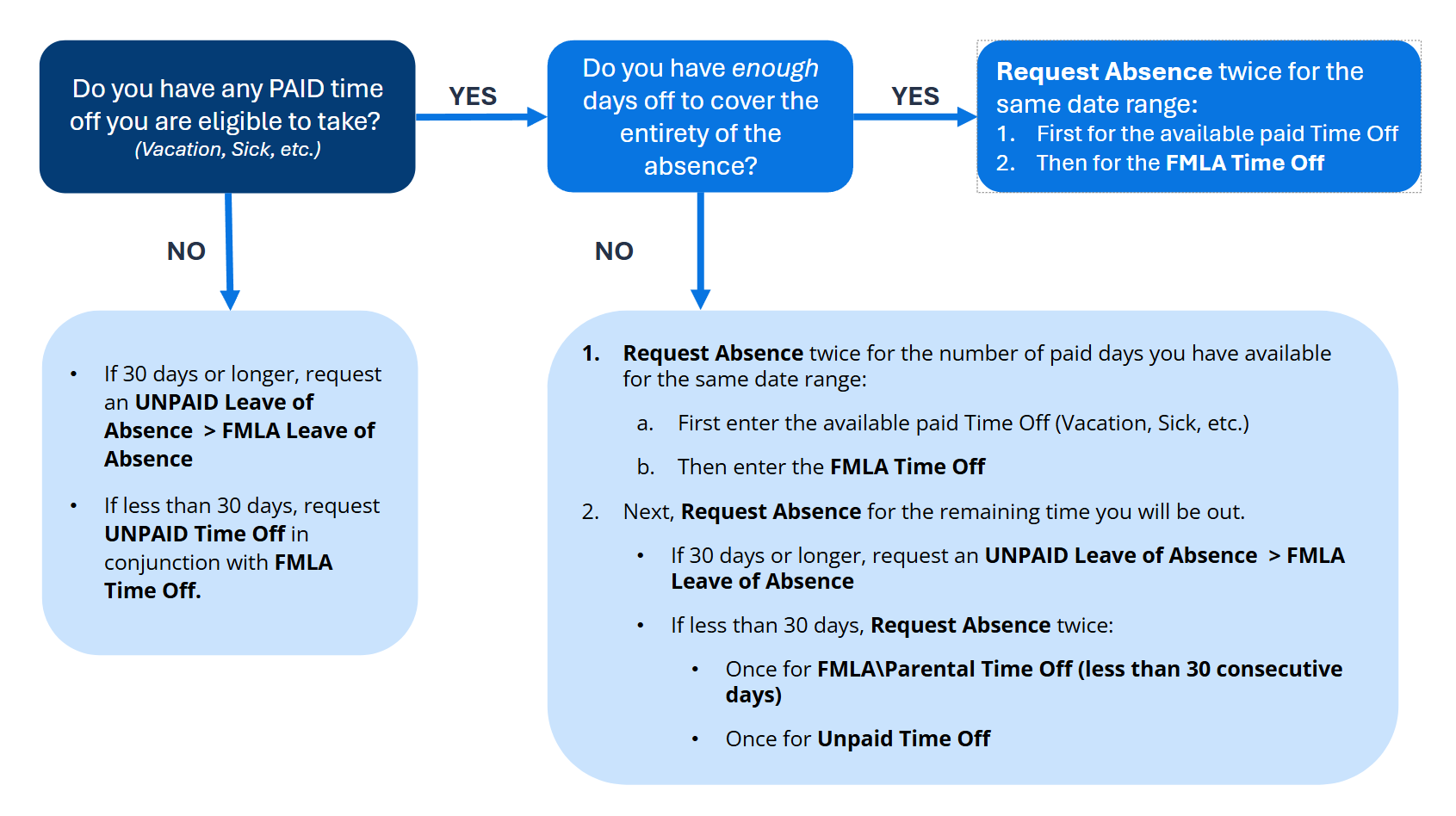
When entering FMLA time off, consider the following: Absences.
- Does the Employee have any paid time off they are eligible to take?
- YES: Do they have enough days off to cover the entirety of the absence?
- YES: Enter Time Off twice for the Employee for the same date range – once with the Type Paid Time Off and once with the Type FMLA.
- NO: Enter Time Off twice for the Employee for the number of paid days they have accrued – once with the Type Paid Time Off and once with the Type FMLA. Then enter a Leave of Absence for the remaining time off. A Leave of Absence of 30+ days will require the Absence Partner to initiate and submit.
- NO: Enter the absence as a FMLA Leave of Absence by using the process Place Worker on Leave.
- YES: Do they have enough days off to cover the entirety of the absence?
- Should leave start the day after paid time off ends?
- If an Employee is using paid time off and then an unpaid Leave of Absence, then the FMLA Leave of Absence should start the day after the paid time off ends. Workday will handle the weekends.
- If the last day of paid time off is partial, then the Employee should use the Unpaid Time Off to finish out the day.
- If you want to view Time Off and Leaves of Absence on the same page, open the Manage Absence Calendar view.
Getting Started
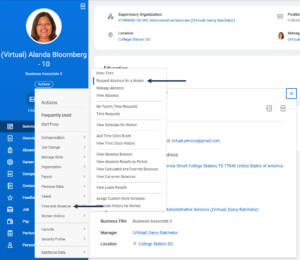
- Navigate to the Employee’s Worker Profile and select Actions > Time and Absence > Request Absence for a Worker.
- On the Request Absence calendar, select the date(s) the Employee will be taking time off, then click Continue.

Note: Please remember to check the top of the Request Absence calendar to ensure that you are requesting this absence on behalf of the correct employee. 
-
- In the Request Absence pop-up window, complete the following fields:
- Type of Absence. Only Types for which the employee is eligible will appear (e.g., vacation, sick, other).
- Reason. This is required for certain Absence Types.
- Hours (Daily). You will need to populate this field with the number of hours for the employee’s absence request.
- In the Request Absence pop-up window, complete the following fields:
IMPORTANT: This is not the total hours but the hours per day you will be absent.
Note: You can select Edit Individual Days if the hours of Time Off on multiple dates that are selected will differ. This feature allows you to enter in a partial day if desired.
-
-
- Comment. Enter comments as needed; remember not to include private information.
- Comment. Enter comments as needed; remember not to include private information.
-
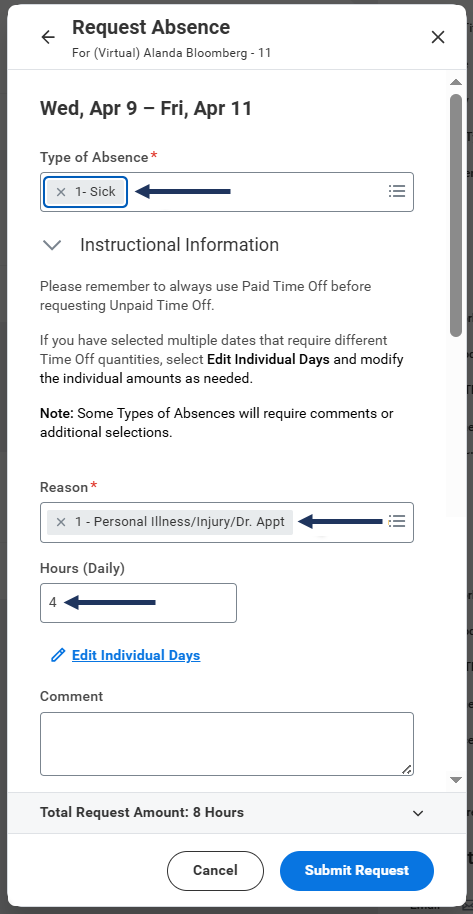
Note: If multiple days are selected, the Daily Quantity can be modified by selecting Edit Individual Days. Select the day you would like to adjust and enter in the hours desired for the specific days.
- Enter any comments, as needed.
- Select Submit Request.
If you are a Faculty Member, your request may route to your Faculty partner for approval once your request has been approved by your Manager, depending on whether your Member has elected to route these requests to the Faculty Partner.
The following Absence requests will route to the Absence Partner for approval once you submit the request:
-
- FMLA
- Parental
- Emergency time off
- Suspension with Pay
- Investigation
- Unpaid Time Off
- Military Training/Duty
Some Members may elect not to route these requests to the Absence Partner.
- The Absence will appear on the Employee’s Manage Absence Calendar and is visible to the Employee, Manager and Absence Partner.


This completes the Enter Absence for Your Employee business process.