
This job aid outlines the process for the HR Partner, HR Contact, or Compensation Partner to generate and complete the EIB Template – Request One-Time Payment report in Workday to request one-time payments for multiple employees through a mass-load (EIB) process.
EIB Template – Request One-Time Payment
Last updated on June 17, 2026
Page Loading...
Checking SSO...
Important Information
- The template can only be used for a One-Time Payment request.
- The EIB Template – Request One-Time Payment report does not replace the Request for Mass Load (EIB) form on the help site. Only designated member representatives (HRO level or director) can submit the EIB request. (though several roles can run this new report).
Getting Started
Generate EIB Template
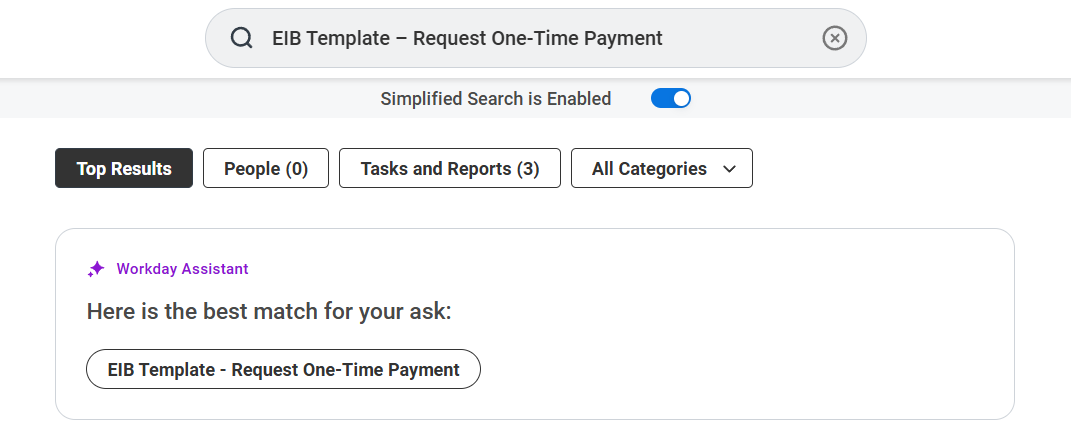
- In the Workday search bar, search for and select the EIB Template – Request One-Time Payment report.
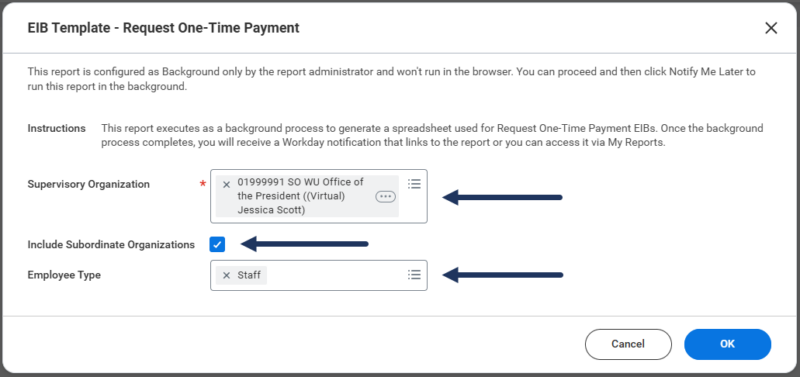
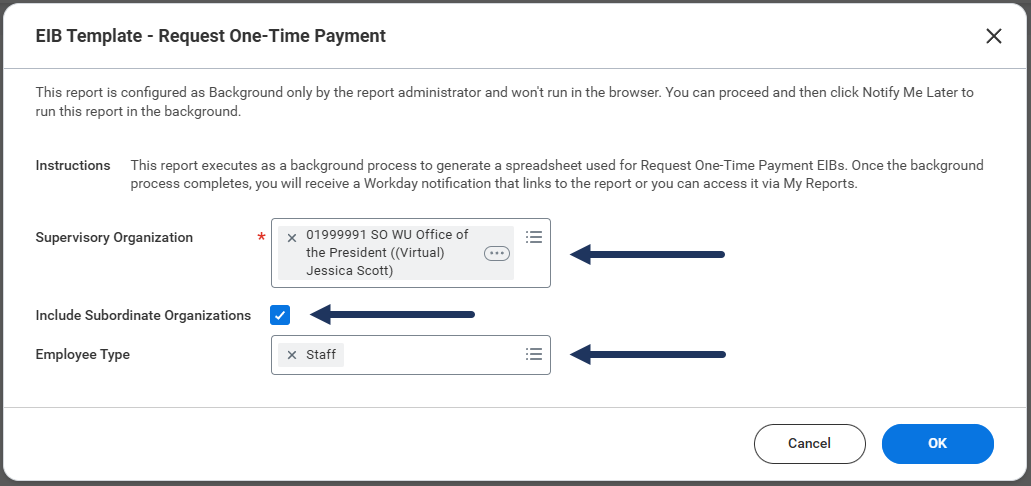
- On the report prompt screen, complete the following fields as needed:
- Supervisory Organization. Multiple supervisory organizations can be selected to get employees from different departments.
- Include Subordinate Organizations.
- Employee Type.
- Select OK.
- A message displays indicating the report is configured as a background process. Select Notify Me Later.
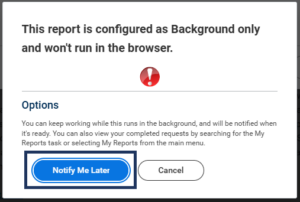

Note: The report processes in the background and is delivered to My Reports in Workday.
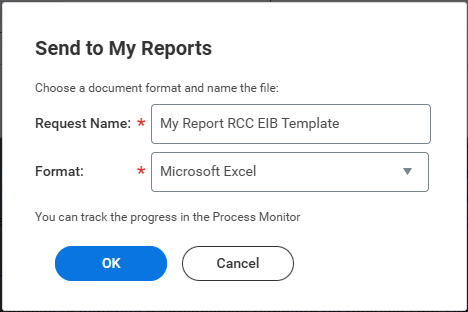
- Enter a name for the document in the Request Name field. The Format field will default to Microsoft Excel; no action is needed.
- Select OK.

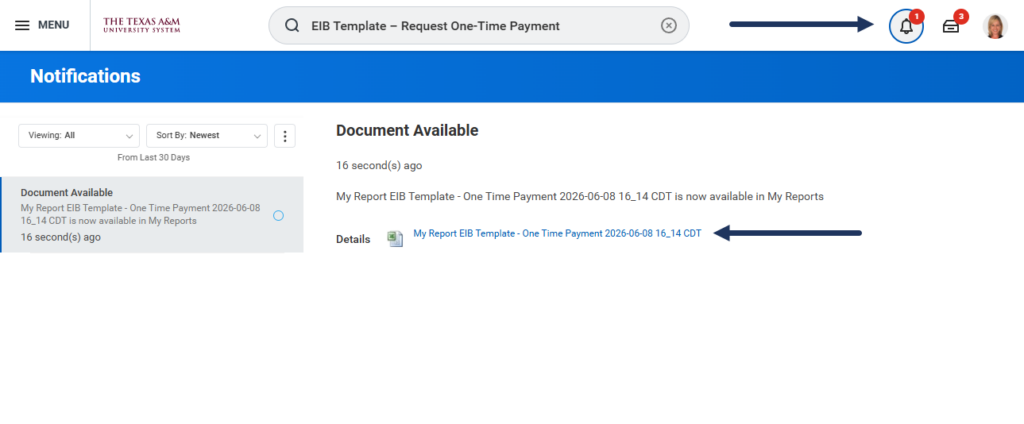
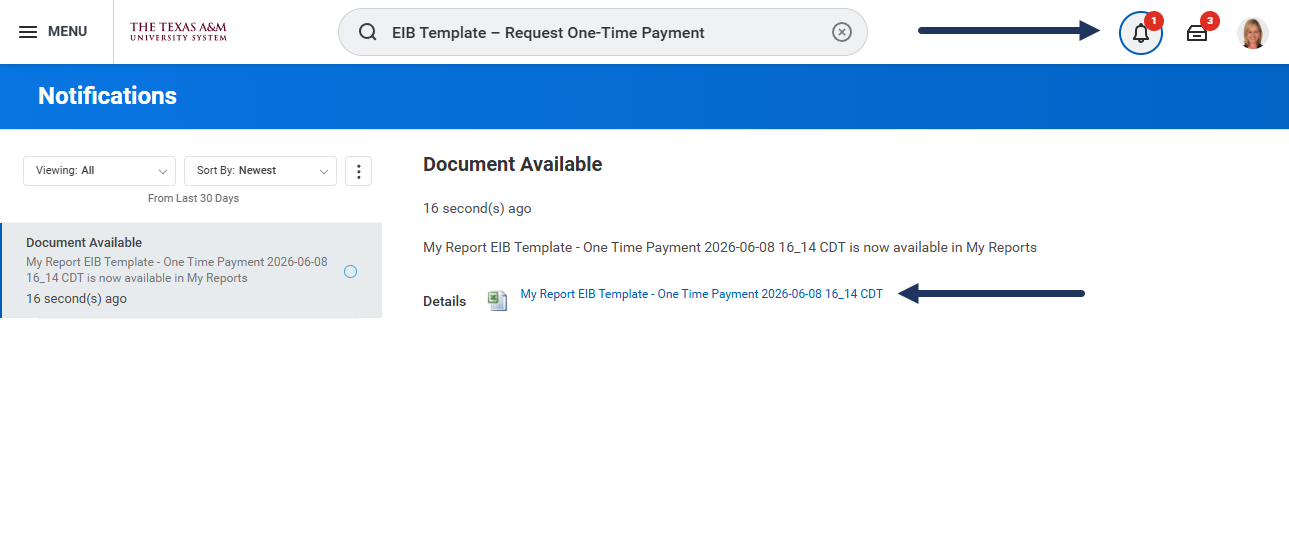
- Once the report is available, select the Notifications icon to open the notification.
- In Notifications, select the file link to download and save.
Edit the EIB Template
- Open the Excel template.
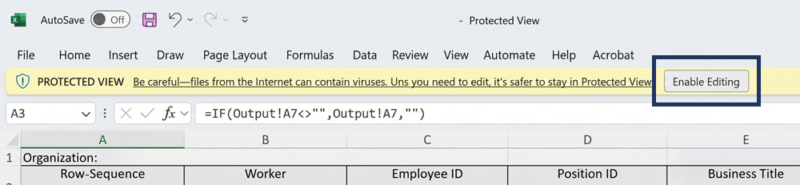
- At the top of the spreadsheet, select Enable Editing if needed.

Note: The fields in the table remain the same regardless of previously selected options in the initial EIB Template – Request One-Time Payment report.
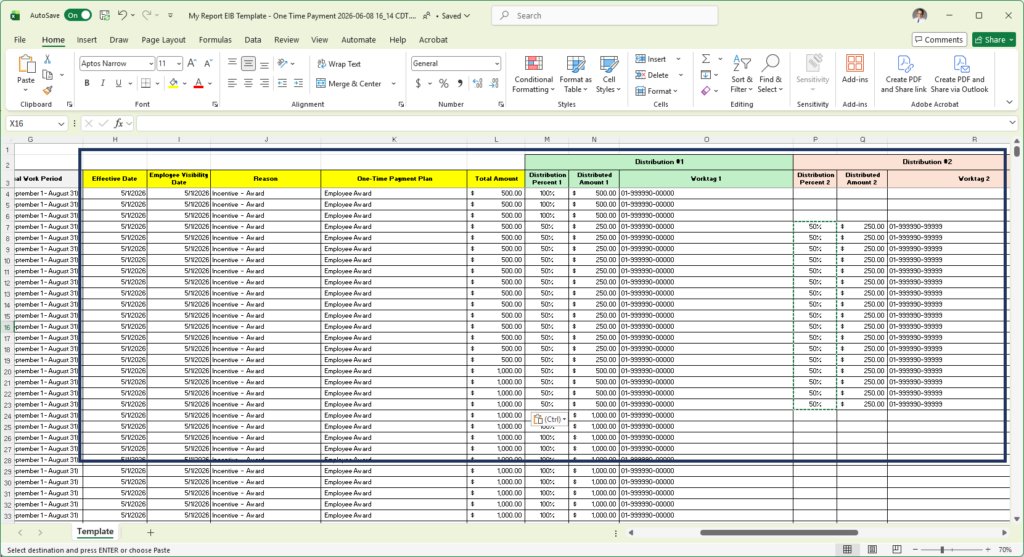
- Complete the applicable fields to request a one-time payment for each employee:
-
-
-
- Effective Date.
- Employee Visibility Date.
- Reason.
- One-Time Payment Plan.
- Total Amount. Enter the gross payment amount.
- Distribution #1. Enter the Distribution Percent 1 (50% or 100%), Distributed Amount 1 and Worktag 1 (TAMUS Cost Center).
- Distribution #2. Only Required if Distribution Percent 1 is set to 50%. Distribution Percent 2, Distributed Amount 2 and Worktag 2 (TAMUS Cost Center).
-
-

Important: Do not insert or delete any columns. Columns can be hidden if needed. If additional columns need to be added, do so at the far right end of the table after all the labeled columns.
Important: Ensure the accounts listed have already been created and are available in production.
- Fill out and submit the Request for Mass Load (EIB) form on the Workday Services help site.
- The Request for Mass Load (EIB) form will generate a support ticket. Once you receive email notification of the support ticket, attach the EIB excel file to the support ticket.
- The support ticket will also provide notification for when Workday Sandbox is ready for the data to be validated from the EIB using the Compensation Changes report.
Navigate to the Up Next tab for the next steps in the process.
Up Next
EIB Review and Final Process (Workday Services)
The completed EIB file is reviewed and processed in accordance with established business processes and approval workflows for the Request for Mass Load (EIB) process.
Once the file has been loaded into Workday, the data can be validated using the One-Time Payments report.
This completes the EIB Template – Request One-Time Payment process.