
This job aid outlines the process for an HR Partner to make changes to job details of a filled position.
Edit Position
Last updated on July 22, 2024
Page Loading...
Checking SSO...
Prerequisites
A position must be filled to initiate this business process.
Important Information
- The Edit Position business process should not be used to make changes to an employment agreement.
- Once a position is created, the Supervisory Organization cannot be changed using the Edit Position business process.
- Annual Work Period changes should be made prior to payroll running.
- Use the Change Job business process, instead of Edit Position, if the employee is being promoted, transferred, reclassified, or the job change impacts FTE, pay or timekeeping.
Getting Started
Navigate to Position
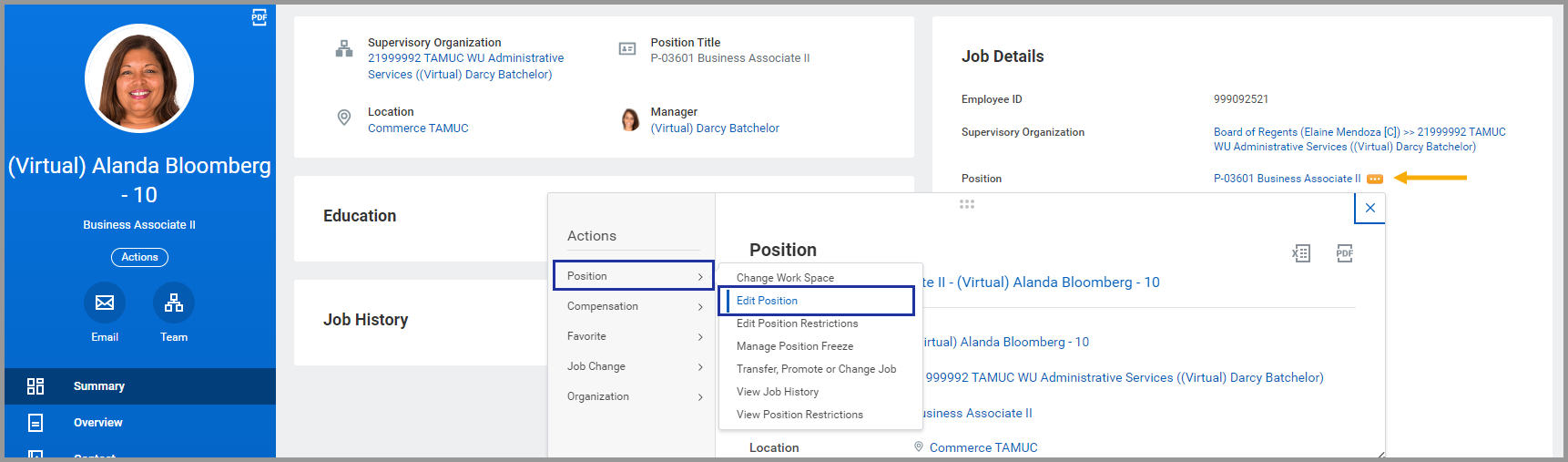
- Navigate to the employee’s Worker Profile.
- Select the Related Actions icon next to the Position Title > Position > Edit Position.
Edit Position
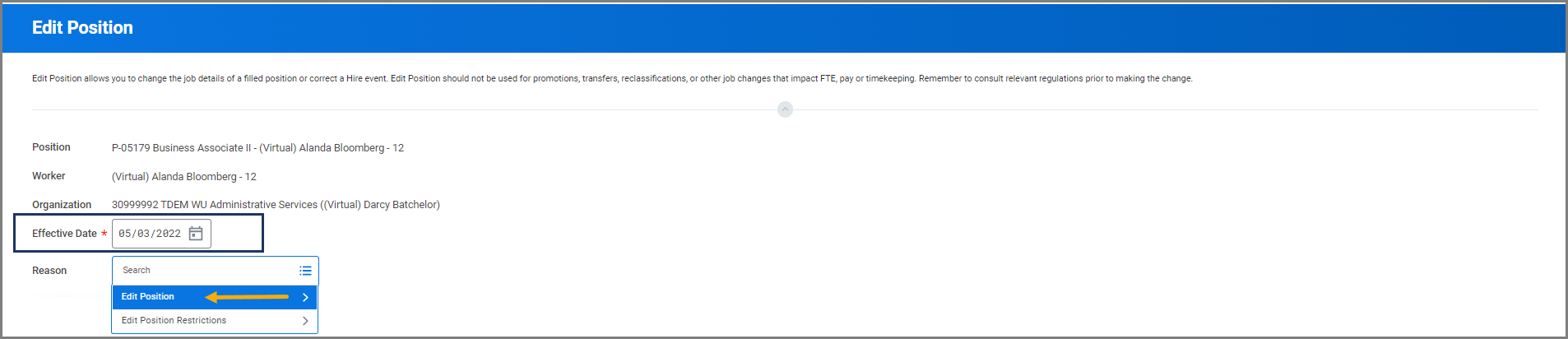
- Enter the Effective Date.
- The Reason field has the option to Edit Position and Edit Position Restrictions. Select the reason most relevant to the changes:
-
- Edit Position. Select when the Job Details of a filled position needs changing.
- Edit Position Restrictions. Select when you need access to change Hiring Restrictions and Qualifications on a filled or unfilled position.
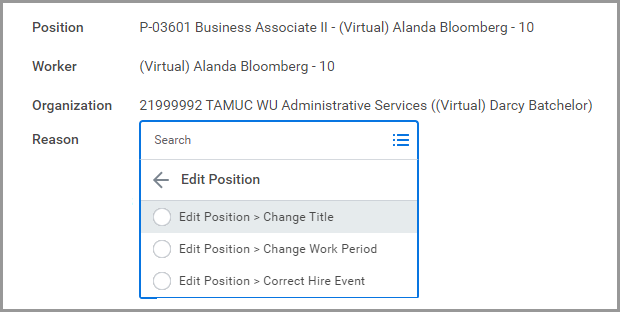
- Select the Edit Position reason.
-
- Change Title. This option will allow the HR Partner to change the job title. This will not change the title on the Job Profile.
-
- Change Work Period. This option is used to change the work period.
Note: This should only be done using Edit Position if prior to payroll running. Use Change Job after first payroll is run on the employee while in this position.
-
- Correct Hire Event. This option is used when correcting job details of the Hire Event.
- Correct Hire Event. This option is used when correcting job details of the Hire Event.
- Edit any necessary Job Details.
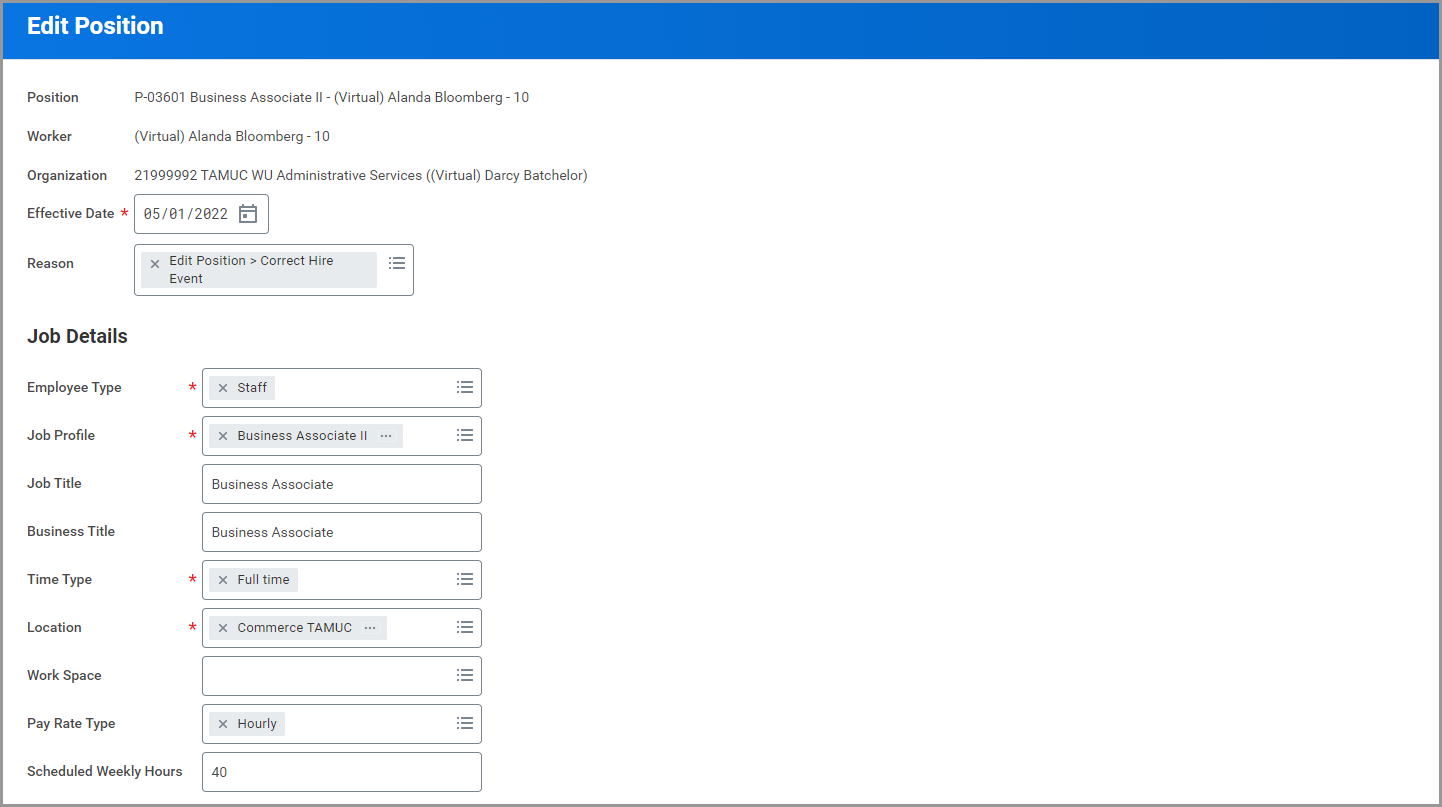
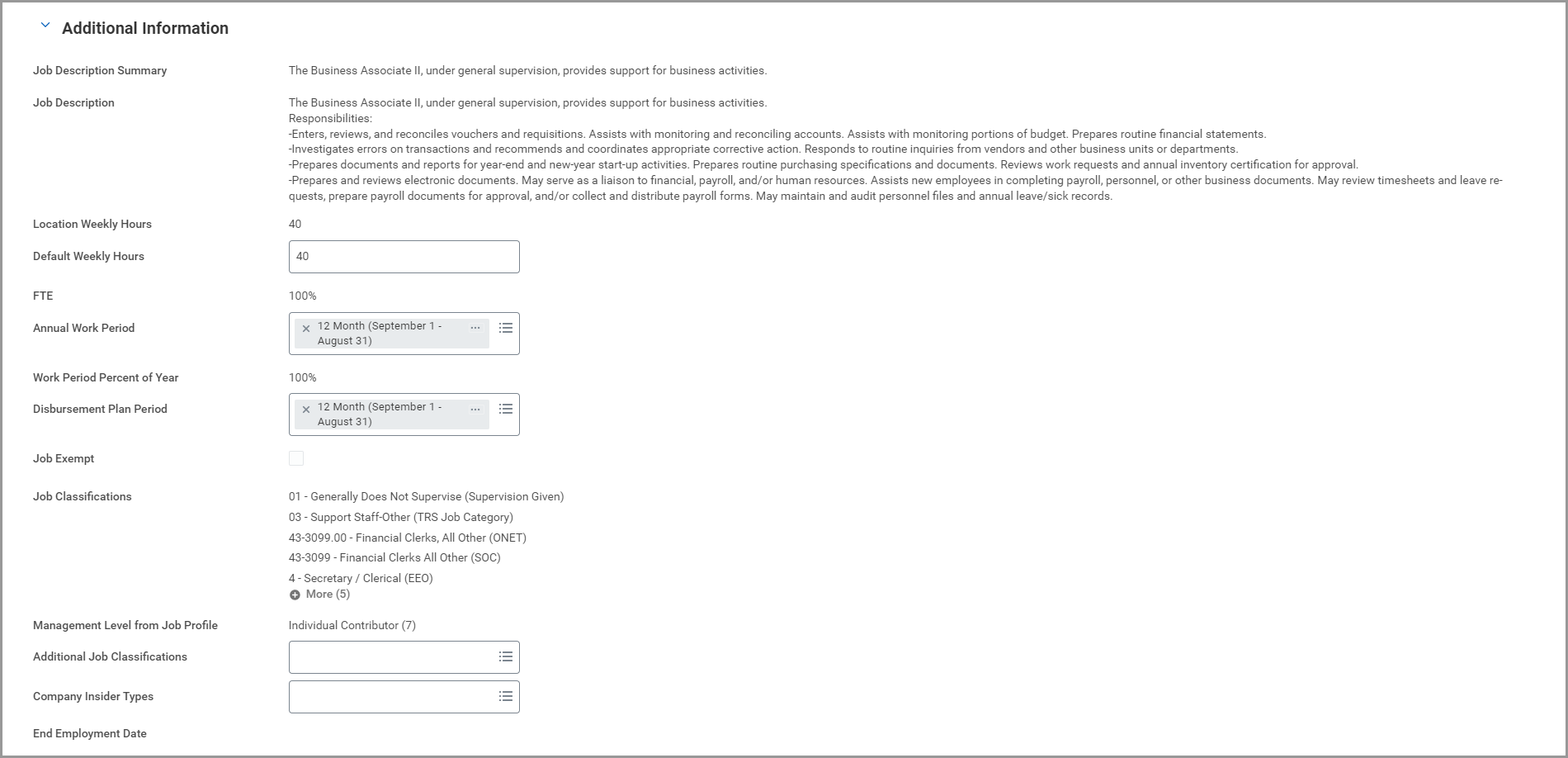
Important: Annual Work Period changes should be made prior to payroll running. If you change the Annual Work or Disbursement Plan Periods, you might need a manual payroll adjustment.
- Edit any necessary Additional Information.
- Enter any comments, as needed.
- Select Submit.
Navigate to the Up Next tab for the next steps in the process.
Up Next
Assign Pay Group (Payroll Partner)
The Payroll Partner will receive an Inbox action item to Assign Pay Group.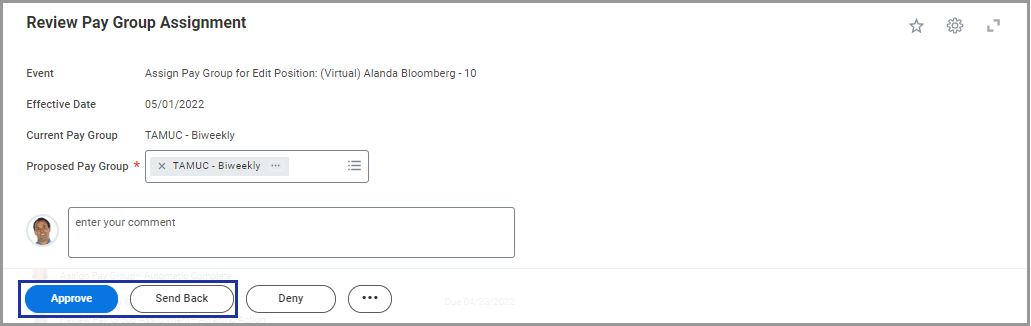
This completes the Edit Position business process.
Additional Resources
Please see the following job aids to help support the task of the Edit Position business process:
- Edit Position Restrictions
- Change Job
- Change Job Reasons