
This job aid outlines the process for an HR Contact, HR Partner or Manager to make changes to the Hiring Restrictions and Qualifications of a position using the Edit Position Restrictions business process.
Edit Position Restrictions
Last updated on March 14, 2026
Page Loading...
Checking SSO...
Important Information
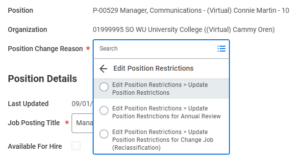
- If initiating the Edit Position Restrictions business process as a result of the Employee’s annual performance review, for Position Change Reason select Edition Position Restrictions > Update Position Restrictions for Annual Review.
- For unfilled positions, the Availability Date must be on or after the date the Hiring Restrictions were created. The Earliest Hire Date cannot be before the Availability Date.
- The Supervisory Organization cannot be changed using the Edit Position Restrictions business process once a position is created.
- If the position is filled, a Change Job business process may be required.
- The Change Job business process cannot be completed at the same time as the Edit Position Restrictions business process. It is best practice to first complete Edit Position Restrictions and then Change Job.
Getting Started
For a Filled Position
- Navigate to the worker’s Worker Profile.
- On the right of the screen under Job Details, find the position you wish to edit and select the Related Actions icon next to it.
- In the pop-up menu, select Position > Edit Position Restrictions.
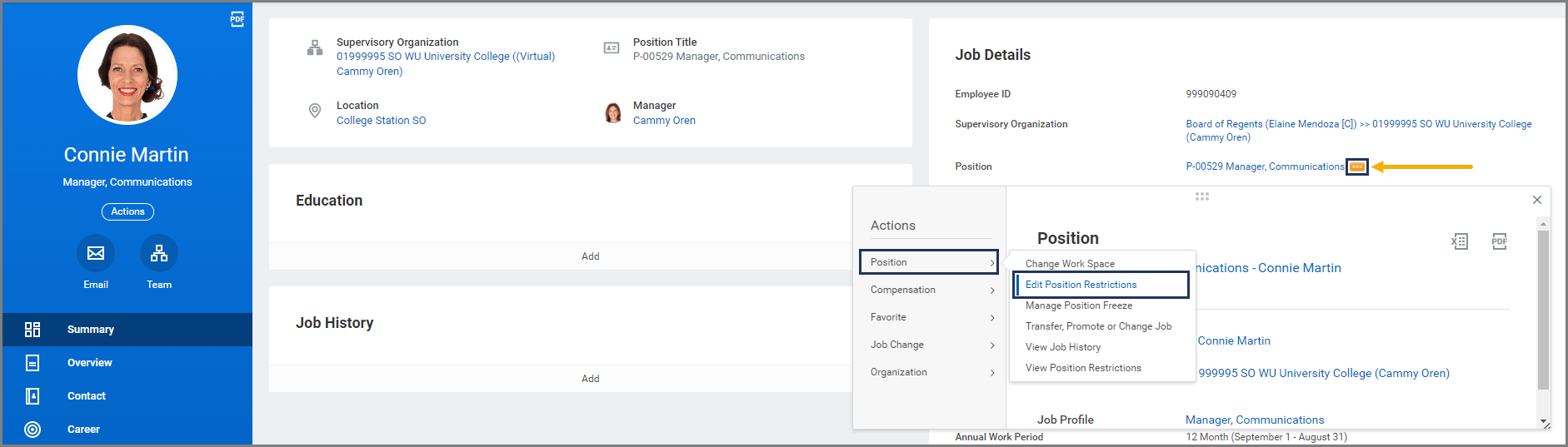
Move to the section of this job aid called Edit Position Restrictions to continue.
For an Unfilled Position
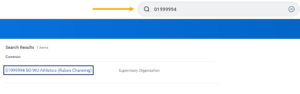
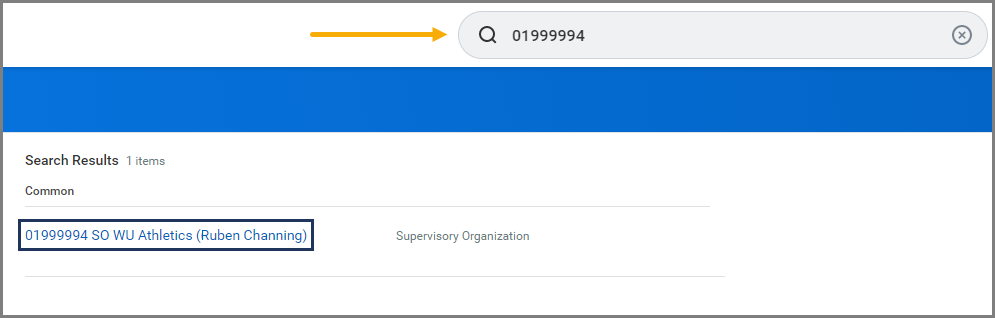
- Navigate to the Supervisory Organization where the position is located
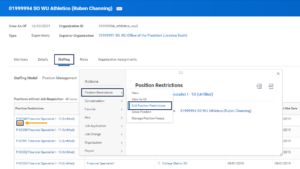
- Select the Staffing tab and locate the Position for which you need to edit Position Restrictions.
- Select the Related Actions icon next to the Position.
- In the pop-up menu, select Position Restrictions > Edit Position Restrictions.
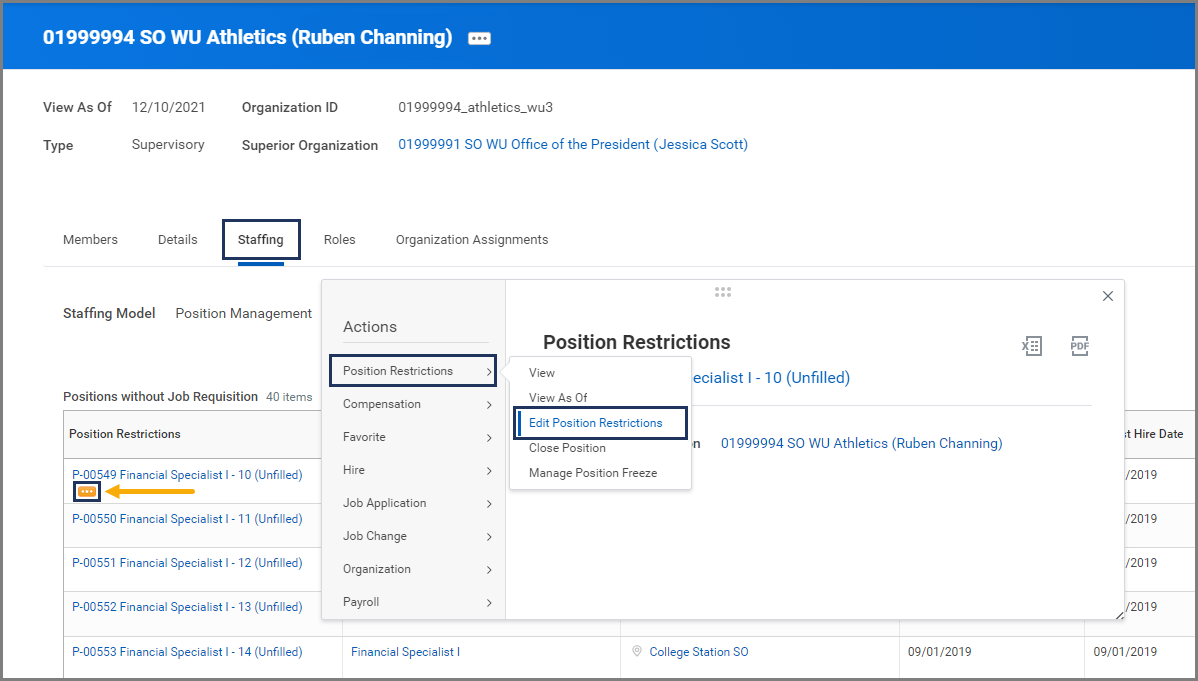
Edit Position Restrictions
- In the field Position Change Reason, select Edit Position Restrictions. Then choose one of the three options listed.
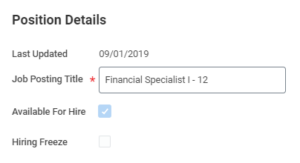
- Edit the Job Posting Title if appropriate.
- Edit any necessary details in the Hiring Restrictions tab.
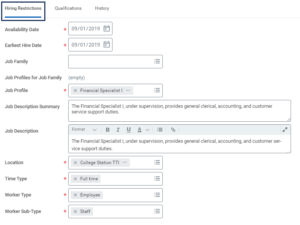


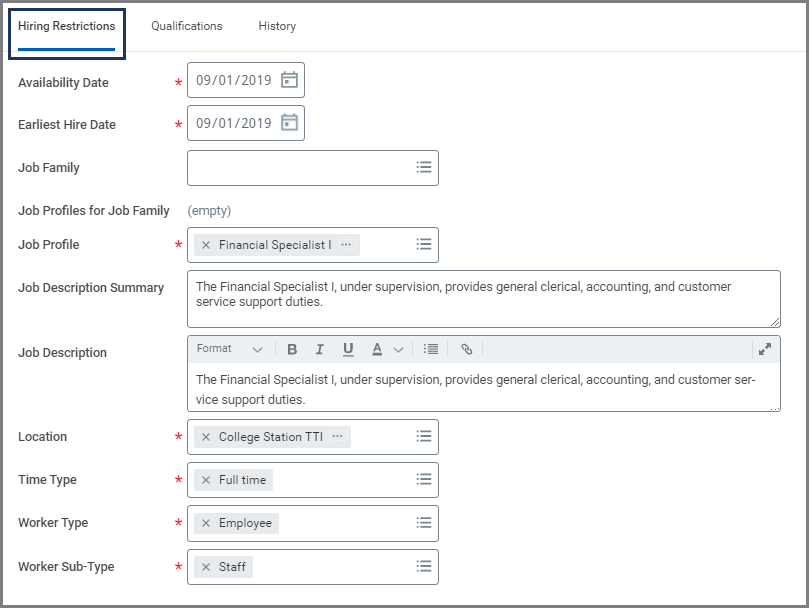
Important: For unfilled Positions, the Availability Date must be on or after the date the Hiring Restrictions were created. The Earliest Hire Date cannot be before the Availability Date. You can check the date Hiring Restrictions were created by selecting the History tab and locate the date when the Position was created.

- Update values on the Qualifications tab, as needed.
- Enter any comments, as needed.
- Select Submit.
Navigate to the Up Next tab for the next steps in the process.
Up Next
Review Edit Position Restrictions (HR Partner)
The HR Partner will receive the following action item in their Inbox: Review Edit Position Restrictions. They will review the business process and select either Approve or Send Back.
Note: If the position is in the Research Professional – Other job family, this task will route to the Research Partner.
Request Default Compensation Change for Position Event (HR Partner)
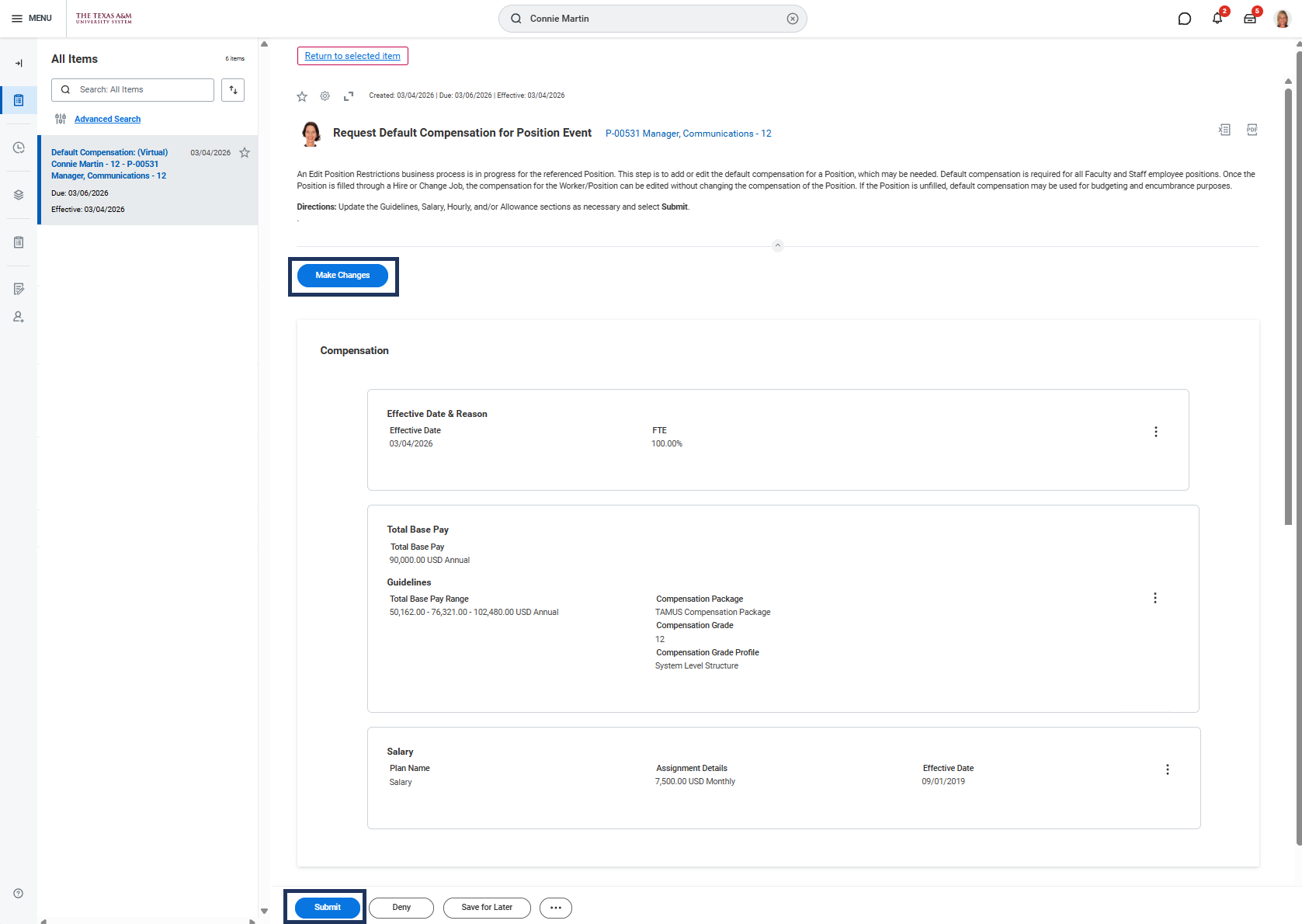
The HR Partner will receive the following task in their inbox: Request Default Compensation for Position Event. Default Compensation for the Position may need to be entered as a result of the changes.
- Review the Default Compensation. If no changes are needed, select Submit. If changes are needed, select Make Changes.
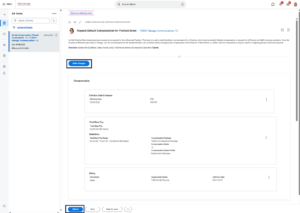
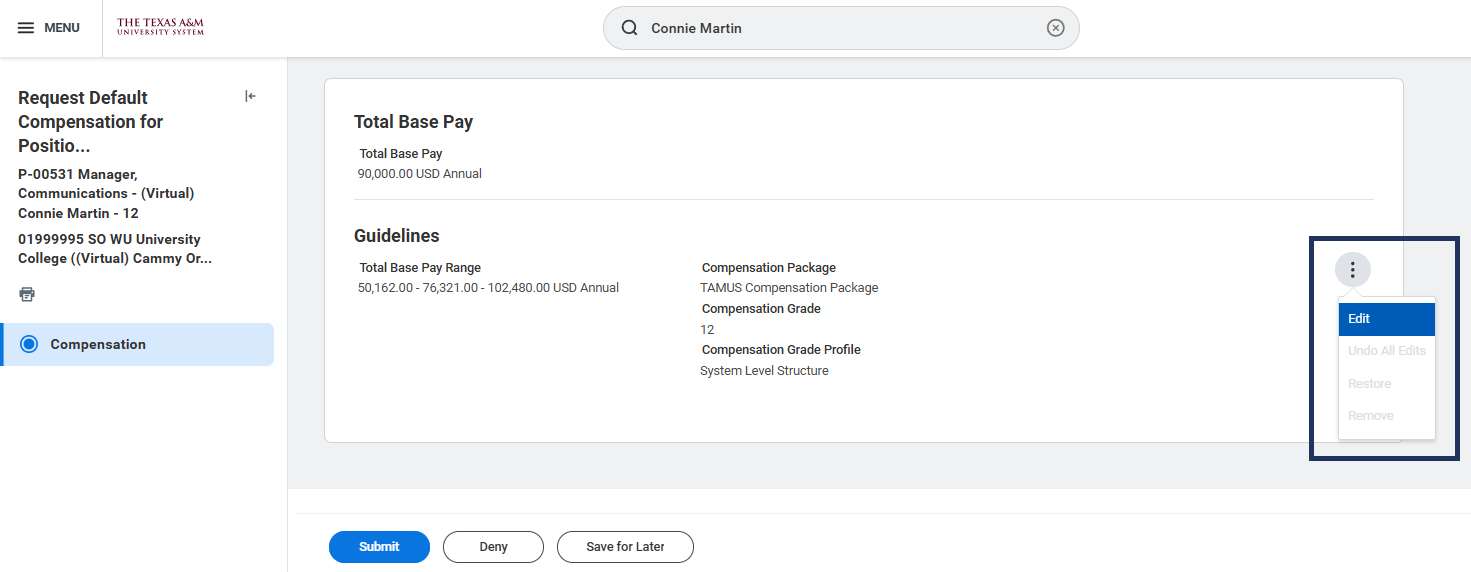
- To make changes to the Guidelines, select the Related Actions icon and then Edit.
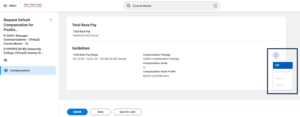
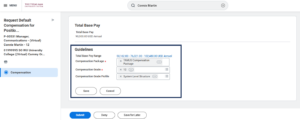
- Update Compensation Package, Compensation Grade or Compensation Grade Profile fields as needed. Select Save when complete.
- Edit the Salary or Hourly section, as needed. When you adjust the Amount, Amount Change, or Percent Change fields, Workday automatically calculates the other two fields.
- Select Save.
- To add a Plan Assignment, such as an Allowance, select the Add Plan Assignment button.

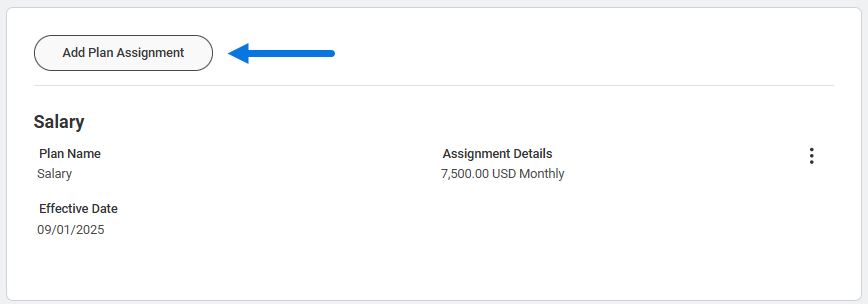
- Enter the Add Plan Assignment details. Select OK.
- Ensure the Total Base Pay section near the top of the page is correct.
- Select Submit.
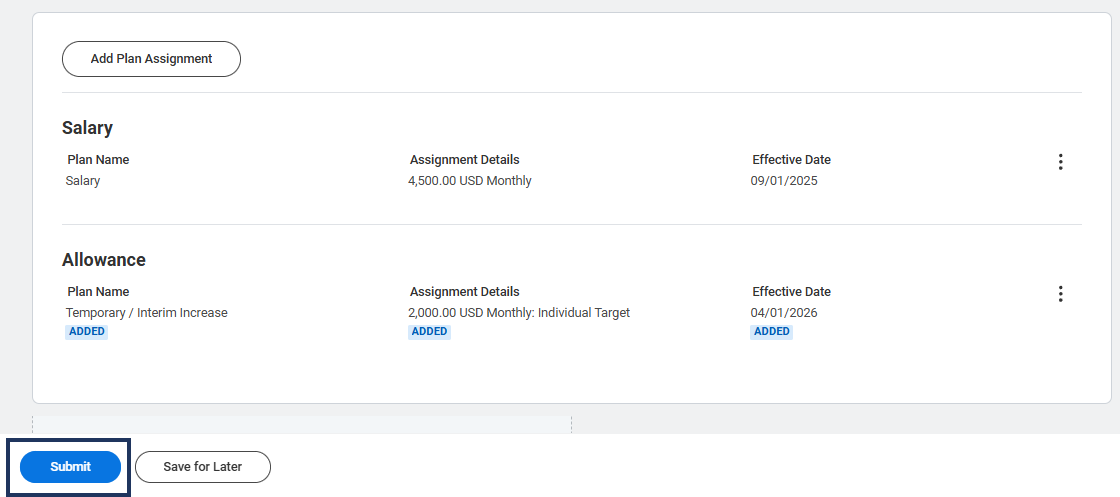
Once submitted, the Request Default Compensation for Position Event inbox item will be archived.
Review Edit Position Restrictions (HR Partner)
The HR Partner will once again receive the following task in their Inbox: Review Edit Position Restrictions. They will review the business process and select either Approve or Send Back.
Note: If the position is in the Research Professional – Other job family, this task will route to the Research Partner.
Assign Costing Allocation (Budget Contact)
The Budget Contact will receive the To Do in their Inbox: Assign Costing Allocation. Selecting the Assign Costing Allocation button will initiate the Assign Costing Allocation business process.
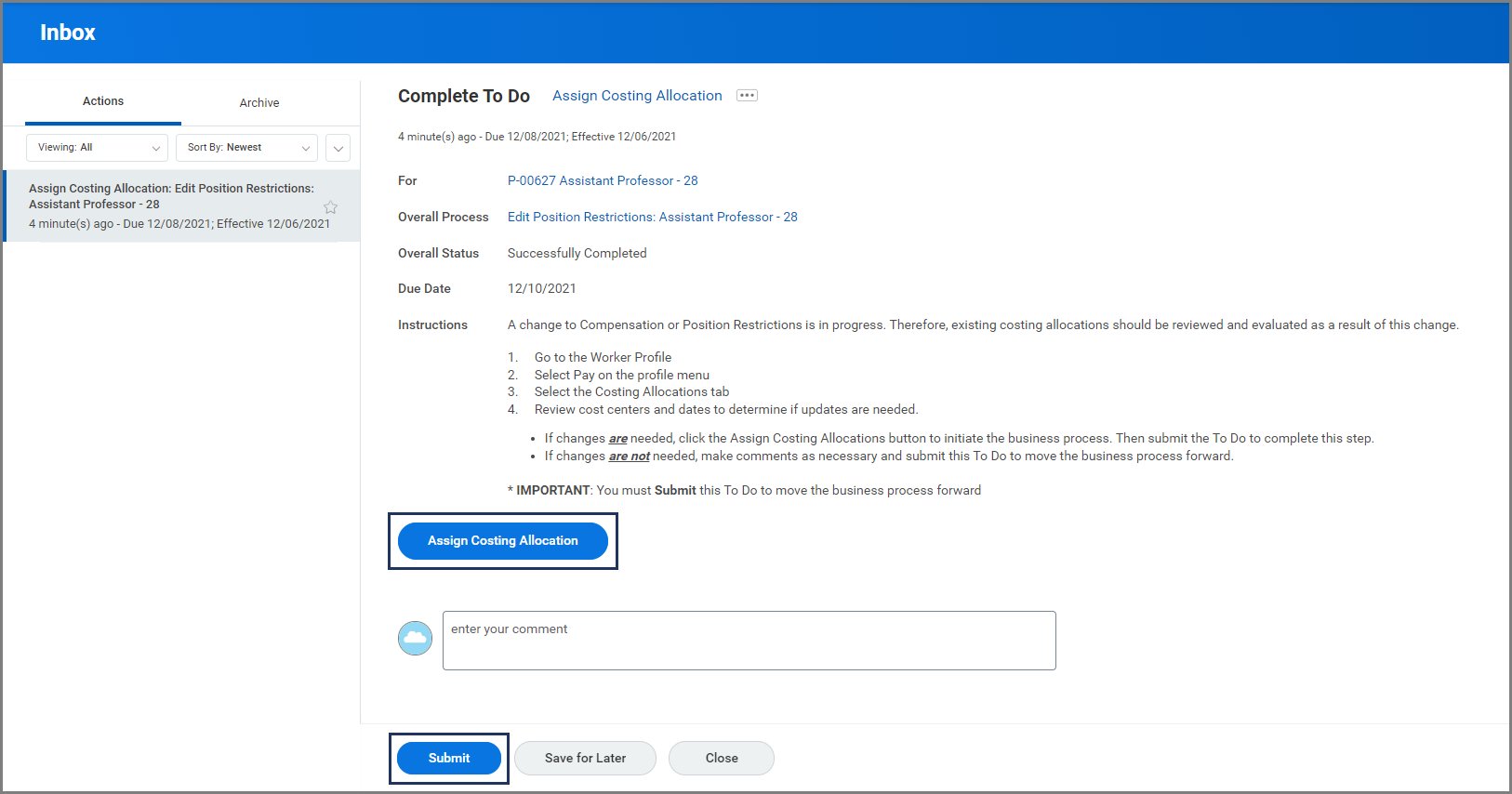
Important: The Budget Contact should select Submit without initiating the Assign Costing Allocation business if there are no changes needed. For more information on how to complete this To Do, view the Costing Allocations Reference Guide.
If changes were made, the business process will route to the Budget Partner for approval.
Approvals and Notifications
- A consolidated approval will route to the appropriate security role (HR Partner, Faculty Partner or Research Partner) based on member selection and worker type.
- A notification will be sent to the Employee to review the job description information when Position Restrictions are updated if the Change Position Reason selected is Update Position Restrictions for Annual Review.
This completes the Edit Position Restrictions business process.