
This job aid outlines the process for a Manager, Recruiting Coordinator or Recruiting Partner to create a job requisition and the Recruiting Partner to post the job on the internal and/or external career sites.
Create Job Requisition and Post Job
Last updated on May 4, 2026
Page Loading...
Checking SSO...
Prerequisites
It is best practice to have the position already created prior to creating a job requisition. If you need help creating a position, please review the Create Position job aid.
Important Information
- The Hiring Manager is responsible for assessing the resources needed to meet business targets and identifying requirements. After requirements for the position are defined, the creation of a job requisition initiates the recruiting process.
- Creating a job requisition will not post the job. The Recruiting Partner must complete the Post Job business process for the job to be visible on any career site.
Getting Started
Initiate Create Job Requisition Process
- Navigate to the Supervisory Organization where you need to hire an Employee.

- Select the Supervisory Organization’s Related Actions icon and select Job Change > Create Job Requisition.

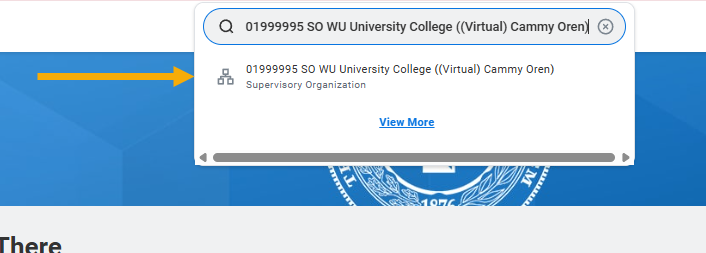

Note: Alternatively, you can search for Create Job Requisition task in the Search Bar.
- On the Create Job Requisition page, add or edit the following:
- Copy Details from Existing Requisition: Not required.
- Supervisory Organization: Auto-populates from the position. The Supervisory Organization field may be blank if you started by searching for the Create Job Requisition task
- Create New Position: Select if position does not already exist.
- For Existing Position: Select if position already exists.
- Select the Position from the list. Much of the information from the Position will be used to populate the information for this Create Job Requisition.
- Worker Type: Auto-populates from the position.
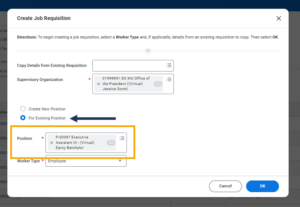
- Select OK.
Note: The Guided Editor for this task will begin. The Guided Editor guides you through the different sections of creating a job requisition. Select the Edit icon (pencil) to add or edit information displayed. - In the Recruiting Details section, add or edit the following:
- Reason. Select Administrative, New Hire, or Replacement based on the needs of the position.
- Replacement For. Write the name of the last person who held the position or the incumbent’s name, if one exists. This will auto-populate if the position is currently filled.
- Recruiting Instruction. Select where the job will be posted.
- Recruiting Start Date. It is best practice to use the current date (today’s date) since using a future date prevents you from recruiting until that date.
- Target Hire Date. Needs to match the Recruiting Start Date. It is recommended to enter today’s date.
- Target End Date. Select the estimated end date for the hire.

- Select Next.
- In the Job Details section, add or edit the following:
Note: Many of the fields will auto-populate based on the position associated with the requisition.- Job Posting Title. The title shown on internal and external job postings, also called the business or working title, which may differ from the job profile.
- Justification. Edit to provide a rationale for the position.
- Job Profile. Will populate from the position. However, If the position was recently reclassified, this information may not be accurate. Verify that the information is correct.
- Job Description Summary. This may not automatically populate from the Job Profile. You can edit to summarize the job description.
- Job Description. This may not automatically populate from the Job Profile. You can edit to add more detailed information.
- Additional Job Description. Utilize this field to communicate any other relevant information about the job requisition.
- Worker Sub-Type. Select the appropriate worker sub-type for this position.
- Time Type. Select full time or part time.
- Primary Location. Select the primary work location for this position if the employee is in office (office location).
- Primary Job Posting Location. Will auto-populate.

- Link to Evergreen Requisition if needed.
 Note: To hire a candidate from an Evergreen requisition, you must first move them to a linked job requisition. Direct hiring from Evergreen Requisitions is not possible as candidates cannot advance past the Screen stage.
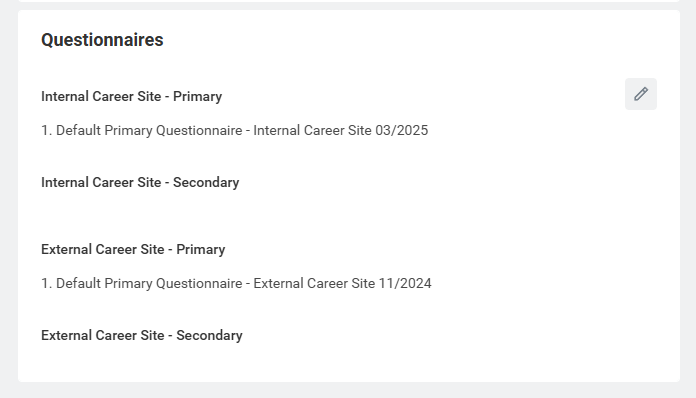
 - In the Questionnaires section, the Primary Questionnaire will automatically attach. The Recruiting Partner may add a secondary questionnaire, if applicable or required.
Note: When you Submit the form, you will get an Alert if you do not add a Secondary Questionnaires, but it is not required to complete the process.


- Select Next.
- In the Skills section, add or edit the following:
- Required Skills. Search for or select the skills that are required for this position.
- Optional Skills. Search for or select the skills you want for this position.

- Select Next.
- The Qualifications section is only visible to Recruiting Partners and should be skipped.
Important! No edits should be made here. - Select Next.
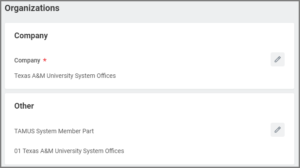
- In the Organizations section, confirm the Company Member and System Member Part for the requisition. This will auto-populate from the position.
- Select Next.
- In the Attachments section, attach any documents related to the requisition. These attachments are not visible to applicants.
- Select Next.
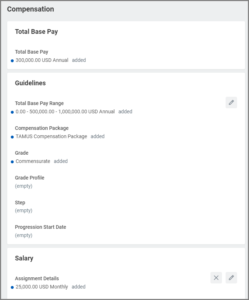
- In Compensation section, add or edit the following: If posting the requisition as commensurate, which populates from the position, navigate to the section below Posting as Commensurate for directions. Note: Many fields may already be populated based on the position.
- Total Base Pay. Auto-populates from the position.
- Compensation. Auto-populates from the position and serves as a guideline to assist the hiring department in determining the monthly or hourly rate.
- Grade Profile. Auto-populates from the position and serves as a guideline to assist the hiring department in determining the monthly or hourly rate.
- Salary Plan or Hourly Plan. Update the appropriate sections based on the position being filled. If the position is an exempt position, the Salary Plan frequency must be monthly; if the position is a non-exempt position, the Hourly Plan frequency must be Hourly.
- Allowance Plan. Skip this section.
- Merit Plan. Skip this section.


- Select Next.
- In the Summary section, review all details before submitting the requisition. You can still make edits from this page by selecting the Edit icon or select the Guide Me button to go back to the Guided Editor.
- Select Submit.
Posting as Commensurate
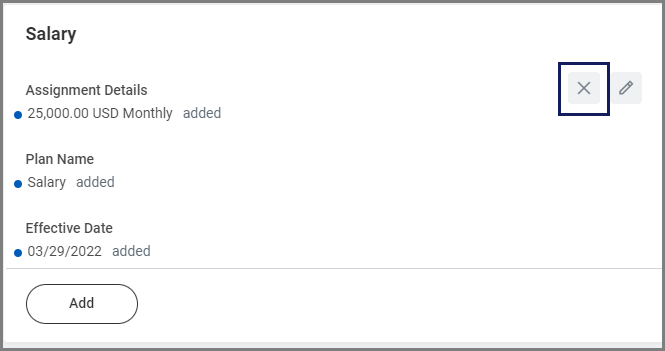
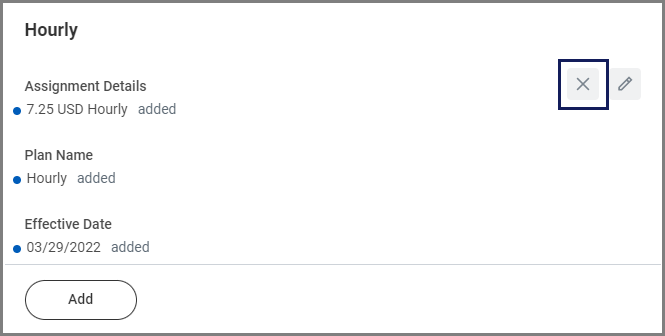
If the position will be posted as commensurate, you will need to ensure that the Salary / Hourly plans are empty.
- Locate either the Salary or Hourly section within the Compensation portion of the Guided Editor.
- Select the “X” to delete information located in the Salary section.
- Select the “X” to delete any information located in the Hourly section for positions on an Hourly plan.
Navigate to the Up Next tab for the next steps in the process including how to Post Job.
Up Next
Review and Approvals
- If initiated by the Recruiting Coordinator, the business process will route to the Recruiting Partner for review .
- The business process may route to the Manager, Department Head, and/or Executive Approver.
Create and/or Manage Interview Settings
The Recruiting Coordinator, Recruiting Partner and Manager receive the To Do Create and/or Manage Interview settings. However, the interview function is not used in Workday. Submit to move the business process forward.
Post Job Process (Recruiting Partner)
The Recruiting Partner receives an inbox task to post the job.
- Navigate to your inbox and select the Post Job task.
- In the Job Posting Site field, select Internal, External, and/or System-wide.
 Note: Internal candidates will not use the external career site. Rather, there is a single internal career site for the entire A&M System.
- If you would like to see a preview of the job posting, select Preview Job Posting. You will be taken to a screen that provides an example of what the posting will look like. After viewing the Preview, select OK to move forward.
- If you do not want to see a Preview, select OK.
- The Start Date will auto-populate. Enter the End Date, if applicable. Check the Primary Posting box next to your member’s specific external career site.
 Note: Workday considers the End Date to be 12:01 a.m. (start of day) for the end date selected, rather than 11:59 p.m. (end of day). If you need to update the End Date, use the Update Job Posting task.
- Select the Plus Sign (+) icon to add an additional posting locations.
- Select Submit.
This completes the Post Job process.