
This job aid outlines the process for an Employee to change their home contact information in Workday
Change My Home Contact Information
Last updated on March 4, 2026
Page Loading...Checking SSO..

Important Information
If you are newly hired Employee, you should not update your contact information prior to completing your onboarding process through your Workday inbox tasks. Making changes prior to completing onboarding can create delays in processing your information in Workday.
Getting Started
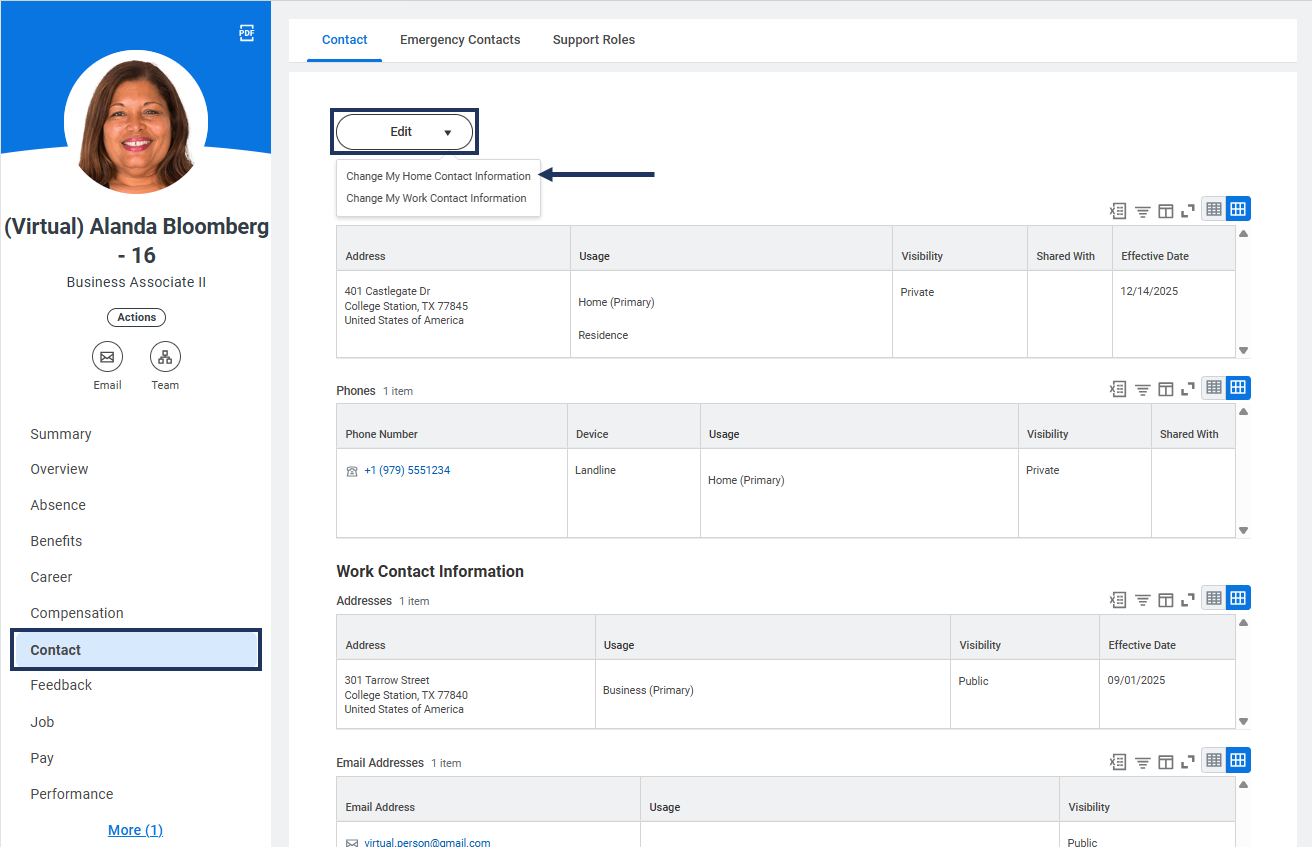
- Navigate to your Worker Profile.
- Select Contact from the navigation menu.
- From the Contact tab, select the Edit button then Change My Home Contact Information.
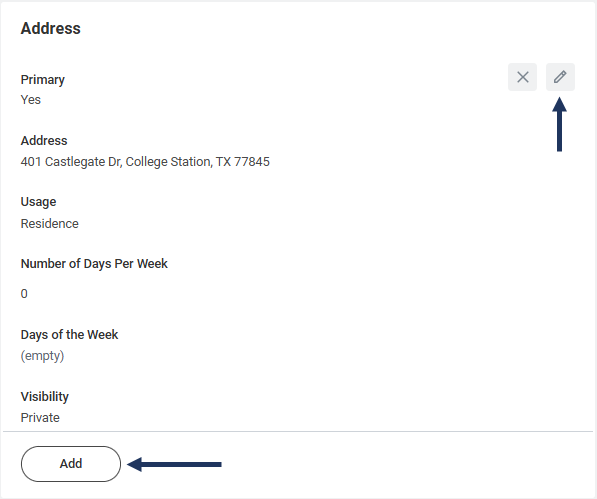
- To update existing information, select the Edit pencil icon. To add new information, select Add at the bottom of the appropriate section.
- Select the check icon to save the changes.

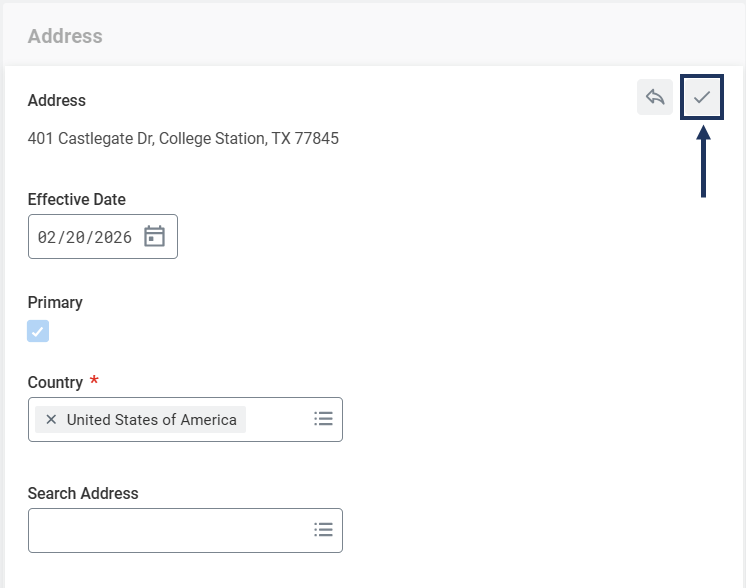
Review and update the sections below as needed.
Address (Required)
The Address section is used to record the location of your residence. Edit the appropriate information by selecting the pencil icon. Additional information about some fields is provided below.
- Address Line 2. Optional. Use this field for an apartment, building, or suite number associated with Address Line 1.
- Usage. Select the appropriate type, e.g., Mailing or Residence.
- Visibility. (Required) Determines if the information entered will be privately or publicly displayed within Workday. This field has been pre-populated as Private and cannot be edited.
Note: If your mailing address is different than your residence address, add another address using the Add button at the bottom of the Address section and select Mailing in the Usage field.

Phone (Required)
A primary phone number is required. Enter the appropriate information by completing the following fields:
- Phone Device. Select whether your Primary Phone is a Landline or Mobile.
- Phone Number. Enter your 10-digit telephone number (XXX-XXX-XXXX).
- Phone Extension. Optional.
- Visibility. Automatically defaults to Private but can be changed to Public if desired.
Note: If your primary phone is a Landline, you can add a mobile number by selecting Add at the bottom of the Phone section and use the Phone Type Mobile.

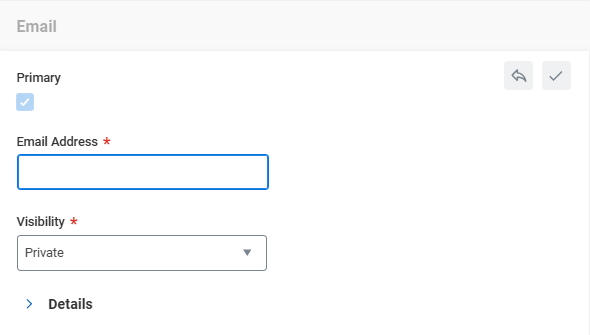
Email (*Required)
*Note: Email is optional during your employment, but an email will be required if you end employment with The Texas A&M System.
Complete the following fields to add a primary email address:
- Address. Enter a valid personal email address.
- Visibility. Automatically defaults to Private but can be changed to Public if desired.
Next Steps
Now that you have completed updates to your contact information, select Submit.
Note: If you have made changes to your Primary Address, there are tasks that will route to your Workday Inbox.
Navigate to the Up Next tab for the next steps in the process.
Up Next
To Do: Update Address with TRS
When you change your Primary Address, you will receive the To Do: Update Address with TRS in your Workday Inbox. The To Do directs you to update your home address information in the Teacher Retirement System.
After updating your address in TRS, return to the To Do item in your Workday Inbox and select Submit to move the business process forward.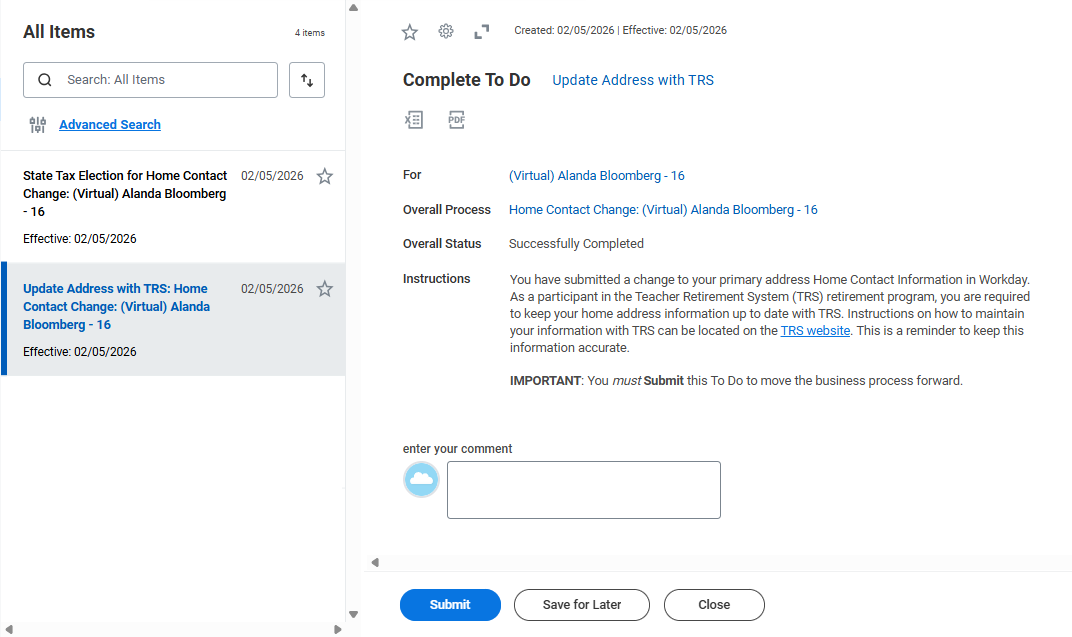
Complete State Withholding Elections Inbox Task
If you have updated your Primary Address to a state with State Payroll Taxes, you will receive a task in your Workday Inbox to Complete State Withholding Elections. If you need assistance completing this task, refer to the Complete Your W-4 job aid.
- In the State field, select the state that matches your primary address. The Withholding Form Type will auto-populate. Select OK.
- On the Complete State and Local Withholding Elections screen, complete the required information and select the Checkbox.
- Select Submit.
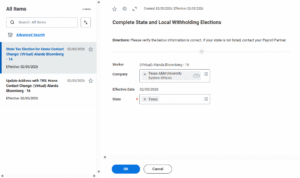
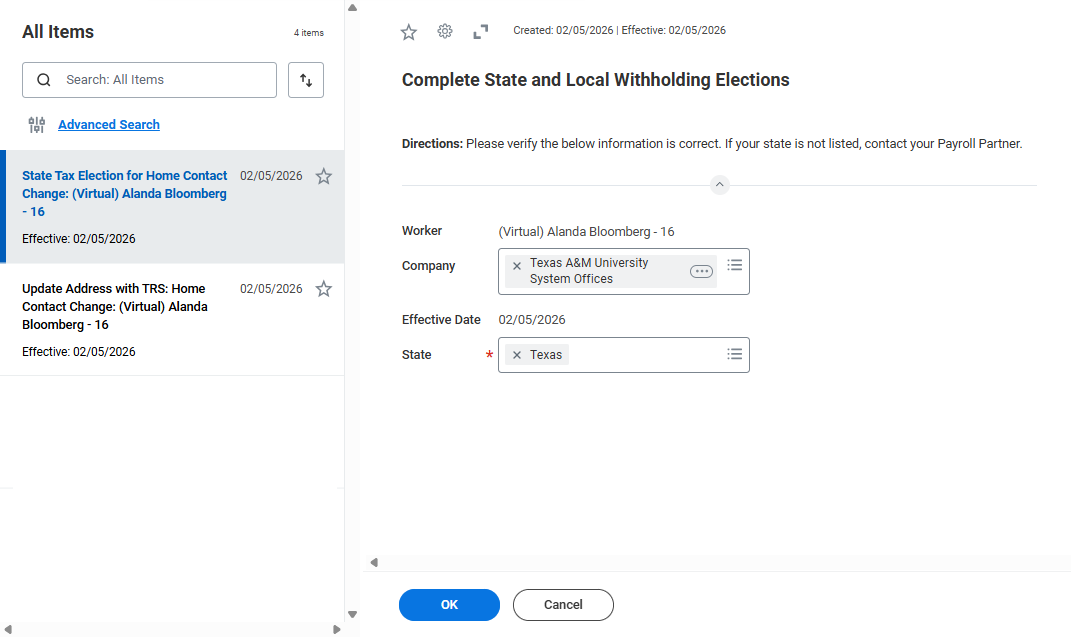
This inbox task will route to the Payroll Partner for approval.
This completes the Change My Home Contact Information business process.