
This job aid outlines the activities for an Employee to change benefits for a life event such as marriage, a birth or adoption, divorce, tobacco usage, etc.
Change Benefits (Life Event)
Last updated on September 11, 2026
Page Loading...
Checking SSO...
Prerequisites
If your life event includes adding coverage for a dependent, you must first add that dependent and their information in Workday. Use the Add a Dependent in Workday job aid to guide you through the process.
Important Information
- You must enter life event changes within 31 days of the qualifying life event, except for birth, adoption, gain of Medicaid, loss of Medicaid, or loss of CHIP, which allow 60 days to make benefit changes.
- You must add a Dependent or change a Dependent’s personal information before starting a benefit change related to a Dependent.
- In case of Divorce, you must first change the relationship of your spouse and any stepchildren to Ex-Spouse or Ex-Stepchild so that they will receive a COBRA notice. You should also update their address if needed. You can edit dependent information through the Benefits and Pay Hub by selecting Benefits > Dependents > Edit.
Getting Started
- From the Workday homepage , select Menu > Benefits and Pay.

- Select Change Benefits.
 Important: On the Change Benefits page, read all instructions carefully to ensure you select the most appropriate reason.
 - Complete the following fields:
- Change Reason. Select the life event that requires you to change benefits.
- Date. Enter the date specified for your reason in the instructions.
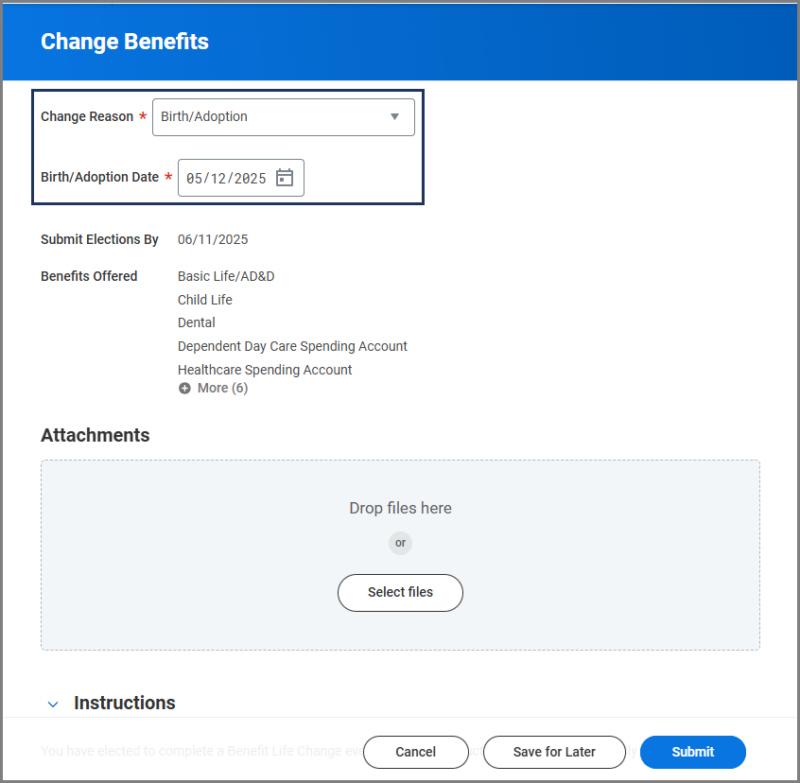 Note: The Submit Elections By field will auto-populate depending on the entries in the first two fields. The list of Benefits Offered that display are based on the Change Reason.


IMPORTANT: Do not upload documents during this event. Medical documentation and other sensitive information are kept separate from your Workday profile.
- Select Submit.
Navigate to the Up Next tab for the next steps in the process.
Up Next
Make Benefits Elections
After you submit your Change Benefit request, a pop-up will appear allowing you to start the benefit change by selecting Open. The task will also be in your Workday inbox if you prefer to complete it later.
- Navigate to your Workday Inbox and select the Benefit Change task.
- Select Let’s Get Started


Note: If you would like step by step instructions for enrolling in each type of coverage, use the Complete Open Enrollment job aid. Be aware that some benefit change events do not allow you to switch from existing coverage plans.
Health Information
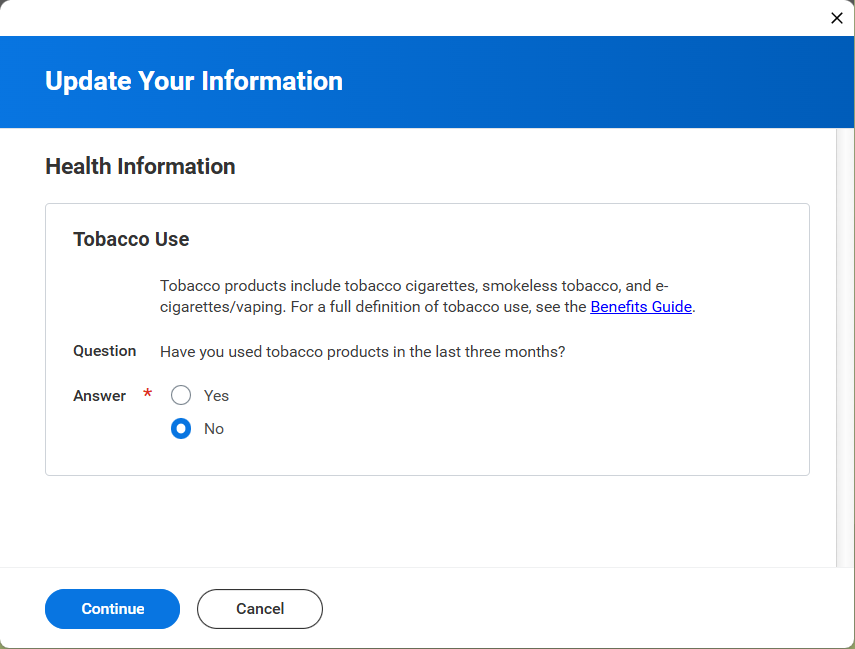
- Complete the Tobacco Use question for you and your spouse if they have been added as a dependent.
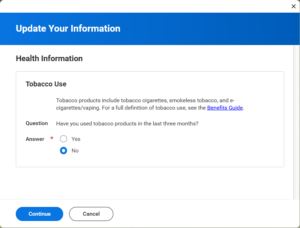
- Select Continue twice to move to the Elections Summary Page.
From the Elections Summary page you can view the coverages available to you under the Health Care and Accounts and Insurance sections.
Note: You will only be able to see the benefits that are eligible for changes based on your Change Reason for the Change Benefits event.
Health Care and Accounts
You can navigate to your benefit elections in any order. To begin each section, select Manage / Enroll.
Those who have existing coverages will see Manage. Others who are electing coverages for the first time will see Enroll.
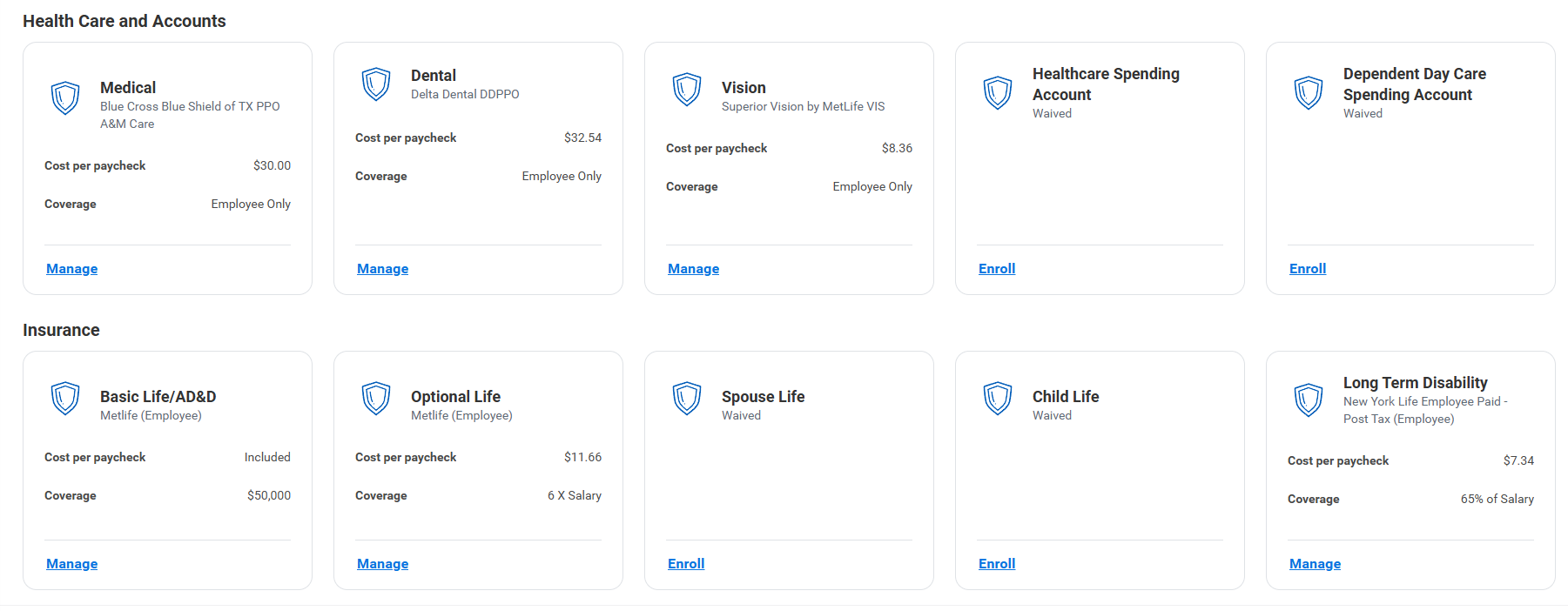
IMPORTANT: Be sure to read the instructions in Workday carefully. While this job aid guides you through the process, it does not replace the detailed directions provided to you by the System Benefits Administration.
Medical
- Select Manage/Enroll to begin.
- You will see your available plans listed. Choose Select or Waive as needed.
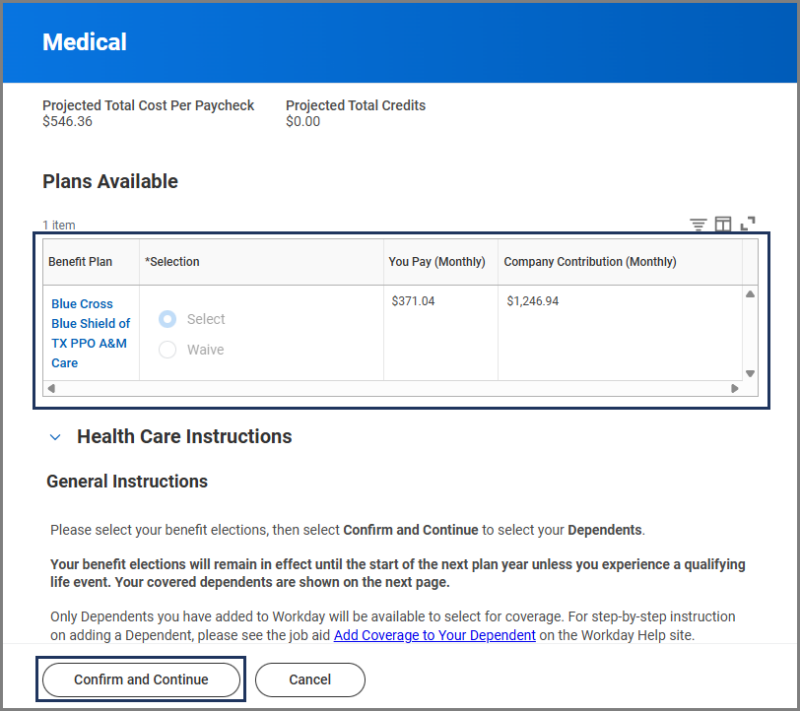
Note: Some benefit events do not allow you to switch from an existing plan outside of Open Enrollment.
- Select Confirm and Continue.
- Select or deselect Dependents as needed to enroll in or remove coverage.
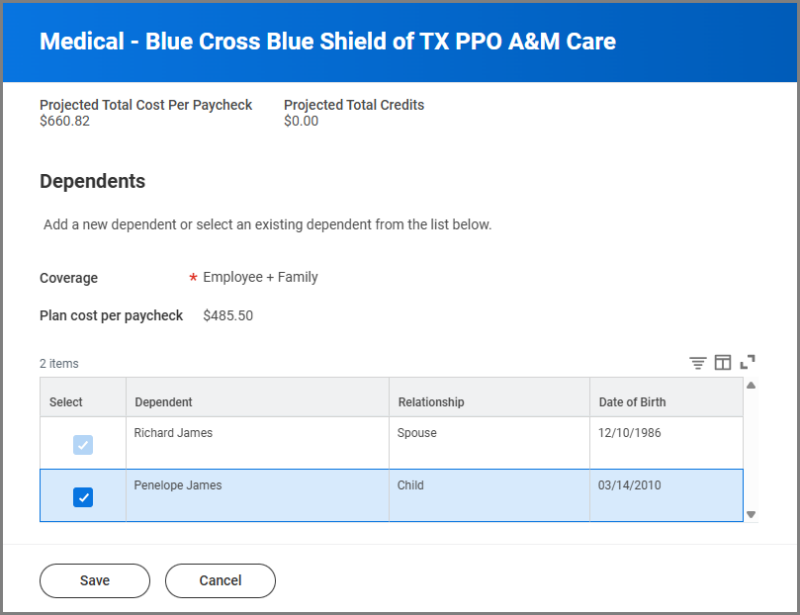
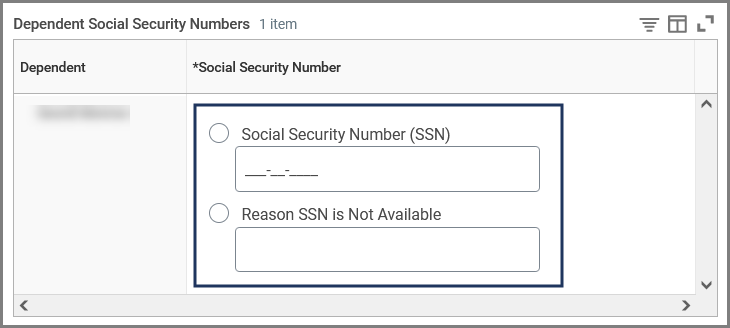
- If needed, enter Dependent Social Security Number(s).
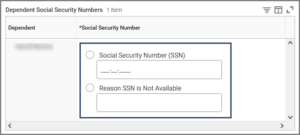 Note: This section will not display if you have already entered the SSN for your Dependent.
 - Select Save to return to your Elections Summary page.


Dental and Vision
Follow the steps provided for Medical to update Dental and Vision coverages.
Health Care Spending Account
- Select Manage / Enroll to begin.
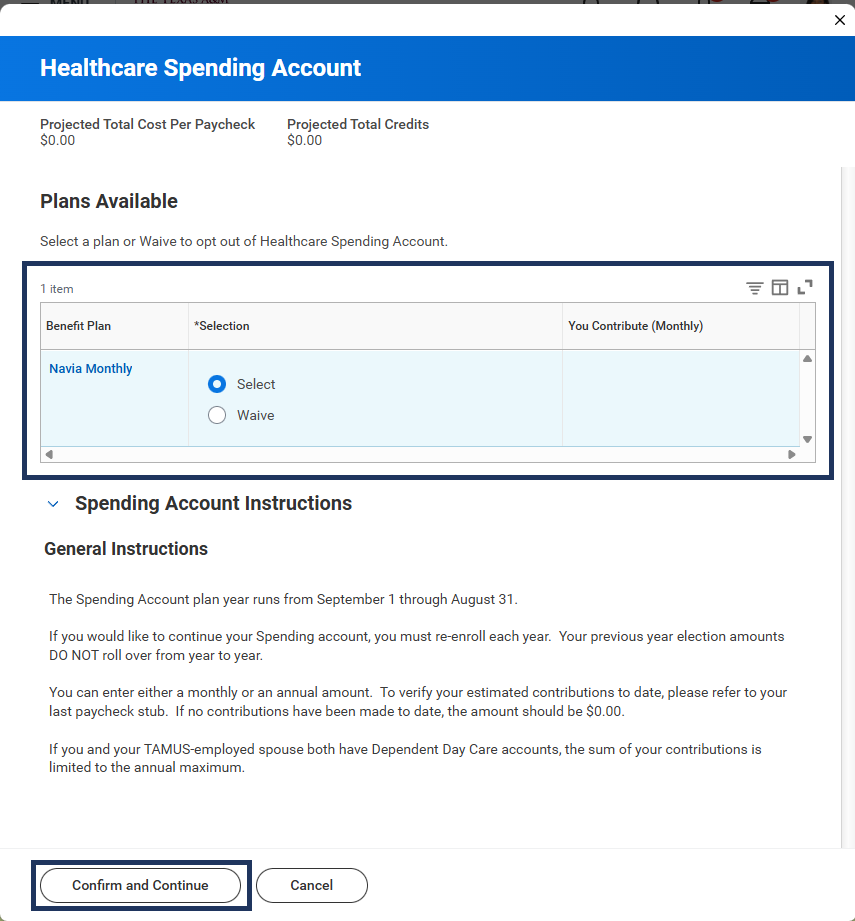
- You will see your available plans listed. Select or Waive as needed.
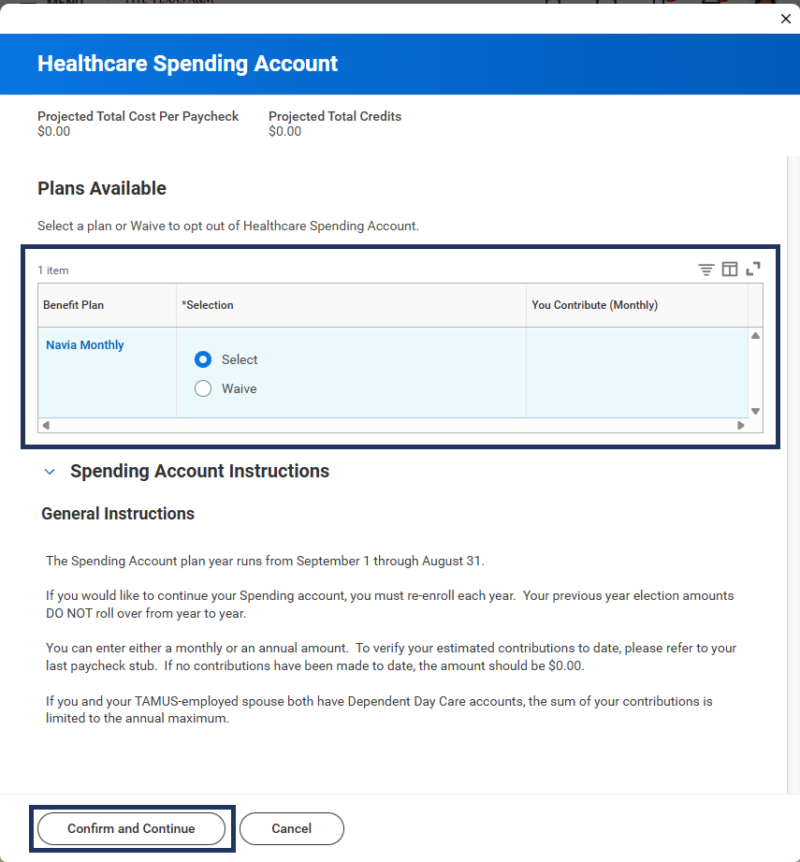
- Select Confirm and Continue.
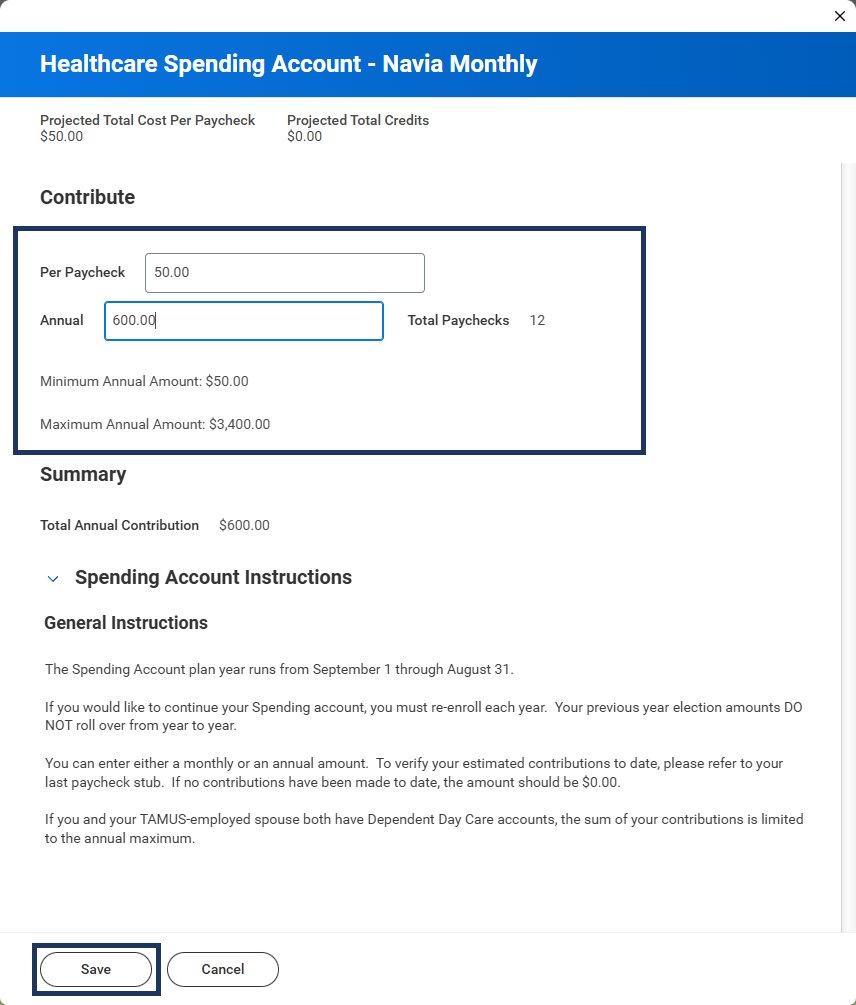
- Enter the sum you wish to contribute either per pay check or annually. Verify the amount you enter is in the correct field.
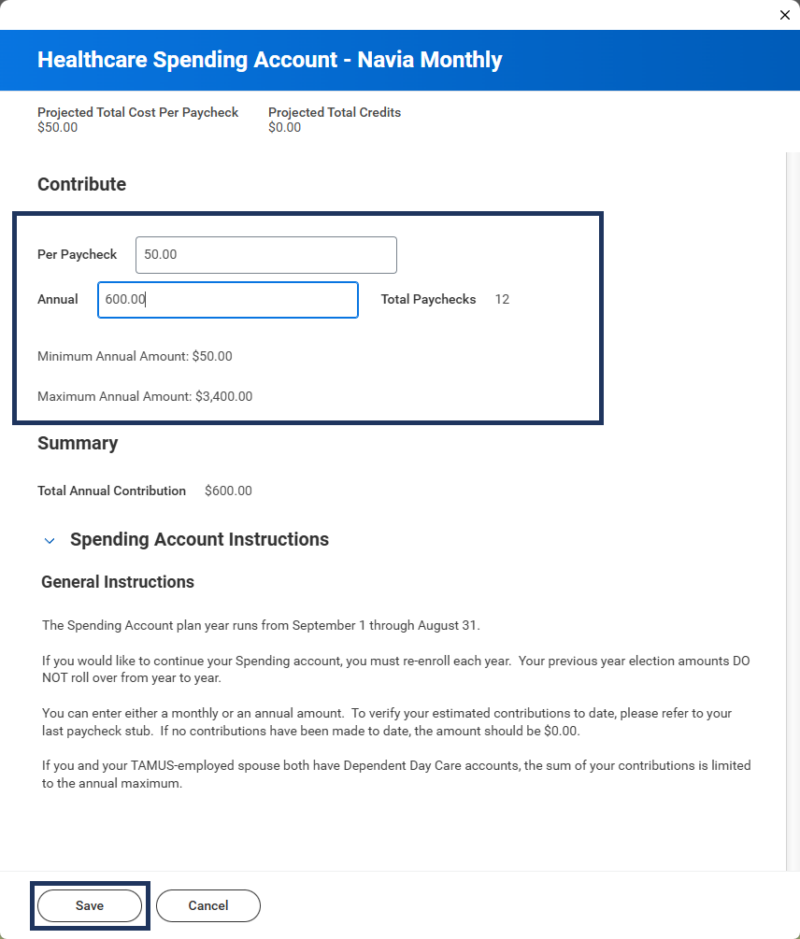 Note: It is recommended that you enter the total annual amount you would like to contribute as it automatic ally calculates the amount per paycheck.
 - Select Save to return to the Elections Summary page.
Dependent Day Care Spending Account
Follow the steps provided for Health Care Spending Account to update Dependent Day Care Spending Account.
Insurance
Review and update insurance coverage to update beneficiaries or to add life insurance for your dependent.
Basic Life / AD&D
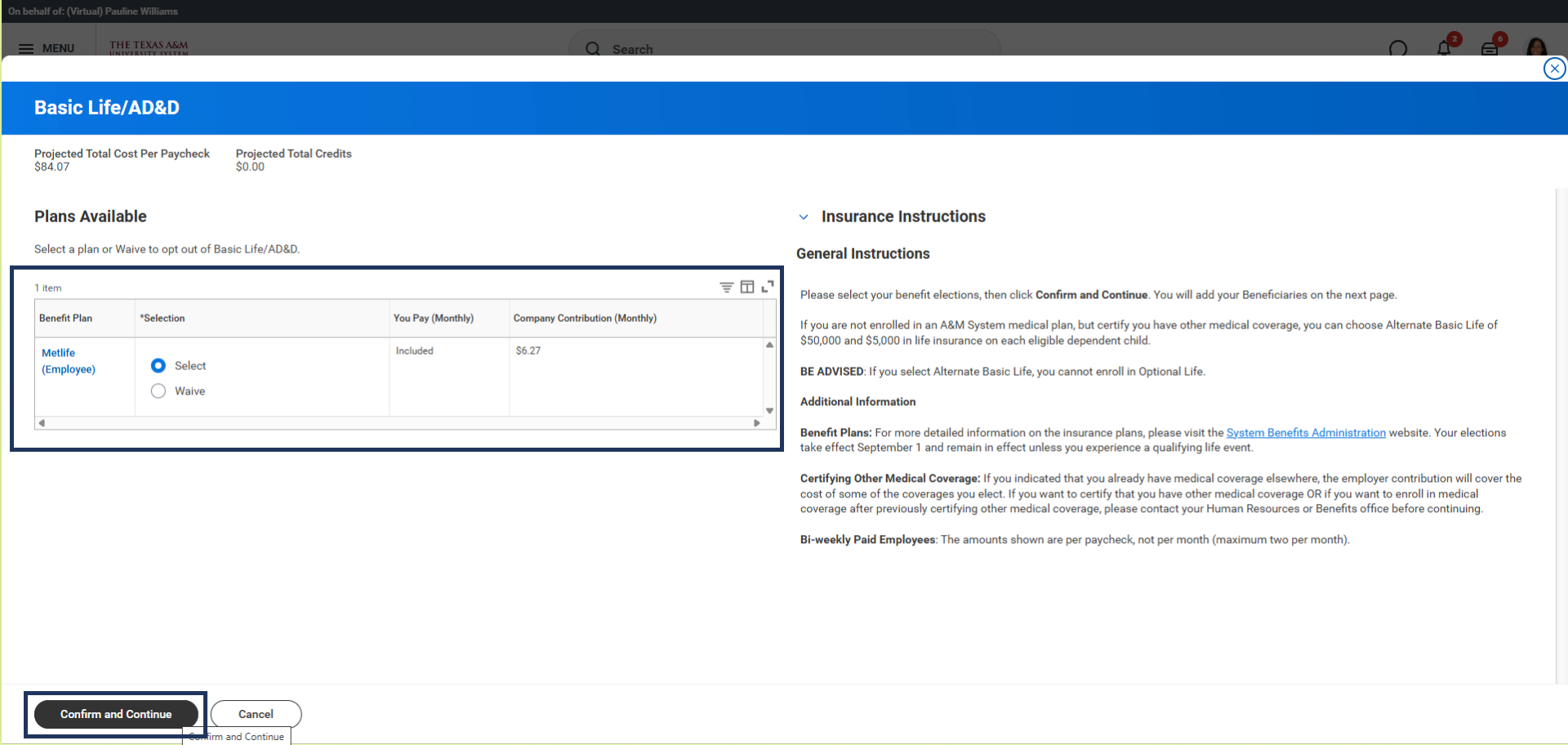
- Select Manage / Enroll to begin.
- You will see your available plans listed. Select or Waive as needed.
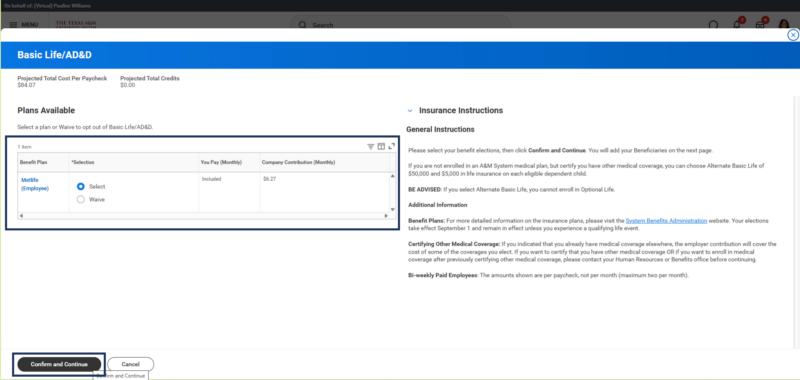 Note: Basic Life for yourself is required if you have Medical coverage with The Texas A&M System and is provided to you without cost.
 - Select Confirm and Continue.
- On the next page, review / edit Beneficiaries for this plan.
- Select the Plus Sign (+) or Minus Sign (-) to add or remove beneficiaries as needed.
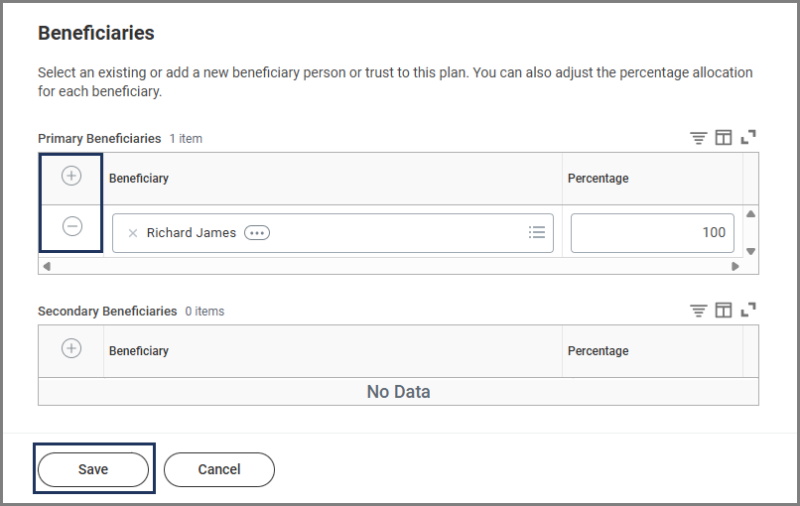
- Select the Plus Sign (+) or Minus Sign (-) to add or remove beneficiaries as needed.
- Select Save.

Repeat these steps for Optional Life, Spouse Life, Child Life, and Long Term Disability.
Finalize the Benefit Event
If you are finished making your elections, it is time to finalize your Change Benefits Event.
- Select Review and Sign on the Election Summary page and review your changes to confirm that they are correct.Note: If you need to make changes, select Cancel to return to the Election Summary page.
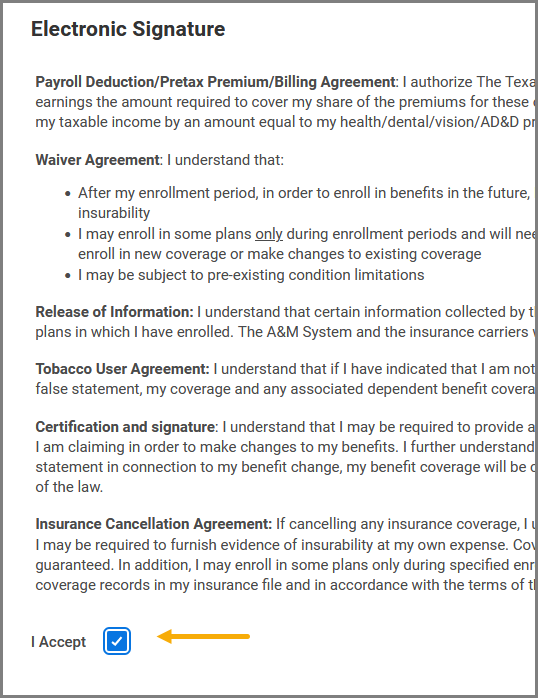
- Review the statements, check the I Accept checkbox and select Submit.
- From the submitted page, you have the option to view your benefits statement by selecting the View Benefit Statement button.
- Select Print if you would like to print the information or select Done.
Note: If your benefit event is due to retirement, you will receive a To Do Update Electronic Communication Flag to choose the preferred method to receive information from the A&M System about retirement and insurance benefits.
This completes the Change Benefits (Life Event) process. If you have questions regarding your benefits please reach out to your local Human Resource office or contact System Benefits Administration.