• Skip to primary navigation
  • Skip to main content
Workday Services
Logo, Texas A&M University System, Office of Information Technology
  • Home
  • About
    • Workday
    • Governance
    • Key Performance Indicators
  • News and Updates
    • Alerts
    • Release Notes
    • Schedules
    • Upcoming Training Events
    • Monthly User Meetings
    • Biannual Workday Releases
  • Reporting
  • Training
    • Job Aids
    • Reference Guides
    • Video Help
    • Workday Curriculum
    • About Security Roles
    • Online Courses
    • Webinars
    • Learning Hubs
    • Glossary
  • Support
    • Frequently Asked Questions
    • Common Tasks
    • Request Forms
    • Get Help
  • Office of Information Technology
    • Services
    • Contact the Office of Information Technology
    • Search OIT
Home / Job Aids / Add Payroll Input by Worker

Add Payroll Input by Worker

Last updated on January 13, 2023

Print

This job aid outlines the various processes for a Payroll Partner to make a payroll input for an existing on-cycle payroll for a Worker.

Page Loading...Checking SSO..
Login with SSO to see this content.

Important Information

Examples of payroll inputs are supplemental payments, extra deductions and refunds which include: refund FICA, adjust FLSA rate for dual positions across member, benefits, and unsupported retroactive events.

Getting Started

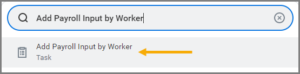
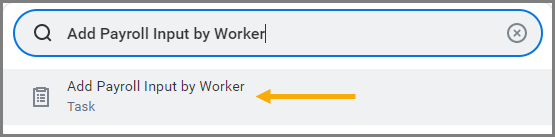
  1. Search for the Add Payroll Input by Worker task in the Search Bar and select it.The search bar with Add Payroll Input by Worker entered
  2. In the Worker Defaults section, complete the Worker(s), Start Date, and Pay Component fields.
  3. In the Processing Defaults section, select any additional information, as needed.
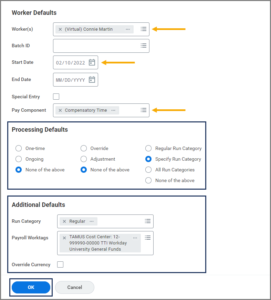
  4. In the Additional Defaults section, complete any additional information, as needed.The worker, processing and additional defaults sections
  5. Select OK.
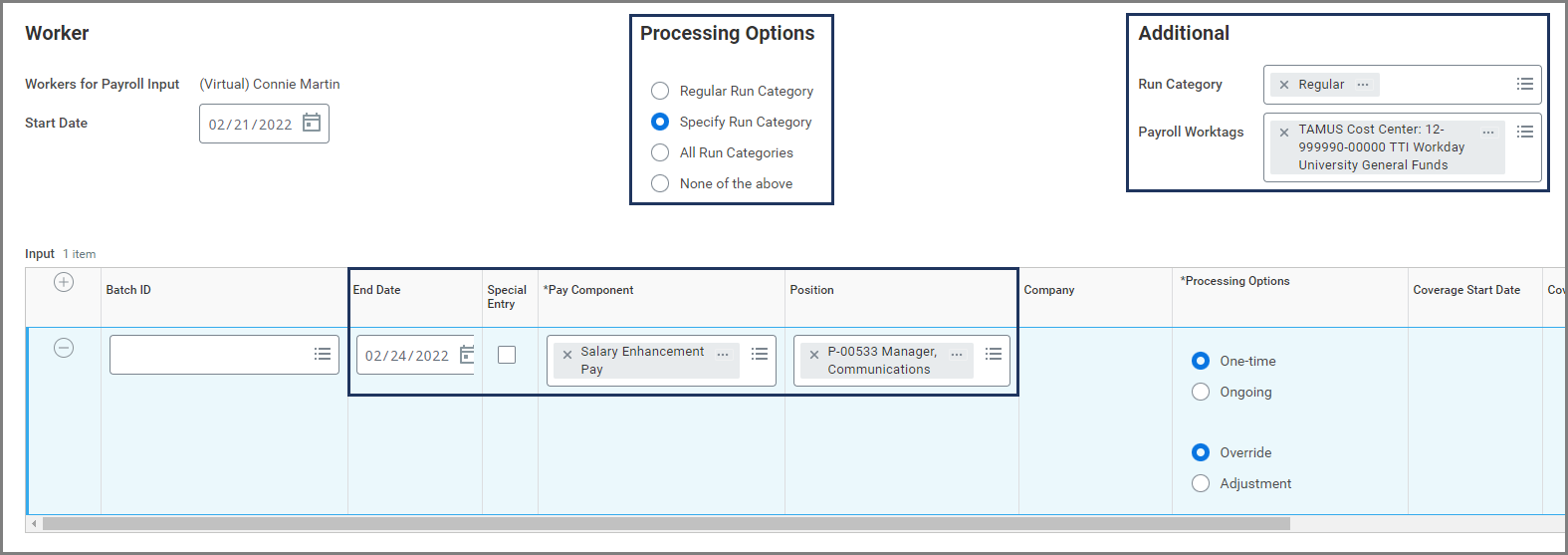
  6. Fill in the following fields:
    • End Date (if processing option is One-time)
    • Position
    • Processing Options
    • Payroll Worktags (TAMUS account number)
The Worker Page emphasizing the processing options, additional section, and various columns on the input table

Note: These will be prepopulated and not listed as options in the row if they were entered on the previous page under Additional Defaults. Instead those options will appear at the top of the page.

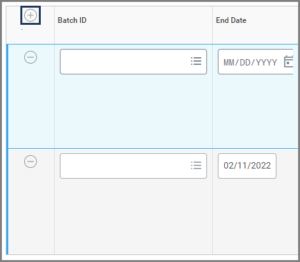
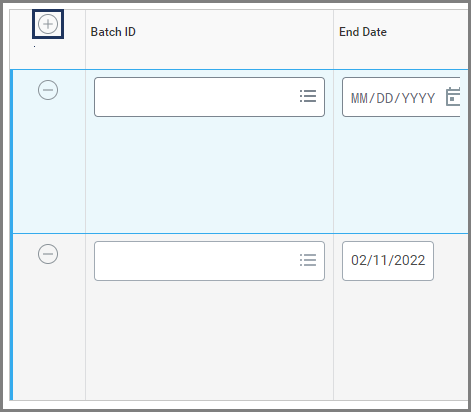
  1. Select the Add Row icon under Input Details table to add additional input types, as needed.The add row button
  2. Enter a comment for the audit trail.
  3. Select OK.
  4. Select Done.

This completes the Add Payroll Input by Worker process.

Copyright © 2026 Texas A&M University System All rights reserved.

301 Tarrow Street, College Station, TX 77840 | MAP | Phone: (979) 458-7700 | email: support@tamus.edu
State of Texas | Texas Homeland Security | Texas Veterans Portal | Statewide Search | Risk, Fraud & Misconduct Hotline | Privacy | Web Accessibility | State Link Policy | Campus Carry

Texas A&M University System