
This job aid outlines the process for a HR Partner to request a Flexible Work Arrangement on behalf of a Worker. The request can be submitted for working at an Alternate Work Location or using a Flexible Work Schedule. It can also be used to document a workplace accommodation when submitted by an HR Partner.
Add Flexible Work Arrangement for Worker
Last updated on March 14, 2026
Page Loading...
Checking SSO...
Prerequisites
- The Employee must be a part of a participating member and in a position that qualifies for flexible work arrangements.
- If you are requesting a Flexible Work Schedule for the Employee, you will need to provide the Employee’s newly proposed hours in the comments box.
- The Employee must be a part of a participating member and in a position that qualifies for flexible work arrangements.
Important Information
- The request must comply with System Regulation 33.06.01 Flexible Work Arrangements, member rules and/or standard administrative procedures. All parties should consult member rules, standard administrative procedures or guidance on justification, attachments or other information to support the approval process.
- Before initiating this process, you should verify if your member will allow you to submit this process in Workday.
- There are two types of Flexible Work Arrangements, Alternate Work Location, International Temporary Work Location and Flexible Work Schedule.
- Alternate Work Location. Use this type to request either partial or fully remote work for the Employee.
- Flexible Work Schedule. Use this type to request adjusted hours and days that differ from the Employee’s original schedule.
- Managers should not use this process to request reasonable accommodation under the Americans with Disabilities Act Amendment Act. Reasonable accommodations must be initiated through the member Human Resource offices. If you have any questions , please reach out to your member’s local Human Resources office.
- The Employee will receive additional tasks, if submitted by the Manager or the HR Partner unless the request is for workplace accommodation.
- The Employee and the Manager will receive an email notification when the Flexible Work Arrangement is approved.
- The HR Partner and HR Contact will receive an email notification when the Flexible Work Arrangement is approved, based on Member selection.
Getting Started
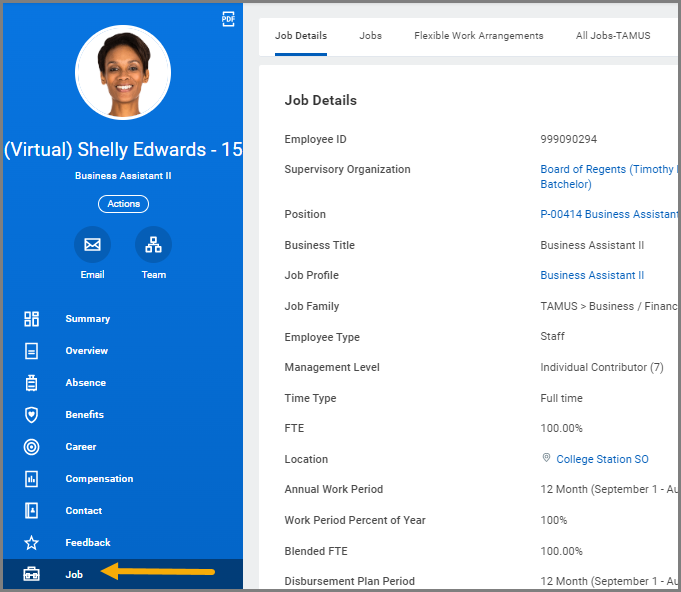
- Navigate to the Employee’s Worker Profile. Select Job on the left-hand navigation panel.
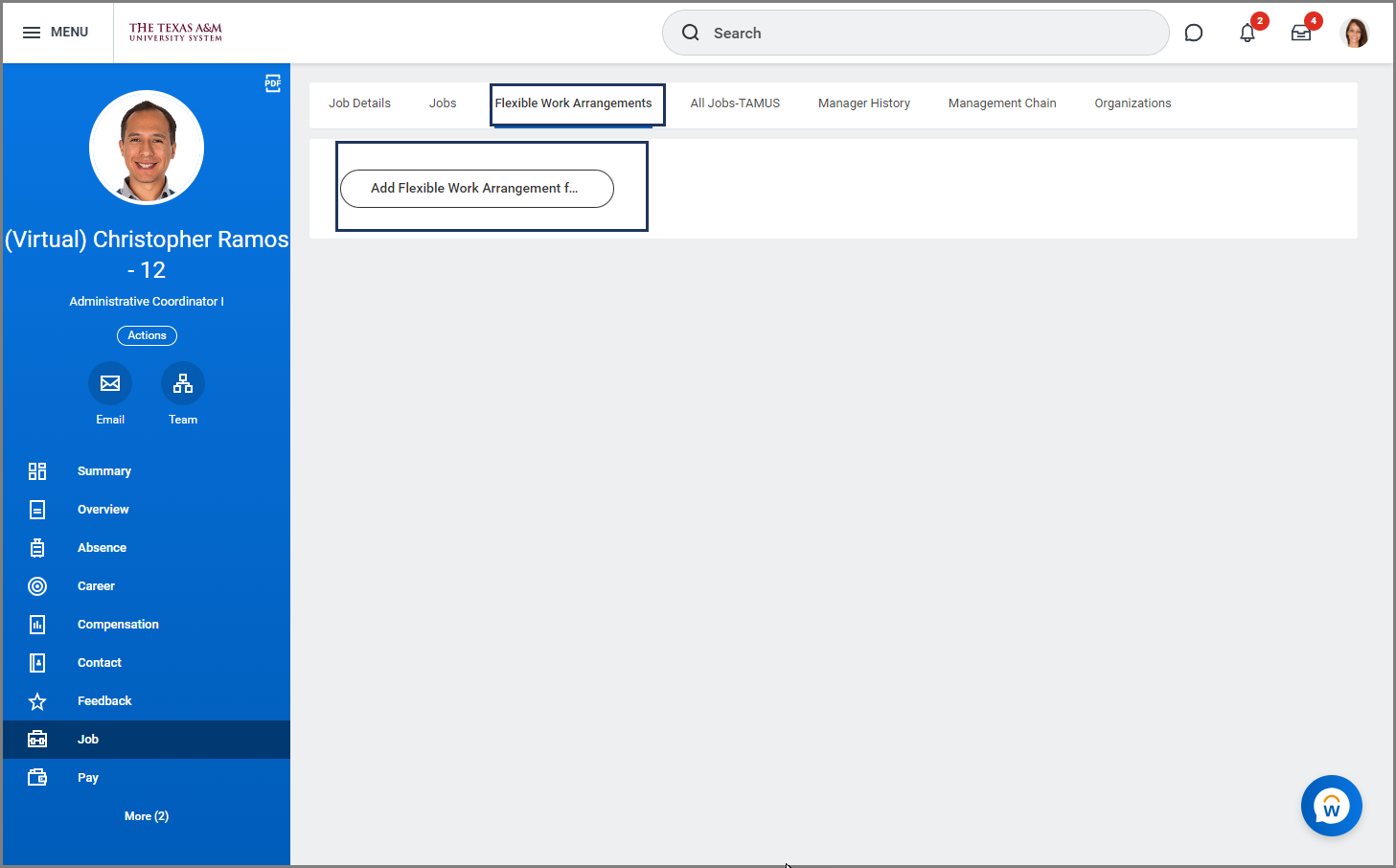
- Select the Flexible Work Arrangement tab and select the Request Flexible Work Arrangement button.
- There are six required fields to complete:
- Start Date. The start date will automatically default to the date the request is initiated. Enter the date that the Flexible Work Arrangement will begin.
- Proposed End Date. The Proposed End Date can be no more than 12 months in the future. Enter the end date of the Employee’s Flexible Work Arrangement.
- Type. There are three Flexible Work Arrangement types available.
- Alternate Work Location. Select Fully Remote (if the Employee will be completely out of the office) or Partially Remote (if the Employee plans to work a hybrid schedule).
- Flexible Work Schedule. Use this type when the Employee would like to request adjusted hours and days that differ from their original schedule. Then use the comments box to provide details of the Employee’s proposed Flexible Work Schedule for each day of the week you selected.
- International Temporary Work Location. Use this type for a faculty member who intends to temporarily work remotely from a foreign jurisdiction outside the United States due to a critical business need for which the faculty member will perform the duties and responsibilities outlined by the department head in the ITWL agreement for a short-term duration not to exceed 60 days.
- Work Place Accommodations. Reasonable accommodations must be initiated by your HR Partner. Managers can reach out to their local Human Resources office.
- Hours Per Week. Enter the number hours being worked outside of the Employee’s normal expected schedule at the Alternate Work Location.
- Days per Week. Enter the number of days per week the Employee will need for the Flexible Work Arrangement.
- Days of the Week. Select the days of the week that will apply for this arrangement.
- Comments. Comments are required to provide justification, details and information to support the request.
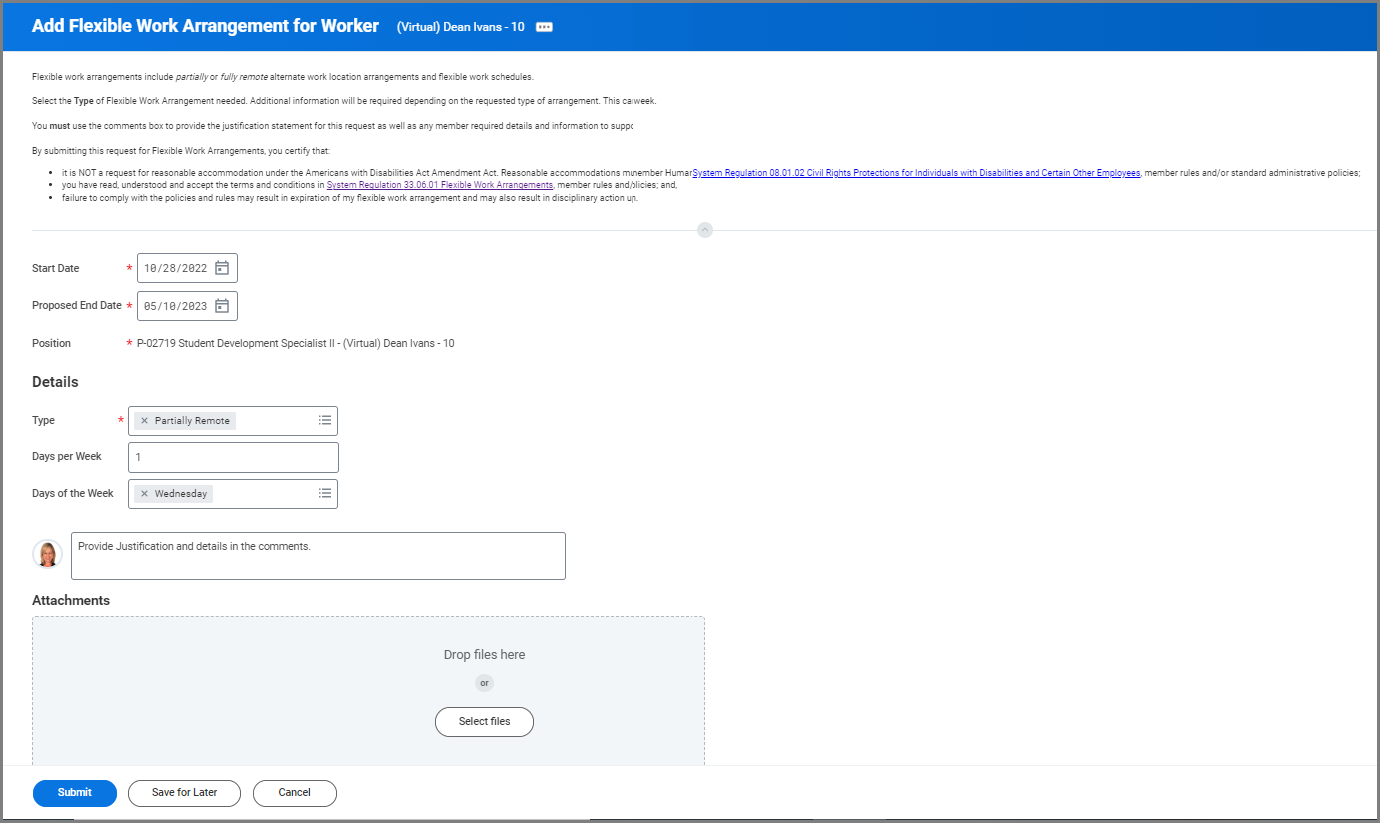
Note: Workday does not require attachments, but your member may require documentation. Please review the content to be sure it does not contain an Employee’s medical related information.
- Select Submit.
Navigate to the Up Next tab for the Employee’s next steps in the process.
Up Next
The three upcoming tasks below will only route to the Employee when the flexible work arrangement request is for an Alternate Work Location.
Review Documents for Request Flexible Work Arrangement
The Employee will receive the To Do: Request Flexible Work Arrangement. This task will require them to review the document Alternate Work Location Terms and Conditions.
- The Employee will navigate to their Workday Inbox and select the Request Flexible Work Arrangement To Do.
- They should review the terms and conditions, select the I Agree checkbox , and then Submit.
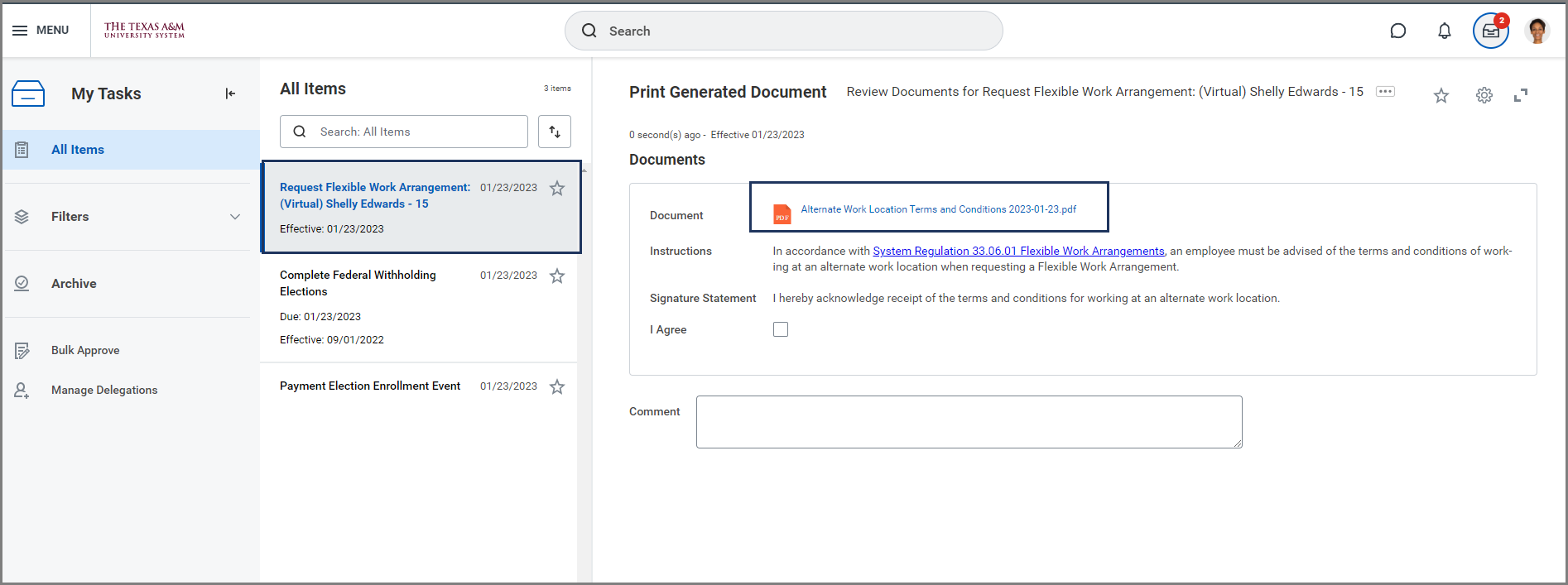
- Once submitted, the Employee will need to refresh the inbox to receive the next task.
Note: When multiple Executive Approvers are assigned to an organization, all Executive Approvers will be required to approve select tasks to move the process forward.
Complete Questionnaire
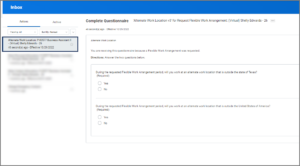
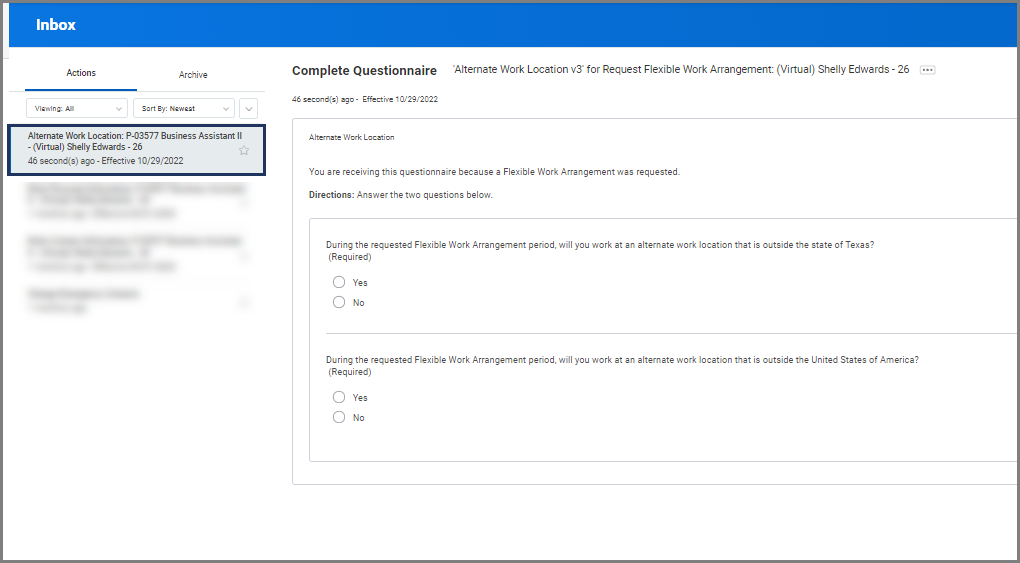
Next the Employee will receive a questionnaire in the To Do: Alternate Work Location . The questionnaire is about their Alternate Work Location. They will need to specify if their Alternate Work Location will be outside the state of Texas or outside the United States of America.
- The Employee will select the To Do Alternate Work Location for Request Flexible Work Arrangement and complete the questionnaire.
- After completing the questionnaire , the Employee will select Submit.
To Do: Update Your Work Contact Information
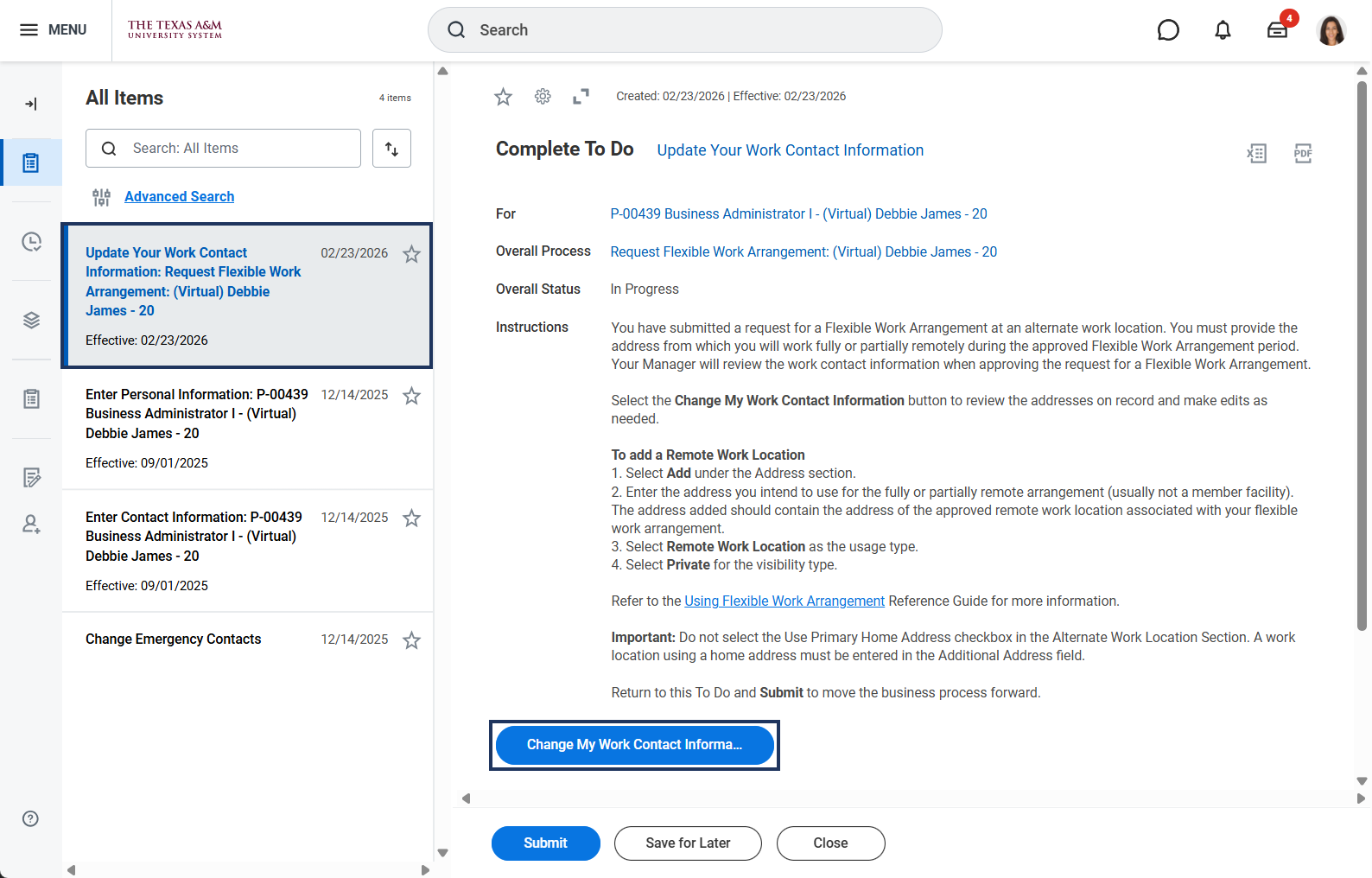
Finally the Employee will receive the To Do: Update Your Work Contact Information.
- The Employee will navigate to the To Do Update Your Work Contact Information and select the Change My Work Contact Information button.
- The button will take them to a page to update their contact information, but they must return to their inbox to submit the To Do.
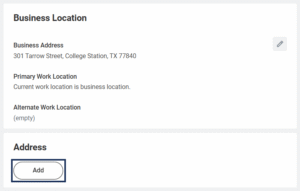
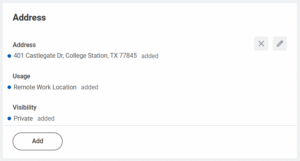
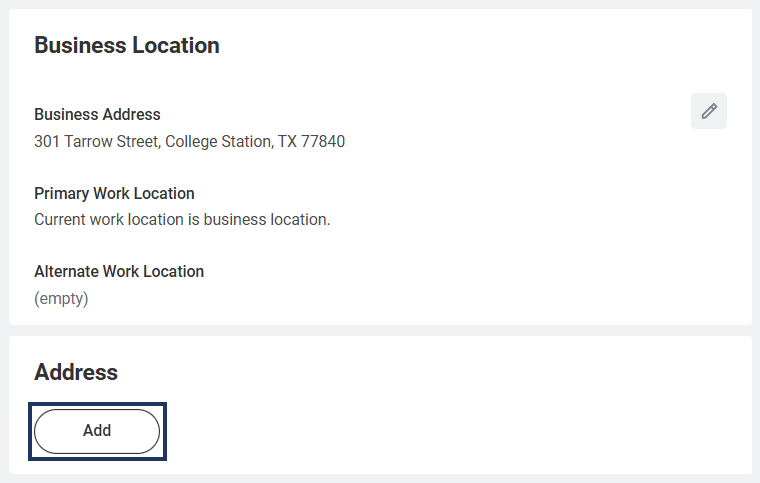
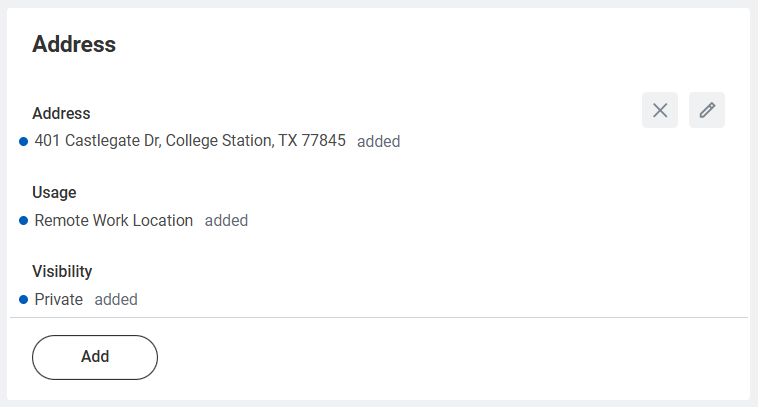
- To add the Remote work Location, on the Change My Work Contact Information page, the Employee will select select Add in the Address section.
- The Employee will enter the appropriate information. Additional information about some fields is provided below.
- Address Line 2. Optional. Use this field for an apartment, building, or suite number associated with Address Line 1.
- Usage. Select Remote Work Location.
- Visibility. Determines whether the address is displayed privately or publicly in Workday. Select Private.
- After the Employee has updated their contact information, they will select Submit and return to their Workday inbox to submit the To Do.
- Enter any comments as needed.
- Select Submit.
Additional Routing
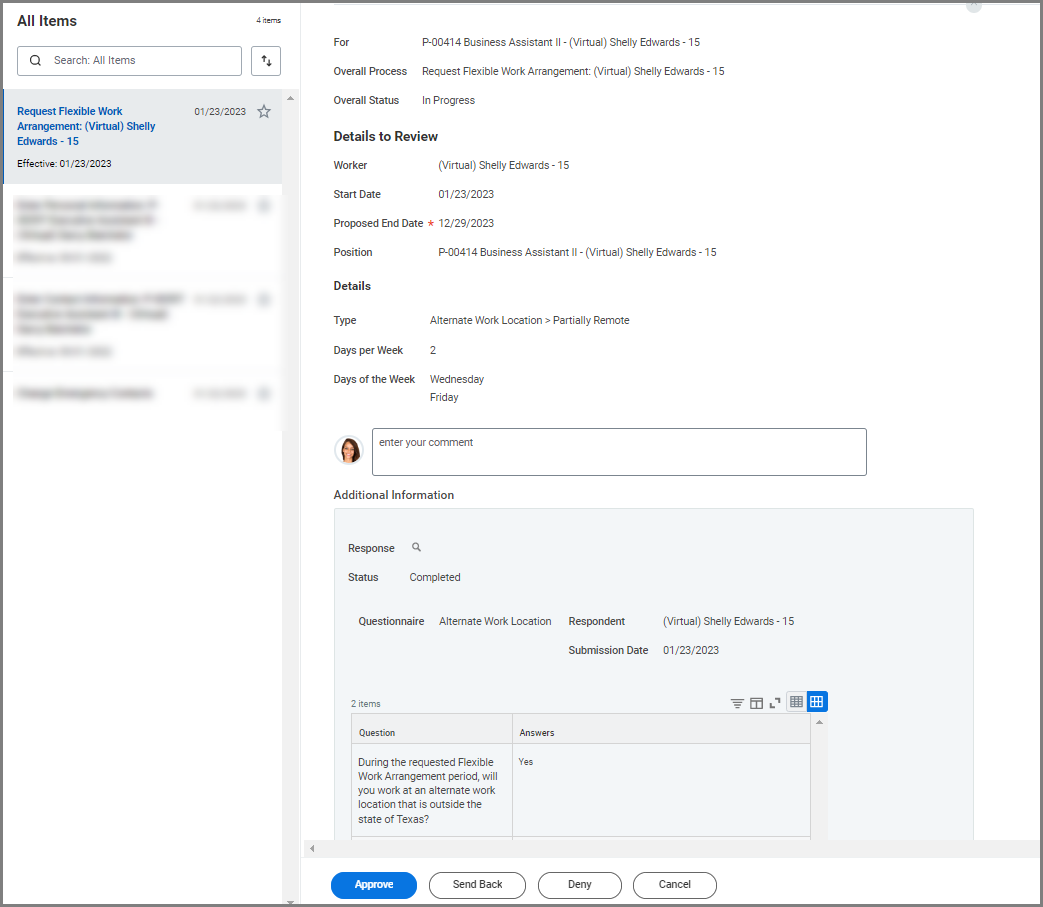
The request will be routed to the Manager, Department Head, and Chief Executive Approver for approval. The image below reflects the approval screen.
Note: Some members have chosen additional approval steps that may route to the Export Control Partner, HR Partner, Faculty Partner, Graduate Studies Partner or Executive Approver.
This completes the Add Flexible Work Arrangement for Worker business process.