
This job aid details the process for an Employee to install Workday’s mobile app on an Android mobile device and provides a brief navigation overview.
Access the Workday Mobile App for Android
Last updated on February 4, 2026
Page Loading...
Checking SSO...
Prerequisites
The Employee has a mobile device that uses Android such as a Samsung phone or tablet.
Getting Started
Installing the Workday Mobile App
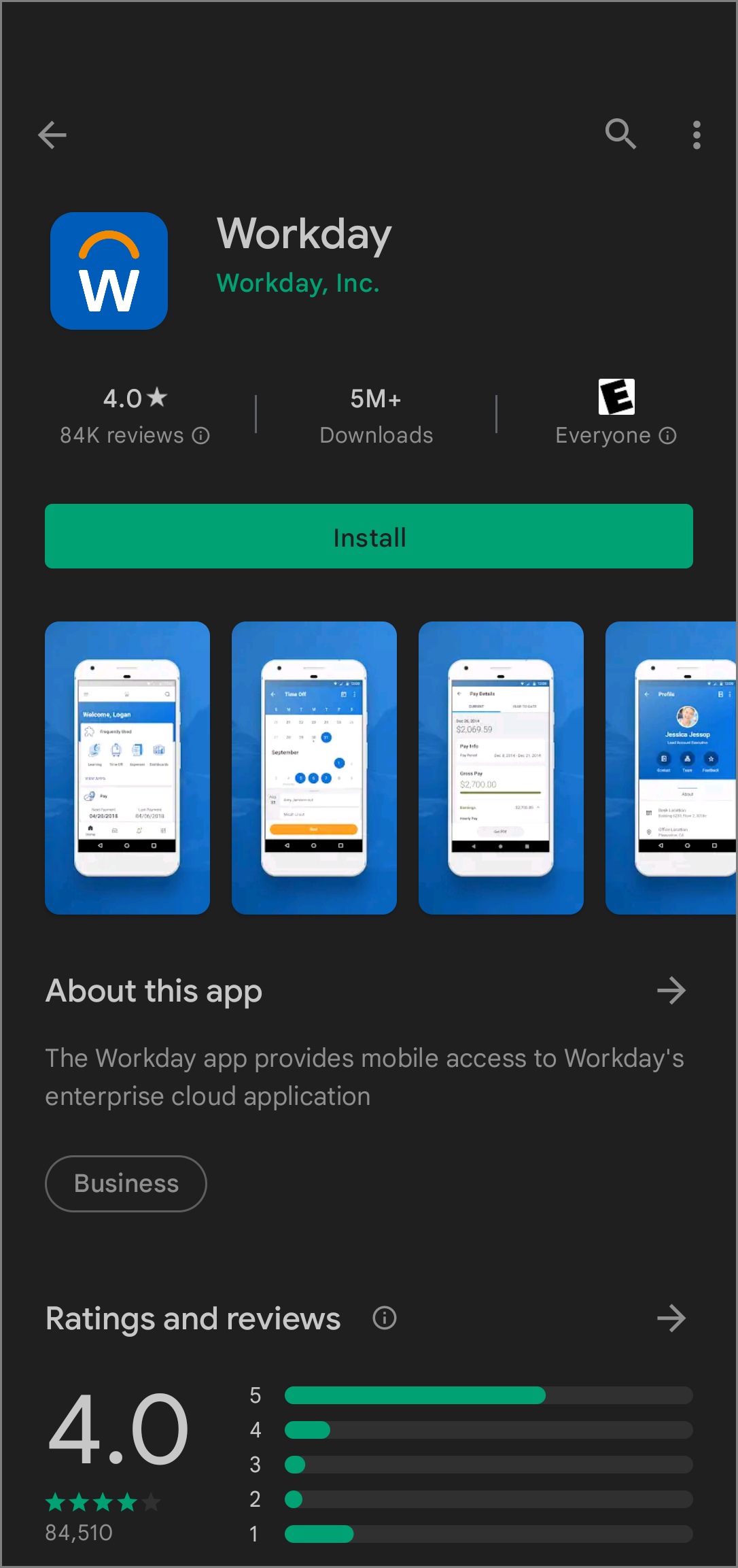
- Navigate to the Play Store on your mobile device.
- Search for the Workday App and select Install.
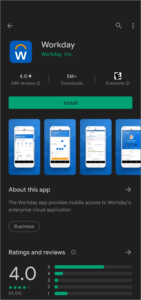
- Select Open once installation is complete. The app should open on your mobile device.
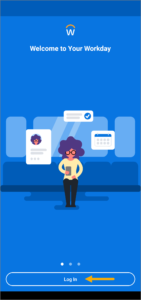
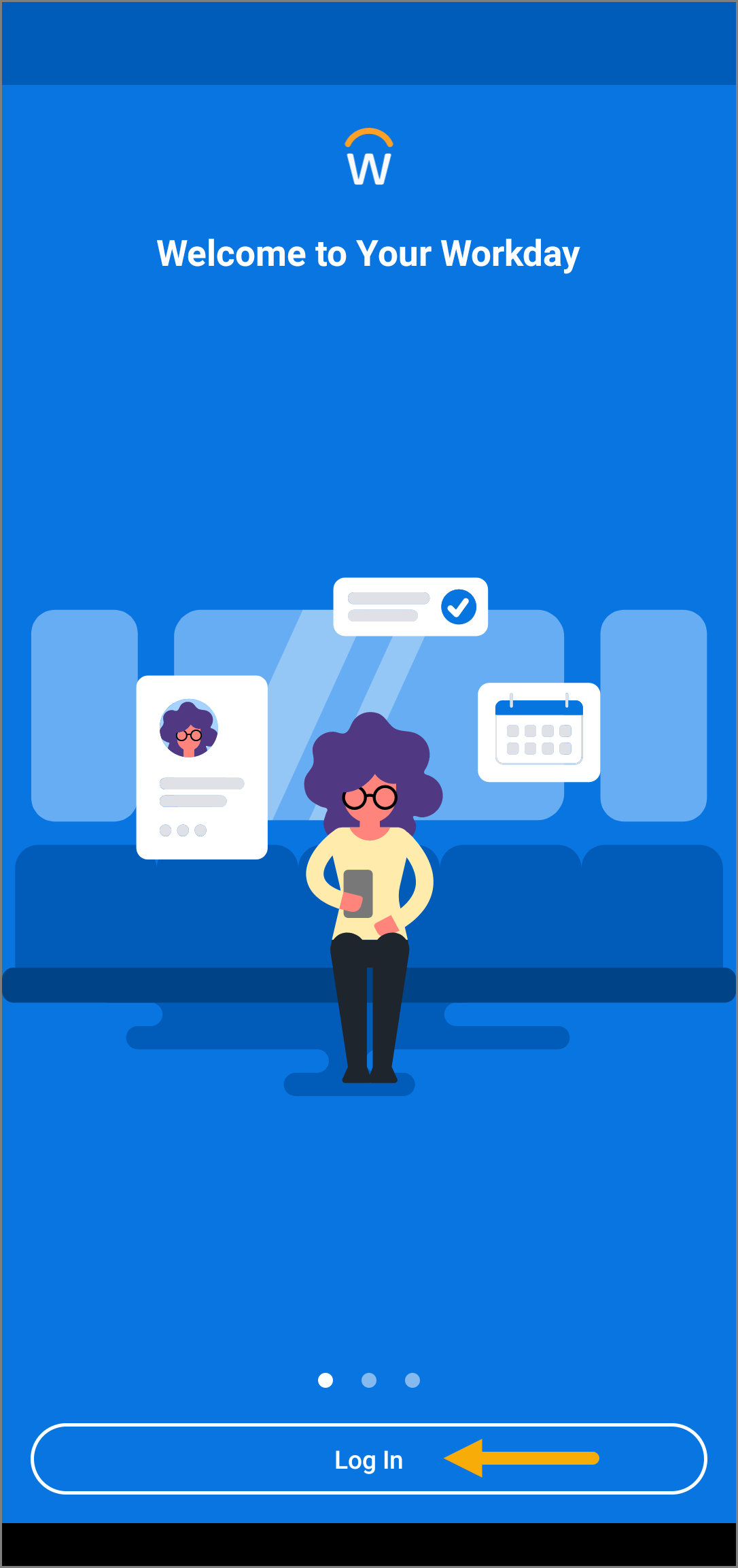
- Once the app is open, select Log in.
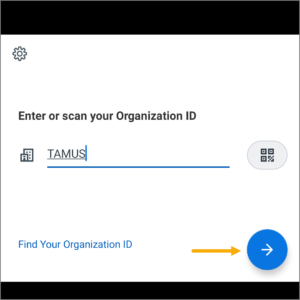
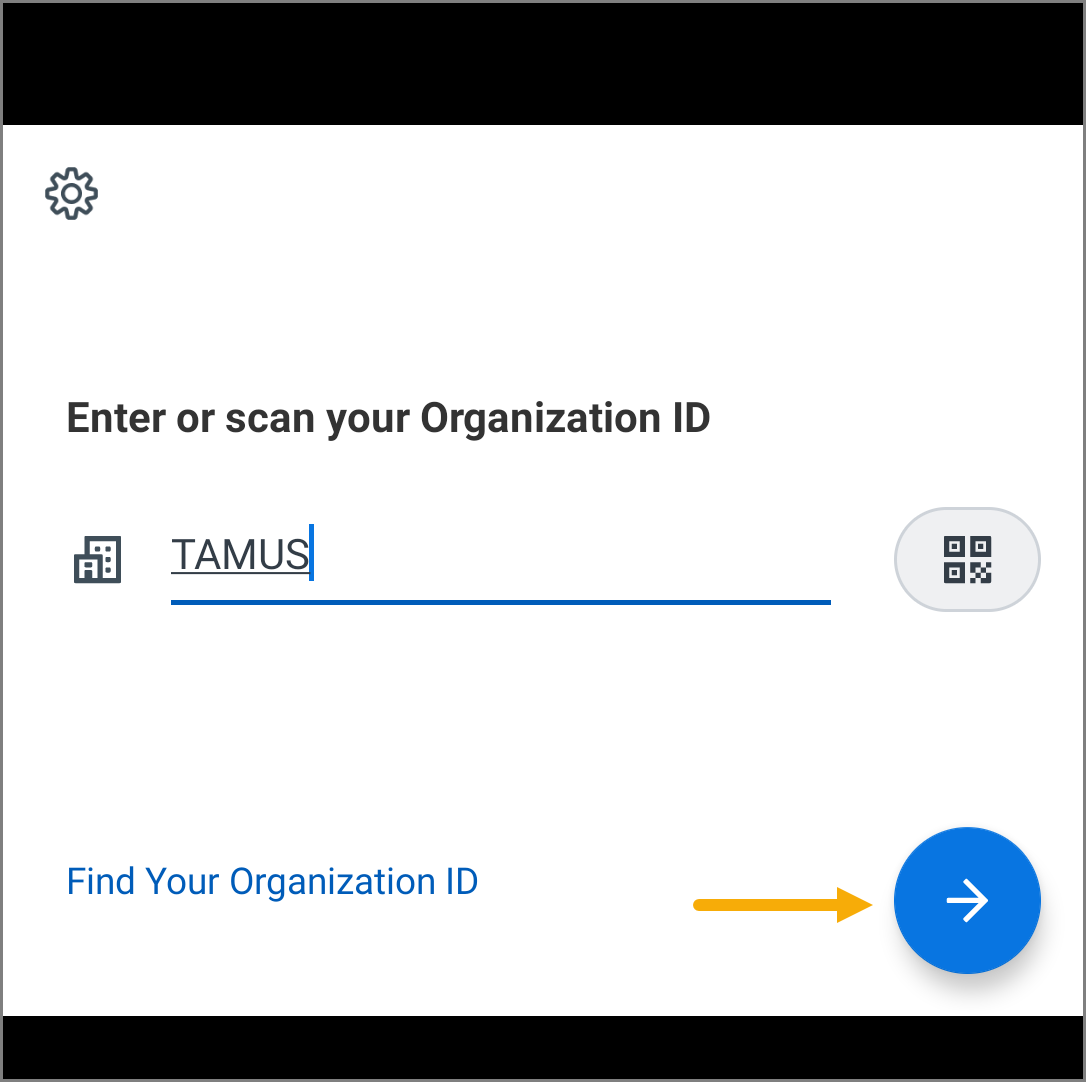
- Enter TAMUS into the Enter or scan your Organization ID field or scan your Organizational ID.
- Select the right arrow to continue.
- On the Single Sign On page, enter your UIN and Password.
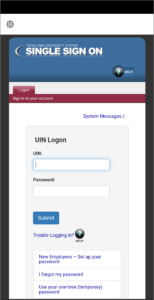
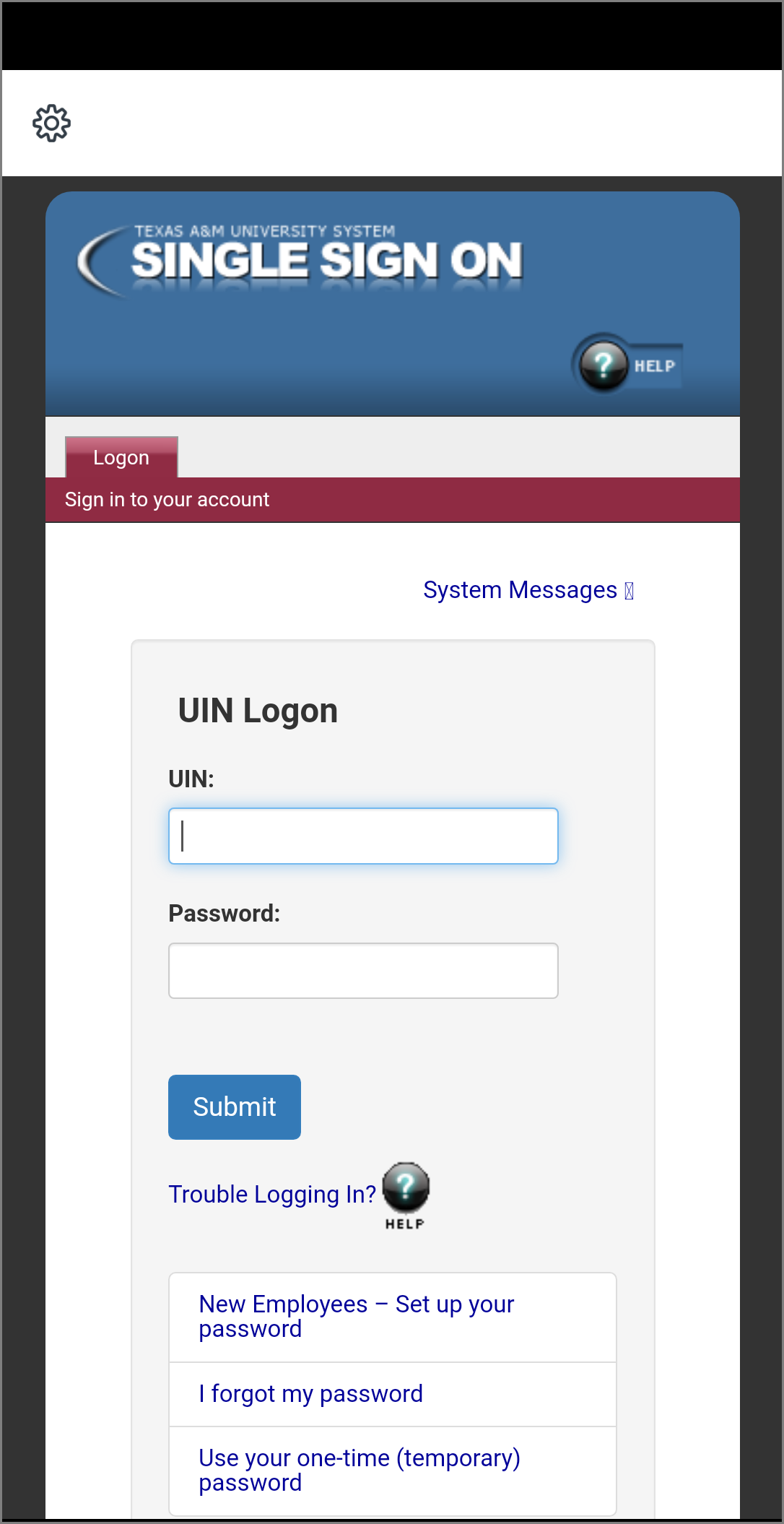
Note: You will be asked to do a multi-factor authentication with Duo. When this occurs, complete the Duo process as usual.
- Select Submit.
Navigating in Mobile
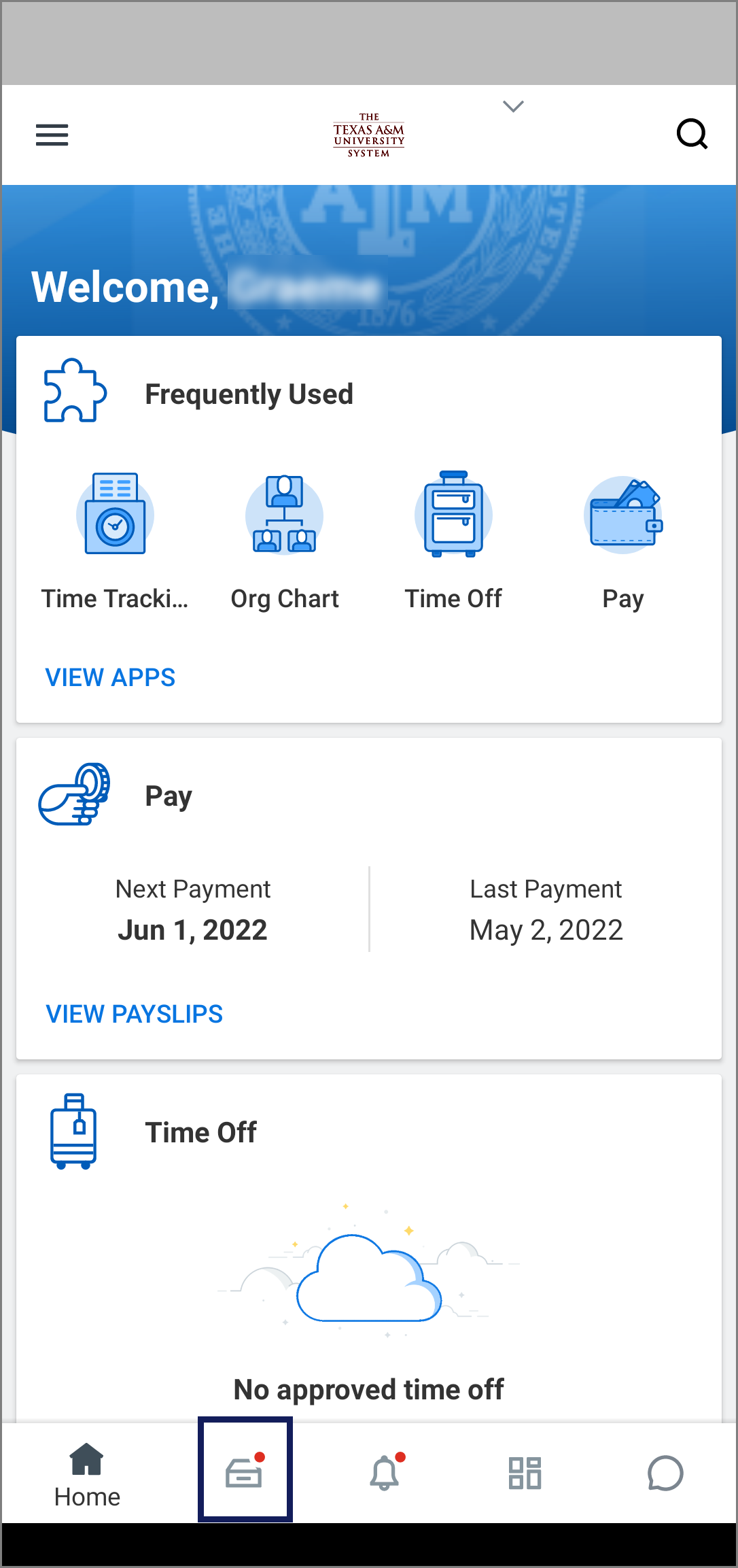
The following is an example of the Workday Home page.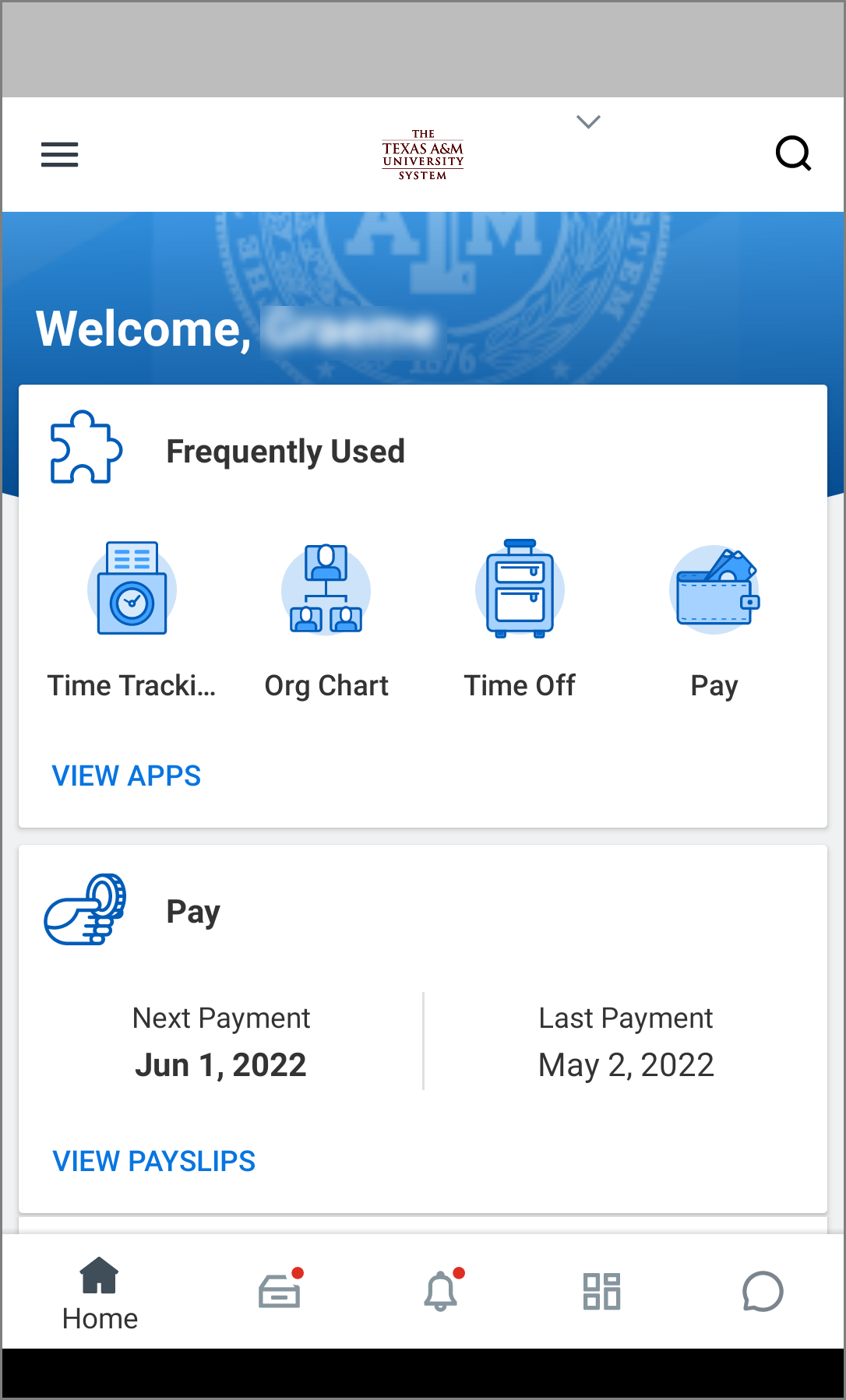 Note: You may have access to different Workday applications based on your security roles.
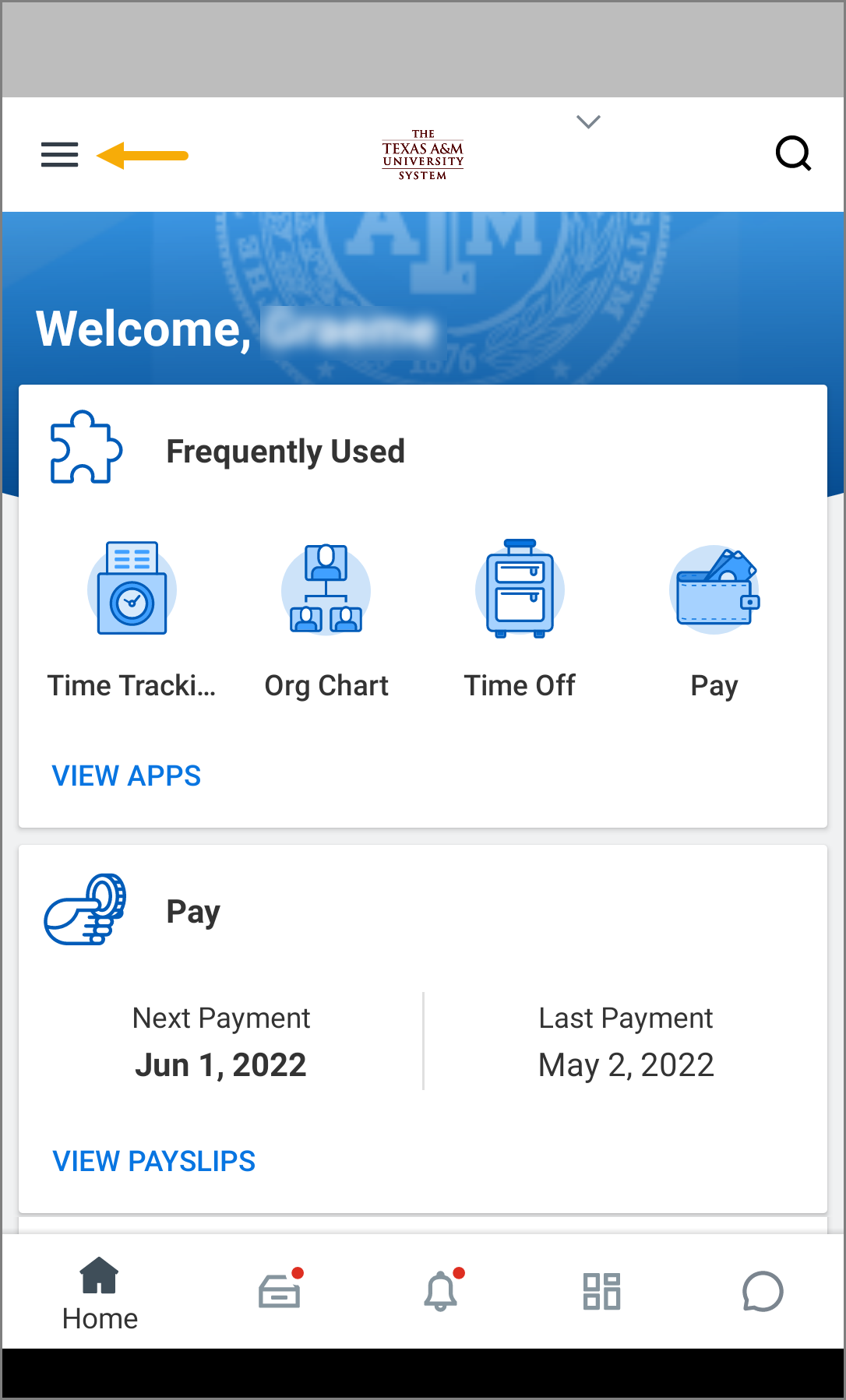
- From the Workday Home page, select the Menu icon.
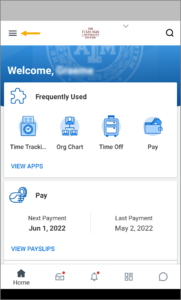
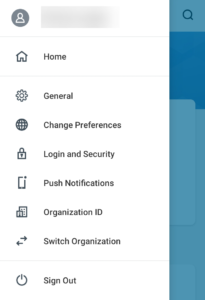
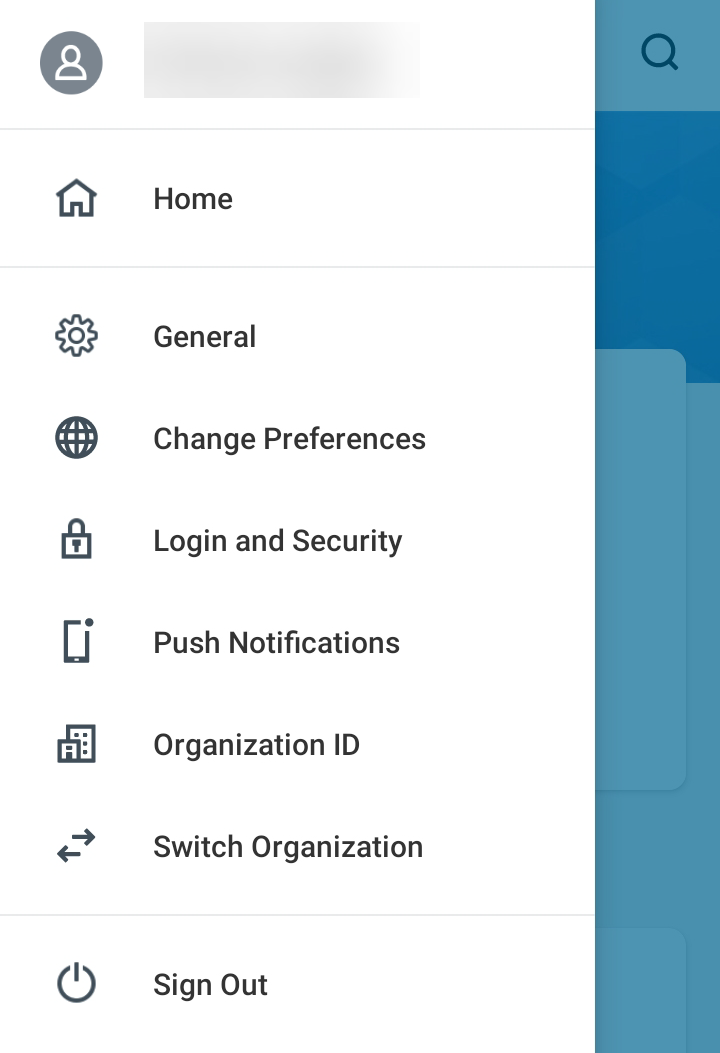
- Select one of the following menu options to access the corresponding function:
- Employee Profile. From this link you can access your worker profile and related actions.
- Home. Selecting this link takes you back to the Workday Home page.
- General. This is used to view global settings.
- Change Preferences. You can access a range of options to personalize your experience in the app.
- Login and Security. You can manage your login and security options if your organization has made it available to you.
- Push Notifications. You can set notification preferences for various events and actions within the app.
- Organizational ID. Information on your organizational ID is provided here.
Accessing Your Profile and Actions
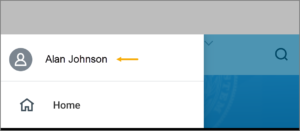
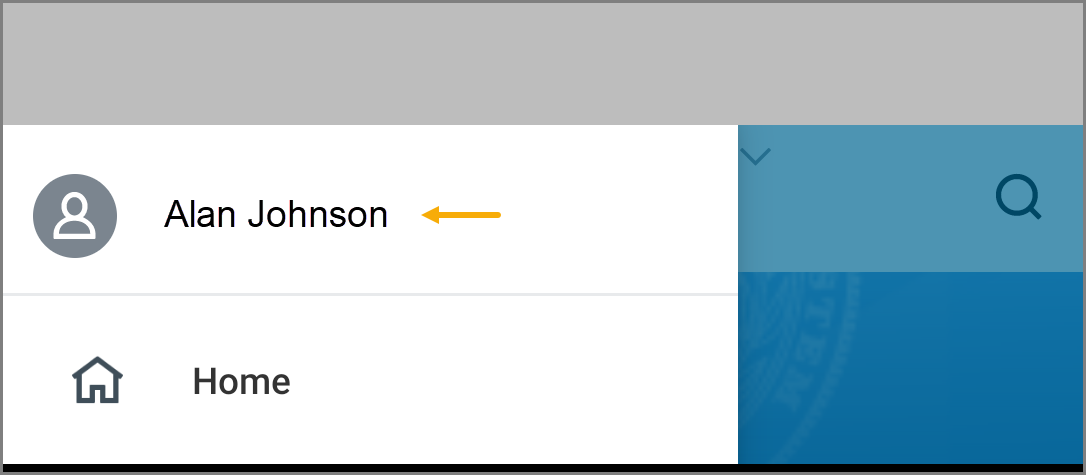
- Select the Menu icon and select your Worker Profile.
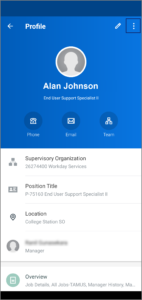
- Select the Related Actions icon.
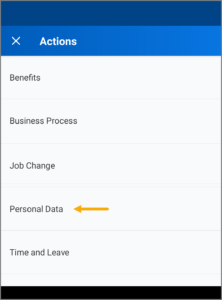
- On the Actions menu, select the Category of the action you wish to take, such as Benefits, Compensation, or Personal Data.Note: Not all information can be edited from the mobile app. If you cannot edit information, open Workday on your desktop to complete the action.
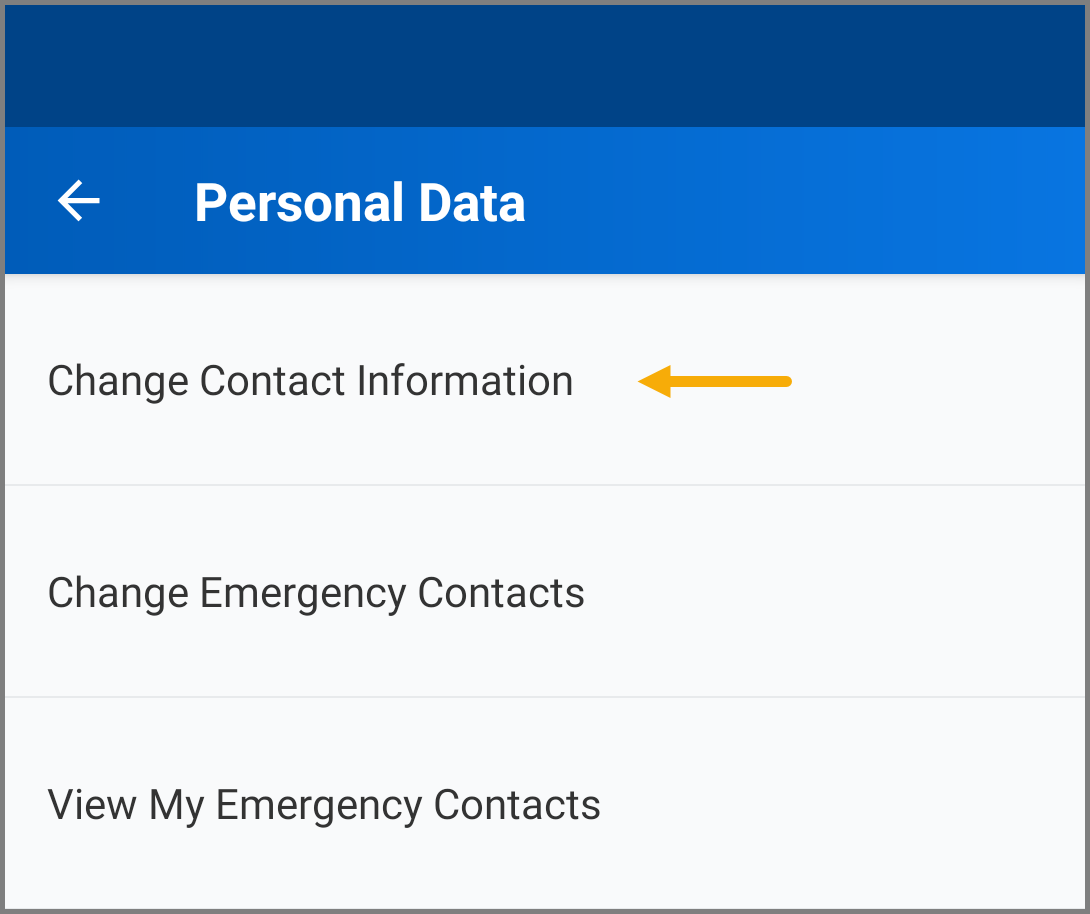
- For this example, select Personal Data.
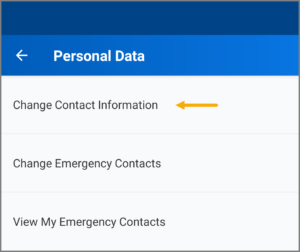
- Select Change Contact Information.
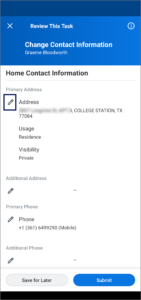
- Select the Pencil icon to edit each section, as applicable (e.g., Primary Address, Additional Phone). Select the check mark to save your edits.
- Review the information and select Submit.


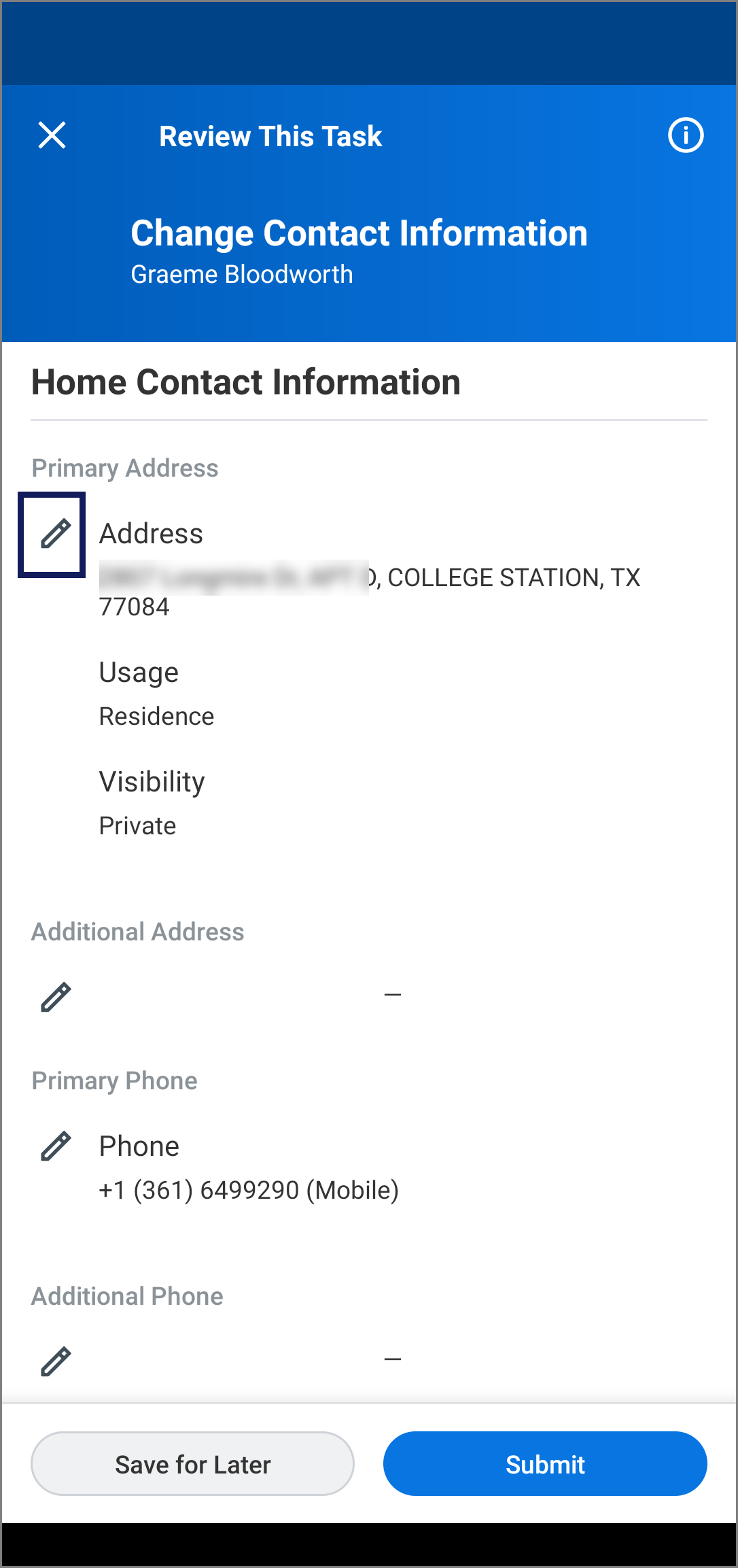
A message displays confirming that the process was successfully completed.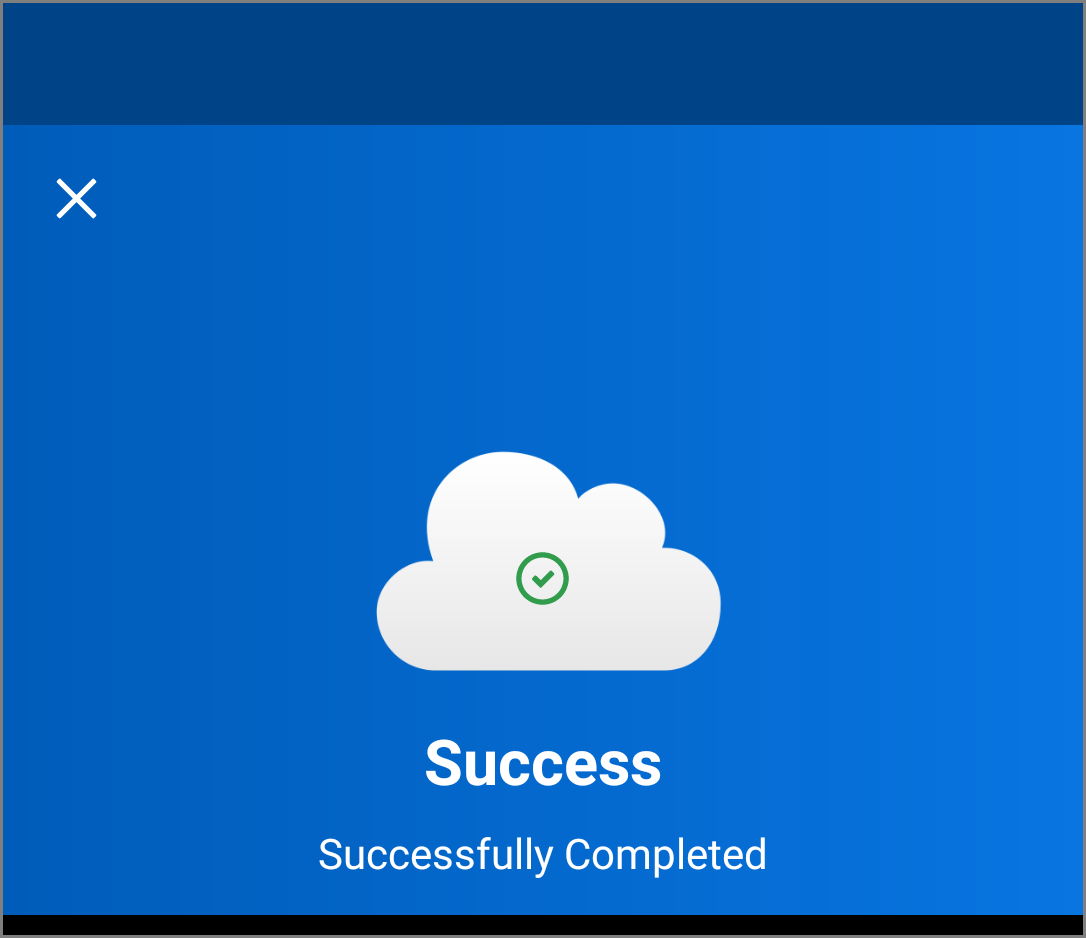
Your Inbox on Mobile
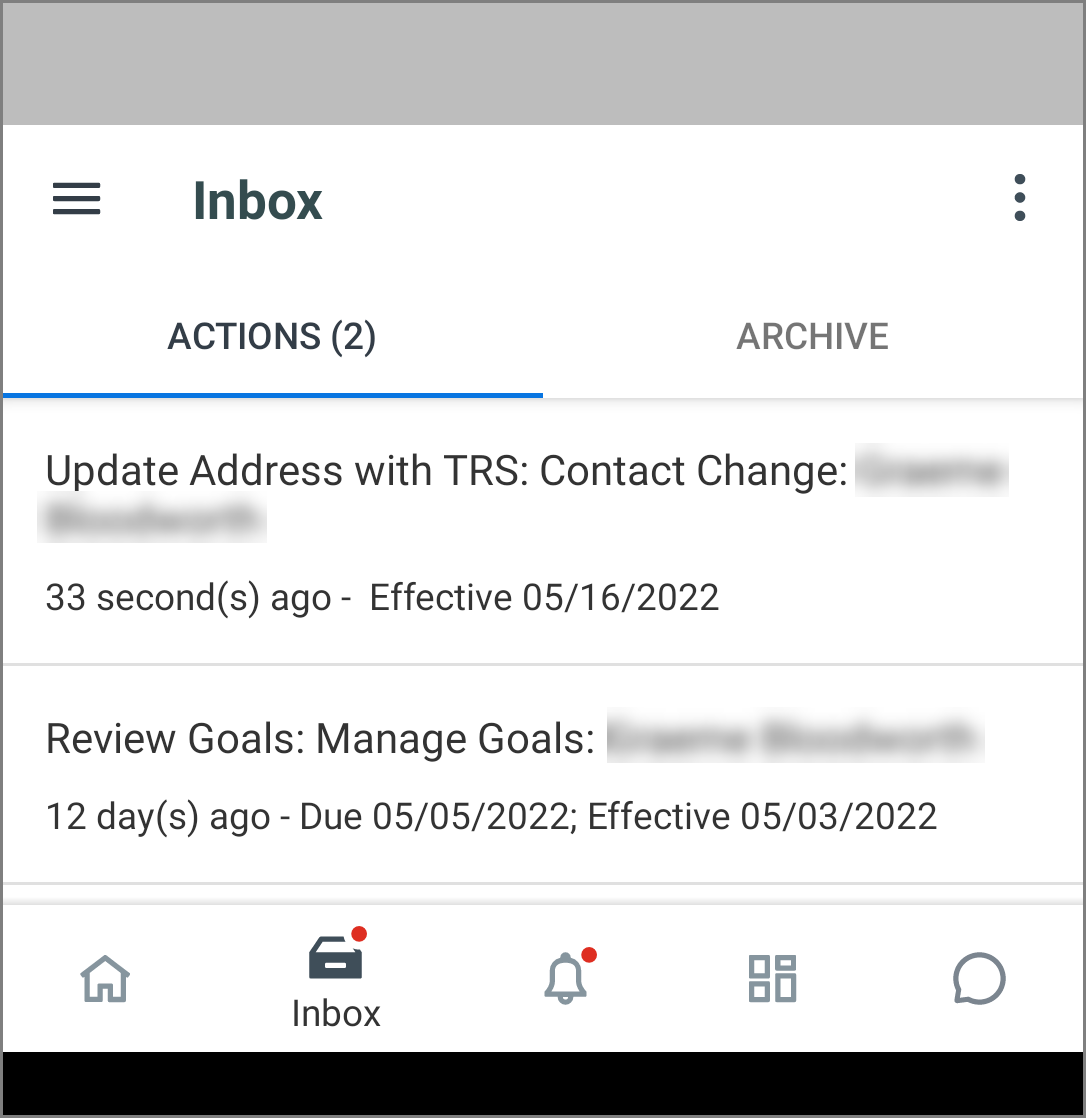
- Return to the Workday Home page. Select the Inbox icon at the bottom of the Home page.
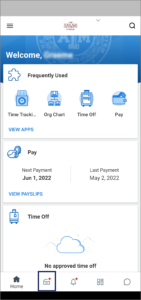
- Select the Actions or Archive tab to access the corresponding information.
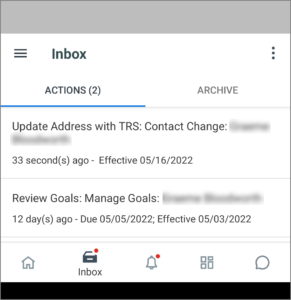
- Select an item to view more details.Note: You can see all Inbox items on mobile, but you cannot take action on every item. For items not configured for mobile, open Workday on your desktop or within your mobile device’s internet browser to take action.
This completes the overview of Accessing the Workday Mobile App on an Android device.