
This process is also available through the Workday mobile app.
Important Dates
- 9/13 – End of the first pay period. Timesheets must be submitted and approved by 9/15
- 9/15 – Timesheet approvals must be completed by the close of business on 9/15
Important Information
- Instead of using the terms Clock In and Clock Out, Workday uses Check In and Check Out
- For full-time hourly employee, you cannot submit your timesheet until all 80 hours for the two-week pay period have been accounted for.
- For part-time/student workers, you will not have a minimum requirement before you can Review and Submit your timesheet.
Navigate to Workday
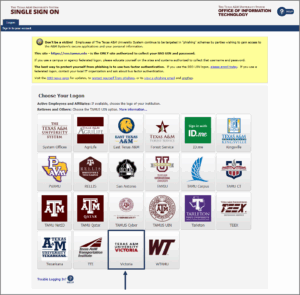
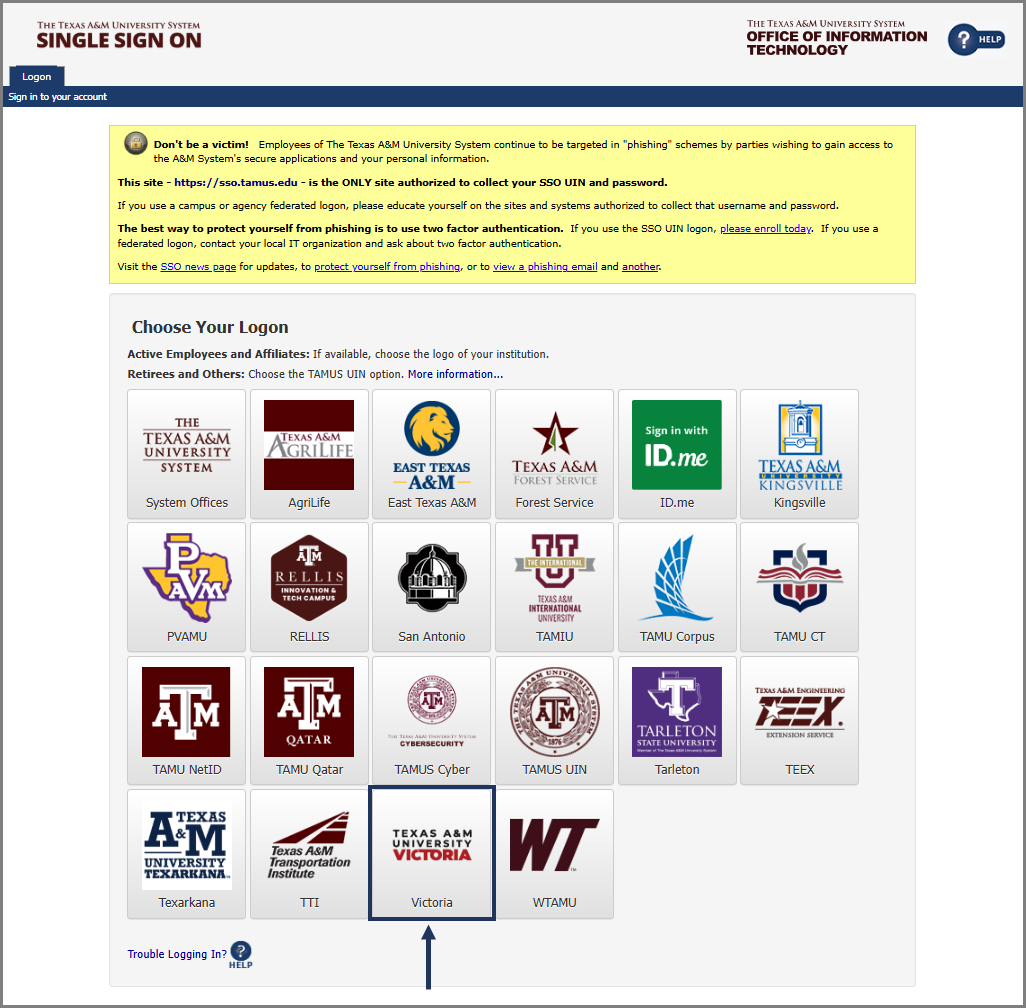
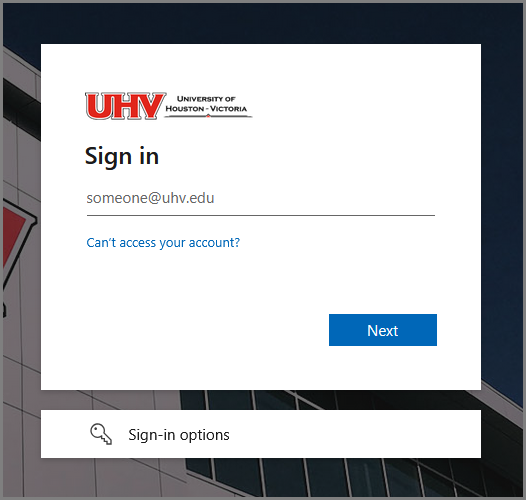
- Navigate to SSO: sso.tamus.edu. Select the TAMUV logo.
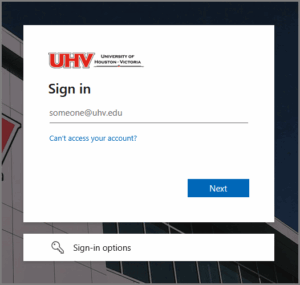
- Use your UHV email and password to login.
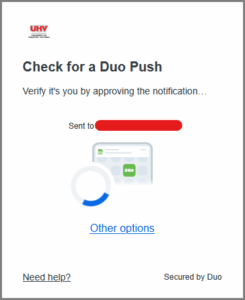
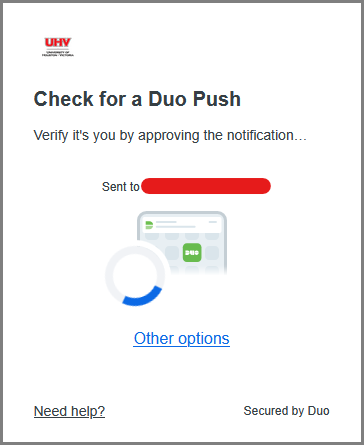
- Authenticate your login using Duo.
- Select the Workday link from your SSO menu.
Navigate to the Time Clock
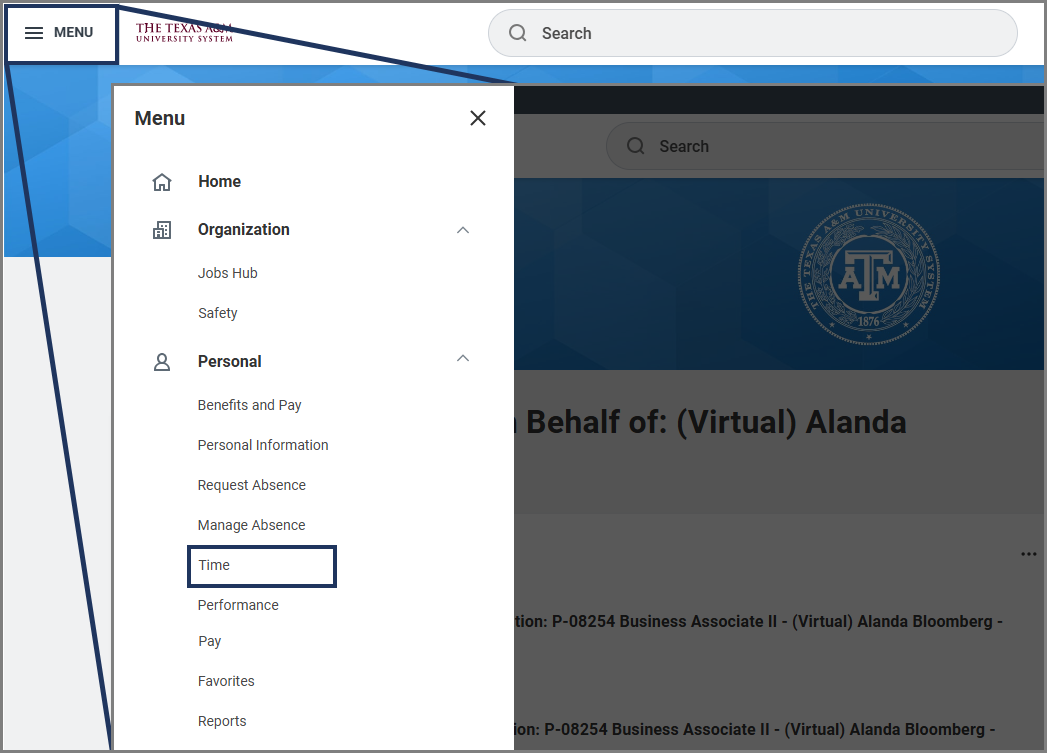
- From the Workday homepage, select the Menu then Time.

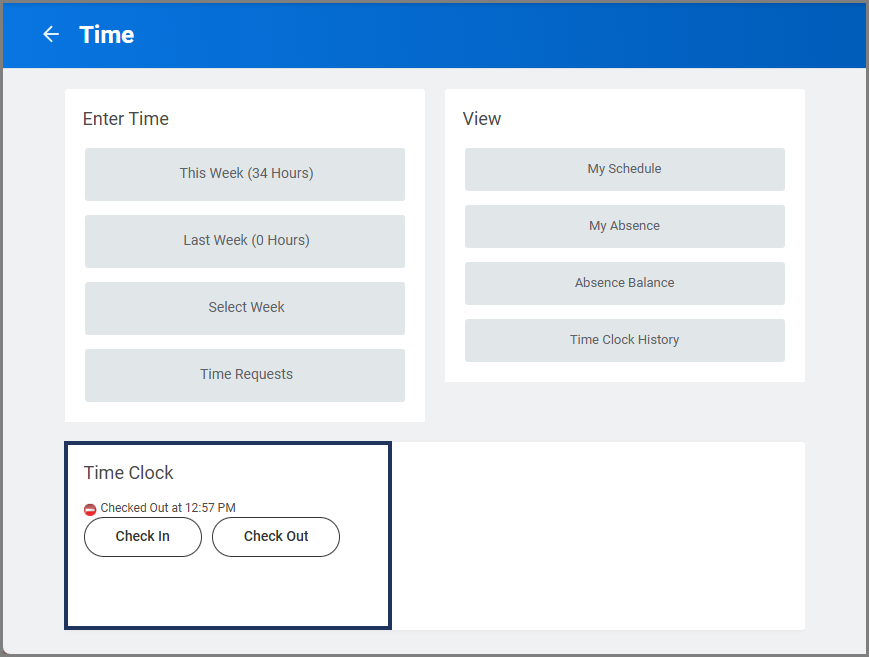
The Time app houses the Time Clock where you will Check In and Out for work.
Use this picture as a reference for the instructions in the next two subsections.
Check In (Clock In)
- Within the Time app under Time Clock, select Check In.
- Follow the prompts to confirm your Check In.
Check Out (Clock Out)
- Within the Time app under Time Clock, select Check Out.
- Follow the prompts to confirm your Check Out.
Submit Time
At the end of the pay period, you will need to submit your time to be paid.
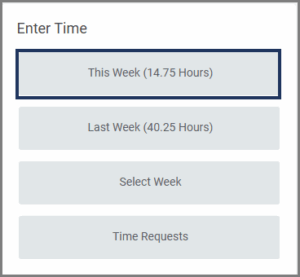
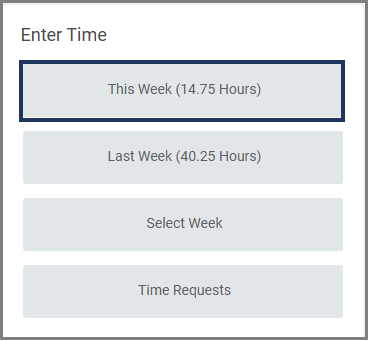
- In the Time app, select This Week.
- Select Review.
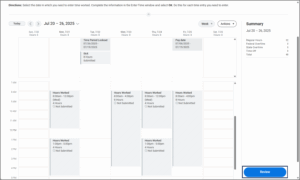
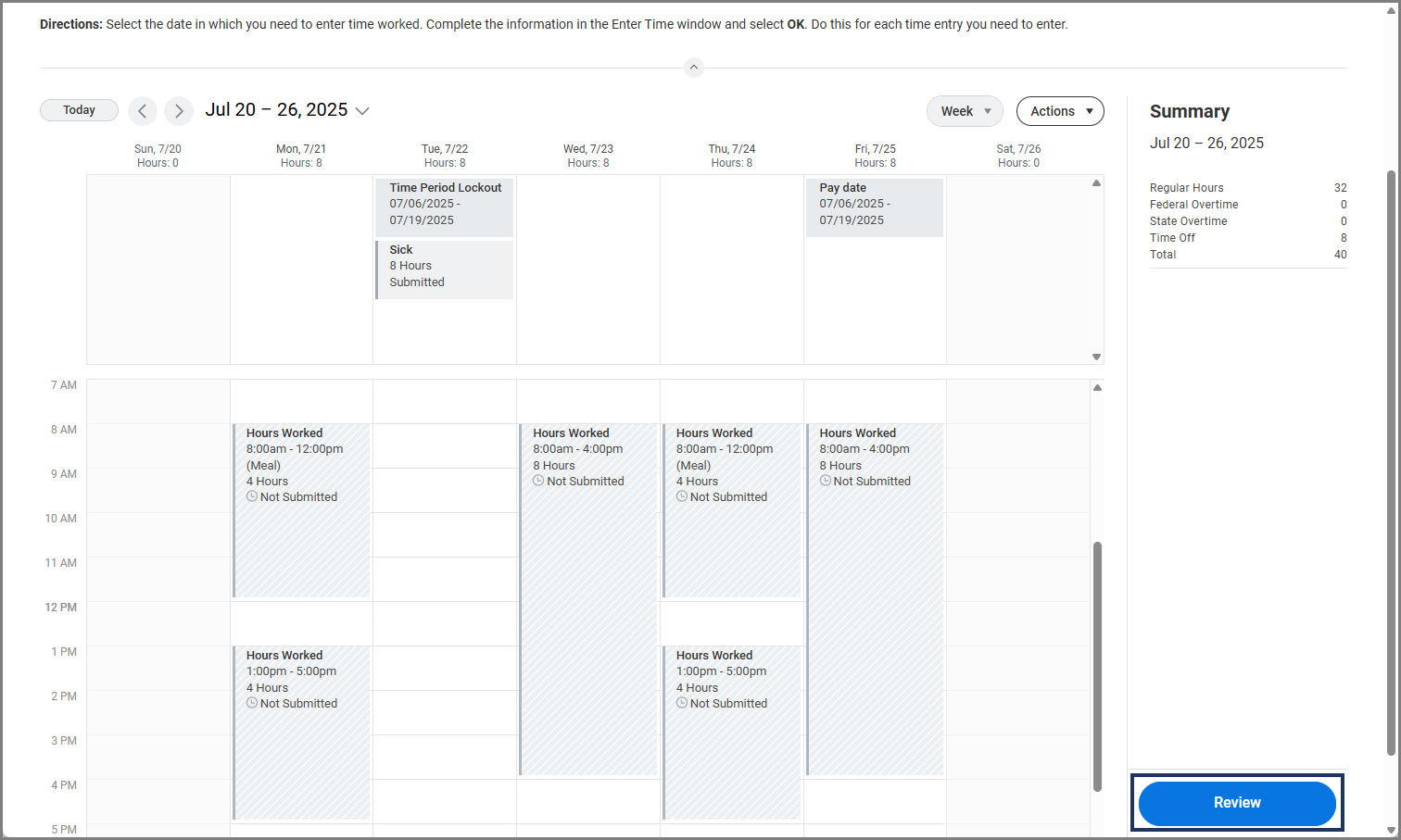
Note: If you are a full-time hourly employee, the Review button will only appear once you have accounted for all 40 hours for the week.
- Select Submit. It will then route to your manager for approval.
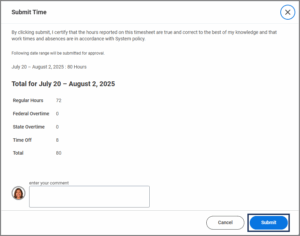
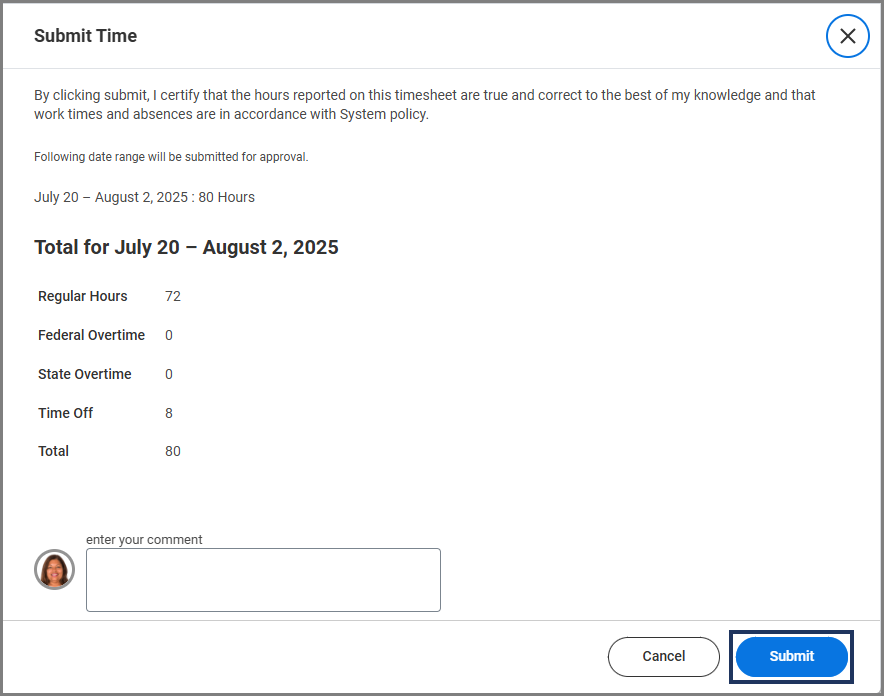
Important: If you are a full-time hourly employee, you cannot submit your timesheet until all 80 hours for the two-week pay period have been accounted for.