
Creating, Editing, and Removing Task Assignments
The Employee Assignments page allows you to create, edit, and remove task assignments for an employee.
Task assignments are most commonly learning and professional development activities and courses that are completed outside of TrainTraq and are not listed in the course/program catalog. Examples of tasks include, but are not limited to:
- Assignment to attend a professional development conference.
- Assignment to read a particular book, watch a movie, or attend a webinar covering an emerging topic related to an employee’s job.
The following section describes how to make a one-time, manual task assignment for an employee.
NOTE: Manual task assignments are immediate and are non-recurring. A single email is sent at the time of the task assignment, there are no additional reminder emails.
To create a new task assignment:
- Click the Assignments option located in the Employee tab menu. The Employee Assignments page displays.
- Select an employee from the list of your employees shown. The Employee Assignments page populates with the selected employee’s details and assignments.

- Click the Assign Task button located below the Employee Details section. The Task Assignment Details page displays.
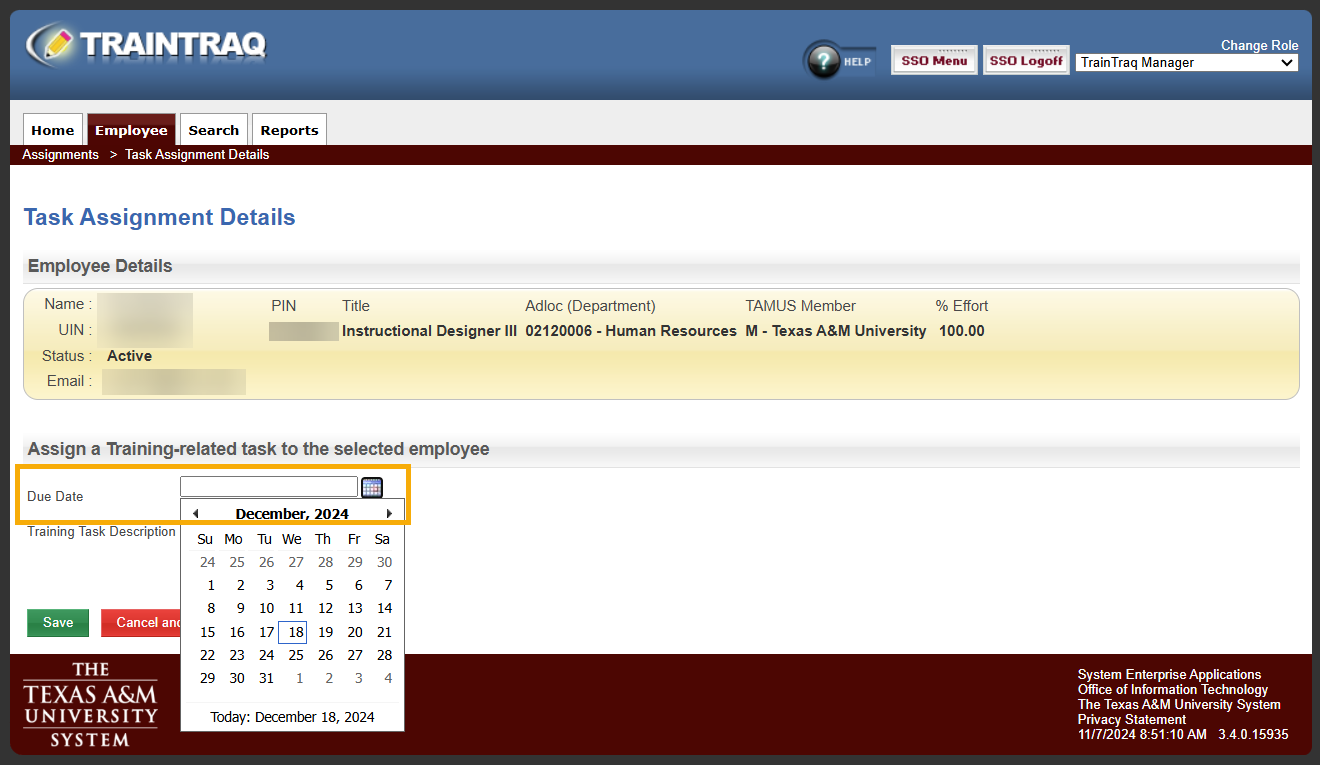
- Enter the date the task is due to be completed into the Due Date If typed, the date must be in MM/DD/YYYY format. Alternatively, you can click the Calendar icon to the right of the field and select the date from the calendar displayed.
- Enter a concise description of the task to be completed into the Task Description field.
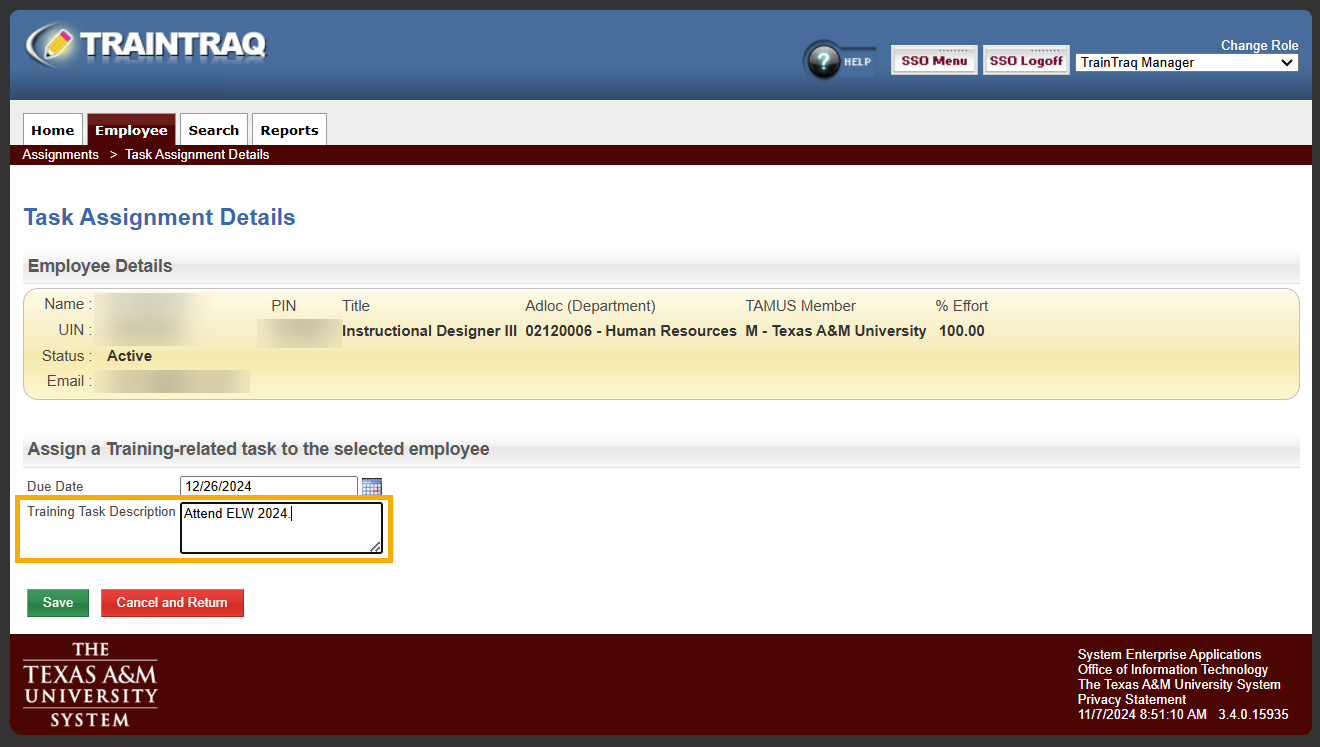 NOTE: The text entered into the Task Description field will display on the employee’s assignment page, as well as on their transcript once the task is completed.
- Click the Save The Task Assignment Details page updates to display the assignment information you provided, and a notification will appear at the top of the page to let you know that the assignment was created successfully.
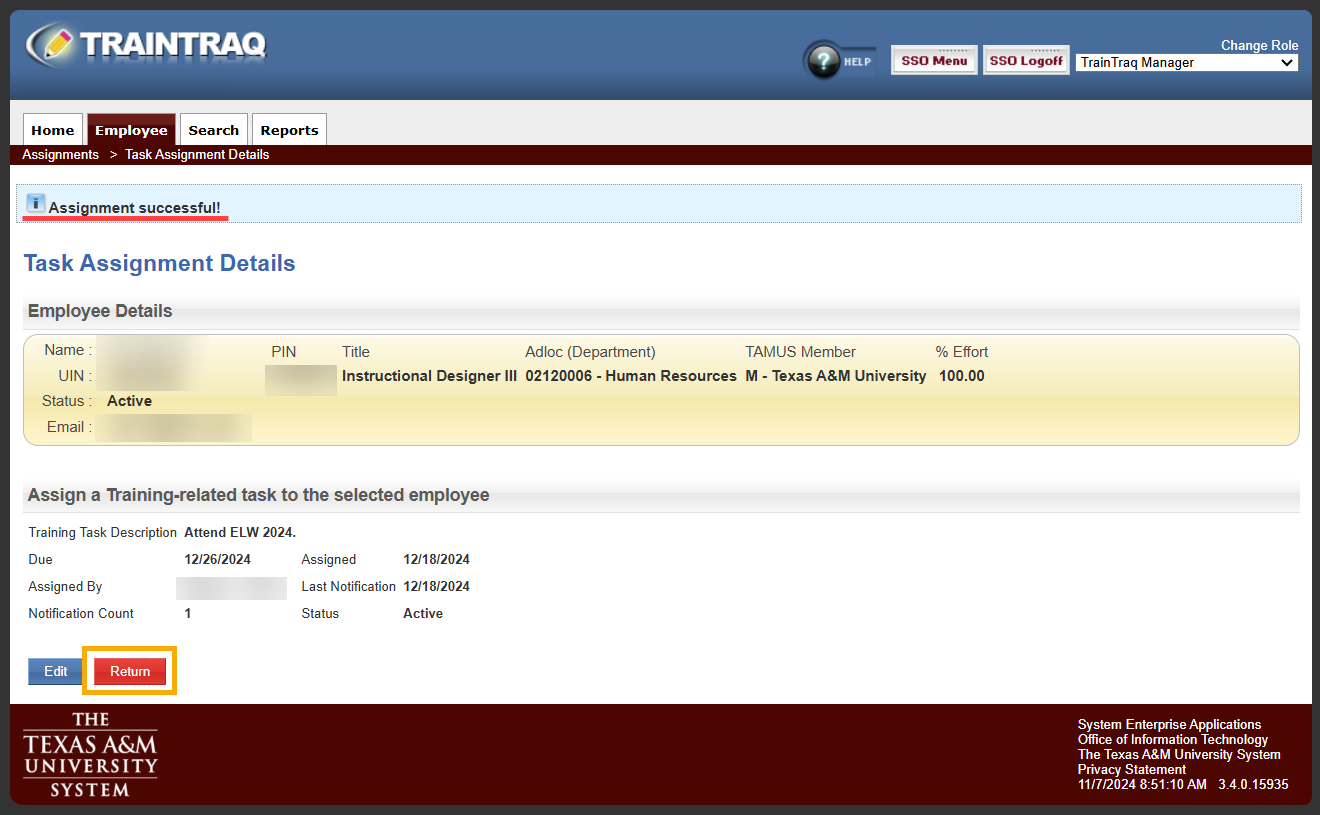 The newly assigned task will display in the Assigned Courses/Tasks section of the employee’s Home Page.
Once a task assignment has been made, you can choose to edit the task details if desired.
To edit a task assignment:
- From the Employee Assignments page, select an employee.
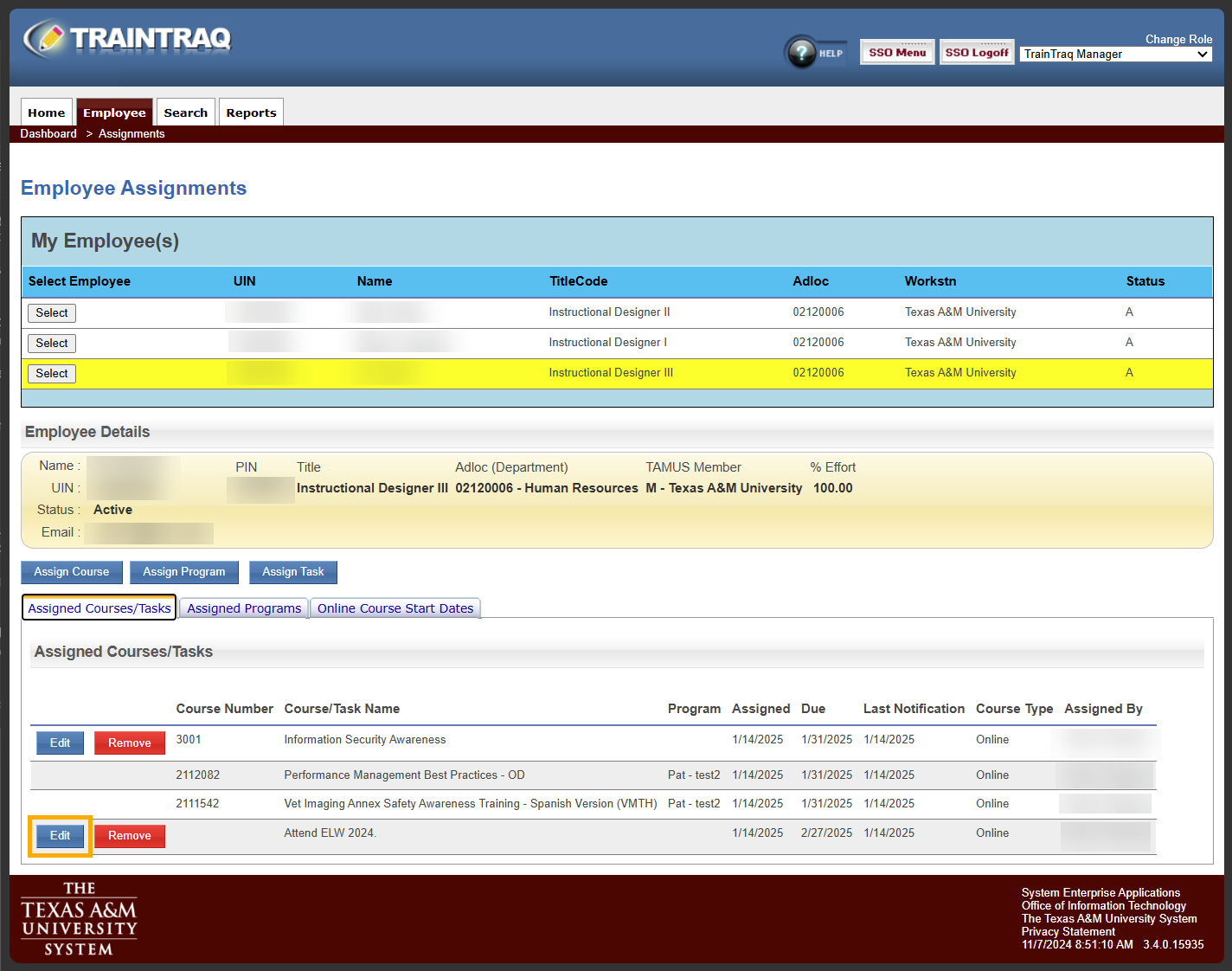
- Click the Edit button located to the left of the task you wish to edit. The Task Assignment Details page displays.
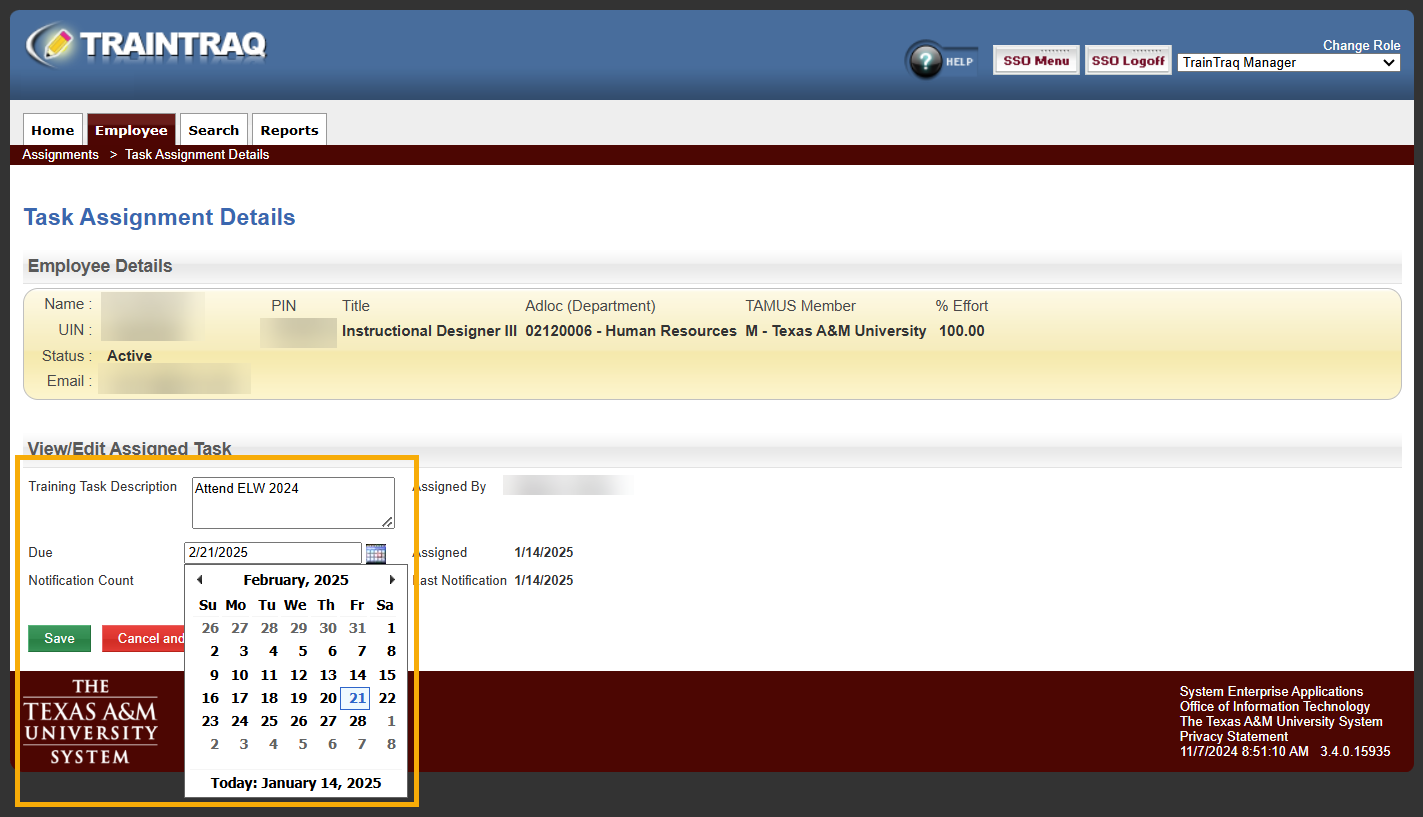
- Update the Task Description and/or Due fields as necessary. If typed, the date in the Due field must be in MM/DD/YYYY format. Alternatively, you can click the Calendar icon to the right of the field and select the date from the calendar displayed.
- Click the Save button to save the new task details. The Task Assignment Details page updates to display the assignment information you provided, and a notification will appear at the top of the page to let you know that the assignment was updated successfully.
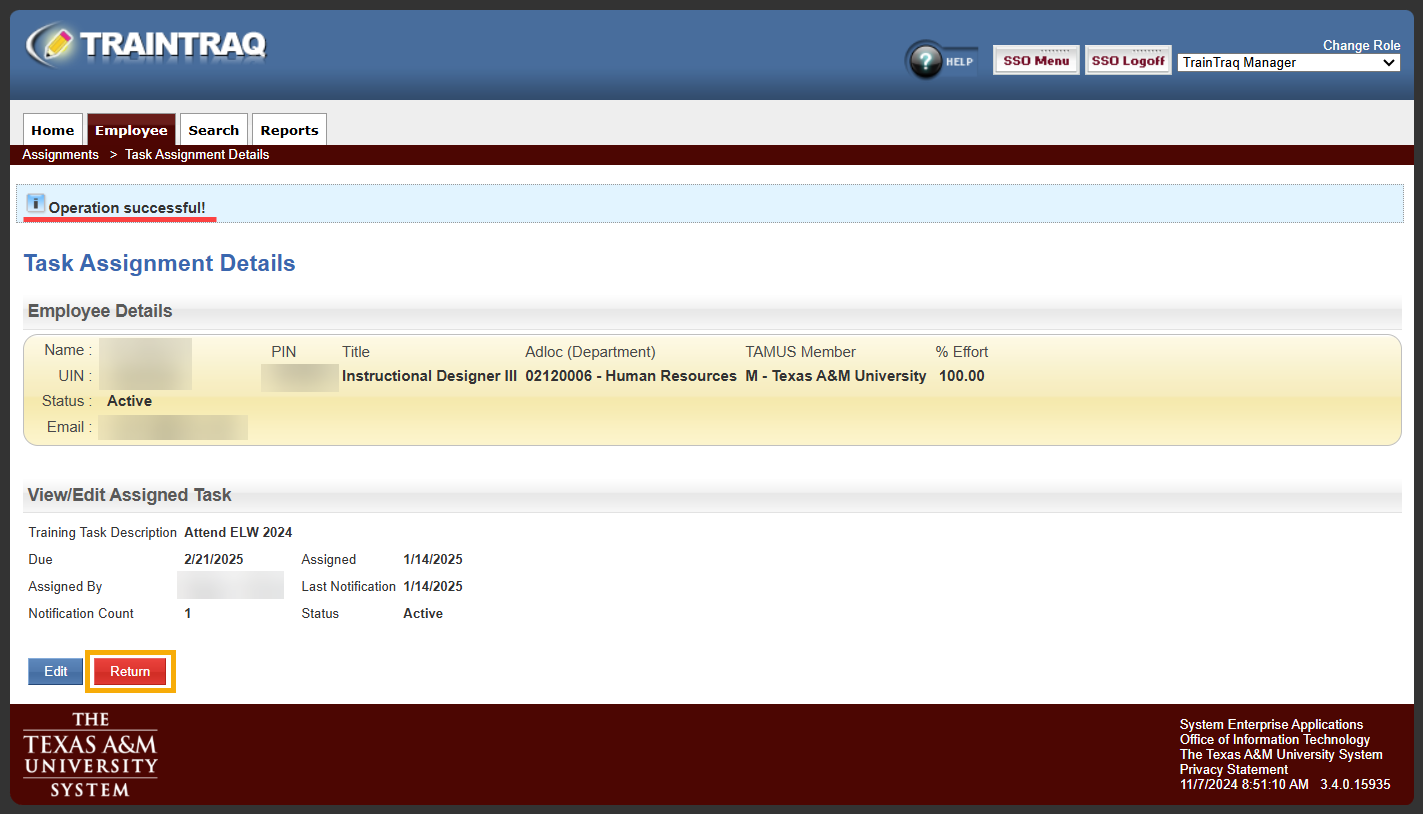 Once you verify the assignment click the Return button to return to the Employee Assignments page.
If a task assignment is created incorrectly or becomes unnecessary, it is possible to remove the manual assignment altogether.
To remove a task assignment:
- From the Employee Assignments page, select an employee.
- Locate the task you want to remove. Click the Remove button located to the left of the task you wish to remove.

- This will open a pop-up window which requires you to enter a reason for cancelling the assignment. After you enter the reason for cancellation click the Confirm Cancellation button.
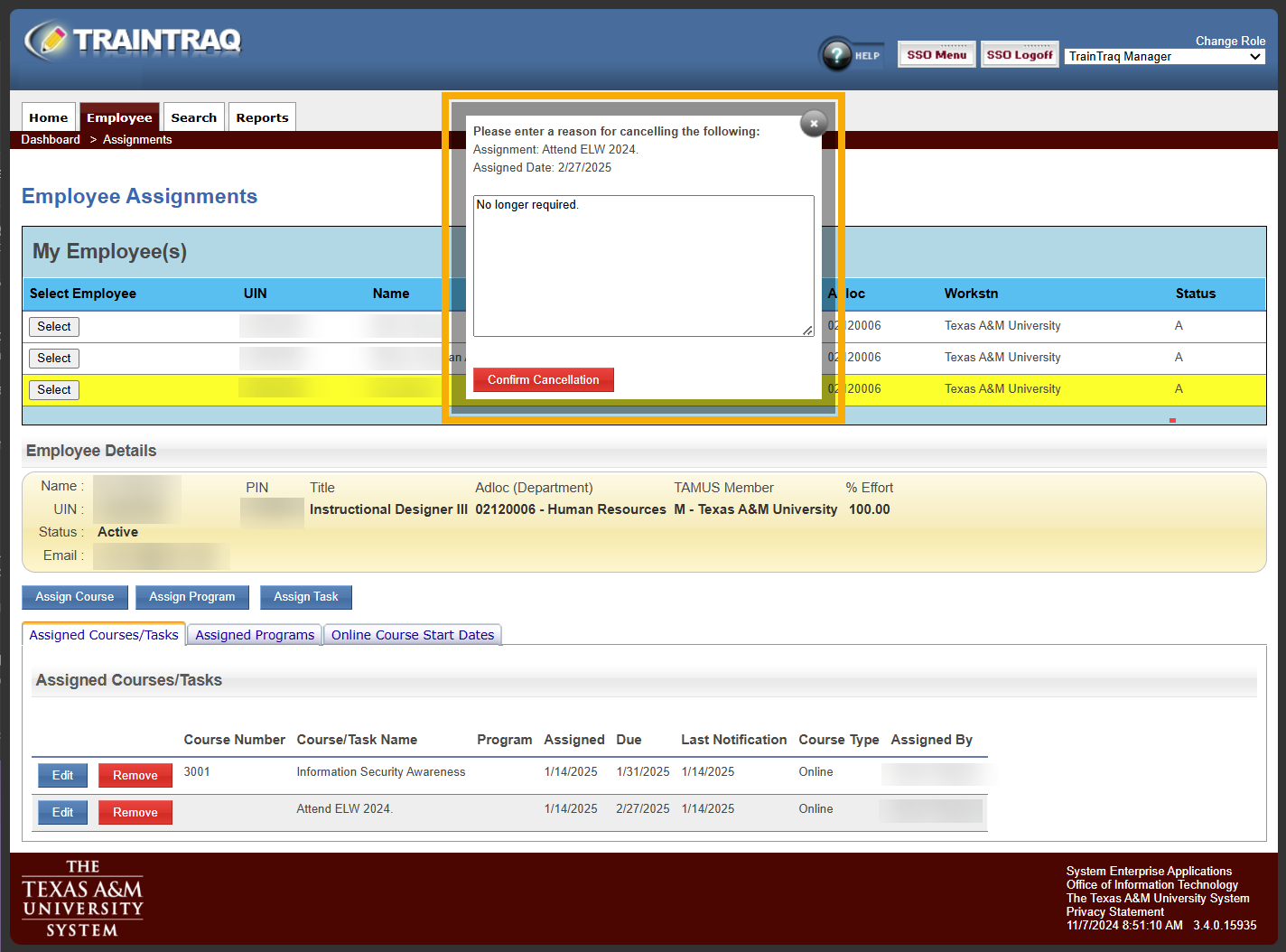
- The task assignment is removed and will no longer display in the Assigned Courses/Tasks section of the employee’s Home Page.