
Adding and Withdrawing Task Completions
TrainTraq allows learning & development (L&D) activities completed outside of TrainTraq such as conferences, classes or certifications from professional organizations and job-related learning activities to be recorded on an employee’s transcript. These activities are known as tasks.
This page covers:
- Role Permissions
- Proper Use
- Adding a Completion for an Assigned Task
- Adding a Completion for a Task Not Assigned
- Withdrawing a Task Completion
Role Permissions
Managers can:
- View/edit employee transcripts and add or withdraw task completions.
- Assign tasks to employees. If a task is assigned, the completion needs to be manually entered by the manager or TrainTraq Administrator; employees cannot self-record completion of a task assignment.
- Run task assignments and completions reports.
Proper Use
- Tasks should only be used for L&D activities NOT already listed in the TrainTraq Course Catalog.
- Added tasks will not have course numbers and cannot be used to remove course assignments.
- Task descriptions should begin with the type of L&D activity it is. For example:
- Book: Read “Built to Last” by Jim Collins
- Conference: Tech Summit 2024
- Webinar: Spotlight on Security Roles in Workday
- Click the Transcripts option located in the Employee tab menu. The Employee Transcript page displays.
- Select an employee from the My Employee(s) list. The Employee Transcript page populates with the selected employee’s details and completed courses, tasks, and programs.
- Click the Add Task Completion button located in the Completed Courses and Tasks section. The Task Completion Details page displays.

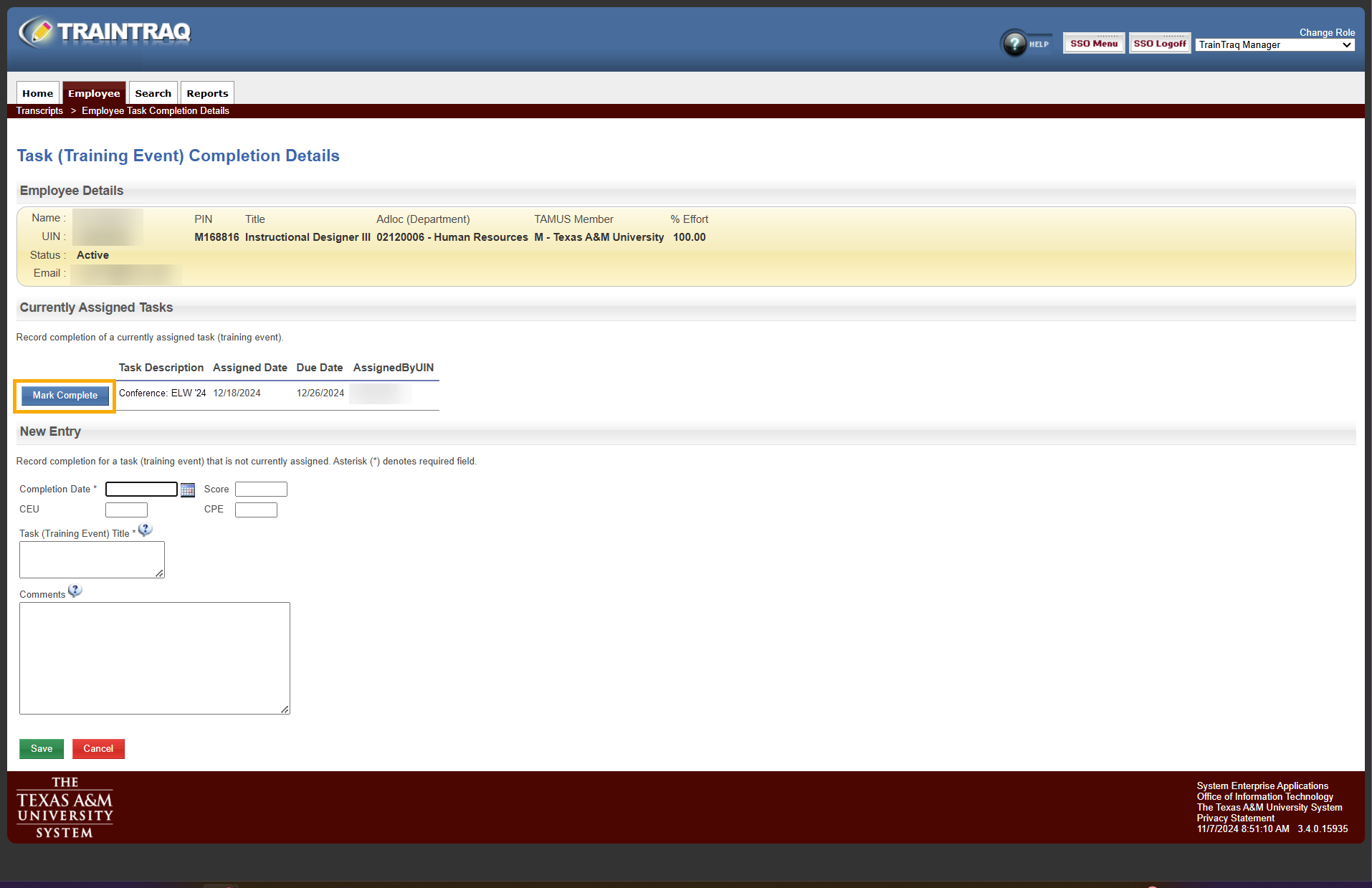
- In the Current Tasks section, click the Mark Complete button located to the left of the task you need to mark complete. The Task Completion pop-up window displays.
- Enter the date the course was completed into the Completion Date field. If typed, the date must be in MM/DD/YYYY format. Alternatively, you can click the Calendar icon to the right of the field and select the date from the calendar displayed.
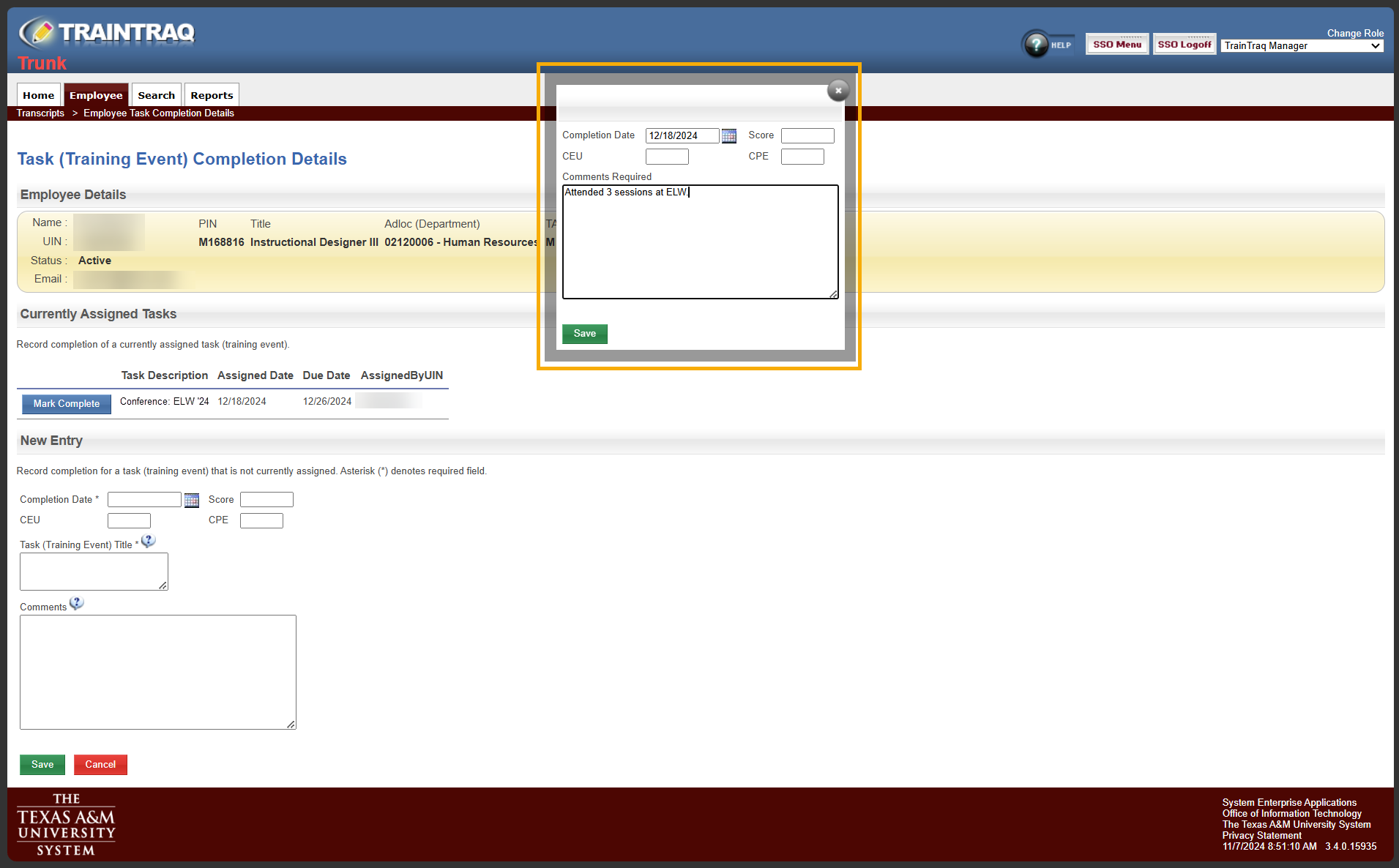
- Enter the appropriate values into the Score, CEU, CPE, and Comments fields. Note: Comments appear on the Employee Transcript.
- Click the Save button. The Task Completion Details page displays with the Currently Assigned Tasks area updated and a notification will appear at the top of the page to let you know that the completion was successfully recorded.

- Click Cancel to return to the Employee Transcript page. The task completion will be listed in the Completed Courses and Tasks section.
- Click the Transcripts option located in the Employee tab menu. The Employee Transcript page displays.
- Select an employee from the My Employee(s) list. The Employee Transcript page populates with the selected employee’s details and completed courses, tasks, and programs.
- Click the Add Task Completion button located in the Completed Courses and Tasks section. The Task Completion Details page displays.
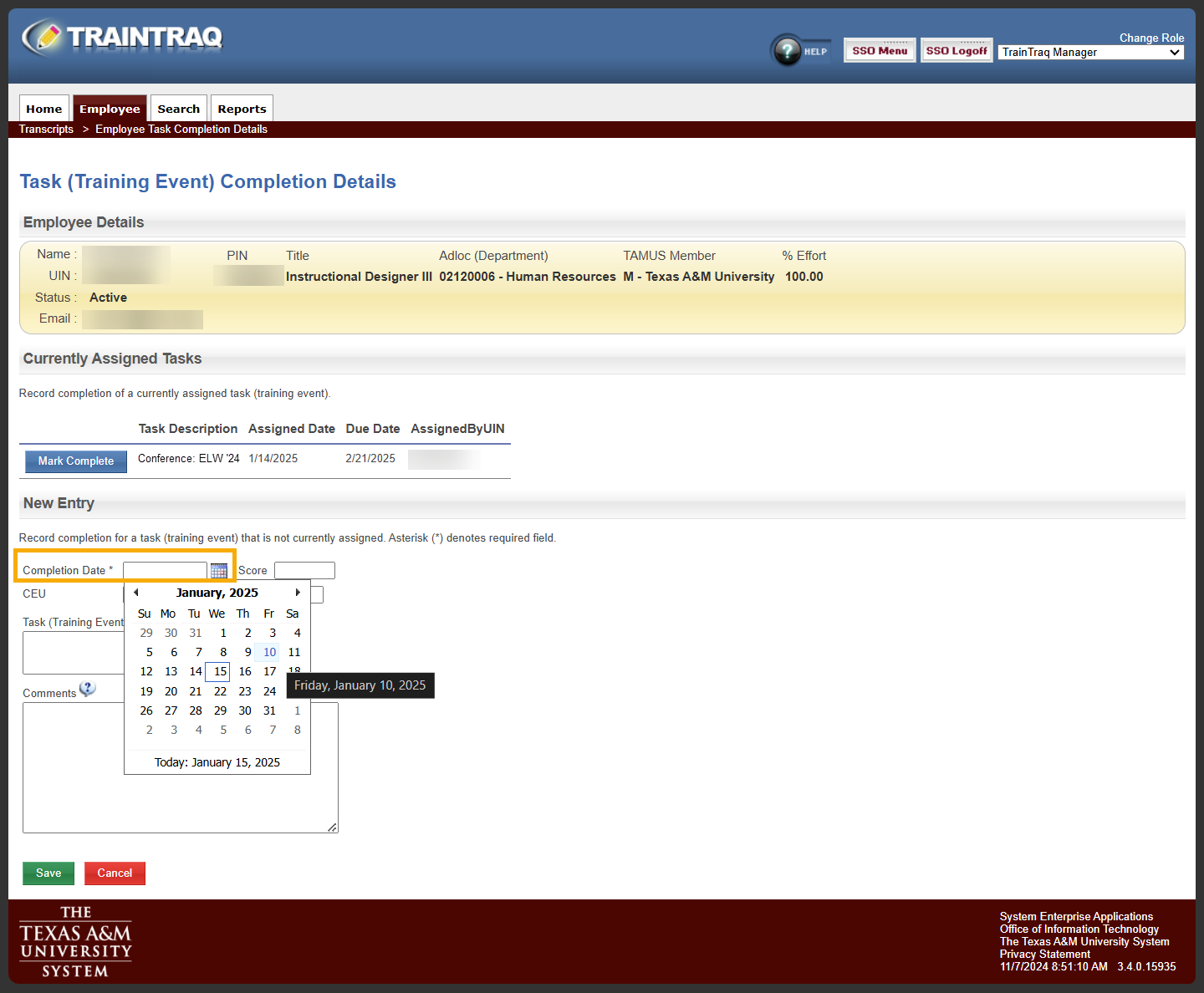
- In the New Entry section, enter the date the course was completed into the Completion Date field. If typed, the date must be in MM/DD/YYYY format. Alternatively, you can click the Calendar icon to the right of the field and select the date from the calendar displayed.
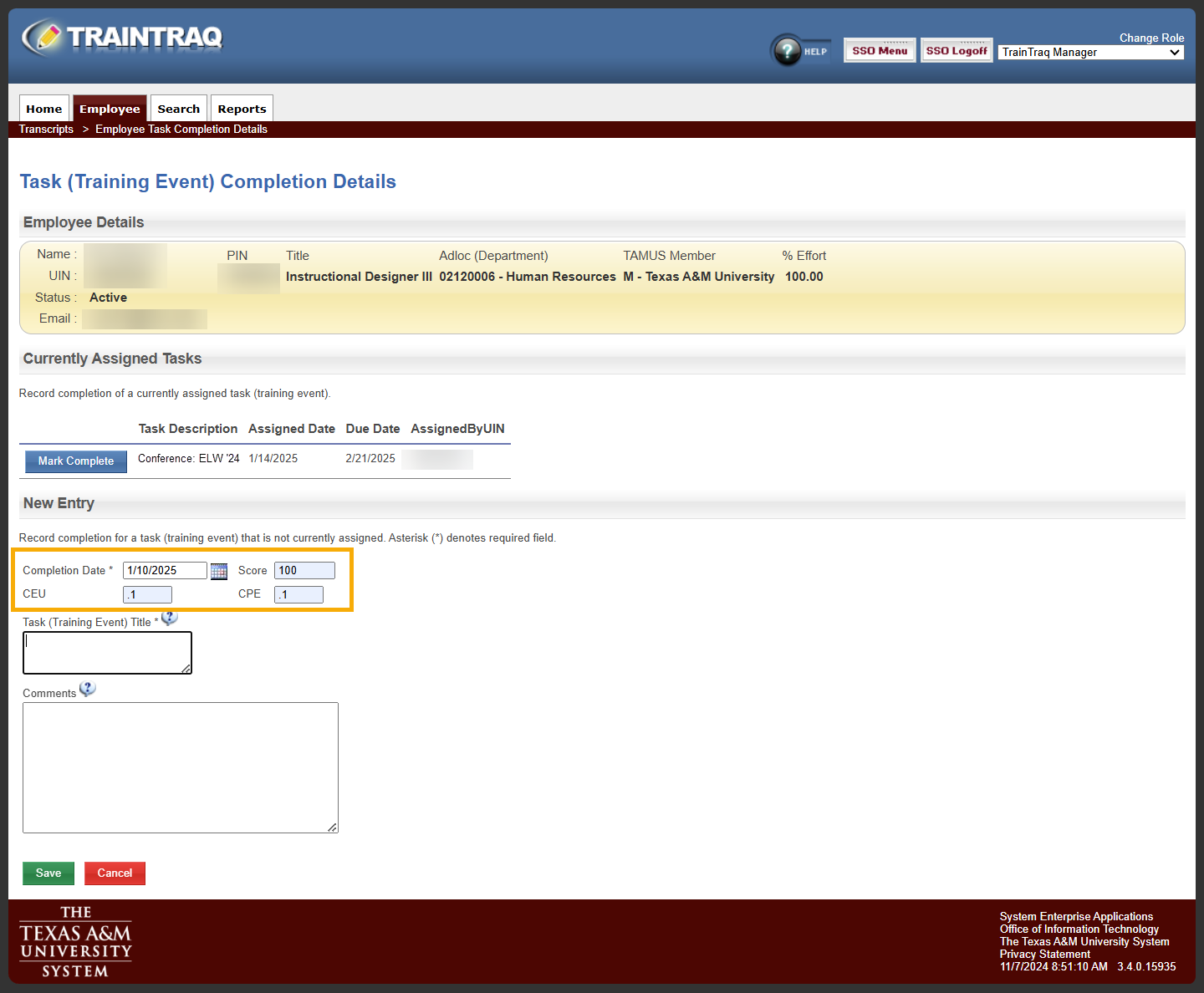
- Enter the appropriate values into the Score, CEU, and CPE fields.
- Enter a description into the Task (Training Event) Title field. The text entered into the Task (Training Event) Title field will display on the employee’s transcript once the task is completed.
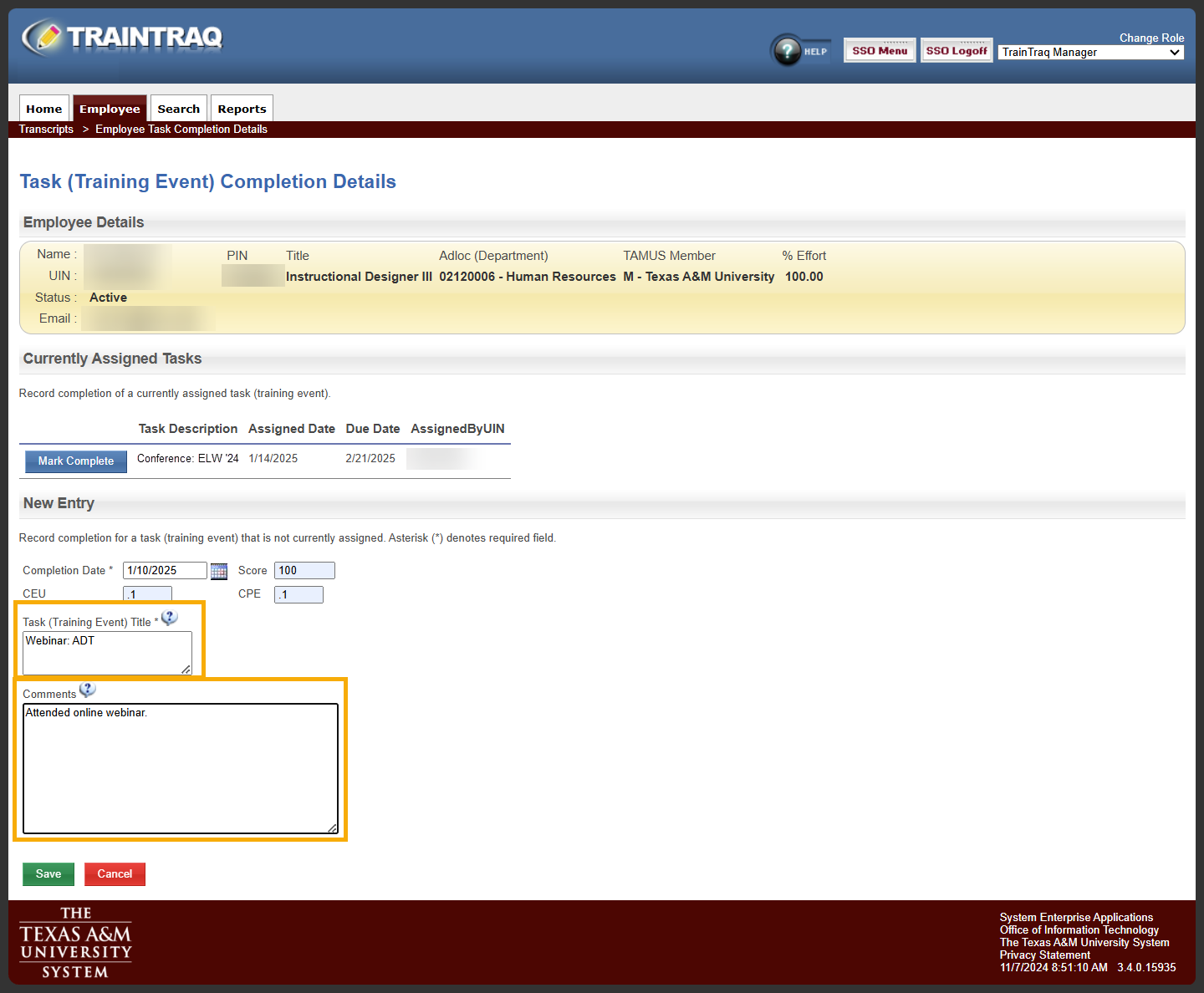
- Enter additional details about the completed task into the Comments field. Note: Comments will appear on the Employee Transcript.
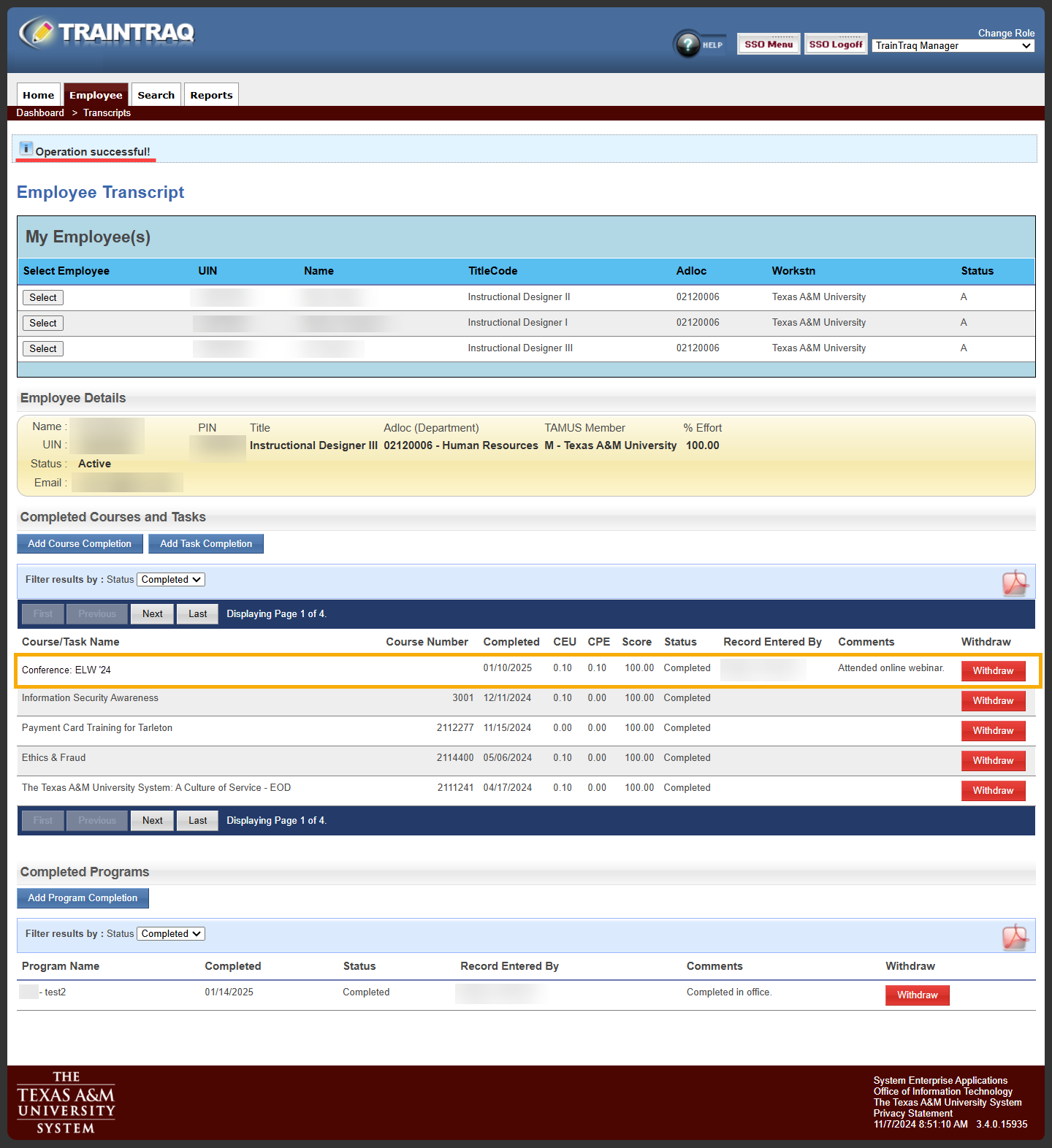
- Click the Save button. The Employee Transcript page displays with the new task completion listed in the Completed Courses and Tasks section and a notification will appear at the top of the page to let you know that the completion was successfully recorded.
If a task completion is added in error or the completion details were incorrectly entered, you can withdraw the completion from the employee’s transcript.
To withdraw a task completion:
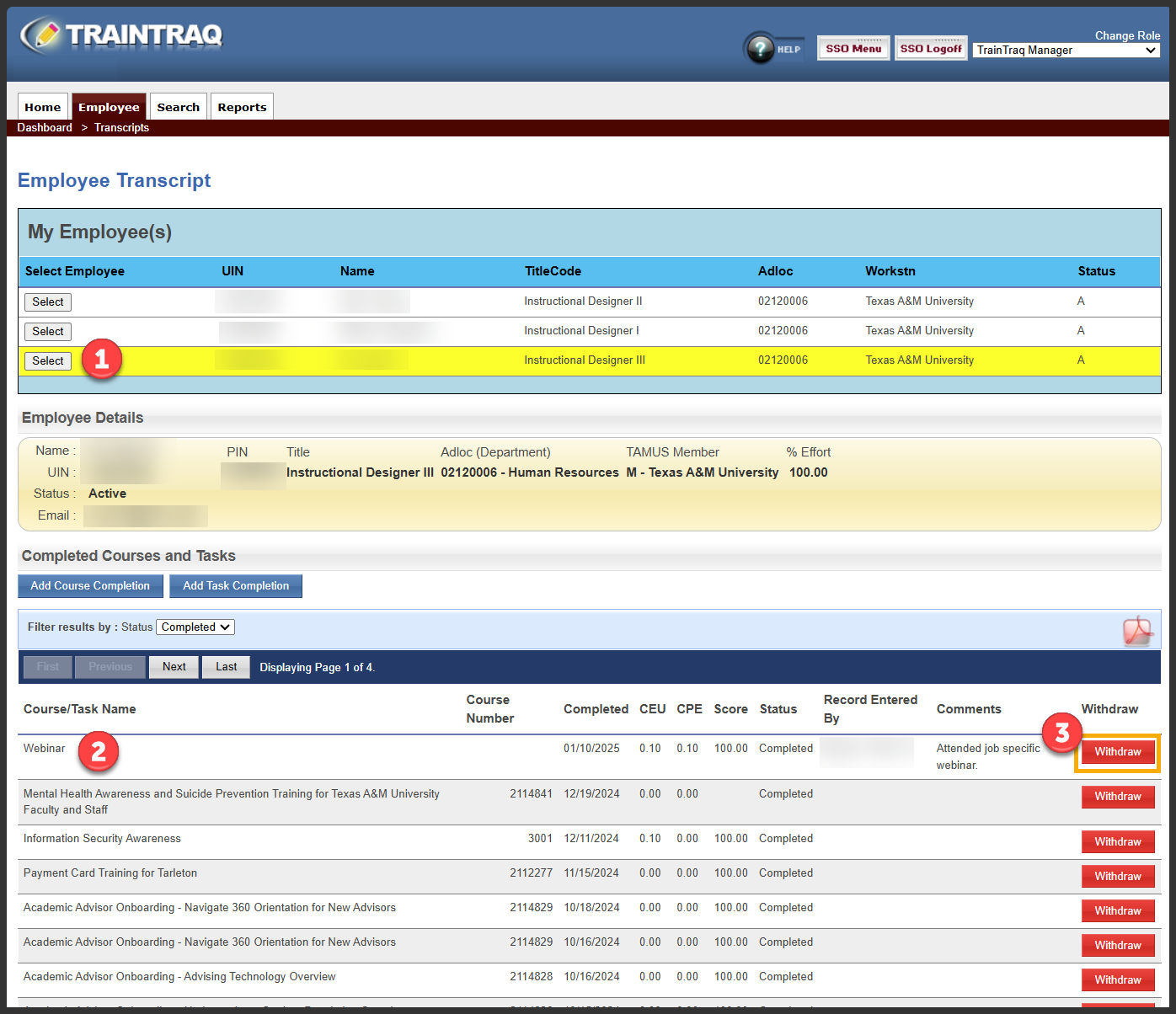
- From the Employee Transcript page, select an employee.
- Locate the task completion you want to withdraw in the Completed Courses and Tasks section.
- Click the Withdraw button located to the right of the task completion you wish to withdraw. A pop-up window displays to verify your request to withdraw the completion.
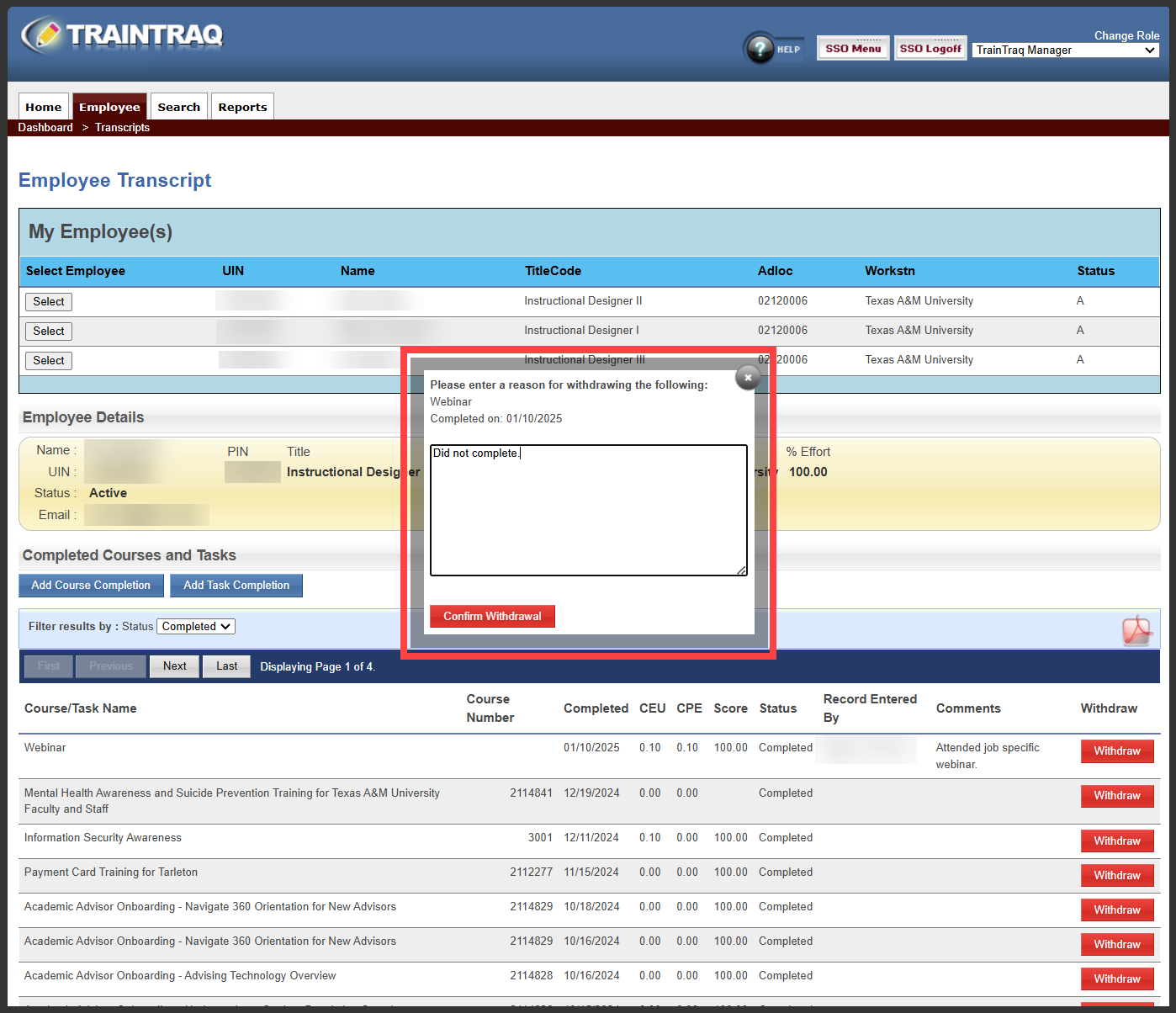
- In the verification pop-up window, enter a reason for withdrawing the course completion and click the Confirm Withdrawal button.
- The task completion is withdrawn from the employee’s transcript and a notification will appear at the top of the page to let you know that the withdrawal was completed successfully.
