Adding and Withdrawing Program Completions
The Employee Transcript page allows you to add and withdraw program completions for an individual employee.
This page covers:
- Adding a Program Completion
- Withdrawing a Program Completion
NOTE: Before adding or withdrawing a program completion, check with either your System Training Coordinator or HR Office for guidance.
The following section describes how to manually add a program completion for an individual employee.
Note: Manually completing a Program does NOT remove it from an employee’s assignment list. See Creating, Editing, and Removing Program Assignments to learn how to remove the Program from the assignment list.
To manually add a program completion for a program:
- Click the Transcripts option located in the Employee tab menu. The Employee Transcript page displays.
- Select an employee from the My Employee(s) list. The Employee Transcript page populates with the selected employee’s details and completed courses, tasks, and programs.
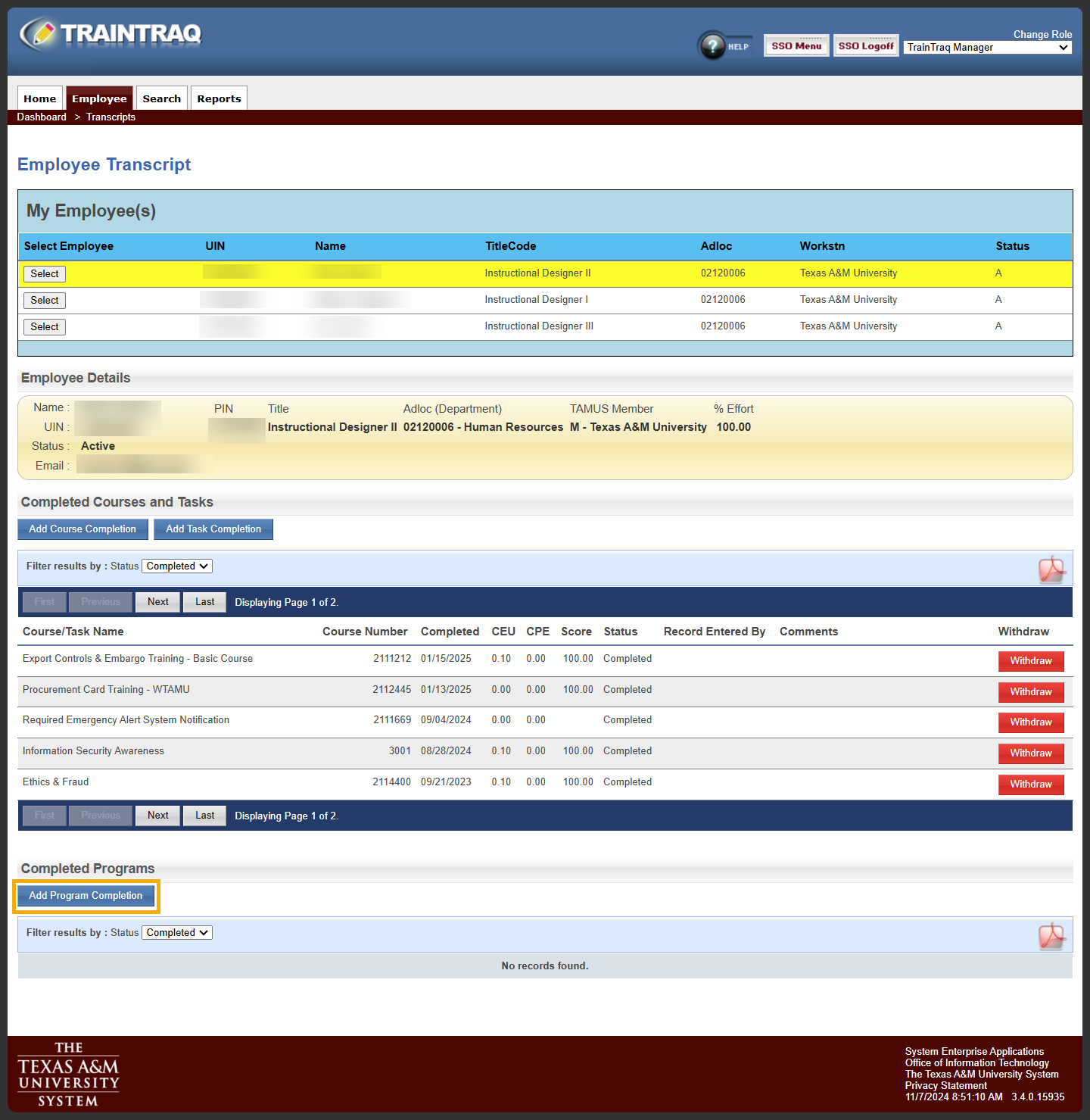
- Click the Add Program Completion button located in the Completed Programs section at the bottom of the page. The Program Completion Details page displays.
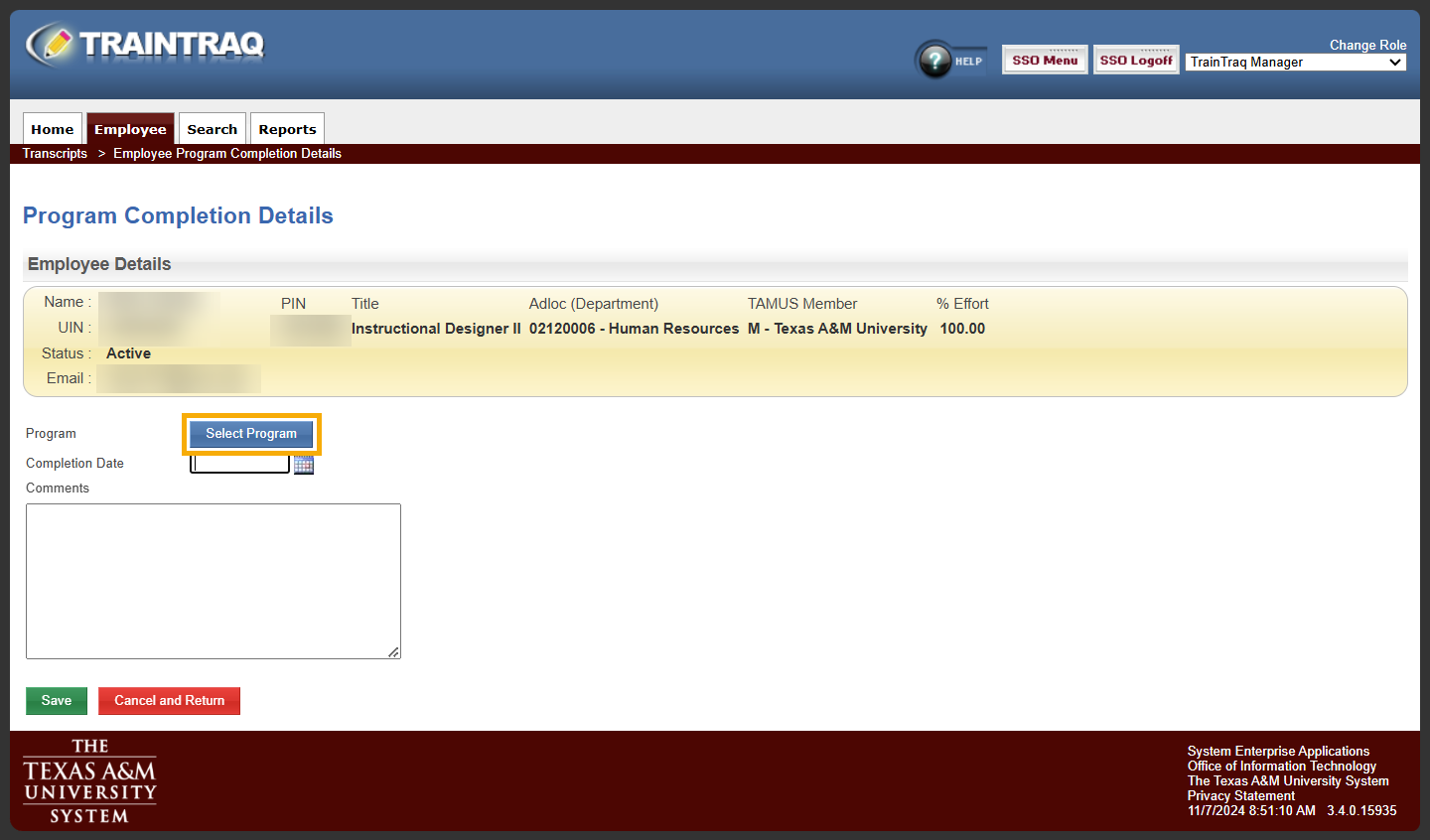
- Click the Select Program button. The Program Search pop-up window displays.
- Locate the desired program by either scrolling/paging through the program listing or by entering information into the search fields and clicking the Search button.
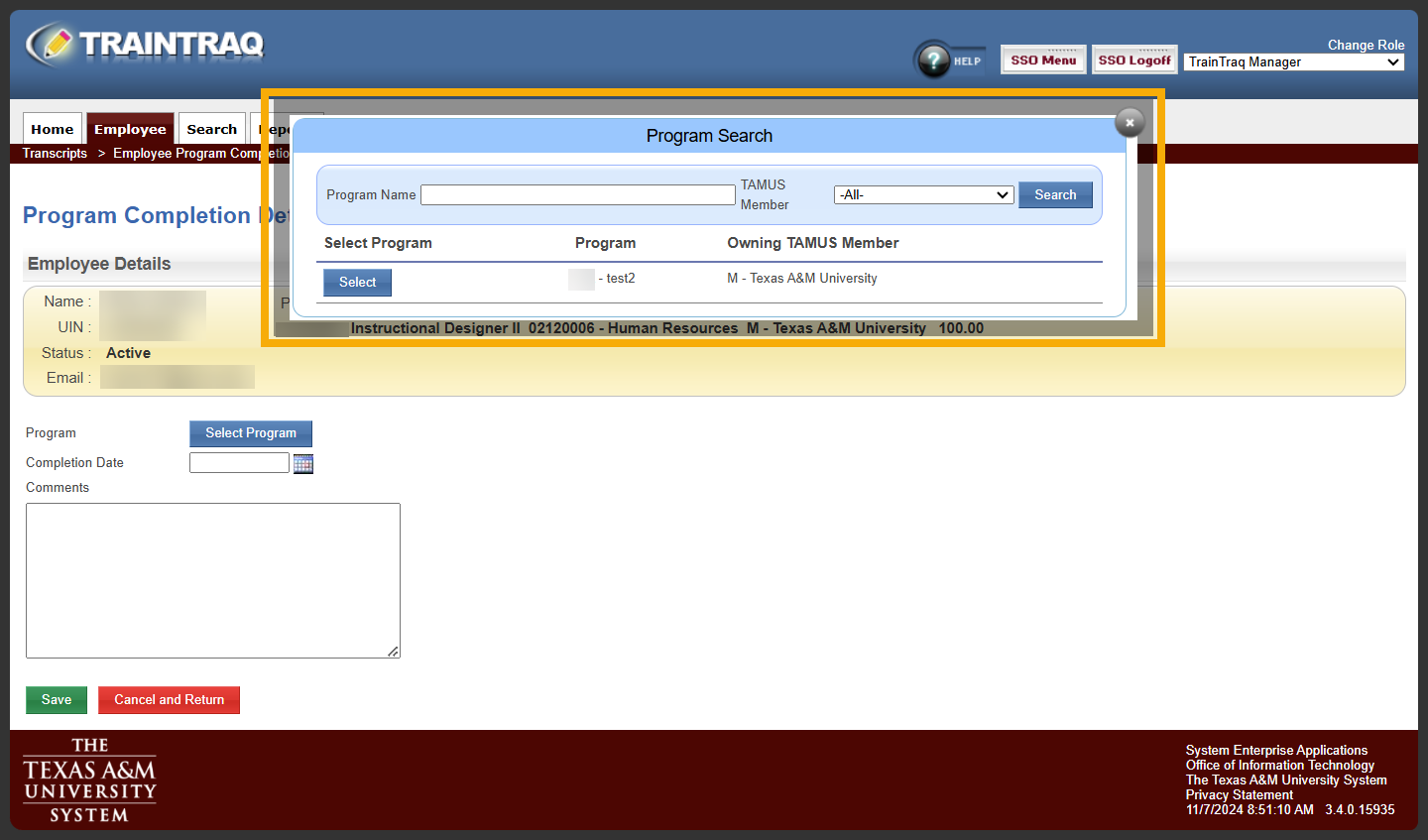
- Click the Select button located to the left of the program for which you want to add a completion. The selected program title displays in the Program field.
- Enter the date the program was completed into the Completion Date field. If typed, the date must be in MM/DD/YYYY format. Alternatively, you can click the Calendar icon to the right of the field and select the date from the calendar displayed.
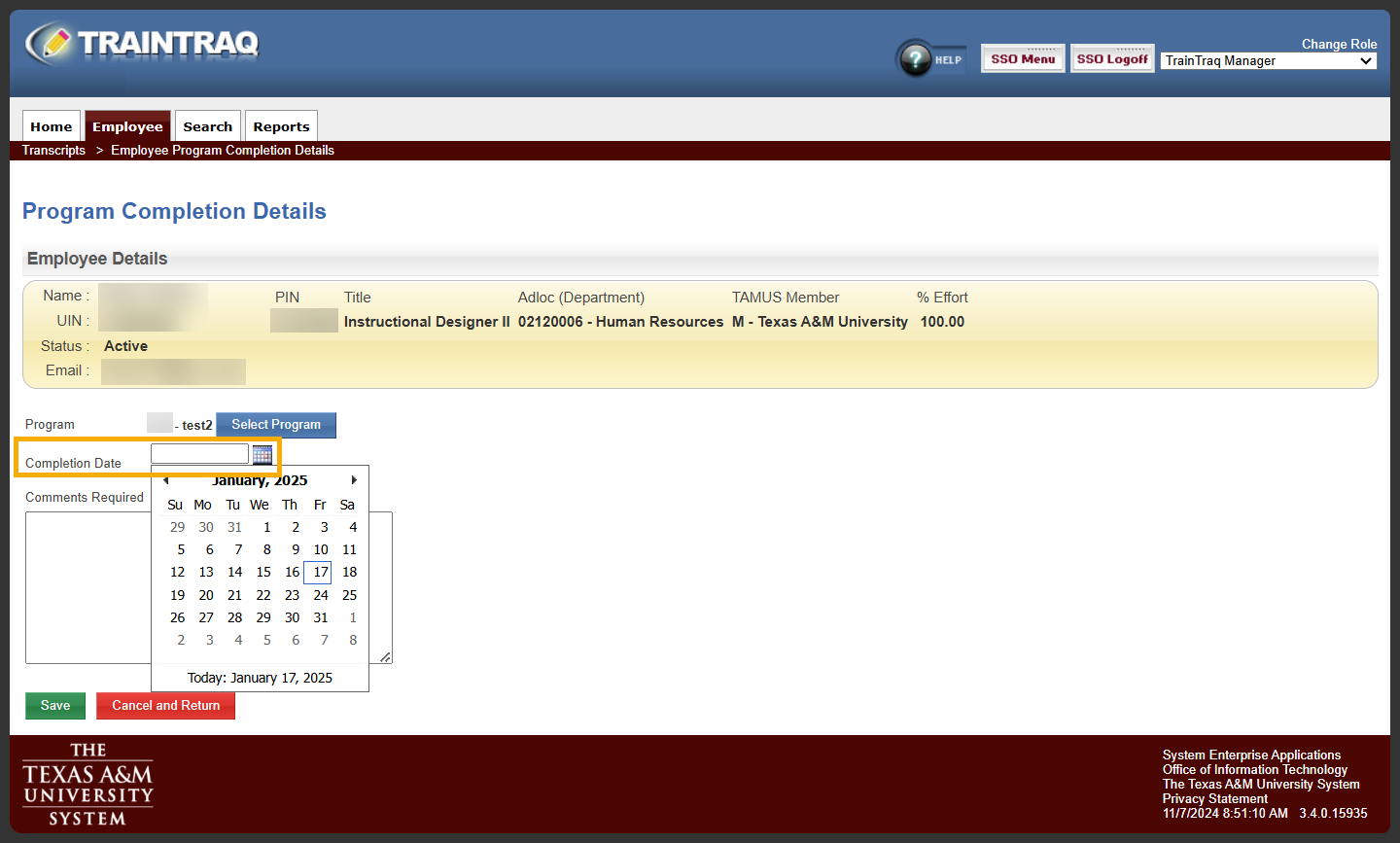
- Enter any details about the completion into the Comments field. Note: comments will appear on the Employee Transcript.

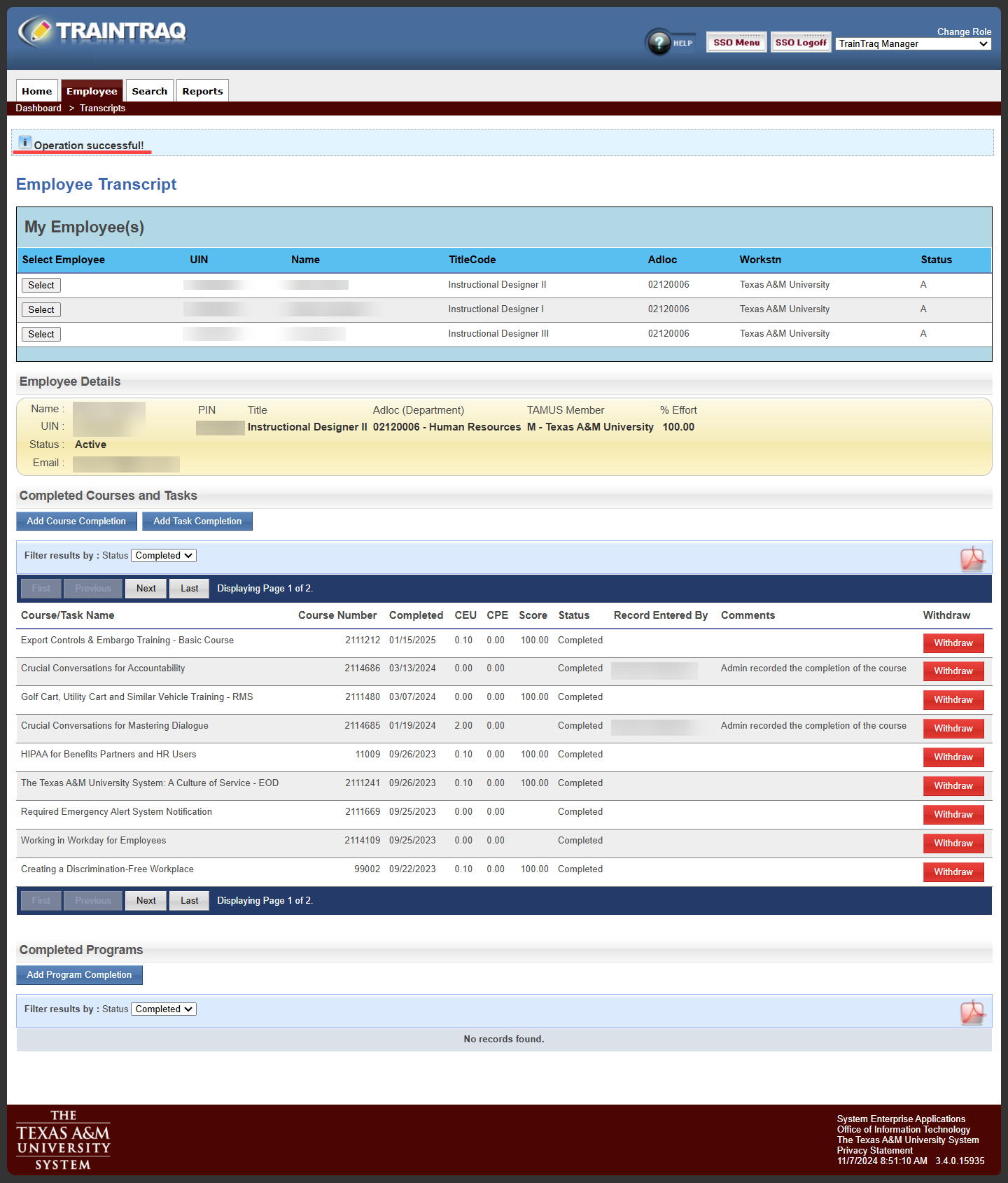
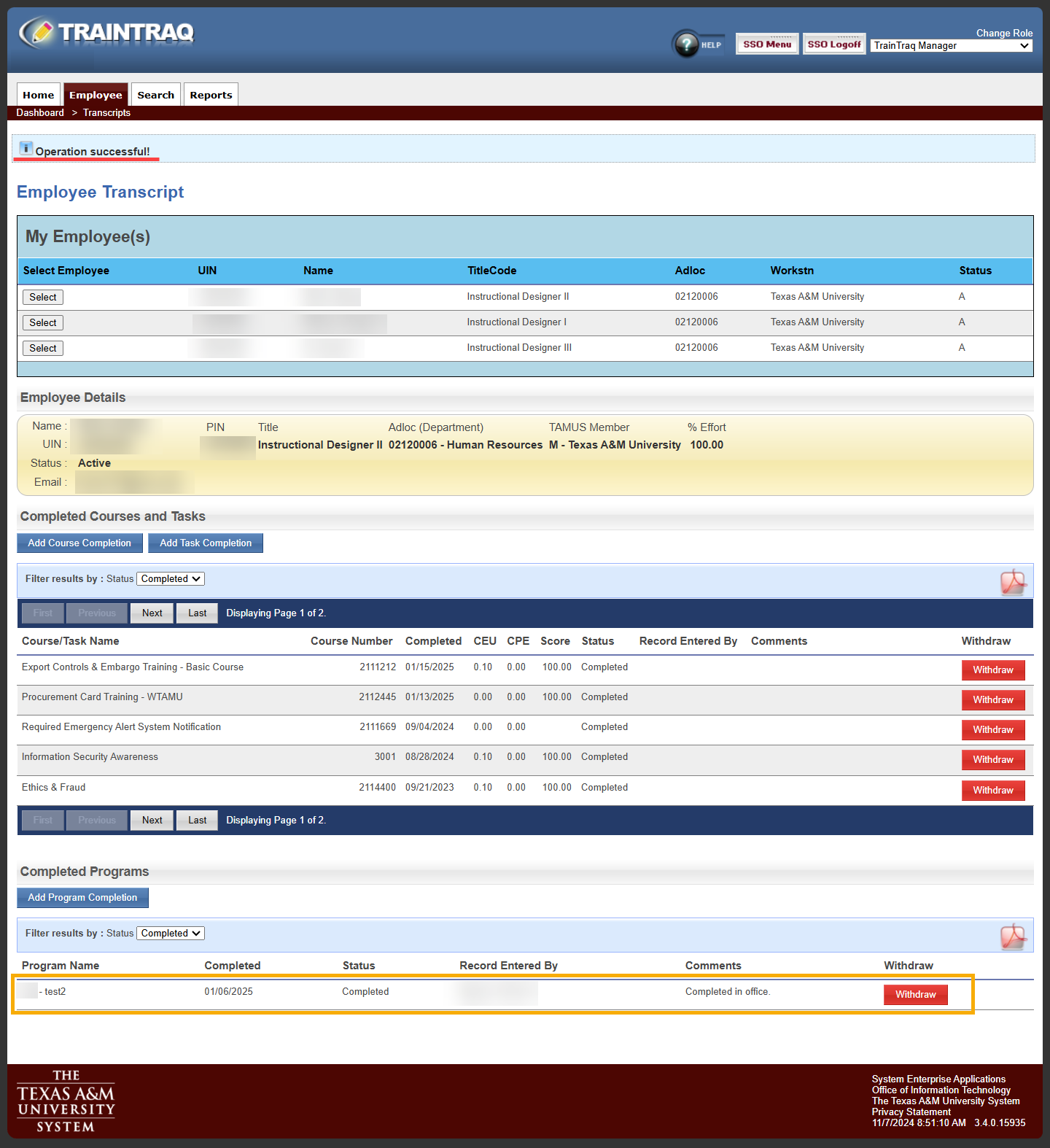
- Click the Save button. The Employee Transcript page displays with the program completion listed in the Completed Programs section and a notification will appear at the top of the page to let you know that the completion was recorded successfully.
If a program completion is added in error or the completion details were incorrectly entered, you can withdraw the completion from the employee’s transcript.
NOTE: Only program completions that were manually entered by a manager, processor, or administrator can be withdrawn. If an employee completes all courses in a program and the completion is automatically entered by the TrainTraq system, the program completion cannot be withdrawn and the Withdraw button will not be present.
To withdraw a program completion:
- From the Employee Transcript page, select an employee.
- Locate the program completion you want to withdraw in the Completed Programs section.
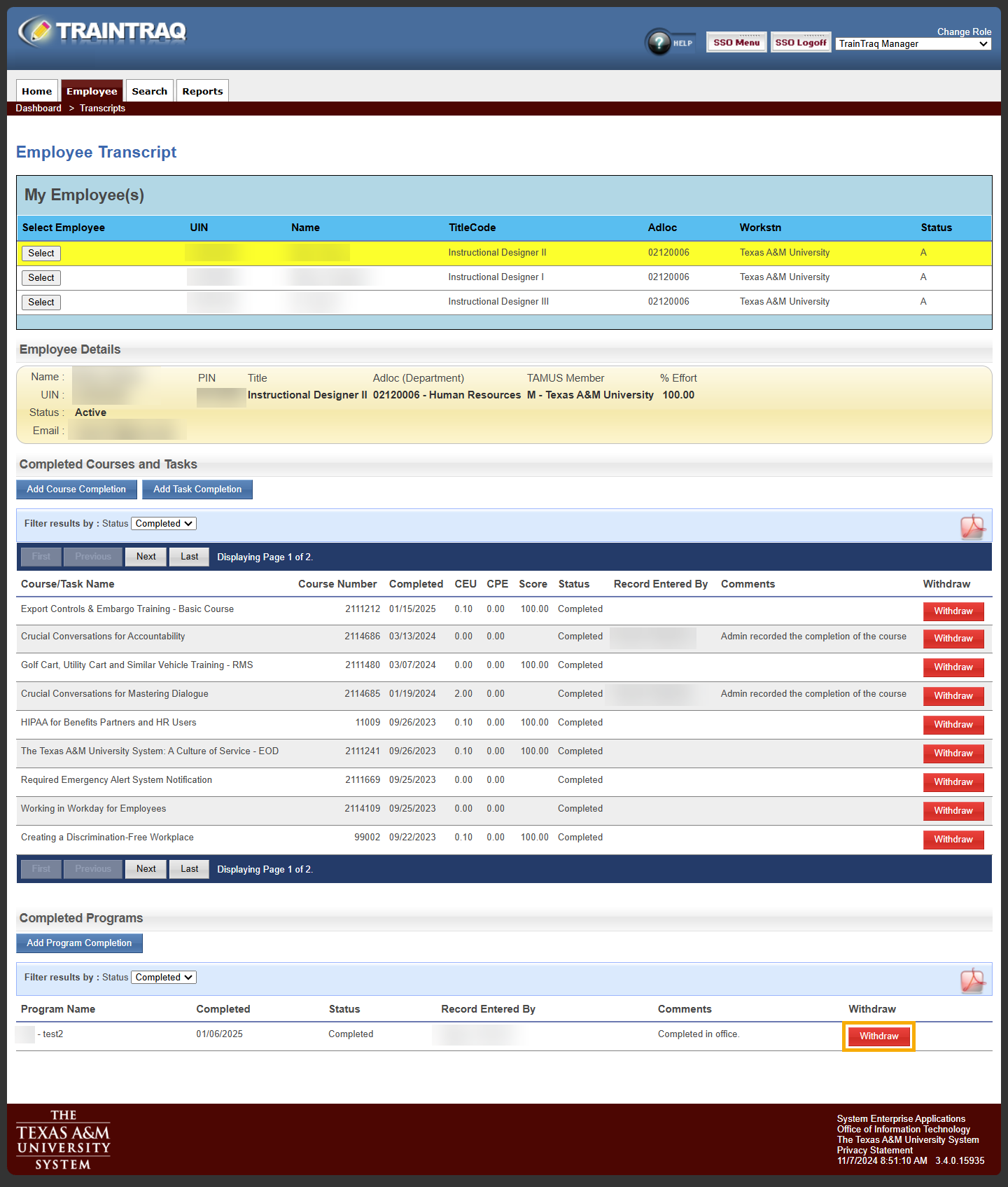
- Click the Withdraw button located to the right of the program completion you wish to withdraw. A pop-up window displays to verify your request to withdraw the completion.
- In the verification pop-up window enter a reason for withdrawing the course completion and click the Confirm Withdrawal button.
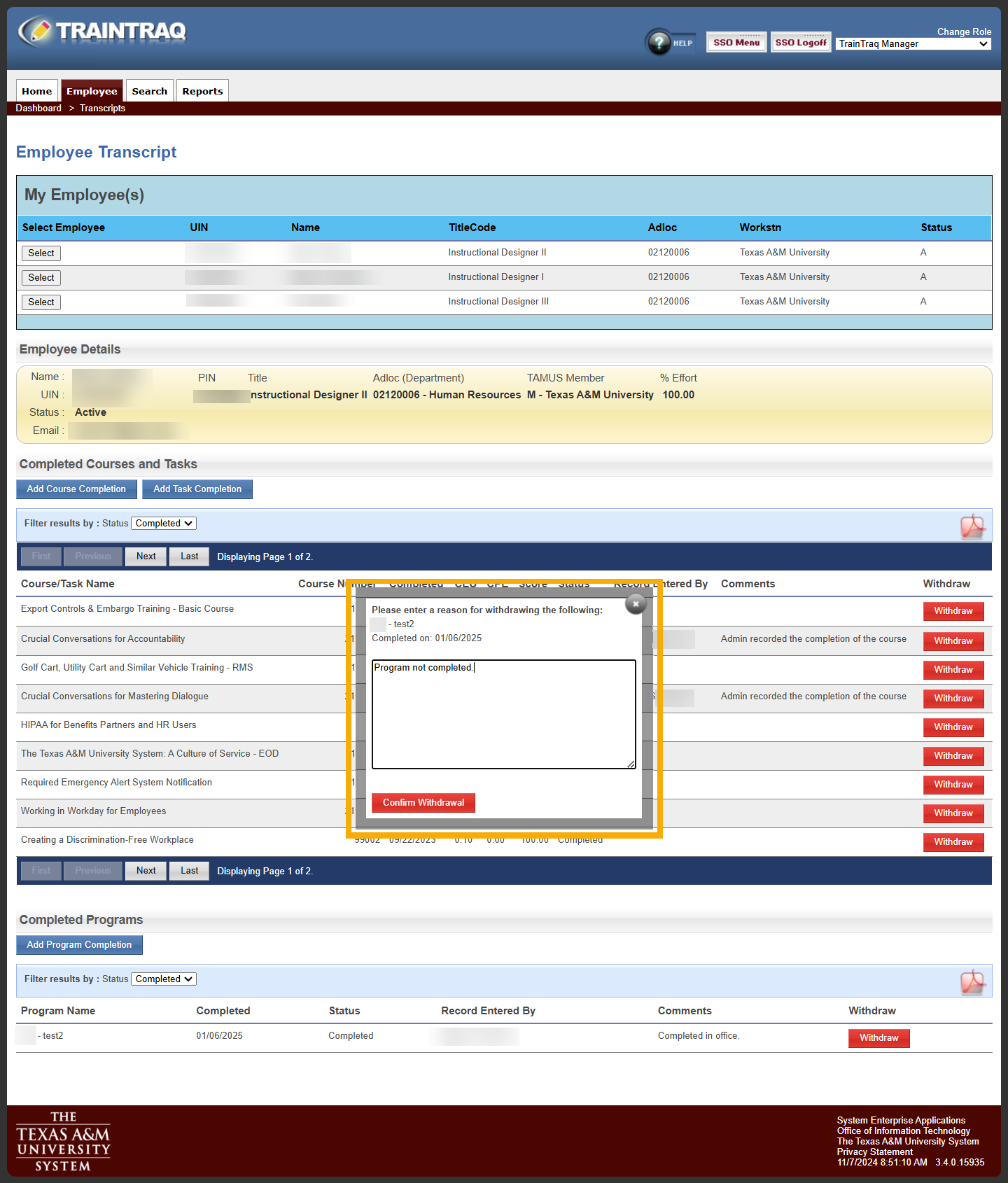
- The program completion is withdrawn from the employee’s transcript and a notification will appear at the top of the page to let you know that the withdrawal was completed successfully.