
Instructors
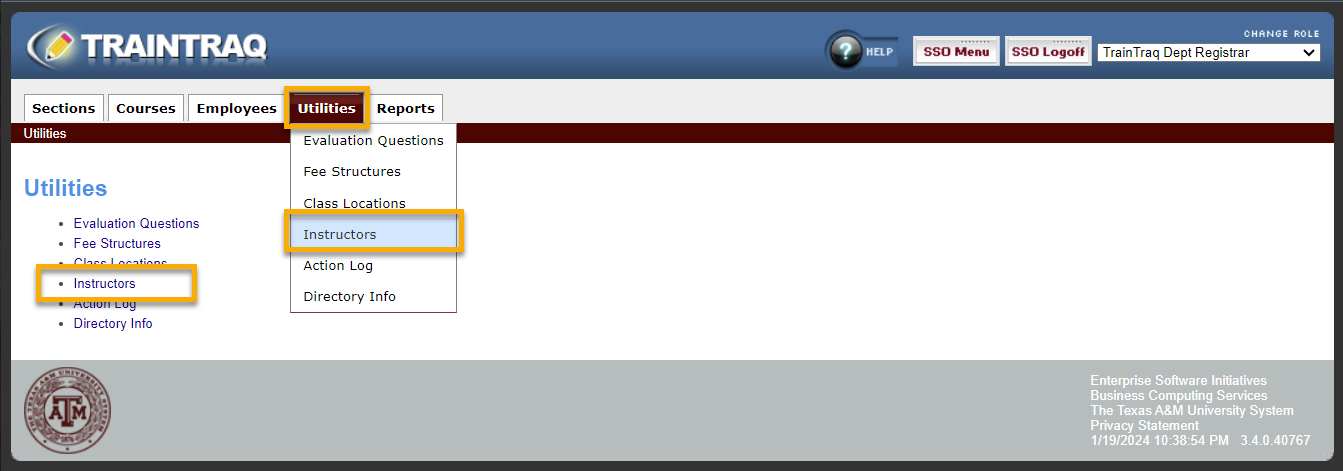
To get to the Instructors page, hover or click on the Utilities tab and click on Instructors.
Instructors will be a list of people who will teach classes within your Node/Adloc. A list of all instructors that have been entered for your Node/Adloc will be listed.
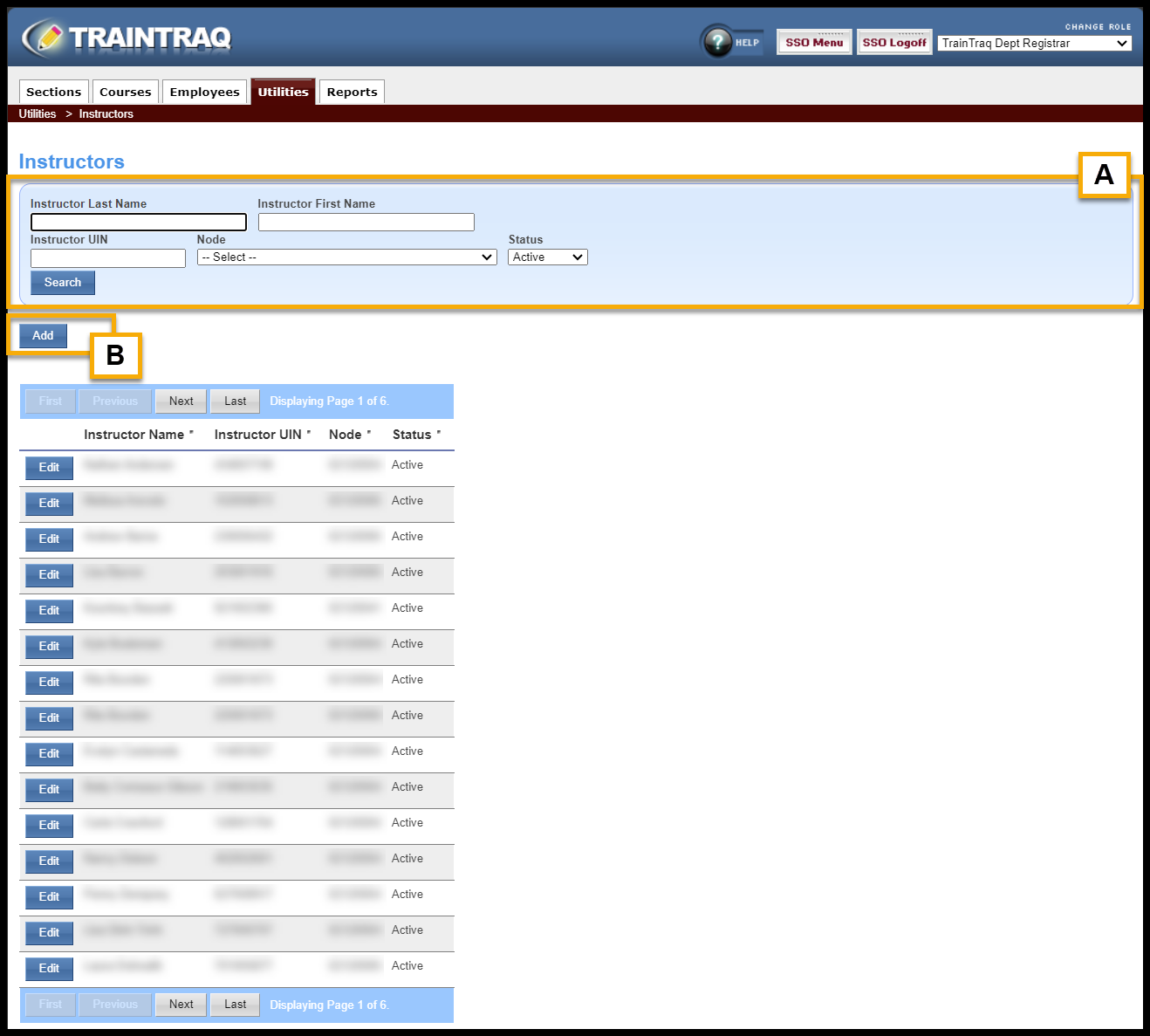
A: To search the list, enter an instructor’s name or UIN.
B: If the instructor is not listed, they may be added.
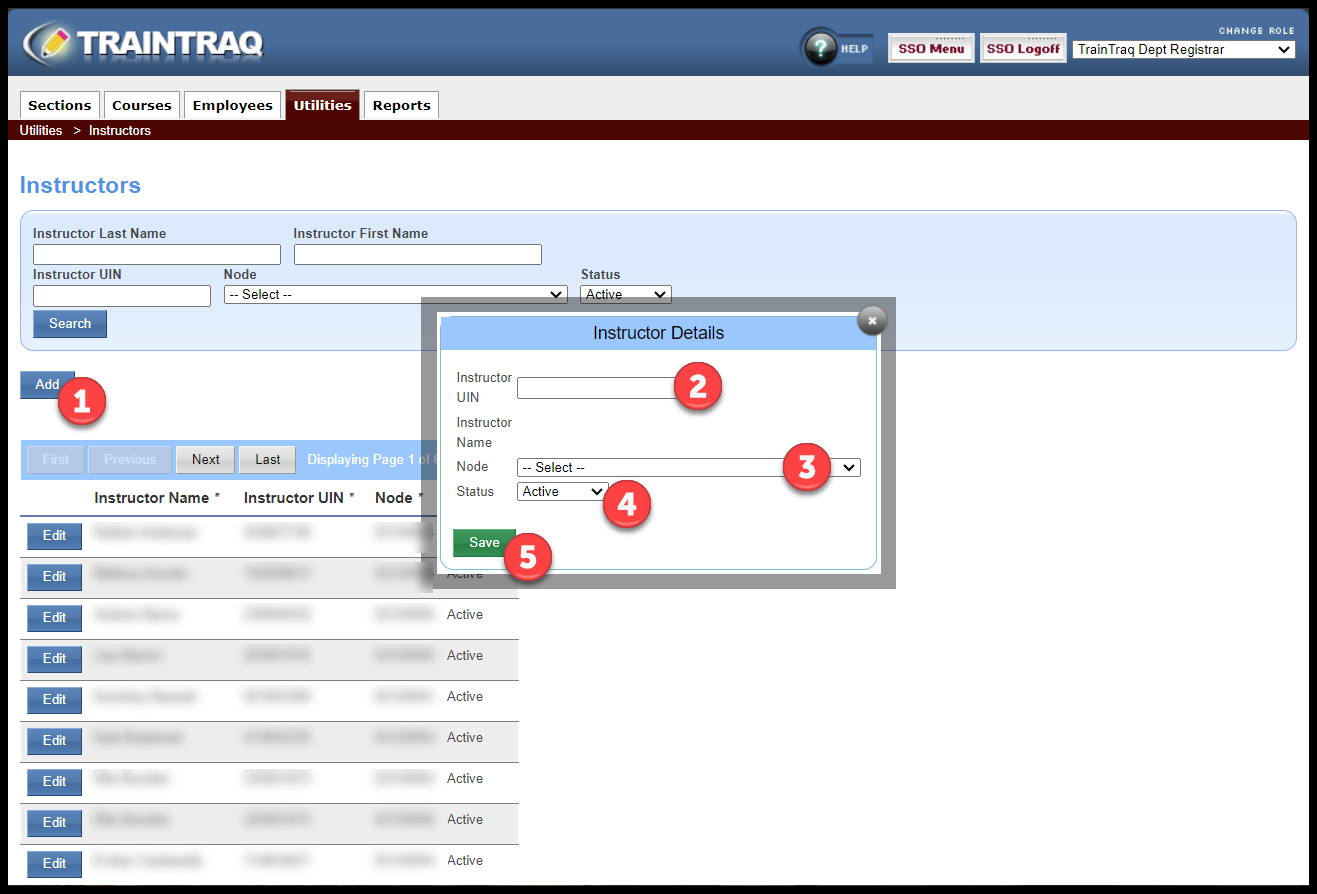
To add an Instructor:
- Hit the Add A pop-up window will appear.
- Enter the Instructor UIN. The Instructor Name will auto fill. You may search for the person’s UIN under the Employees Tab.
- Use the drop-down arrow to select the appropriate Node/Adloc.
- The Status will auto default to Active. Inactive will be used if the person will not be actively teaching.
- Hit Save. The person will now appear in the Instructors list.
Once a person has been entered as an active Instructor, the Instructor role will automatically be added to their TrainTraq access. Instructors have the ability to look at section rosters, print rosters, add course files, send announcements and mark course attendance.