CPE Requirements:
See the Step-by-Step Instructions below for more information and assistance on each requirement listed.- While registering for Journey, select Yes to the CPE Credit question.
- Attend eligible sessions live (regular sessions only)
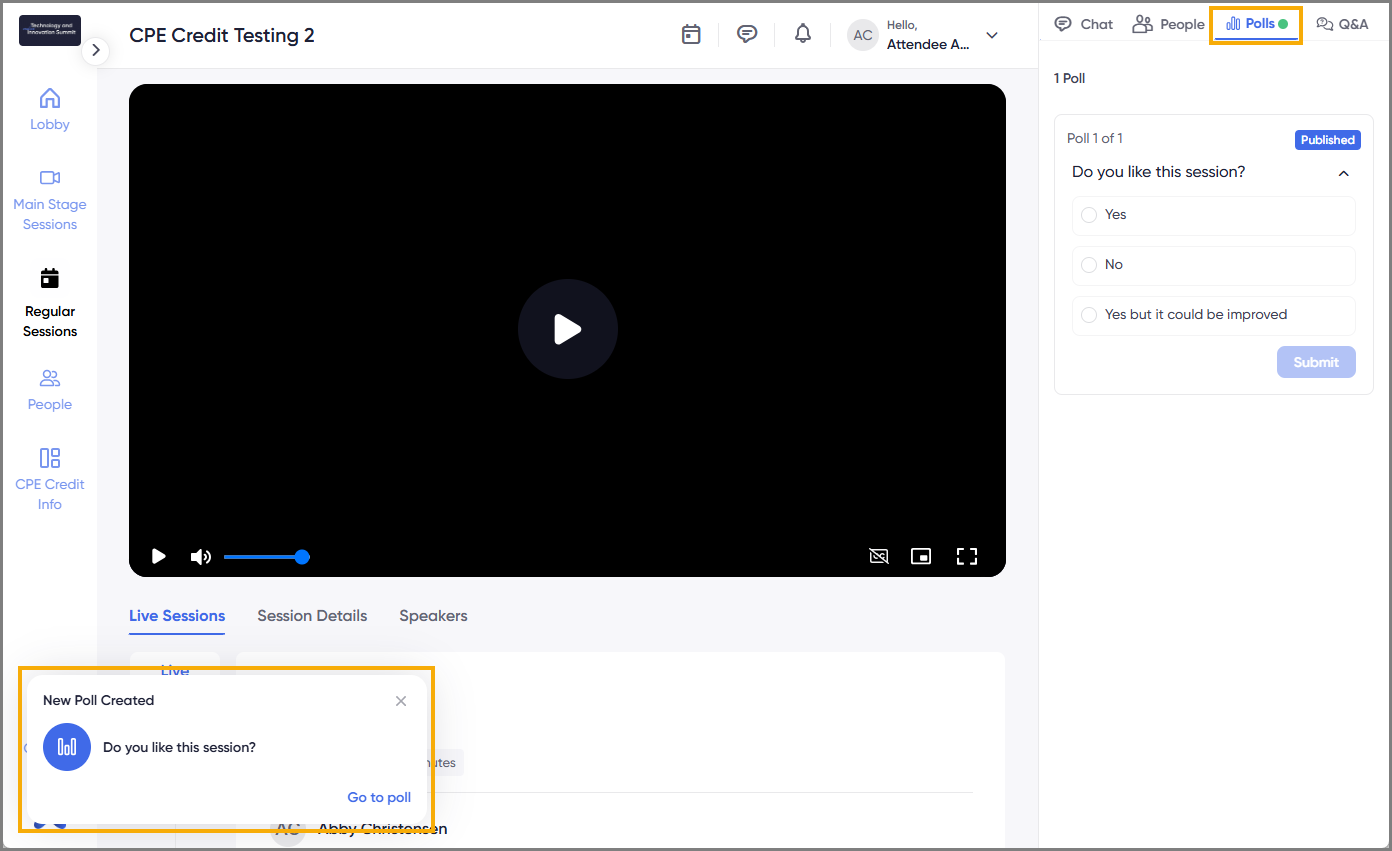
- Answer all three poll questions during each session
- Complete the CPE Session Survey for each session for which you are requesting CPE credit
After the Conference:
CPE certificates will be issued by the Texas A&M University System Office. If all requirements are met, certificates are expected to be mailed by the end of January. Please note that delays may occur. If you have not received your certificate by January 30, contact us at support@tamus.edu.Step-by-Step Instructions
1. Select Yes to the CPE Credit question during registration
If you have already registered but need to review or change your answer, follow these steps: Select the images to view larger. Use the back button in your browser to return to this page.- From the Journey event landing page, login to your account.
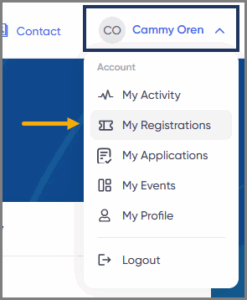
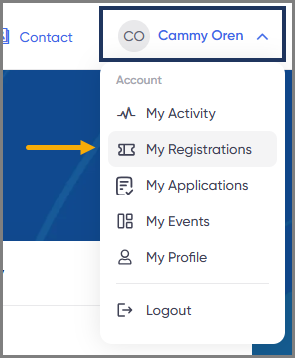
- Select your name in the top right corner, then select My Registrations.
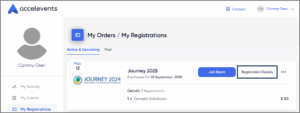
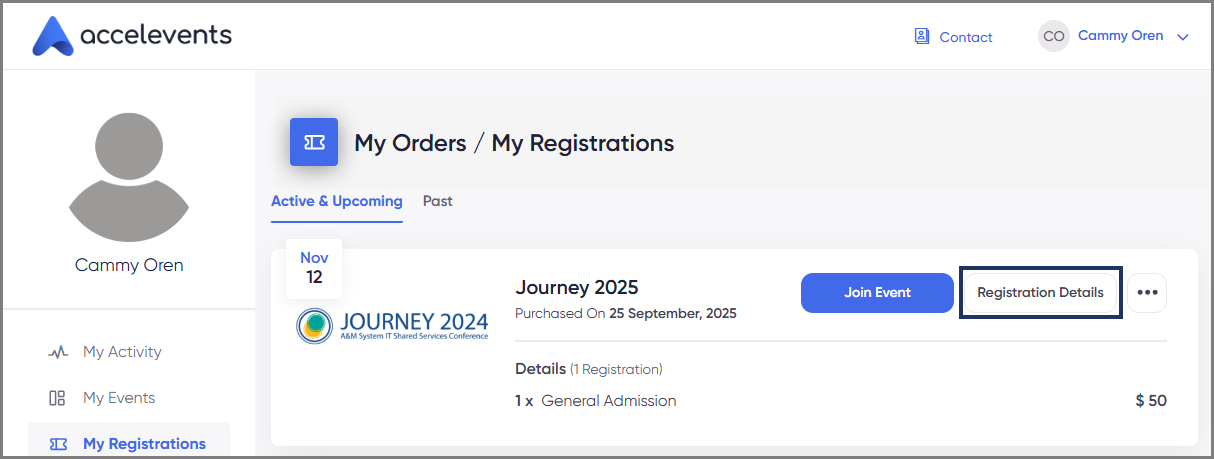
- On the Journey event tile, select Registration Details.
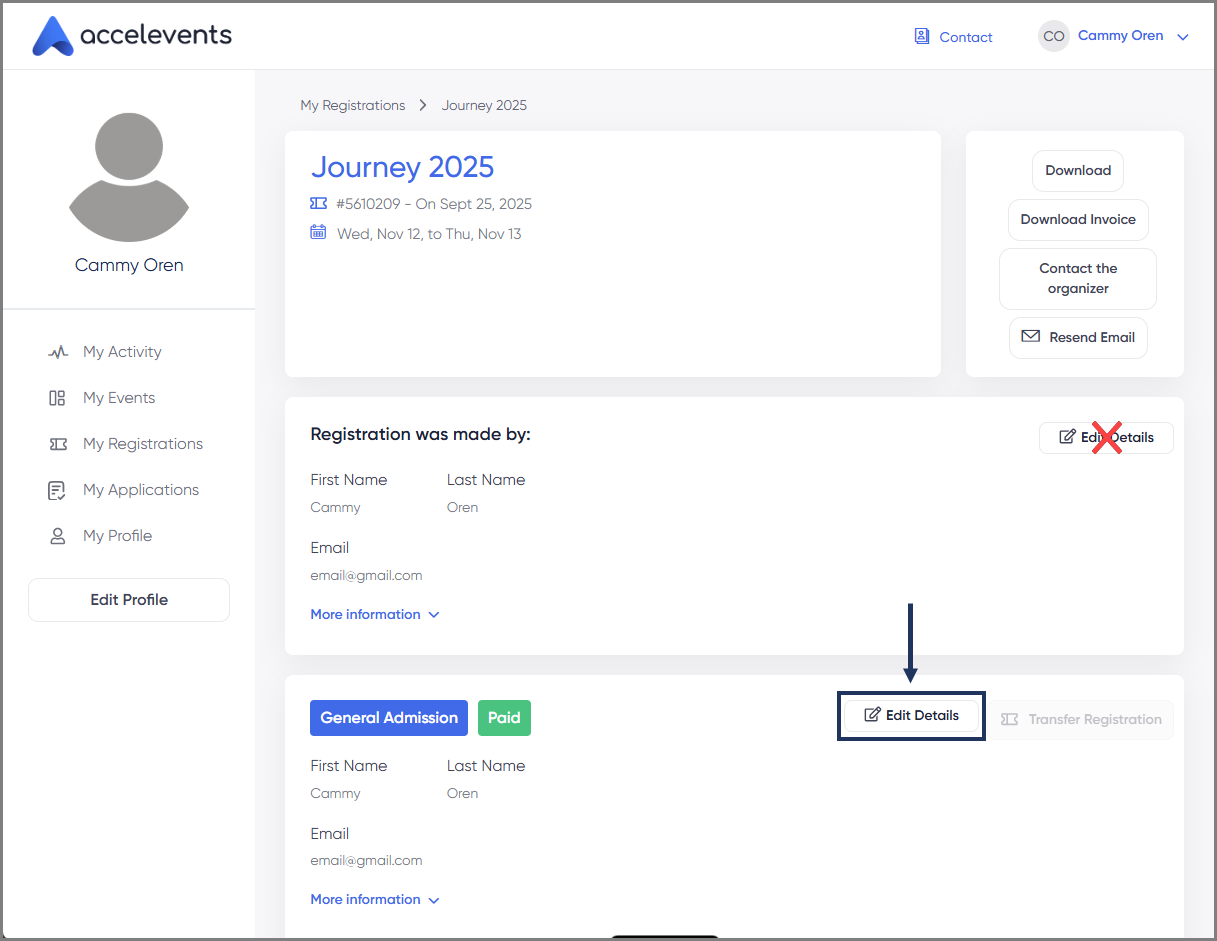
- In the bottom box, select Edit Details.
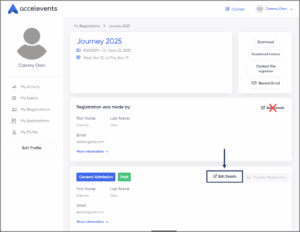
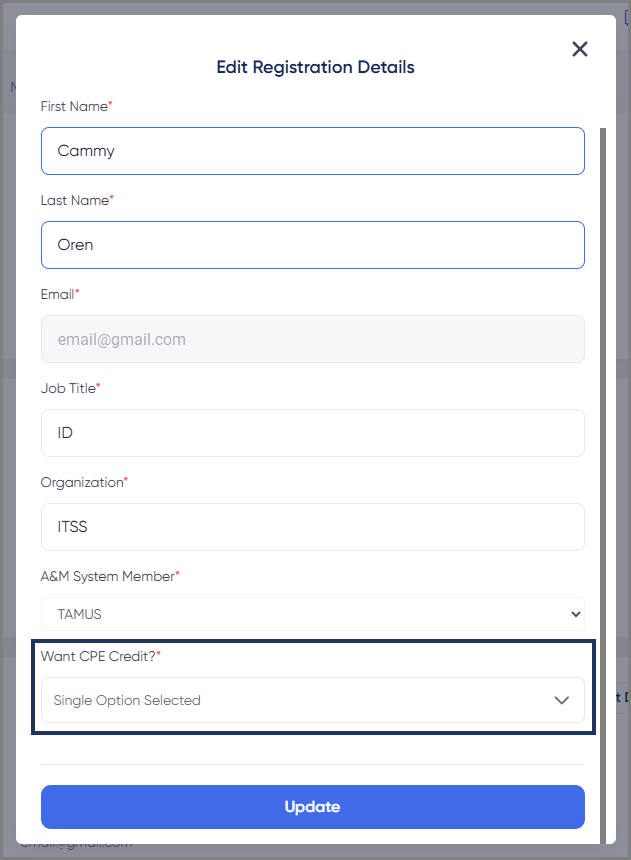
- In the box that appears, scroll to the bottom and look for the question Want CPE Credit?
- Select the drop down menu to change your answer and select Update.

2. Attend Eligible Sessions Live (Regular Sessions Only)
- All regular sessions are eligible for CPE Credit. The two keynote sessions are not eligible.
- CPE Credit is only awarded for attending the live session. Watching a recording does not count.
- You must watch at least 85% of the session to receive credit.
3. Answer All Three Poll Questions During Each Session
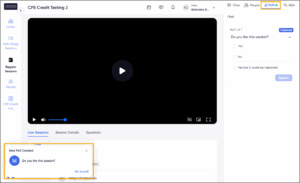
- Polls will appear at approximately 15, 30, and 45-minute marks.
- You must answer “Yes” to each poll to document your attendance for CPE Credit.
- These responses are used to verify that you were present throughout the session.
4. Complete the CPE Session Survey
- The survey will become available as soon as the session ends by appearing on your screen.
- If you don’t complete the survey immediately, you can access it later in two places:

- On the Regular Sessions page by selecting the Complete Survey button

- In the session description by selecting the link to the CPE Session Survey
 Important: All session surveys must be submitted by 5:00 p.m. on November 16 to receive CPE credit.
- On the Regular Sessions page by selecting the Complete Survey button