
Budget Tab
The Budget Tab allows users to view and enter budget data. The default view is unfiltered and displays positions based upon the user’s access and role.
Beside viewing position information, new positions can be added by clicking the ‘Add Position‘ plus sign.
The list will not be filtered by any unused filter field. For example, if no Employee Type is selected in the filter, all Employee Types will be returned in the search results. Available filters are:
- Position ID (PIN)
- Worker
- Job Profile
- Workstation
- Adloc
- Status
- Filled or Vacant
- New Position Indicator
- Primary Position Indicator
- To view secondary jobs, use No for this filter in combination with a Status of Filled.
- Employee Type
- TRS Job Category
- Included in Budget Indicator
- Whether this position will be included in the 901 budget report
- Last Modified Date Range
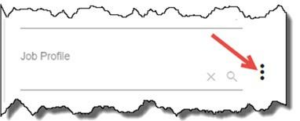
As a user enters information in the Filter Field, filters will autofill from available options; the user must select a filter item from the list to use the item as a filter. When a kebab is displayed to the left of the category, this indicates selections have been made for a category.
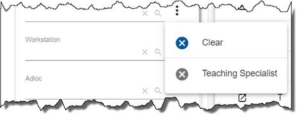
To display the selections that have been made, click the kebab.
Once the list is displayed, click the gray ‘x’ to the left of the selection to remove it; click the blue ‘x’ to clear all selections.
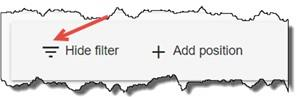
The display of the list of filter categories can be toggled by clicking the ‘Hide/Show filter’ icon.

Clicking the View button next to a position number displays the position details with a navigation bar on the left.
 |
Briefcase – List the sections of the position |
 |
Pie Chart – Displays the current costing as of the snapshot date |
 |
Triangle – History of when changes were made to the position and by whom |
 |
X – Closes the tab for this position |