Overview
Color contrast is the visual distinction between a foreground color (e.g., text) and a background color. This difference can be expressed as a color contrast ratio, ranging from 1:1 (no color contrast, such as white text on a white background) to 21:1 (maximum contrast, such as black text on a white background).
Table of Contents
Color Contrast Requirements
Our standard is WCAG 2.1 Level AA (Level AAA is not required) which means:
- All normal-sized text, including text inside images, must have a contrast ratio of at least 4.5:1.
- For large text, the contrast ratio must be 3:1. Large text is defined as at least 18 point (or 24px) regular text, or at least 14 point (or 18.5px) bold text.
- For graphical objects and user interface components, the contrast ratio must be 3:1. This includes buttons, menus, symbols, graphs, charts, and infographics.
To identify the color contrast ratio between two colors, we recommend you use (and bookmark) WebAIM’s Color Contrast Checker (no installation needed). This powerful yet easy-to-use tool that allows you to precisely analyze the color contrast ratio between two colors.
Note: Accessibility testing tools like WAVE Evaluation Tool and Lighthouse will detect many contrast errors on webpages. However, manually verifying contrast is still necessary, especially for text inside images, text on top of images, and graphical objects.
How to Use WebAIM’s Color Contrast Checker
- In your web browser (we recommend Google Chrome), navigate to WebAIM’s Color Contrast Checker.
- Select the Color Picker under Foreground (this is blue by default). Optionally, you may enter the Hex Value of the color you are checking.
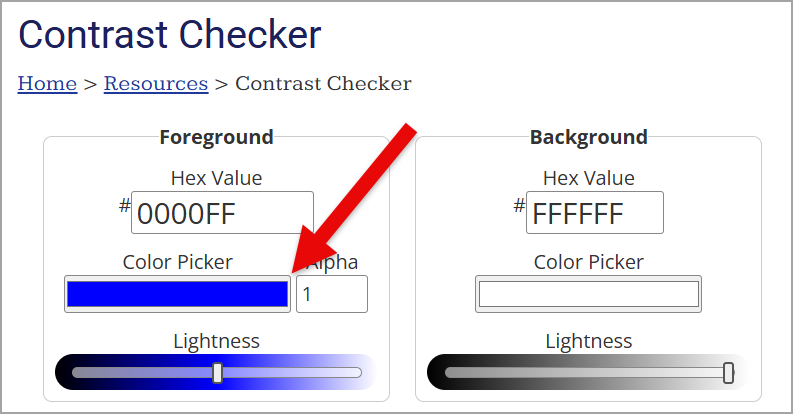
- Next, select the eye dropper icon. This will allow you to identify the precise color of any currently visible pixel on your display(s).
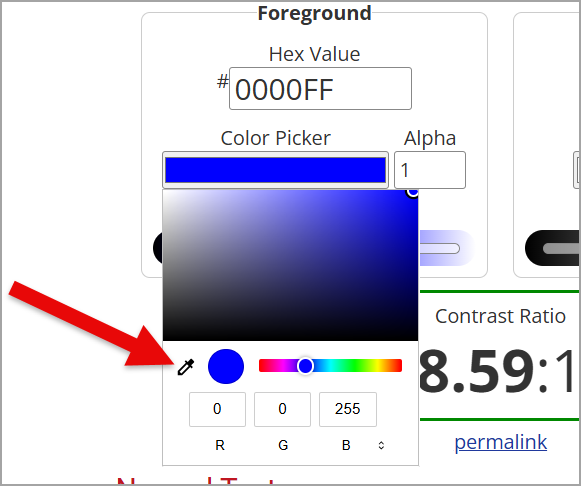
- Using the eyedropper, hover over and select the foreground color (e.g., text) you are checking.

- Next, repeat the process under Background. Use the eye dropper icon to select the background color.

Important: When text appears over gradients or images, the color contrast must meet requirements at all points. For example, in the below image, the color contrast between the white text and background must be 4.5:1 in all places. Therefore, the edges of each character need to be tested in various places (e.g., the “E” in “PAGE” and the dog’s white fur has only a contrast ratio of 1.45:1 in many places). Solutions for this example include adding a black border to the text, adding a heavy drop-shadow, and/or making the background image darker.
- Now analyze the Contrast Ratio and determine if it meets WCAG 2.1 Level AA (which they refer to simply as WCAG AA).
- All normal-sized text, including text inside images, must have a contrast ratio of at least 4.5:1.
- For large text, the contrast ratio must be 3:1. Large text is defined as at least 18 point (or 24px) regular text, or at least 14 point (or 18.5px) bold text.
- For graphical objects and user interface components, the contrast ratio must be 3:1. This includes buttons, menus, symbols, graphs, charts, and infographics.
- For example, Microsoft’s default red color (Hex Value #FF0000) and a plain white background (Hex Value #FFFFFF) only has a color contrast ratio of 3.99:1. For normal-sized text, this does not not meet WCAG AA! Therefore, the foreground color must be darker. The easiest solution is to choose a darker shade of red (e.g., Hex Value #C00000, which would have a color contrast ratio of 6.47:1).
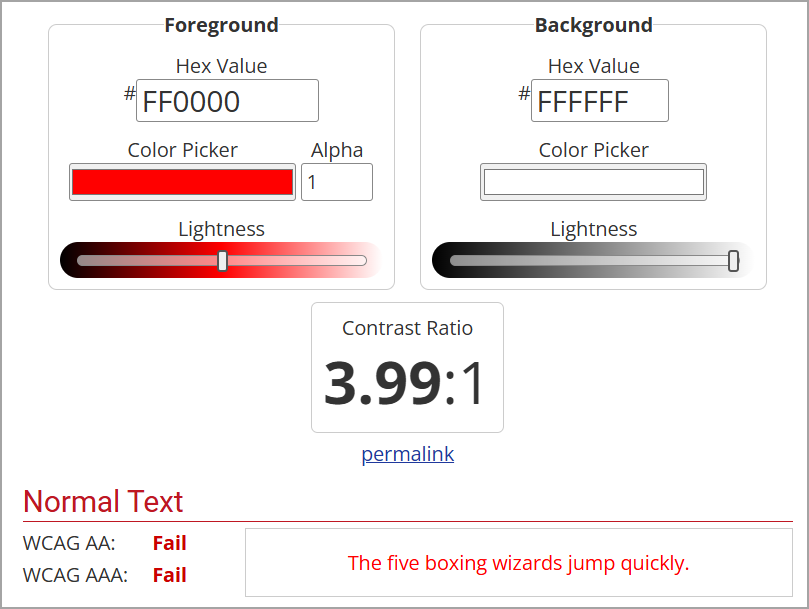
- For more information on WCAG conformance and examples, scroll down and examine Normal Text, Large Text, and Graphical Objects and User Interface Components. Again, the color contrast must pass WCAG AA (WCAG AAA is not required).
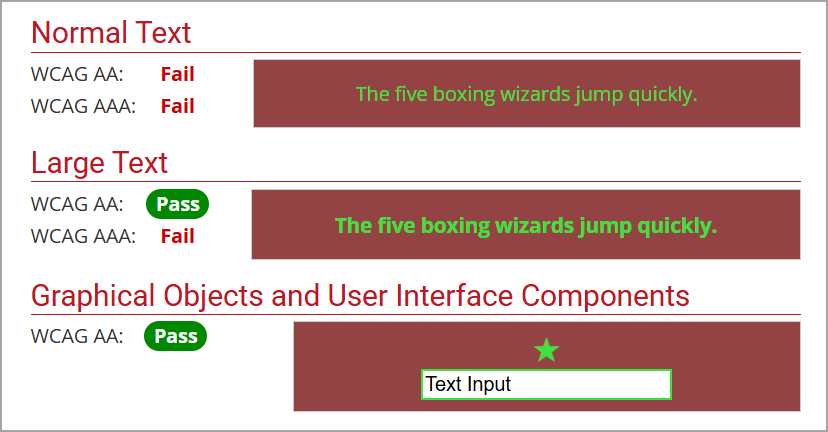
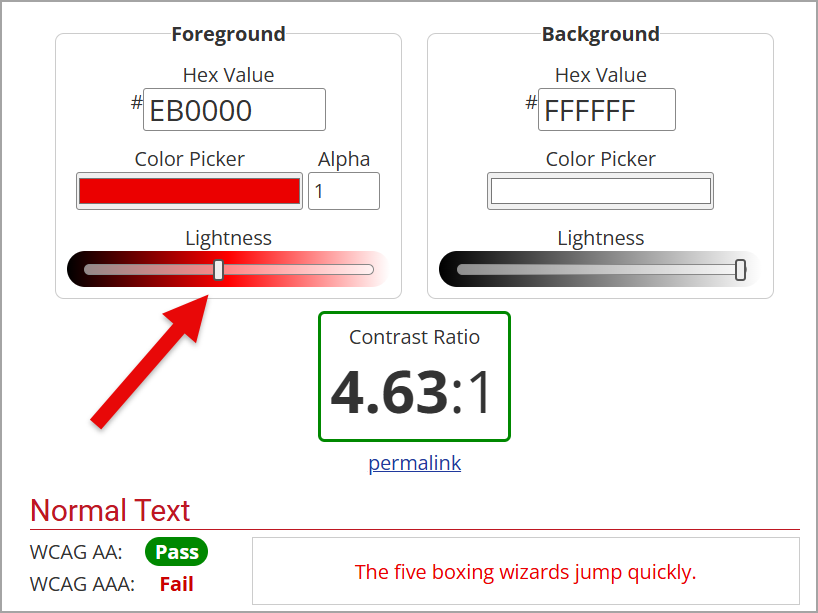
- If the contrast ratio is too low (i.e., fails WCAG AA), fix it by choosing a different foreground and/or background color. To identify better color combinations, use the Lightness sliders to adjust the perceived lightness of the color until WCAG AA changes from Fail to Pass (depending on the type of content). You may need to change the foreground color, the background color, or both in order to meet WCAG AA conformance.