
• Skip to primary navigation
  • Skip to main content
  • Skip to primary sidebar
Single Sign On Help
Logo, Texas A&M University System, Office of Information Technology
  • Home
  • Getting Started
  • Roles
  • Key Concepts
  • Security
  • FAQs
  • SSO News
    • Release Notes
  • Governance
  • Office of Information Technology
    • Services
    • Contact the Office of Information Technology
    • Search OIT
Home / Help System / Key Concepts / Administrator Navigation / Foreign Access / Adding an Exclusion

Adding an Exclusion

It is possible for an employee to access SSO from a blocked country on an exception basis. This is referred to as an exclusion and it can be created by an SSO Central Admin.

Each system member will have its own procedures of requesting and approving an exclusion.  The process for adding an exclusion for an employee is quite simple.

From the “Foreign Access”  tab, click the ‘Select Employee’ button to choose the employee that will receive the exclusion.

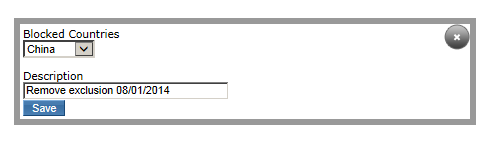
Click the ‘Add Exclusion’ button to open the blocked country selection box.
add_exclusion

Choose the blocked country to be excluded. An optional 35 character description may be added for reference.

Click the ‘Save’ button to finish adding the exclusion.

The “Exclusion List” tab will list all of the employees with exclusions for all of the workstations the SSO Central Administrator has access to.

Primary Sidebar

Contact

Find Your Support For SSO

Copyright © 2026 Texas A&M University System All rights reserved.

301 Tarrow Street, College Station, TX 77840 | MAP | Phone: (979) 458-7700 | email: support@tamus.edu
State of Texas | Texas Homeland Security | Texas Veterans Portal | Statewide Search | Risk, Fraud & Misconduct Hotline | Privacy | Web Accessibility | State Link Policy | Campus Carry

Texas A&M University System